

Running Hermes Agent locally is a straightforward way to build a private AI agent without relying on a cloud provider. By connecting Hermes to a local model, you get an agent that can use tools, automate tasks, remember previous work, and continue running even without an internet connection.
In this guide, you'll learn how to:
- Install Hermes Agent on your computer.
- Download and run a local AI model with Atomic Chat.
- Connect Hermes to a local OpenAI-compatible endpoint.
- Verify your configuration through the Hermes dashboard.
- Launch Hermes and start running tasks with a local model.
What is Hermes Agent?
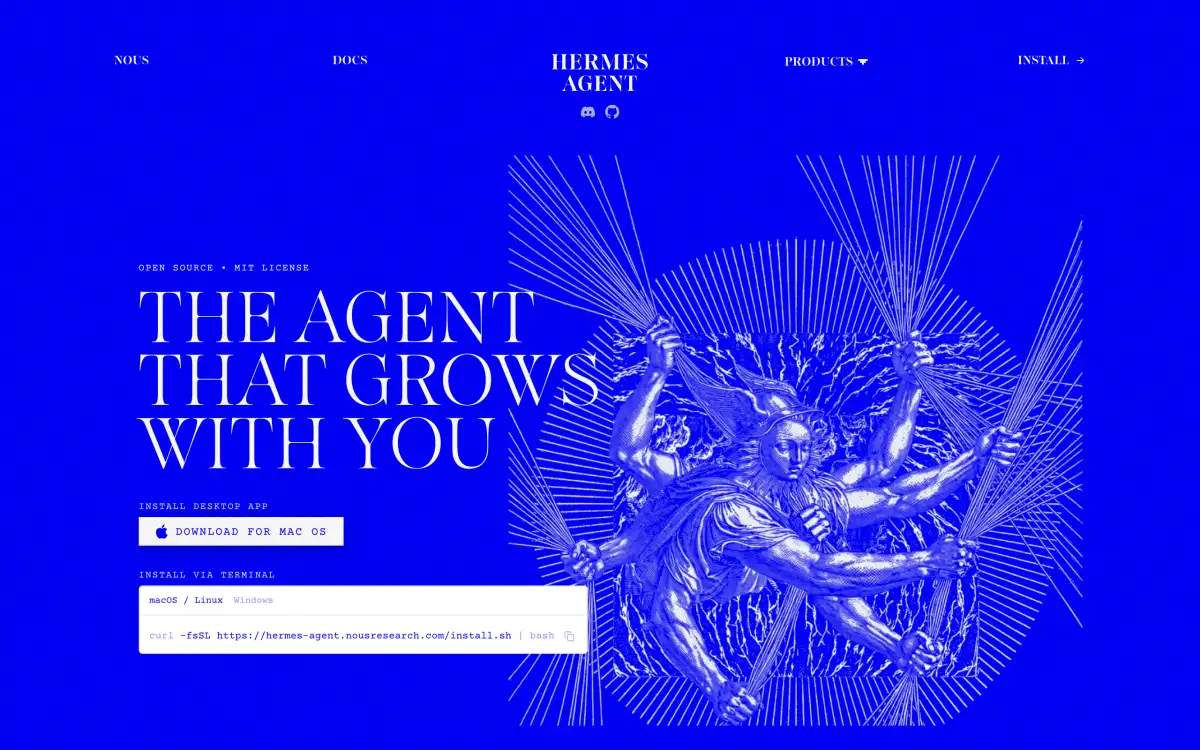
Hermes is an open-source, self-improving AI agent developed by Nous Research. It's an orchestration framework that connects AI models to tools, enabling them to plan, take actions, and iterate until a task or goal is completed.
Hermes builds on many of the ideas introduced in OpenClaw, adding a unique agentic loop that can generate reusable skills from completed tasks, refine them over time, and store notes in persistent memory so it can remember your projects and preferences across sessions. Hermes can also search its past conversations and schedule work to run automatically using a built-in cron scheduler.
The core idea behind Hermes is that it becomes more useful over time by accumulating memories, reusable skills, and context from previous work.
One of Hermes' biggest strengths is that it's model-agnostic. You can power it with cloud models through Nous Portal, OpenRouter, OpenAI, or any OpenAI-compatible API, or connect it to a local model server—which is exactly what we'll show you how to do in this article.
Why run Hermes Agent locally
Running an AI model locally to power Hermes has multiple advantages. Here are the main ones:
- Your data stays on your machine. Prompts, files, and responses never leave your system, so you're not sending them to a third-party provider.
- It costs nothing to use. Local models don't charge per token, so you can let Hermes work through long-running tasks without worrying about API costs.
- No rate limits. Running locally, your Hermes isn't limited by API quotas or request limits.
- It works offline. Once you've downloaded a model, Hermes can continue running without an internet connection.
- You choose the model. You're free to run whichever open model you want and switch to another whenever you like.
Setting up the environment
First, let's prepare everything we'll need to run the Hermes agent locally:
- The Hermes agent itself
- An inference engine for a local AI model
As an agent, Hermes doesn't run the model, instead, it acts as an orchestration layer that connects the model to outside tools and allows it to interact with your system.
Because of this, we'll need a local model server, which downloads, runs, and exposes a local model to Hermes. For the purpose of this walkthrough, we'll use Atomic Chat — a free, open source local AI app we've built. You can also use other apps for this job. Popular alternatives include Ollama, LM Studio, and Jan AI (see our roundup of the best local LLM apps for a comparison).
Hermes runs on macOS, Linux, and Windows, and Atomic Chat is available for all three, so this setup works on whichever you use. The screenshots below are from macOS. You won't need to install Python, Node, or any other dependency by hand, because the Hermes installer bundles its own copies of everything it relies on.
Step 1 — Install Atomic Chat and download a model
Atomic Chat downloads open models in GGUF format from Hugging Face and runs them on your machine, and it exposes them through a local server that Hermes can call.
To get started, download the Atomic Chat app from atomic.chat and open it.
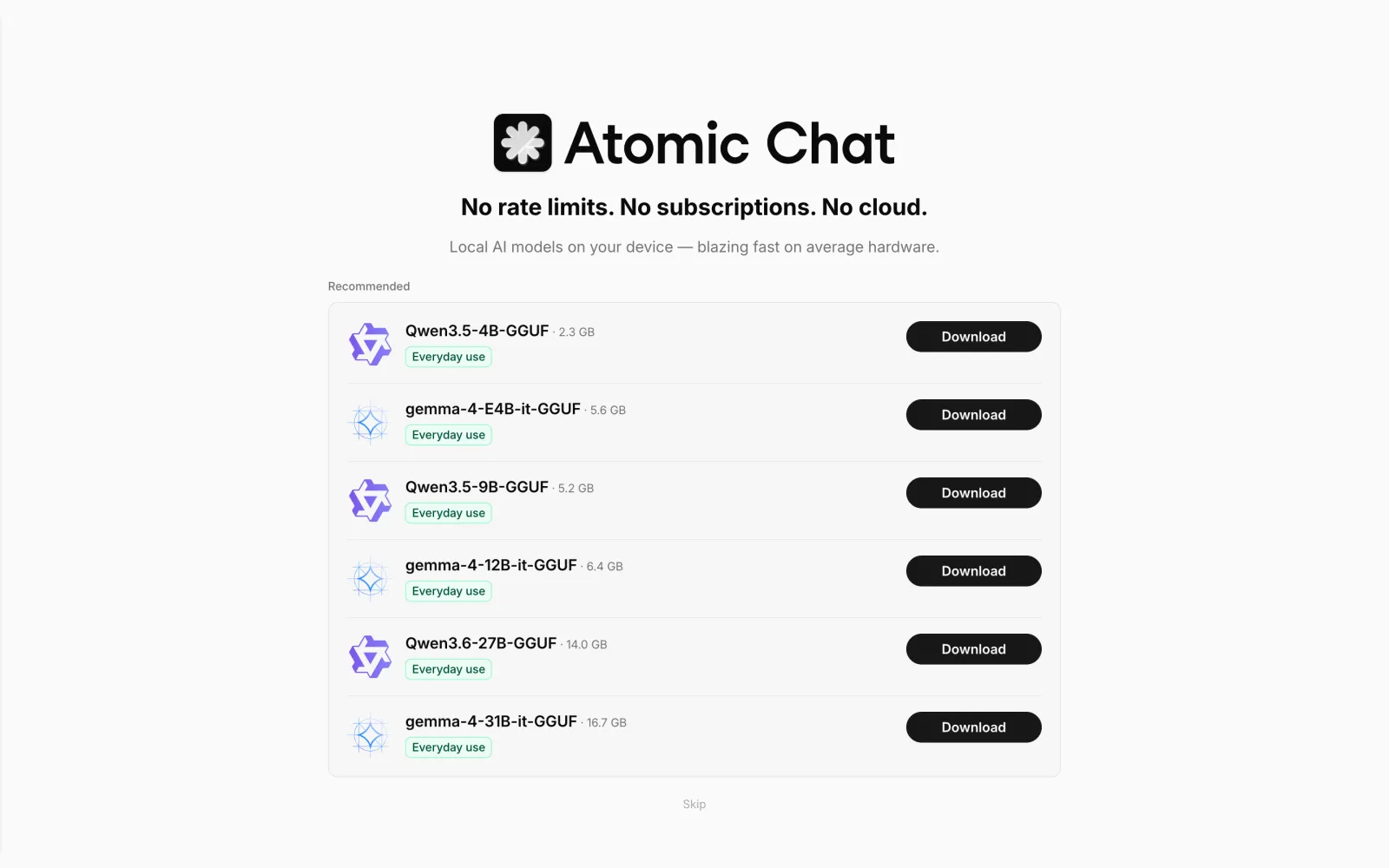
On first launch, Atomic Chat will suggest multiple models to start with — these models and quantization levels are recommended for your hardware, and as a rule of thumb you can pick one from this list.
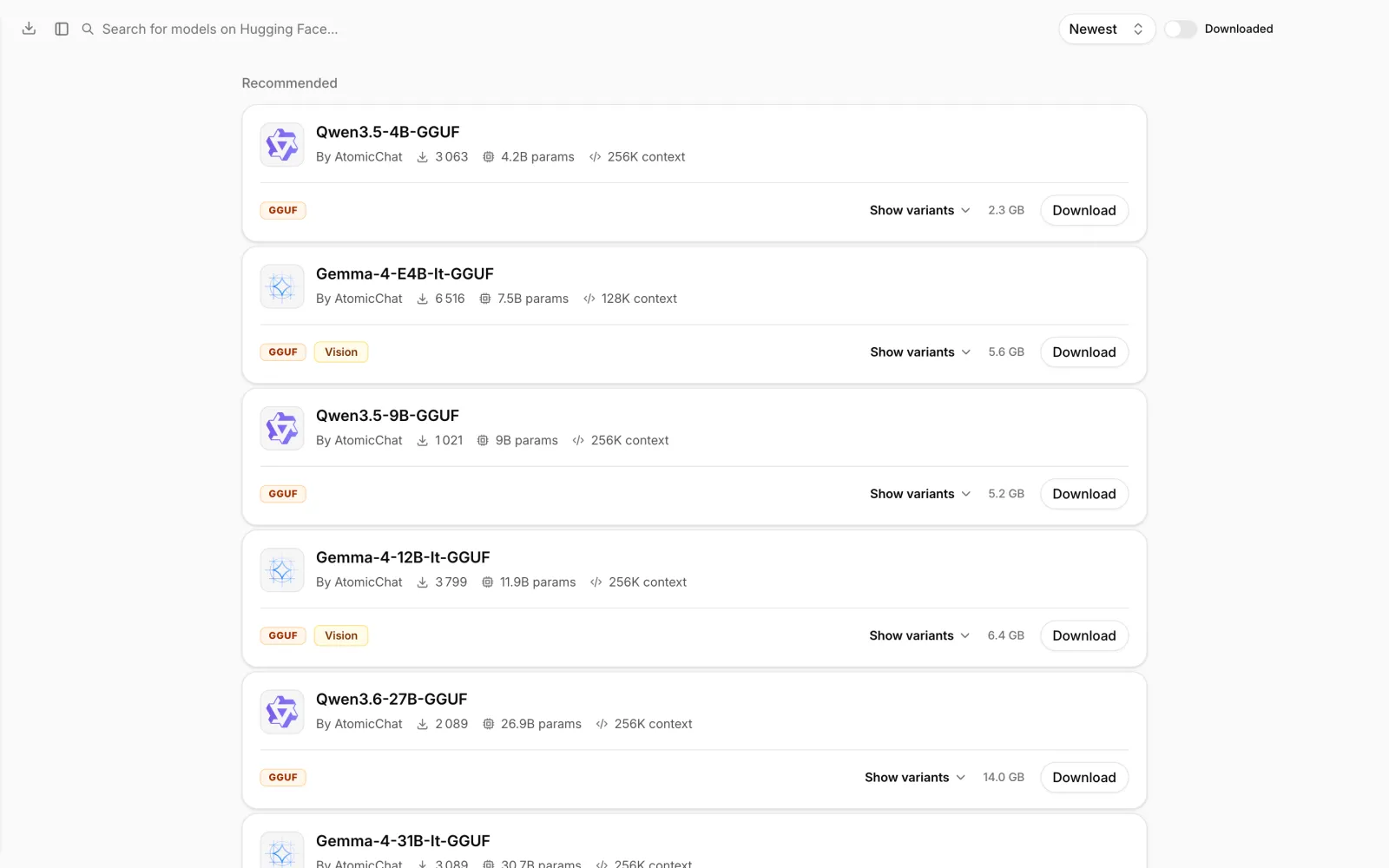
You'll always be able to download a new model using an integrated model browser accessible under Models. Choose a model and click Download.
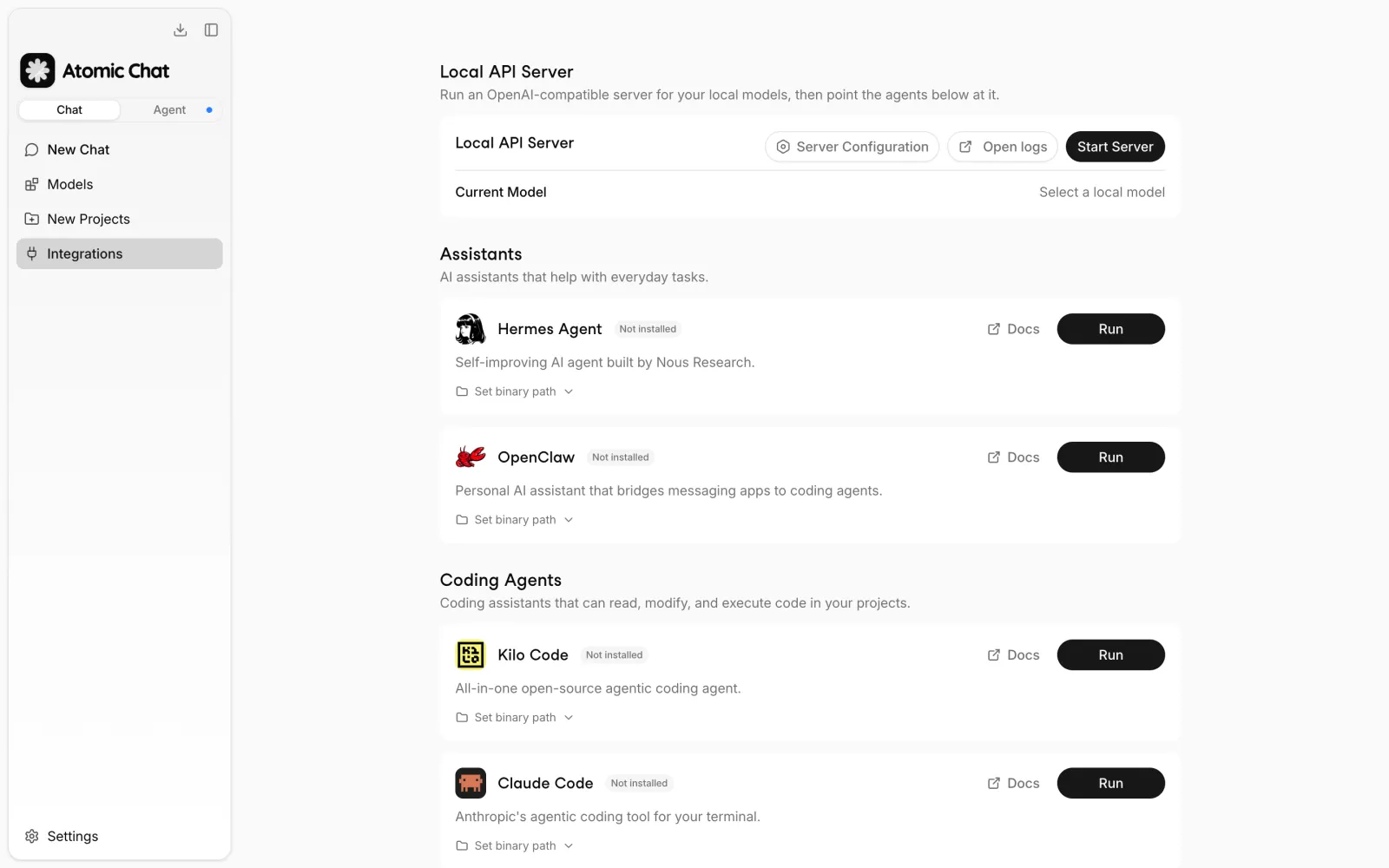
When the model downloads, open the Integrations tab and find the Local API Server panel at the top. The Local API Server exposes your model to Hermes by wrapping it in an OpenAI-compatible server.
Set your downloaded model as the current model and click Start Server. By default, the server runs on http://127.0.0.1:1337/v1 — remember this URL as you'll need it to connect Hermes to the model later.
Step 2 — Install the Hermes Agent
You can install Hermes by running the following command in the terminal:
curl -fsSL https://hermes-agent.nousresearch.com/install.sh | bash
We recommend using the installer as it will set up all dependencies automatically, including a managed copy of uv, Python 3.11, Node.js, ripgrep, and ffmpeg. It will also add the hermes command to your path.
Alternatively, you can download the GUI app version of Hermes from the Hermes Agent website.
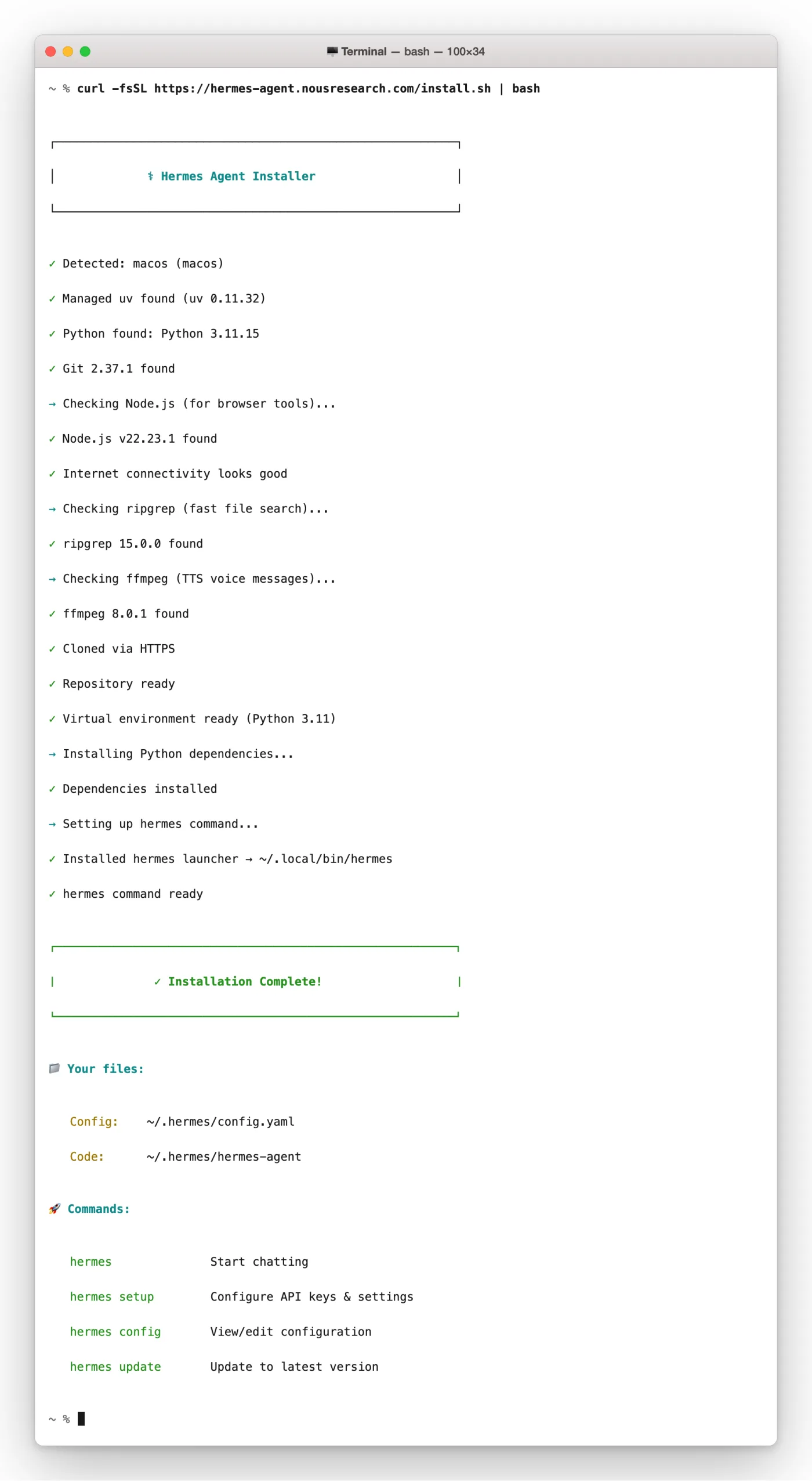
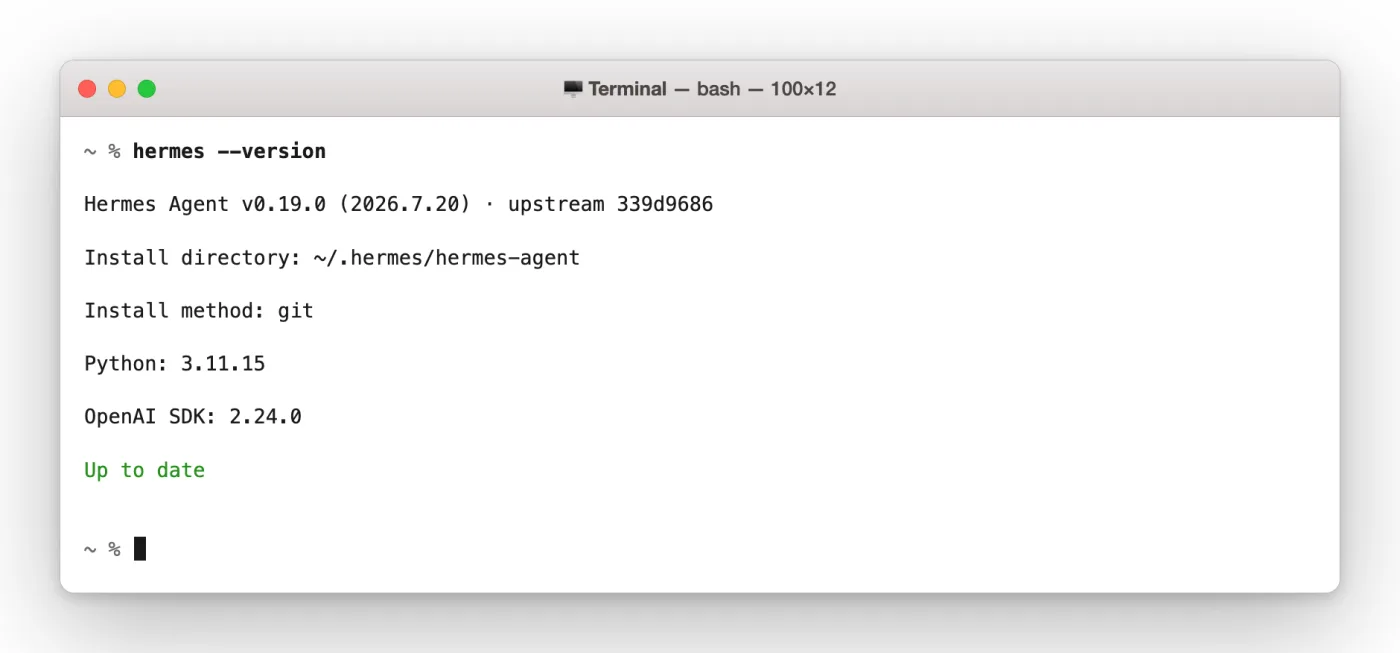
Reload your shell, then confirm the install:
hermes --version
Another easy way to install Hermes is through the Integrations tab directly in Atomic Chat. Find Hermes and click the Run button next to it. This will run this same installer for you, so you can set it up from inside the app if you prefer.
Step 3 — Point Hermes at your local model
With the server running your local AI model, point Hermes to use it. Hermes has a custom provider option, which allows you to add any OpenAI-compatible endpoint. Give it the address of Atomic Chat's local server:
hermes config set model.provider custom
hermes config set model.base_url http://127.0.0.1:1337/v1
hermes config set model.default atomic-chat-local
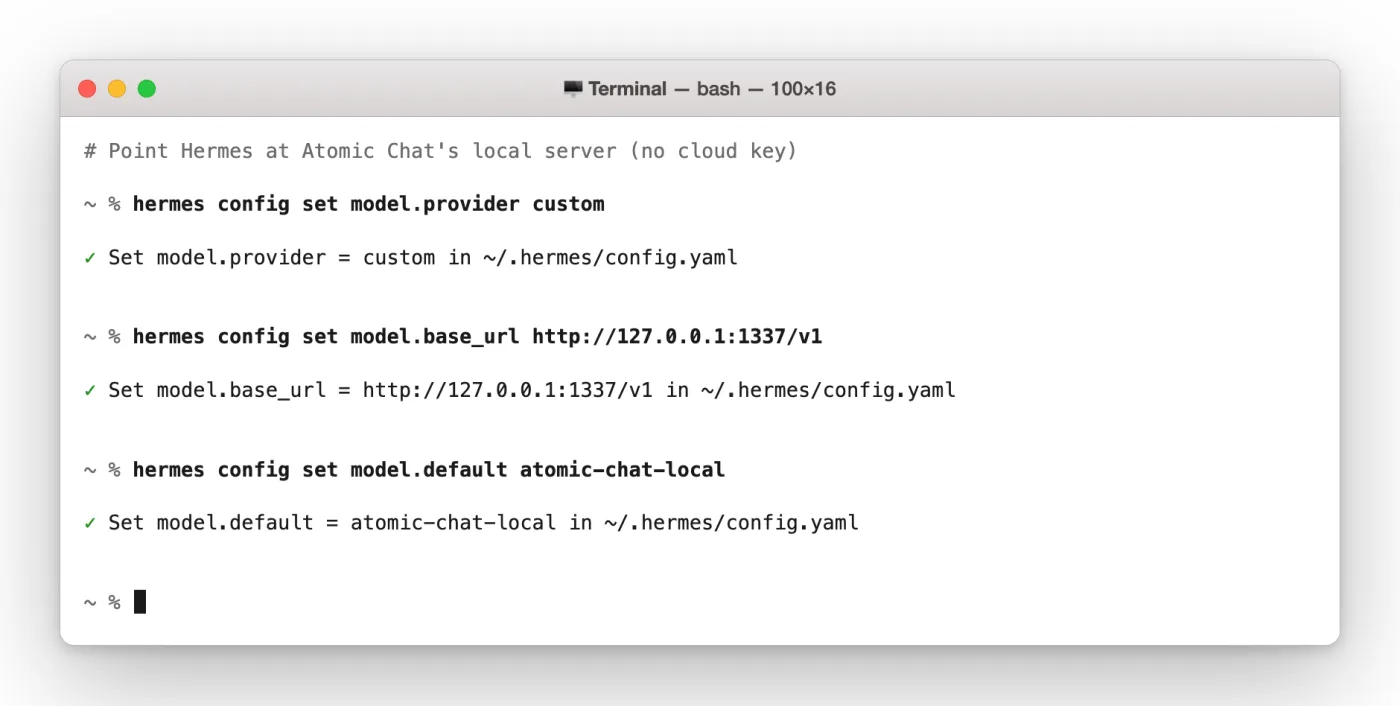
The model name is whatever the local server reports. You can check it with curl -s http://127.0.0.1:1337/v1/models. Hermes writes these settings to ~/.hermes/config.yaml, so they stick between sessions.
Step 4 — Manage Hermes from the dashboard
Hermes ships a web dashboard for managing config, sessions, and keys. Start it with:
hermes dashboard
If you've installed Hermes via the command line, you can open the dashboard by pasting http://127.0.0.1:9119 into your browser's address bar. If you've installed the GUI app version from the website, you can access the dashboard through the app. The dashboard contains your sessions, models, logs, cron jobs, and MCP servers.

The Config page is a good way to check the wiring from Step 3. Under General, the model now reads atomic-chat-local, which confirms Hermes is pointed at your local server.

Step 5 — Run Hermes on the local model
You're now ready to use the Hermes agent locally. Start the agent by running hermes with no arguments. The banner shows the active model, which reads atomic-chat-local · Nous Research. Type a message and Hermes answers using the local AI model:

Hermes Agent vs OpenClaw
If you've used OpenClaw before, you'll feel right at home with Hermes. It builds on the same core idea—an AI agent that can use tools and work through tasks on your behalf—but adds several features that make it more capable over time. (If you want to compare the two setups, we have a companion guide on how to run the OpenClaw agent locally.)
The biggest difference is Hermes' ability to generate and reuse skills. After completing a task, it can save parts of its workflow as reusable skills, refine them over time, and apply them to similar tasks in the future. It also includes persistent memory, allowing it to remember previous conversations, projects, and preferences across sessions instead of starting from scratch every time.
If you're already running OpenClaw, migrating is straightforward. The hermes claw migrate command imports your existing ~/.openclaw directory, including your configuration, memories, skills, and API keys. It also supports a dry run, so you can preview the changes before anything is written to disk.
Frequently asked questions
Common questions about running Hermes Agent locally with Atomic Chat.
What is Hermes Agent used for?
Hermes Agent is an open-source AI agent from Nous Research that can automate tasks using an LLM and a collection of tools. It can run from the command line, through its web interface, or through supported chat platforms such as Telegram, Discord, and Slack. Depending on the tools you enable, Hermes can run shell commands, work with files, browse the web, schedule recurring tasks, and automate multi-step workflows. It's model-agnostic, so you can connect it to cloud APIs or a local model running on your own hardware.
Is Hermes Agent free?
Yes. Hermes Agent is open source and released under the MIT license, so you can download, use, and modify it at no cost. If you run Hermes with a local model, there are no API fees. If you connect it to a paid provider such as OpenAI, OpenRouter, or Nous Portal, you'll pay whatever that provider charges for model access.
How much does Hermes Agent cost to run?
If you're using a local model, there are no per-token costs—only the cost of the hardware and electricity needed to run it. If you're using a hosted model, the cost depends on your provider. Services such as OpenAI and OpenRouter typically charge based on the number of input and output tokens your agent consumes, while other providers may use subscription or usage-based pricing. Running long or frequent agent workflows is generally much cheaper on a local model because there are no metered API charges.
What is the best local model for Hermes Agent?
Hermes works best with models that support tool calling, since it relies on tool use to complete most tasks. If you're using Atomic Chat, you can filter the model catalog to show models with tool-calling support. For most modern desktops and laptops, instruction-tuned models such as Qwen or Gemma in the 4B to 12B parameter range offer a good balance of speed, memory usage, and capability. Larger models generally produce better results, but they also require more RAM or VRAM.
Bottom line
Hermes makes it easy to run a capable AI agent on your own hardware, and pairing it with Atomic Chat means you don't need a cloud API to get started. Once your local model is running, Hermes can use it to automate tasks, call tools, maintain persistent memory, and build reusable skills—all while keeping your data on your own machine. As new open models become available, you can easily swap them into the same workflow without changing how Hermes works, making it a practical foundation for running AI agents locally.
Key takeaways
- Hermes Agent is model-agnostic and can run with either cloud APIs or local AI models.
- Running Hermes locally with Atomic Chat keeps your prompts, files, and conversations on your own machine.
- Atomic Chat exposes local models through an OpenAI-compatible API, making them easy to connect to Hermes.
- Local models eliminate per-token API costs, making long-running agent workflows free to use.
- Hermes supports tool calling, persistent memory, reusable skills, and scheduled tasks, allowing it to automate complex workflows.
- You can switch between supported local models without changing your Hermes workflow.
- Running Hermes locally gives you more privacy, lower operating costs, and full control over your AI agent.