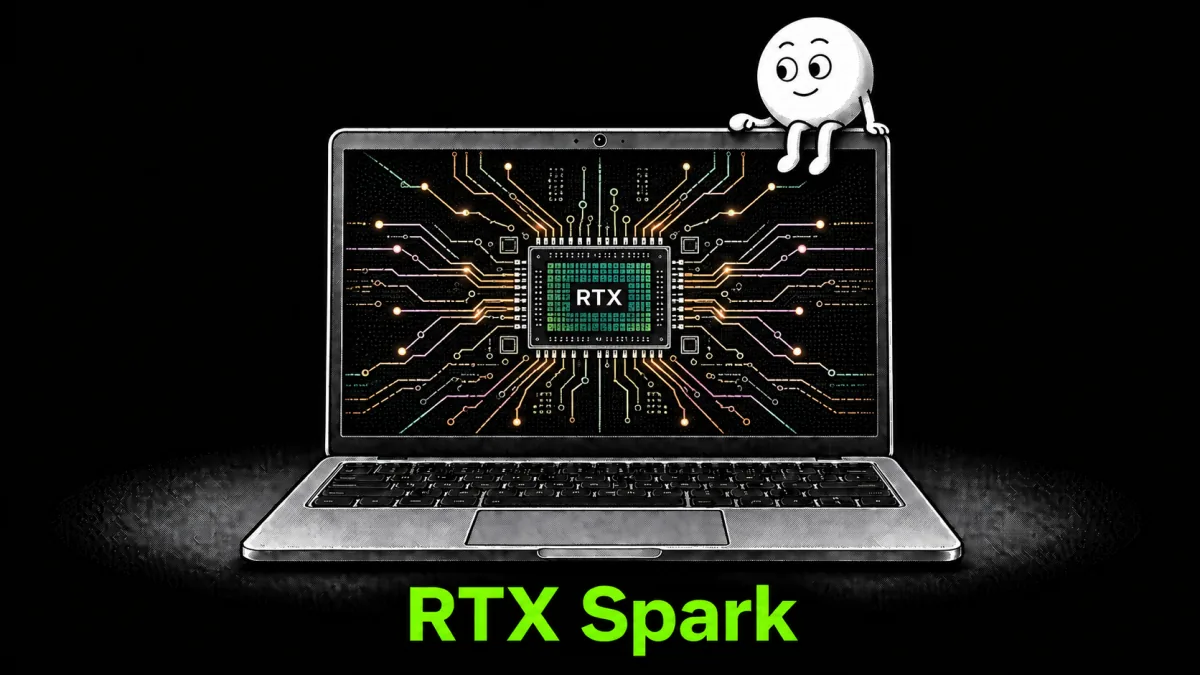

RTX Spark is a Windows PC platform with NVIDIA Blackwell RTX acceleration, a Grace CPU and the NVIDIA AI software stack. It's built for personal agents, AI-powered creation, development and gaming.
RTX Spark can also serve a loaded model to other apps through Atomic Chat's OpenAI-compatible API. The guide covers local chat, the API connection and image generation.
Download Atomic Chat
Download the latest Atomic Chat release for Windows ARM64 and install it on your RTX Spark.
Download a chat model
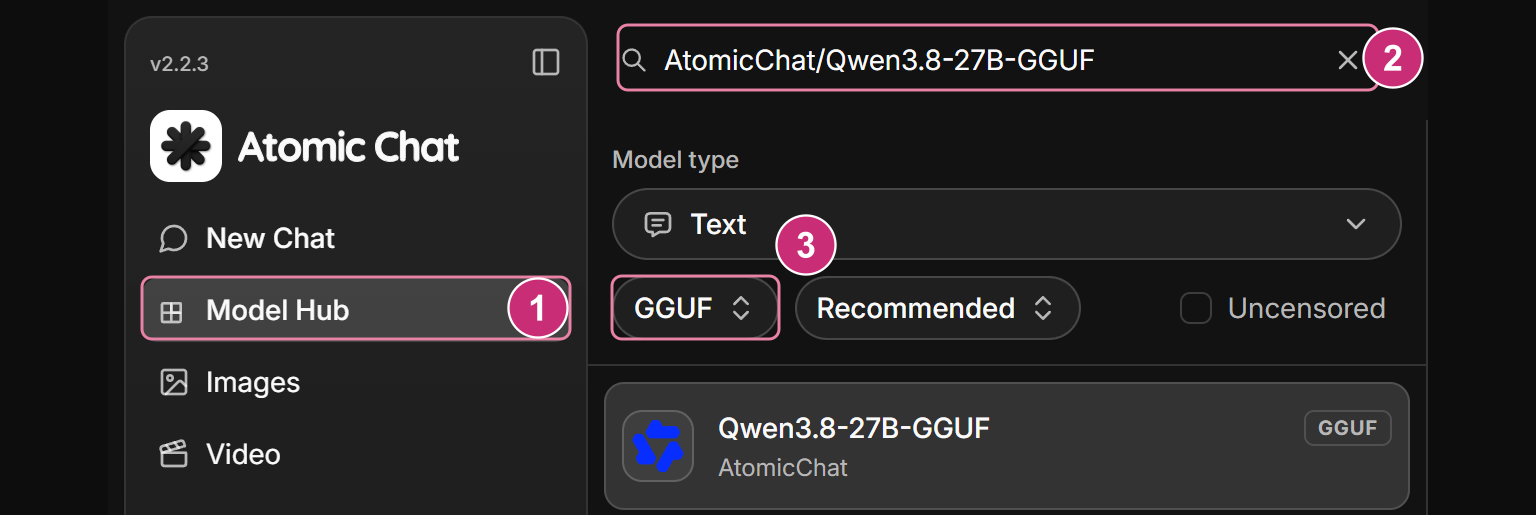
- Open Model Hub in the sidebar and select Text models.
- Search for a model and use the format filter to choose GGUF or another compatible format.
- For GGUF models, choose a build under Download Options. Select Download and wait for it to finish.

Check compatibility and the memory requirement for the exact build in Model Hub before downloading. Our GGUF guide explains how to choose a build.
Start a local chat
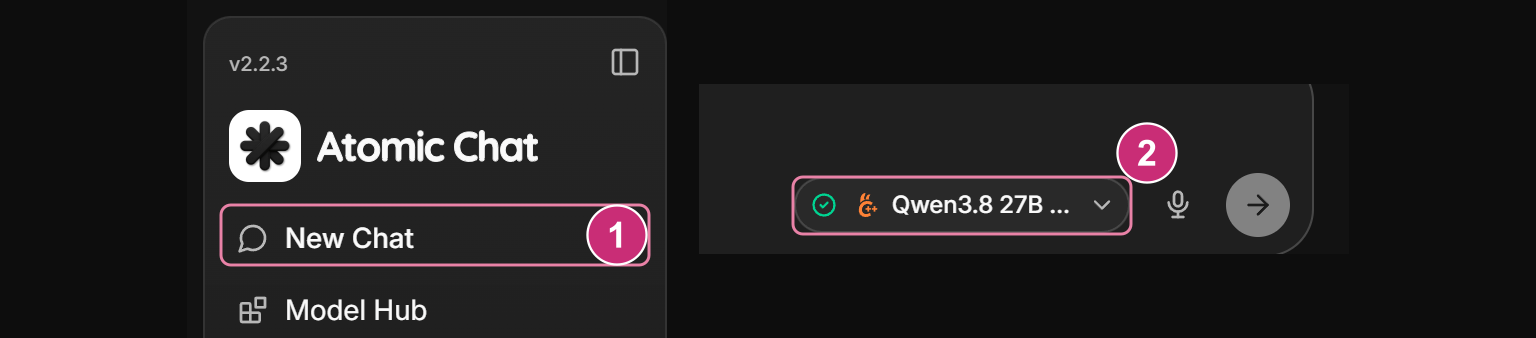
- Select New Chat in the sidebar.
- Choose your downloaded model in the model selector.
- Enter a message and send it. The model answers locally on RTX Spark.
Try this prompt:
Plan three product photos of a silver desk lamp for a design magazine. Return a table with two columns, Shot and Camera, and keep each row under 12 words.
NVFP4 support
Atomic Chat supports compatible NVFP4 checkpoints.
NVFP4 is NVIDIA's 4-bit floating-point format for model weights and activations.
Check compatibility and the memory requirement for the exact NVFP4 checkpoint in Model Hub before downloading.
Use the Local API Server
The Local API Server exposes your loaded chat model through an OpenAI-compatible endpoint.
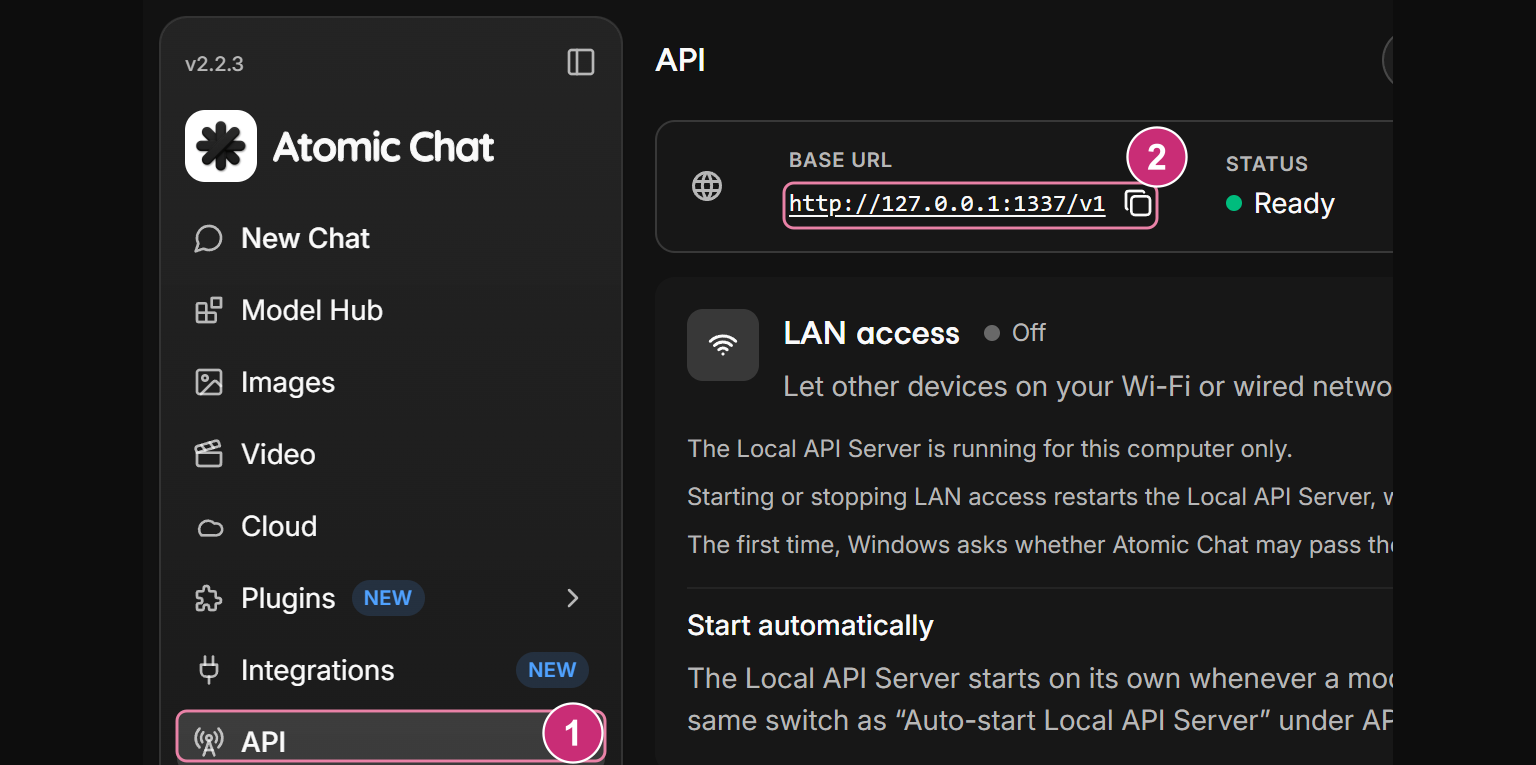
- Keep a chat model loaded and select API in the sidebar.
- Select Start server if it is stopped, then check Status: Ready.
- Copy the Base URL shown by the app. In your API client, use the exact loaded model ID returned by /models.
- If authentication is enabled, use the API key configured in Atomic Chat.
For an API client on the same RTX Spark, use these settings:
| Field | Value |
|---|---|
| Base URL | Copy the Base URL shown in Atomic Chat |
| Model ID | The exact loaded model ID returned by /models |
| API key | Your configured key, when authentication is enabled |
| Chat endpoint | /chat/completions, appended to the Base URL |
Send a short request and check that the model returns a reply. Keep the model loaded and the server running while using the endpoint.
Media generation on RTX Spark
The media engine also supports local video generation.
Generate images
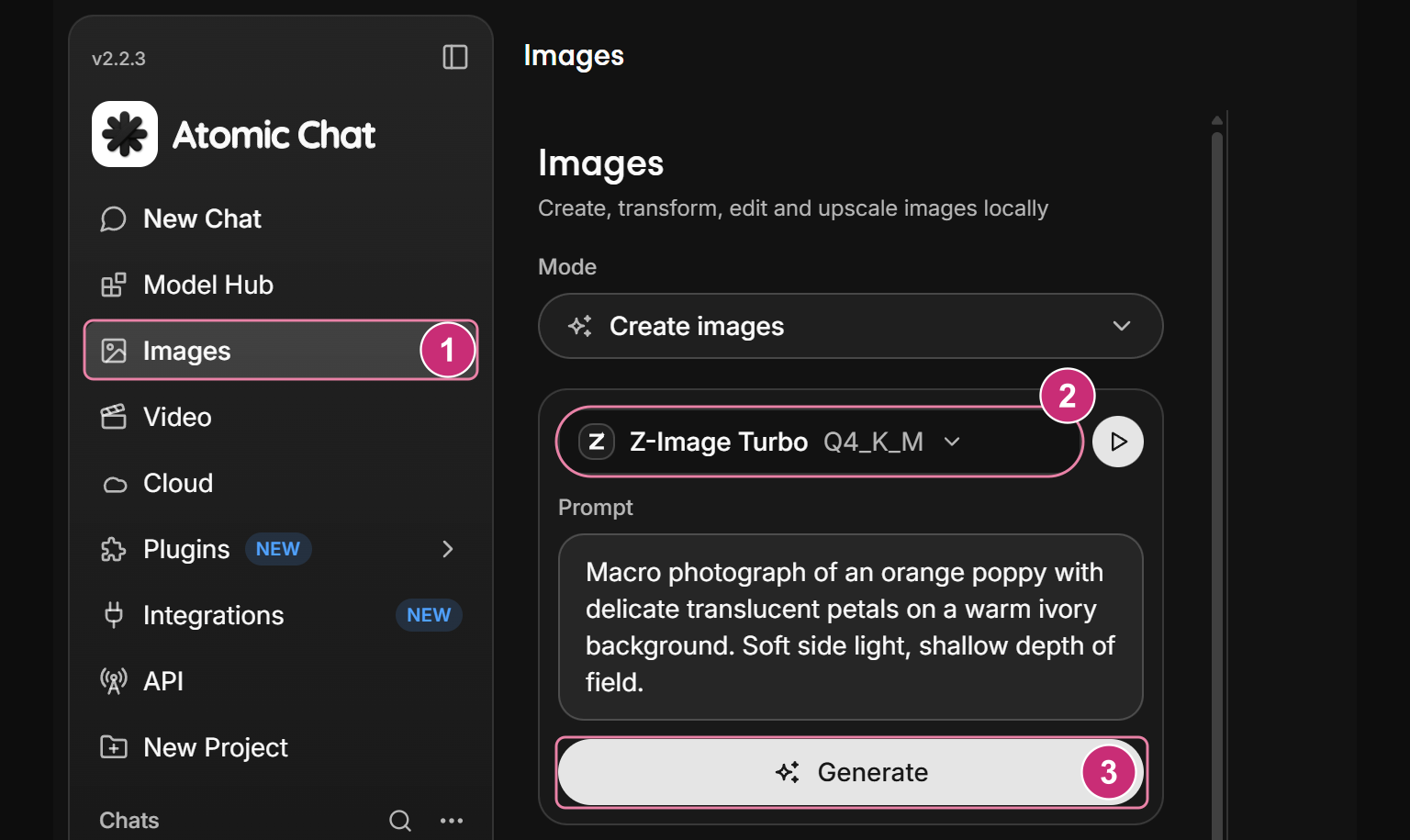
- Select Images in the sidebar.
- Select Download model and choose a compatible image model. Wait for the download to finish.
- Set Mode to Create images.
- Open the model selector above Prompt and choose your downloaded model.
- Enter a Prompt describing the image you want, then select Generate.
- Open the result's Details to view its settings. Use Save as… to save the image.
For other models, see our local AI image generator guide.
Frequently asked questions
Does Atomic Chat run on RTX Spark with Windows?
Yes. Use the Windows ARM64 build for RTX Spark.
Which model formats can I use?
Choose a compatible GGUF build in Model Hub. Atomic Chat also supports compatible NVFP4 checkpoints.
How do I choose a model that fits?
Check compatibility and the memory requirement for the exact build in Model Hub. A compatible format can still exceed available memory.
Can another app use the local model?
Yes. Use the Local API Server's Base URL and the exact model ID returned by /models, with the configured API key when authentication is enabled.
Can I generate images on RTX Spark?
Yes. Download a compatible image model in Images, then use Create images with your prompt and select Generate.