
In this guide, you'll learn:
- What Bolt E4B changes from Gemma 4 E4B
- What the official GGUF needs on disk and in memory
- How to run it with NVIDIA's llama.cpp CUDA setup
For the wider Gemma lineup, see our guide to running Gemma locally.
What is Nemotron 3.5 Bolt E4B?
NVIDIA released Nemotron 3.5 Bolt E4B on October 23, 2026. It started with Google's Gemma 4 E4B-it and trained it further for conversational assistants, with a focus on following instructions across multiple turns. You can download the open weights in full precision or use NVIDIA's Q4_K_M GGUF.
| Specification | Nemotron 3.5 Bolt E4B |
|---|---|
| Developer | NVIDIA |
| Base model | Google Gemma 4 E4B-it |
| Parameters | 8B total, 4B effective |
| Architecture | Gemma 4 E4B |
| Context window | 65,536 tokens |
| Official GGUF | Q4_K_M |
| Documented GGUF interface | Text input and text output |
| Reasoning | Can be enabled or disabled through the chat template |
| Release date | October 23, 2026 |
| License | OpenMDW-1.1 |
E4B means 4 billion effective parameters. The model contains about 8 billion parameters in total, and the official GGUF takes 6.18 GB on disk. The memory you need to run it is a separate figure, which we'll cover in the hardware section.
NVIDIA also tests image and audio understanding in its technical report. To use those features, you'll need a runtime that supports them and the corresponding model components. The official GGUF instructions cover text chat, so that's what we'll set up here.
Nemotron 3.5 Bolt E4B benchmarks
NVIDIA tested Bolt against Gemma 4 E4B-it, Qwen3.5 4B and Nemotron 3 Nano 4B using the same NeMo Gym evaluation setup. Its full-precision results compare the original BF16 checkpoints:
| Benchmark | Bolt E4B | Gemma 4 E4B-it | Qwen3.5 4B | Nemotron 3 Nano 4B |
|---|---|---|---|---|
MultiChallenge Multi-turn instructions | 53.10 | 42.08 | 51.76 | 35.30 |
RoleBench Custom Roleplay quality | 67.05 | 49.95 | 53.66 | 12.02 |
EQ-Bench v3 Emotional understanding | 39.40 | 41.17 | 32.92 | 19.31 |
BFCL-v3 Function calling | 68.51 | 66.39 | 70.95 | 61.10 |
Tau2-Bench Conversational tools | 55.10 | 38.50 | 75.06 | 29.20 |
IHEval Instruction hierarchy | 84.79 | 67.04 | 60.57 | 51.31 |
RULER (64K) Context retrieval | 86.99 | 86.55 | 95.15 | 91.51 |
LongBench v2 (48K) Long-context reasoning | 50.50 | 49.34 | 59.93 | 31.40 |
In this selection, Bolt gains most over its Gemma base on roleplay and on IHEval, which tests how a model resolves conflicting instructions. Qwen3.5 4B leads on tool use and retrieving information from long inputs.
For the files you'd run locally, NVIDIA also published a Q4_K_M comparison. Bolt uses NVIDIA's imatrix-calibrated conversion; the Gemma and Qwen files come from Unsloth, as described in the technical report.
| Benchmark | Bolt E4B | Gemma 4 E4B-it | Qwen3.5 4B | Nemotron 3 Nano 4B |
|---|---|---|---|---|
MultiChallenge Multi-turn instructions | 55.60 | 39.36 | 52.23 | 34.53 |
RoleBench Custom Roleplay quality | 71.21 | 60.51 | 52.35 | 10.86 |
EQ-Bench v3 Emotional understanding | 38.15 | 39.77 | 32.07 | 19.45 |
BFCL-v3 Function calling | 67.31 | 65.03 | 70.56 | 59.07 |
Tau2-Bench Conversational tools | 52.32 | 38.72 | 61.74 | 14.89 |
IHEval Instruction hierarchy | 82.40 | 66.61 | 62.87 | 53.75 |
RULER (64K) Context retrieval | 85.76 | 86.14 | 95.37 | 91.31 |
LongBench v2 (48K) Long-context reasoning | 48.67 | 45.70 | 58.28 | 37.42 |
NVIDIA enabled reasoning except on RoleBench Custom, EQ-Bench v3 and RULER. Higher is better in every row. For RoleBench Custom, GPT-5.5 compares each model's answers with a fixed Gemma 4 E4B-it reference in both answer orders. Each score is that model's win rate against the reference. EQ-Bench uses a rubric score. These Q4_K_M results apply to the files NVIDIA evaluated.
Try Bolt for a chat assistant that needs to follow your instructions from one message to the next. For calling tools or finding information in long documents, compare it with Qwen3.5 4B on the same inputs. Gemma 4 E4B-it keeps a small lead on EQ-Bench v3 in both tables.
Nemotron 3.5 Bolt E4B GGUF downloads
Start with NVIDIA's official GGUF repository. You need the main Q4_K_M file for text chat. NVIDIA also provides an optional DFlash drafter in a separate companion repository:
| File | Publisher | Size on disk | Use |
|---|---|---|---|
| Nemotron-3.5-Bolt-E4B-Q4_K_M.gguf | NVIDIA | 6.18 GB | Main model for this guide |
| Nemotron-3.5-Bolt-E4B-DFlash-BF16.gguf | NVIDIA | 0.737 GB | Optional speculative-decoding drafter |
The sizes above use decimal GB from the file lists. The server command below uses only the main model.
If you want another precision, Unsloth publishes its own Bolt E4B GGUFs. Check the filename and size before downloading: its collection differs from NVIDIA's single Q4_K_M build, and NVIDIA's benchmark scores don't cover the whole collection. Our GGUF guide explains the quantization names if you're choosing between files.
Nemotron 3.5 Bolt E4B hardware requirements
The GGUF takes 6.18 GB on disk, while the running process needs host RAM and GPU memory. As you chat, the runtime also stores conversation data in a KV cache. The 4GB suffix is NVIDIA's deployment target, so don't use it as a total RAM requirement for your computer.
The setup below uses Linux with an NVIDIA GPU that Docker can access through CUDA. NVIDIA's desktop reference machine has an RTX 5070 with 12 GB of VRAM. Start with an 8,192-token context and check memory use before increasing it; we use that as a first-run setting rather than a measured hardware minimum.
How much memory does the context window add?
In NVIDIA's RTX 5070 measurements, peak GPU memory rises from 3.5 GB for a short prompt to 4.3 GB when the workload includes 32K cached tokens:
| RTX 5070 workload | Cached tokens | New input tokens | Output tokens | Peak GPU memory |
|---|---|---|---|---|
| Short | 0 | 3K | 50 | 3.5 GB |
| Longer | 32K | 2K | 256 | 4.3 GB |
NVIDIA didn't measure the full 65,536-token window or total host RAM in this table.
Keep room for the operating system and other apps, and allow extra disk space for the CUDA container image. An 8 GB computer leaves little headroom around a 6.18 GB file and its runtime; our 8 GB local-model guide covers smaller alternatives.
NVIDIA's measured throughput
NVIDIA measured Q4_K_M through llama.cpp CUDA at batch size 1, using AIPerf. These performance results use the short workload from the table above:
| Hardware | Peak GPU memory | Time to first token | Generation |
|---|---|---|---|
| RTX 5070, 12 GB | 3.5 GB | 548 ms | 133.4 tokens/s |
| RTX Spark, 32 GB | 3.1 GB | 930 ms | 67.0 tokens/s |
| Jetson Orin Nano, 8 GB | 4.2 GB | 5,785 ms | 15.5 tokens/s |
| Jetson AGX Orin, 32 GB | 4.2 GB | 3,687 ms | 24.0 tokens/s |
The RTX 5070 starts replying in about half a second and generates 133.4 tokens per second in this test. On the Jetson Orin Nano, the first token takes almost six seconds. If you're choosing a device for an interactive assistant, check that first-token delay alongside generation speed.
For a Mac, compare the options in our 16 GB Mac guide and check support in the runtime you plan to use. NVIDIA's CUDA figures don't predict Apple Silicon performance.
Nemotron 3.5 Bolt E4B compatibility with Atomic Chat
Atomic Chat is our local AI app with a Hugging Face model browser. We haven't verified Bolt E4B running in the app, so use NVIDIA's llama.cpp CUDA setup below for text chat.
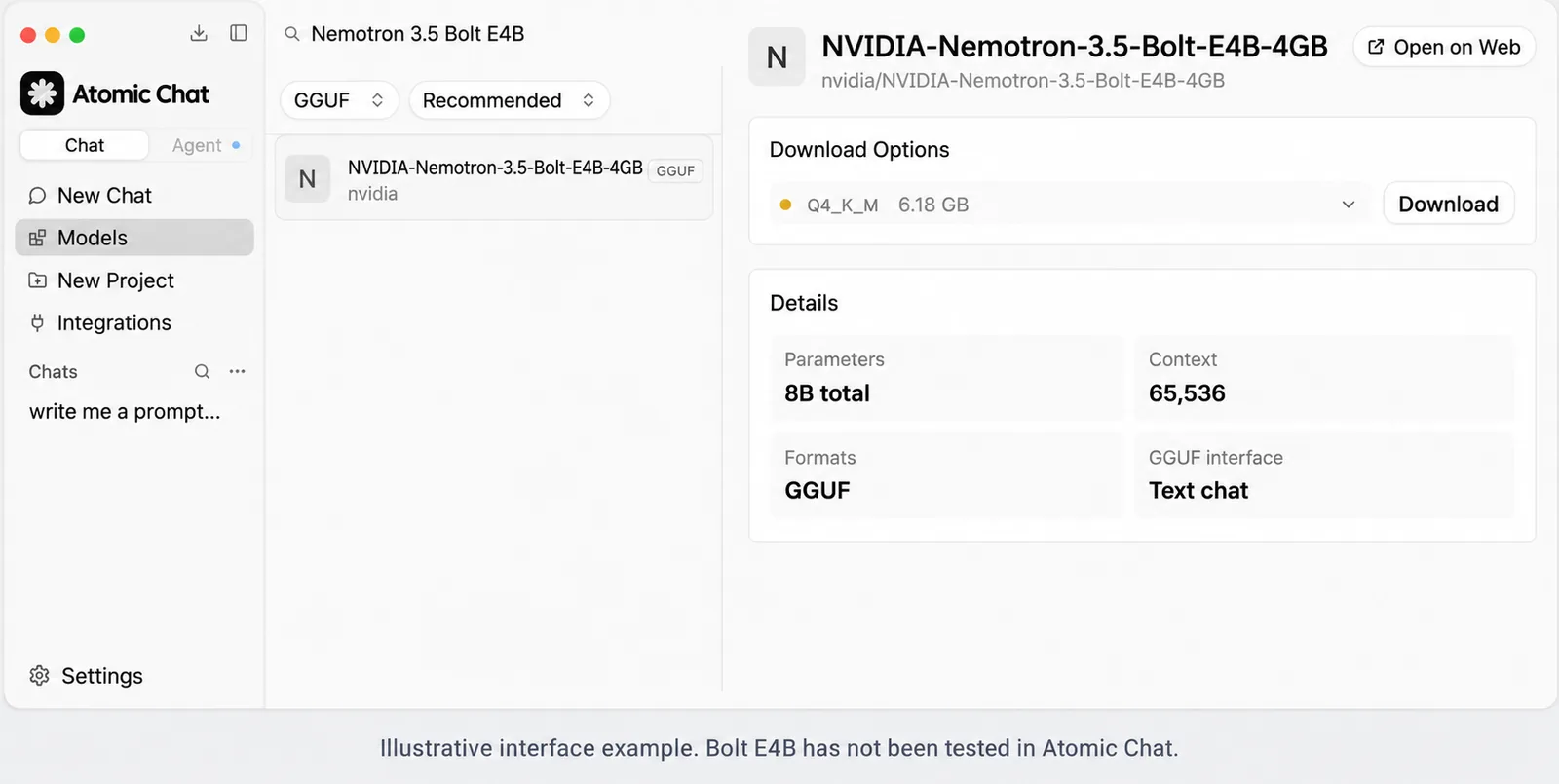
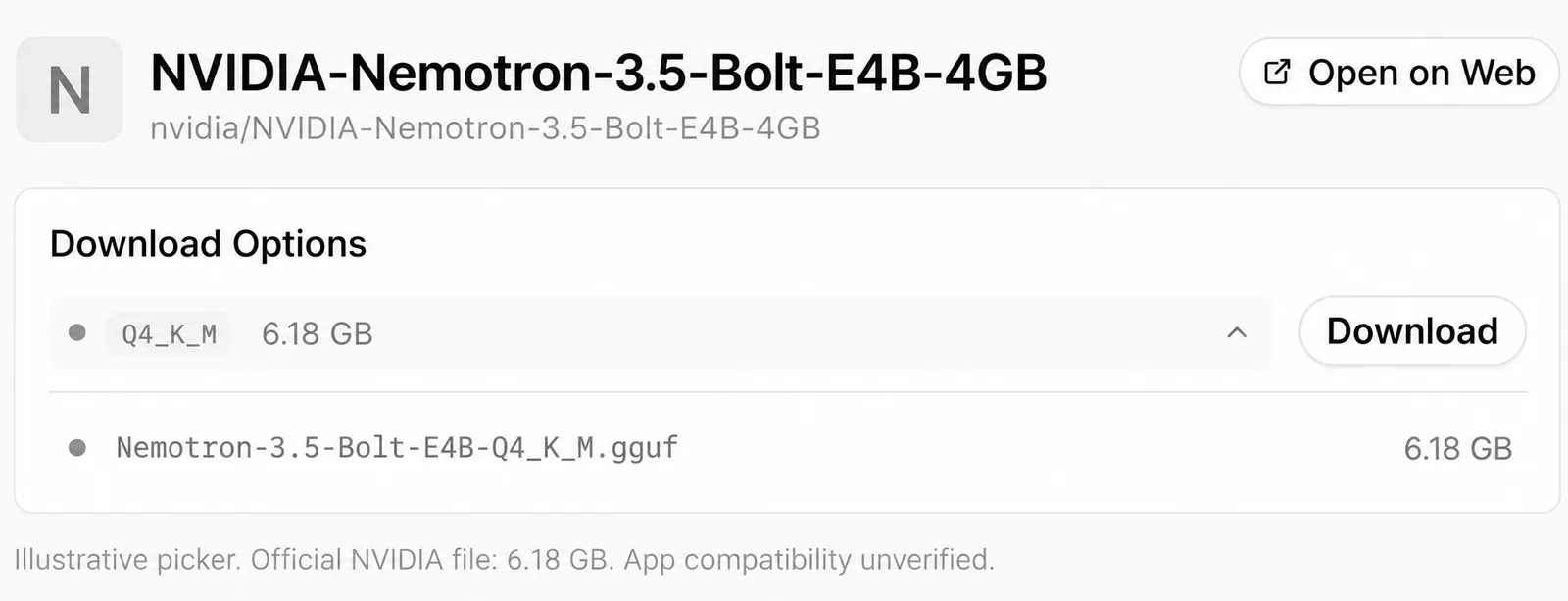
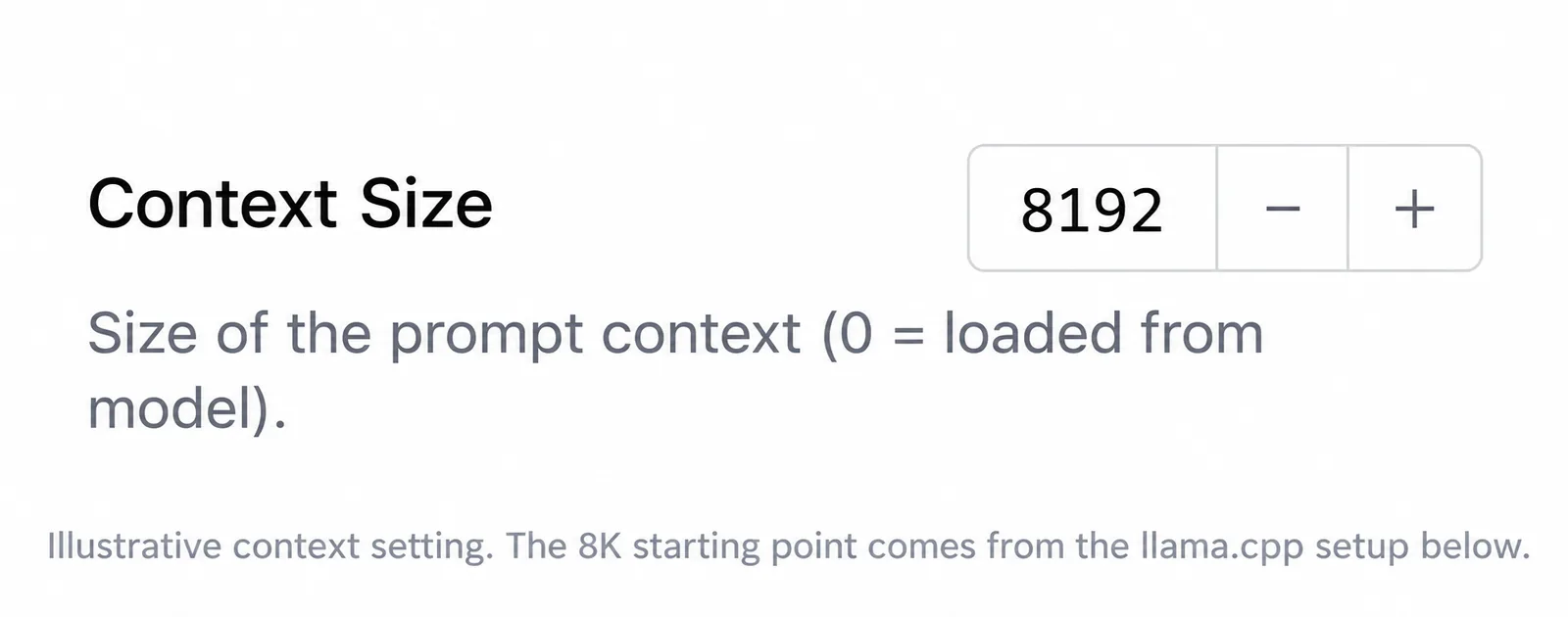
The search and picker examples adapt screenshots from earlier Atomic Chat guides. The Context Size field is a redrawn illustration. They show the controls to look for, rather than a completed Bolt E4B run; your app may look different.
Check the NVIDIA listing
Search the model browser for NVIDIA-Nemotron-3.5-Bolt-E4B-4GB. If you get a result, check that the publisher is nvidia and the repository name matches. If you can't find it, continue with the Linux and NVIDIA CUDA setup below.
Check the main GGUF
Open Download Options if the listing offers it, then look for Nemotron-3.5-Bolt-E4B-Q4_K_M.gguf at 6.18 GB. The smaller DFlash file is an optional drafter; you'll still need the main model.
Context and sampling
NVIDIA recommends temperature 1.0 and top_p 0.95. We use those values in the server command below, with context set to 8,192 tokens.
How to run Nemotron 3.5 Bolt E4B with llama.cpp
NVIDIA's quick start runs llama.cpp in a CUDA container. The command below uses the same version, with an 8,192-token context instead of 65,536. It also keeps the server accessible only from your own computer.
Step 1: Download the GGUF
You need Docker with NVIDIA GPU access and the Hugging Face hf command. If you haven't set those up, follow NVIDIA's Container Toolkit instructions and the Hugging Face CLI guide first. Then download the main file:
hf download nvidia/NVIDIA-Nemotron-3.5-Bolt-E4B-4GB \
  Nemotron-3.5-Bolt-E4B-Q4_K_M.gguf \
  --local-dir ./bolt-models
Step 2: Start the local server
Run this from the same directory so Docker can find the bolt-models folder you just created:
docker run --rm --gpus all \
  -p 127.0.0.1:8000:8000 \
  -v "$PWD/bolt-models:/models:ro" \
  ghcr.io/ggml-org/llama.cpp:server-cuda13-b11459 \
  -m /models/Nemotron-3.5-Bolt-E4B-Q4_K_M.gguf \
  --alias nemotron-bolt \
  --host 0.0.0.0 --port 8000 \
  -c 8192 -ngl 999 --jinja \
  --temp 1.0 --top-p 0.95
Docker gives the container read-only access to your model folder. The server listens on port 8000 inside the container, and you can reach it at 127.0.0.1:8000 on your computer. Other machines can't connect through that host binding.
Step 3: Send a chat request
Once the server finishes loading, open another terminal and send it a short question:
curl --fail-with-body -sS \
  http://127.0.0.1:8000/v1/chat/completions \
  -H 'Content-Type: application/json' \
  -d '{
    "model": "nemotron-bolt",
    "messages": [
      {"role": "user", "content": "What is 17 multiplied by 23?"}
    ],
    "temperature": 1.0,
    "top_p": 0.95,
    "max_tokens": 512,
    "chat_template_kwargs": {"enable_thinking": false}
  }'
Look for 391 in the response. We turn thinking off for this check so the model can spend its output budget on the answer. To enable reasoning for your next request, set enable_thinking to true. NVIDIA also offers conversational_mode, a separate template flag for concise replies suited to spoken interaction.
Adding the optional DFlash drafter
NVIDIA's card has the companion download and draft-dflash flags. Add the drafter once the basic server responds. Allow for the extra file on disk and its runtime state in memory.
Running it with Ollama or LM Studio
Check that your installed version supports this exact checkpoint and its chat template before importing the GGUF into Ollama or LM Studio.
Troubleshooting
Docker cannot access the NVIDIA GPU
Check the host's NVIDIA driver and Container Toolkit configuration first. The toolkit instructions include a GPU test; get that working before changing the model command.
The model runs out of memory
Start with the explicit 8,192-token context from the command and close other GPU apps before trying again. If loading still fails, reduce context or move some layers to the CPU, keeping an eye on host RAM use. CPU offload changes speed too, so you'll need to measure your setup rather than use NVIDIA's CUDA figures.
The answer contains template or reasoning markers
Keep --jinja in the command so llama.cpp uses the checkpoint's chat template. Send enable_thinking inside chat_template_kwargs, as shown above. If you use another client, check that it passes that field through; otherwise, toggling thinking there won't reach the model.
The server responds, but tools do not run
The model can ask to call a tool, but your client has to execute the function and send the result back. Try that round trip with a harmless function before connecting it to an agent workflow.
Frequently asked questions
The questions that come up most often about running Bolt E4B on your own hardware.
Is Nemotron 3.5 Bolt E4B a 4B or 8B model?
Both numbers describe it: NVIDIA reports 8B total parameters and 4B effective parameters. E4B refers to the effective size. For storage, use the actual file size: NVIDIA's Q4_K_M GGUF is 6.18 GB.
Does Bolt E4B need only 4 GB of RAM?
Don't use 4 GB as your computer's total RAM requirement. NVIDIA measured peak GPU memory as low as 3.1 GB on the RTX Spark short workload, but the host also needs RAM to load and run the model. The 4GB name refers to NVIDIA's deployment target.
Can I run it on an 8 GB Mac?
We haven't tested that setup. The 6.18 GB file leaves little room for macOS and runtime memory in an 8 GB shared-memory system. You'll also need a different installation route, since the CUDA command in this guide requires an NVIDIA GPU.
Is Bolt E4B better than Qwen3.5 4B?
In NVIDIA's Q4_K_M comparison, Bolt leads on MultiChallenge and IHEval, while Qwen leads on Tau2-Bench and LongBench v2. Try Bolt for multi-turn instruction following, and compare Qwen on tool use or long-document tasks.
Can Bolt E4B understand images or audio?
Yes. NVIDIA tests both in its technical report, though it reports some regression in vision after post-training. This guide follows the GGUF card's text-chat setup. To add images or audio, you'll need a supported multimodal runtime and the corresponding model components.
How do I turn thinking off?
Send "enable_thinking": false inside chat_template_kwargs, as shown in the chat request above. NVIDIA recommends temperature 1.0 and top_p 0.95 with thinking on or off.
Does Bolt E4B work with Ollama or LM Studio?
Check support for the exact checkpoint and template in your installed version. NVIDIA provides instructions for the llama.cpp CUDA setup above. A model appearing as a GGUF download doesn't tell you whether your app's engine can load it.
Can I use Bolt E4B commercially?
Yes. NVIDIA releases it under OpenMDW-1.1 for commercial and non-commercial use. If you redistribute it, include the license and applicable notices. Read the license terms before packaging it with an app.
Bottom line
If you want to try Bolt as a local conversational assistant, download NVIDIA's Q4_K_M file and start with an 8K context in the llama.cpp CUDA setup above. For long-document retrieval, compare Qwen3.5 4B on the same inputs before settling on Bolt.
Key takeaways:
- Bolt E4B contains 8B total parameters, with 4B effective.
- The official Q4_K_M file takes 6.18 GB on disk.
- Start at 8K context and check memory use before increasing it.
- Bolt leads Qwen3.5 4B on IHEval in NVIDIA's Q4_K_M results.
- The server gives you a local OpenAI-compatible chat endpoint.