
In this guide, we'll explain how to run an LLM locally on your computer or Mac, how to choose a model, and show a step by step setup so you can run AI locally in just a few steps for free. If you've ever wondered how to run AI locally without touching the command line, this is for you. Let's dive in.
TL;DR
To run an LLM locally, you need to install a local-AI app like Atomic Chat, download the model weights to your hard drive from Hugging Face via the in-app model browser, and that's it — you can start chatting right away. The video below shows the entire setup process:
If you've been wanting to run AI privately, offline, and for free but terminal/code was the blocker this is for you.
— Alok (@analogalok) June 30, 2026
Stop using ChatGPT for everything. Run the SAME quality models on your own laptop. for free, forever, with zero terminal commands.
I just recorded a full… pic.twitter.com/zE7CHCp9tD
To get the most out of local AI you need to understand a few points — for example, how to select the right model on your system. So let's talk about that, as well as some other things that will help you to get started.
What does running an LLM locally mean?
Running an LLM locally means downloading the entire model weights to your system and running it directly on your own hardware instead of a company's cloud server.
- When you run the model locally, the inference, in which the AI receives a prompt and generates a response, takes place directly on your GPU or CPU (though GPU is strongly preferred).
- When you interact with the cloud model, this step takes place on a company's server, for example, in an OpenAI database — and you don't have control over how your personal data is handled or how the conversation gets logged.
To be clear, a local LLM is just an open-weight model packaged in a file you can download.
Companies like Meta, DeepSeek, and Mistral, and even OpenAI, have released their own versions of open-weights models.
There are hundreds of open source models you can choose from, and you can browse some of the most popular ones here.
Under the hood, two things make this work. The first is the model file itself, usually in a format called GGUF, which stores the model's weights in a compressed, quantized form so a multi-billion-parameter model fits on a normal drive. The second is an inference engine — the program that loads those weights and does the math of generating text. Apps like Atomic Chat bundle the engine and the file management together, so all you see is the chat window.
Quantization is the trick that makes local models practical. It shrinks the model's numbers from full precision down to 4 or 5 bits each, which cuts the file size and memory use by roughly three-quarters with only a small hit to quality.
Why run an LLM locally?
There are many reasons why you might want to run an LLM locally, and here are the most important ones:
Your data stays on your device. A local model never sends your prompts to a server, which is the main advantage — an offline LLM is completely private. Conversely, in the case of cloud AI, companies often log conversations and use that data for model training. This practice has already led to leaks of personal data.
Local LLM is free forever. Since the weights are open source and come with full usage rights, you can officially use the model for free without paying any kind of subscription or one time payments, all without usage caps.
Local LLM works even offline. Perhaps the biggest advantage is the always-on access to your personal chatbot, which will work anywhere you need to work: during a commute, on a plane, or if your local internet is down.
Local LLM opens doors to infinite customizations. This is not for everyone, but with a local model you can choose a specific model for your task, and fine tune it even further to make it as efficient for your work as possible.
This all sounds great, but are there local AI limitations?
Well, everything comes at a cost and in the case of local AI the cost is the level of performance of local models — the models we're used to interacting with in cloud services such as GPT 5.5 or Opus 4.8 are extremely heavy and personal hardware can't run them.
So, if you have 16 or 32 GB of VRAM or unified memory, you will need to choose a heavily compressed or a smaller model, which doesn't offer the same level of performance as the flagships.
We'll talk about how to select the right model for your hardware later in the article.
What can you do with a local LLM?
You might be wondering — can a local LLM do everything that a cloud one can? The answer is yes — especially if we're talking about text-generation models.
Here's what you can do with a local LLM:
- Chat with AI offline. The most straightforward application is the offline AI chat — with an open model like gpt-oss, you can effectively run ChatGPT locally, with no account and no internet.
- Work with documents and local data. Many local AI apps including Atomic Chat support RAG, which lets the model read and answer questions from the files on your hard drive. Not only is this private with a local LLM, but it also works with minimal setup and lets the model load any file it needs from your hard drive or dedicated folders on demand, without you having to open a file browser each time.
- Code. Especially the latest generation of local models are great for coding. For more details, see our roundup of the best local LLMs for coding.
- Run local agents. Local models expose a local API that the model can use to execute scripts, call functions, or connect to tools through the Model Context Protocol (MCP).
So what are some of the things that local models can't do?
- Generate videos and high-quality images — this requires very powerful hardware
- Also, not all local models can understand media like images, videos, and audio files, though some can
What hardware do you need to run an LLM locally?
To run an LLM locally, you need a powerful GPU and enough disk space to fit the model weights. The best hardware to run local models is:
- NVIDIA or AMD GPU: A model that fits entirely in the card's VRAM runs many times quicker than on a CPU.
- Apple Silicon Mac (M1 or newer): unified memory is shared between the CPU and GPU, making this the best non-NVIDIA option.
- CPU only: a model can run on a CPU, but it will be slow even for small models.
The table below maps common machines to what they can run:
| Your machine | Comfortable model size |
|---|---|
| Laptop, no GPU, 8 GB RAM | Up to ~3B |
| Laptop or 8 GB GPU, 16 GB RAM | Up to ~8B |
| 16 GB GPU or 32 GB Mac | Up to ~14B |
| 24 GB GPU or 64 GB Mac | Up to ~32B |
A good rule of thumb is to keep about twice the model's file size free in memory — so, to run a 5 GB model you need roughly 10 GB of VRAM or unified memory once you account for the context window and the operating system.
Remember that your operating system and open apps already use system resources, so a 16 GB machine doesn't have a full 16 GB to give the model.
You also need disk space for the download, which ranges from about 2 GB for a small model to 40 GB-plus for a large one.
Understanding quantization
There's a way to make larger models more runnable, and that's through a concept called quantization.
Quantization reduces the precision at which the numbers that make up a model's weights are stored. As a result, the file becomes smaller, and the model uses less memory. This comes with a slight drop in quality.
Basically, it's like a jpeg compression of a RAW file.
Most models have different quantization levels — they're usually labeled Q2 through Q8. Lower number means higher compression.
The table below shows how the same Llama 3.1 8B model changes size across levels:
| Quantization | File size | Quality |
|---|---|---|
| Q2_K | ~2.6 GB | Low — noticeable quality loss |
| Q4_K_M | ~4.6 GB | Balanced — the popular default |
| Q5_K_M | ~5.7 GB | High |
| Q8_0 | ~7.7 GB | Near-lossless |
| FP16 (unquantized) | ~15 GB | Full quality |
Because quantization changes the file size, it also changes what hardware the model runs on:
| Llama 3.1 8B version | Memory needed (~2×) | Runs on |
|---|---|---|
| Q2_K (~2.6 GB) | ~6 GB | Most laptops, even without a GPU |
| Q4_K_M (~4.6 GB) | ~10 GB | An 8 GB GPU or 16 GB Mac |
| Q8_0 (~7.7 GB) | ~16 GB | A 16 GB GPU or 32 GB Mac |
| FP16 (~15 GB) | ~30 GB | A high-end GPU or 32 GB-plus Mac |
As a rule of thumb, the Q4 quantization level is recommended as it compresses the file enough to make a model more runnable but doesn't impact the performance severely. Essentially, it's a very high quality lossy compression setting.
What's more, Atomic Chat automatically selects the right quantization level for your machine when you download a model, so you get the best version your hardware can run automatically.
Quantization is a pretty complex topic and we've just skimmed the surface of it, so if you want to learn more, read our guide on GGUF vs MLX which explains how formats and quantization affect speed in more detail.
How to choose a local model
When choosing a local model, there are two things to keep in mind:
- The size
- The provider
Size is the most important. When it comes to it, we always recommend undersizing — meaning, choose a model that your system leaves enough headroom for to run comfortably.
For example, if you have an M Pro macbook with 16 GB of memory, start with a 7–8B model. You can even try running a 3B model if that gets too slow.
In reality, working with AI is all about iterating and the faster you can iterate, the more work you'll get done. Plus, the latest generation models are very capable even at a small size.
When it comes to family, open-weight models come from different providers, and each has strengths:
- Llama (Meta) and Qwen (Alibaba) are strong all-rounders for chat and general use.
- DeepSeek R1 is a reasoning model built for math and coding. To run it, follow our step-by-step guide on how to run DeepSeek locally.
- gpt-oss is OpenAI's open-weight family, with that familiar GPT feel. We cover the 20B and 120B versions in how to run gpt-oss locally.
To get started, we recommend one of these models based on your hardware:
| Your hardware | Recommended model |
|---|---|
| Laptop, no GPU, 8 GB RAM | Llama 3.2 3B |
| 8 GB GPU or 16 GB Mac | Llama 3.1 8B |
| 16 GB GPU or 32 GB Mac | Qwen 3 14B |
| 24 GB GPU or 64 GB Mac | Qwen 3 32B |
You can browse the full catalog on the Atomic Chat models page.
How to run an LLM locally in Atomic Chat
The easiest way to run an LLM locally is by using an offline AI app that allows you to browse the full catalog of Hugging Face (the biggest hub of local AI models with over 1000 different options) and download and get started with one automatically.
We've built Atomic Chat, a free, open-source app, exactly for this reason — it lets anyone run a local LLM without setup.
Here's how you can run an LLM locally in Atomic Chat step by step:
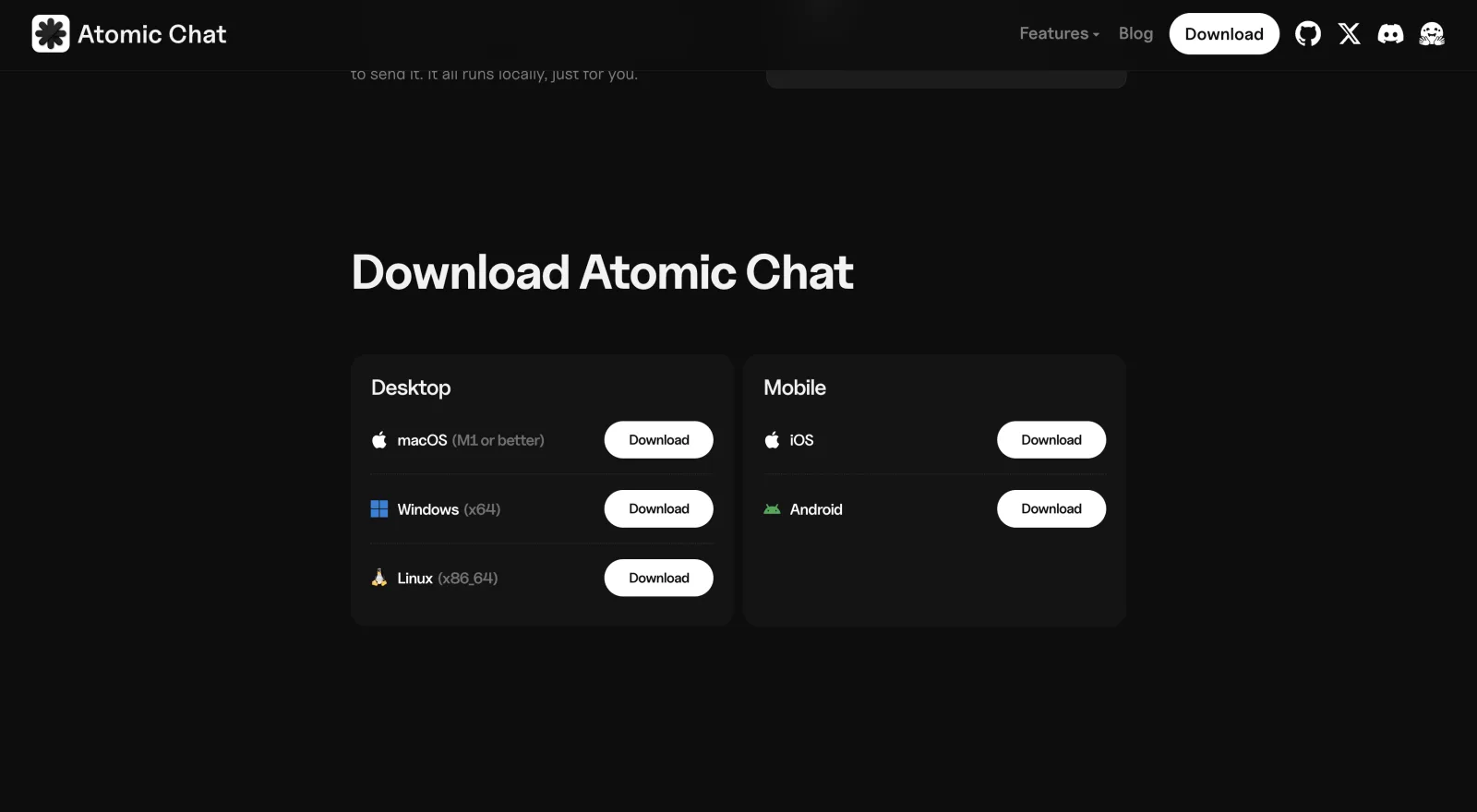
- Download Atomic Chat from atomic.chat and install it. Then, open the app.
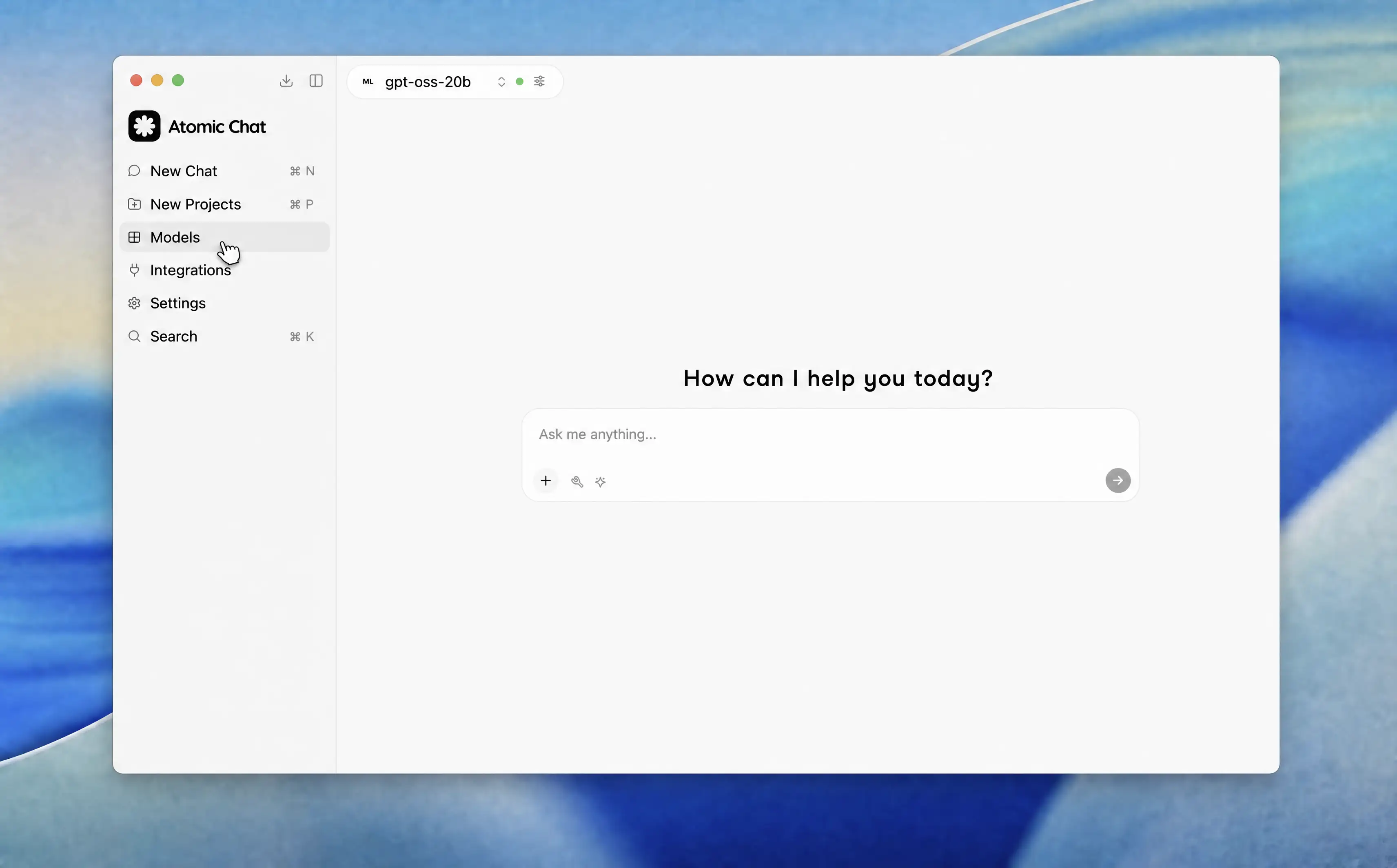
- Go to the Models tab in the left sidebar. This is where you browse and search the full Hugging Face model library.
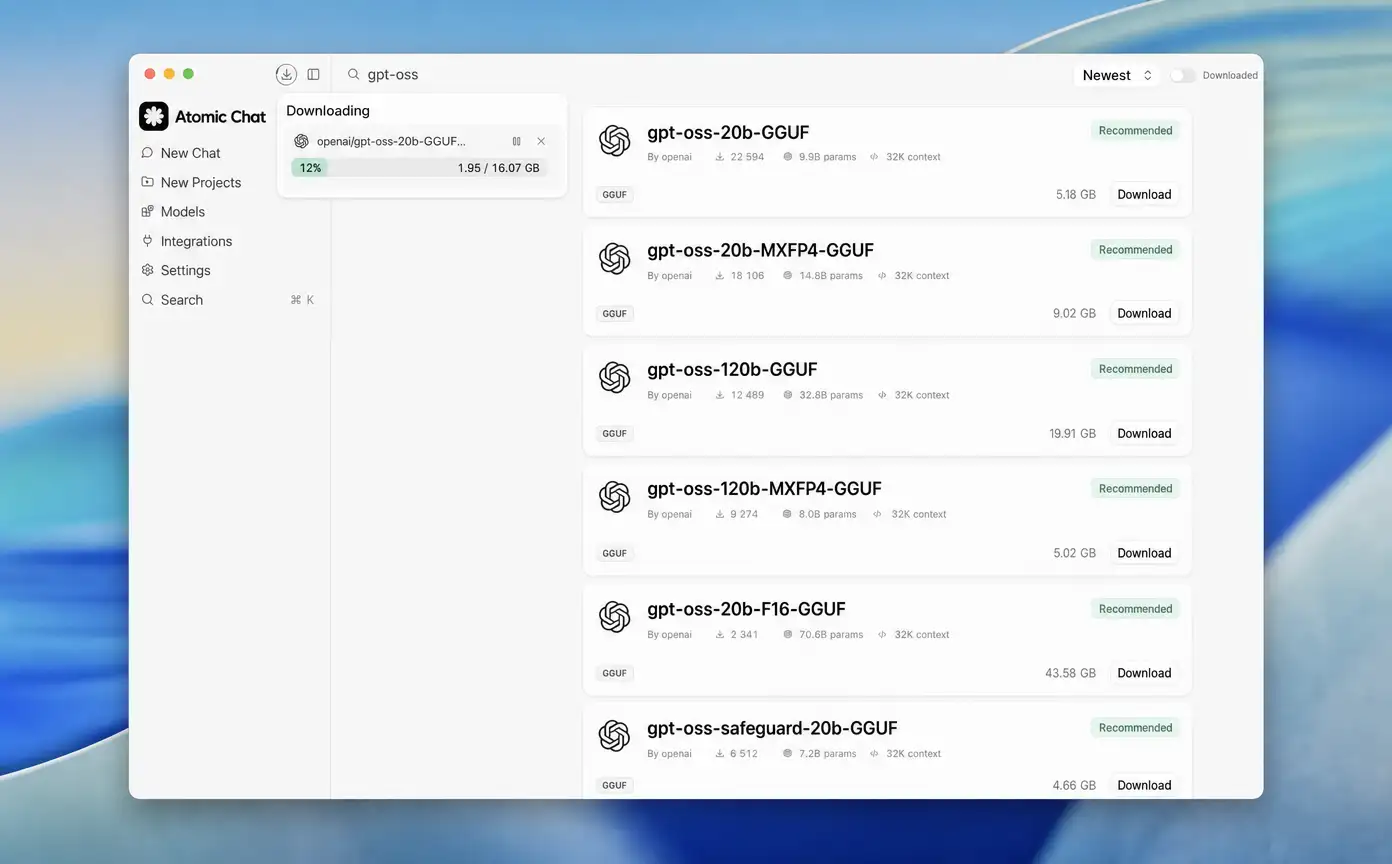
- Search for a model and download it. Atomic Chat lists each model with its size and a one-click Download button, and flags the ones that fit your hardware.
- Start chatting. Once the download finishes, the model loads and you can start talking to it from inside the app, fully offline.
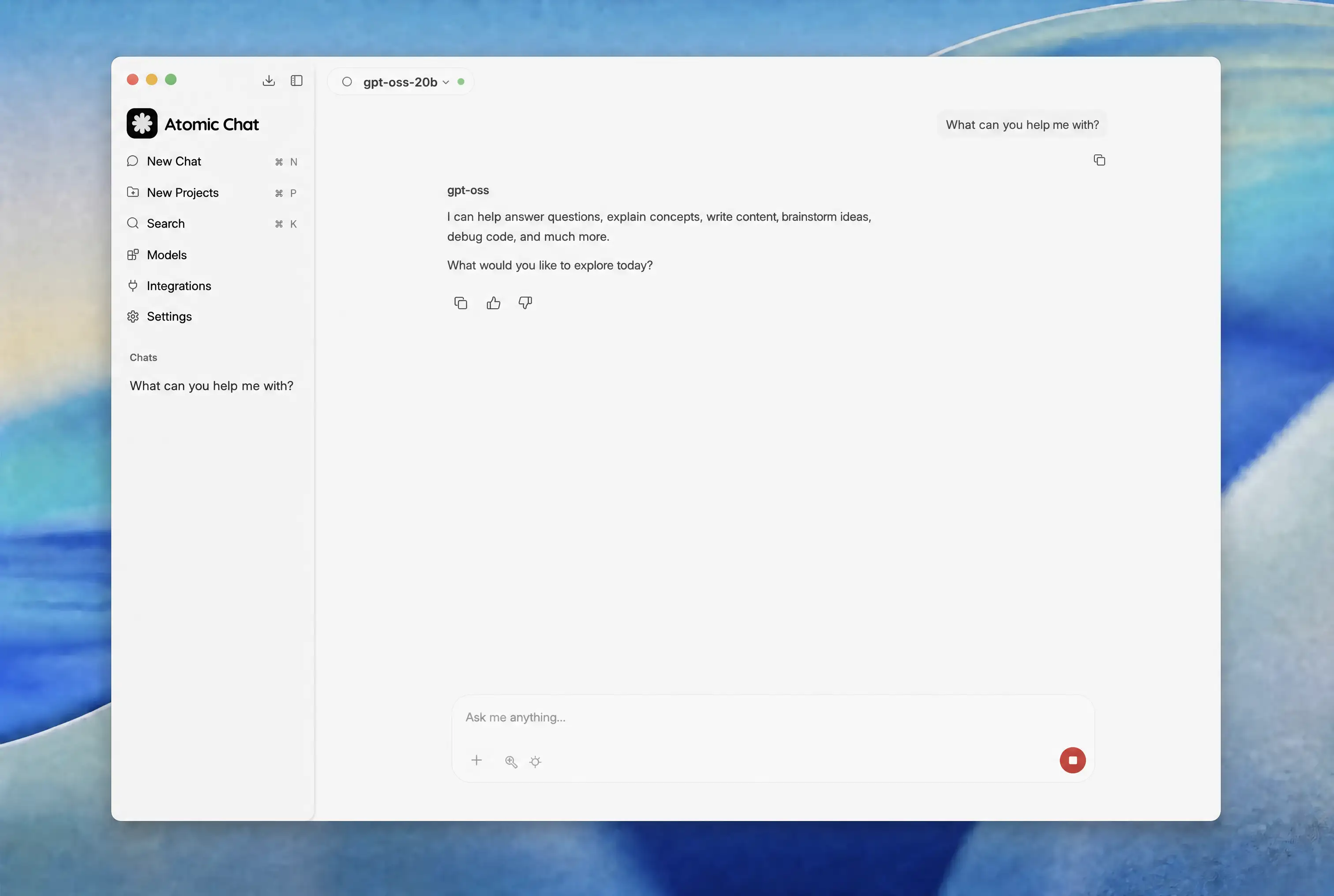
Like we've mentioned before, Atomic Chat also picks the right quantization for your machine automatically.
For developers or people who want to use agents in Claude Code, Codex or Cursor, Atomic Chat also exposes an OpenAI-compatible API at http://localhost:1337/v1 so you can easily point your agentic harness to it and use your offline AI as a fully capable agent.
Best apps to run an LLM locally
Atomic Chat is one of several tools for running models locally. If you're looking for the best local LLM app for your setup, or just the best LLM to run locally on a given machine, these are the other notable options worth knowing:
- Ollama — a developer-favorite that runs models from the command line (it now has a desktop app too) and exposes a local API. See how it compares in Ollama vs LM Studio.
- LM Studio — a polished desktop app with a built-in model browser, popular with beginners who want a GUI.
- Jan — an open-source desktop app focused on privacy, with no telemetry by default.
- llama.cpp — the underlying engine most of these apps are built on, for people who want to compile and tune it themselves.
For a full breakdown of each, see our guide to the best local LLM apps in 2026.
Frequently asked questions
Can you run an LLM locally?
Yes, you can run an LLM locally on any modern computer. Many models are released as open weights, so the files are free to download and run on your own machine through an app like Atomic Chat. On a normal laptop you run a smaller model; large models need a high-memory machine.
Do you need a GPU to run an LLM locally?
No, you don't need a GPU to run an LLM locally — a model can run on the CPU alone. A GPU makes a big difference to speed, though, so a model that fits in your graphics card's VRAM will answer much faster than one running on the CPU.
How much RAM do you need to run an LLM locally?
Plan for roughly twice the model's file size in free memory. A 7–8B model (about 5 GB) runs comfortably with 16 GB of system RAM or 8 GB of GPU VRAM. 8 GB of RAM is the practical minimum, and it limits you to small models around 3B.
Is running an LLM locally free?
Yes. Open-weight models and apps like Atomic Chat, Ollama, and LM Studio are all free, and there are no usage fees once a model is downloaded. The only cost is the hardware you already own and the disk space for the weights.
Is it private to run an LLM locally?
Running an LLM locally is as private as software gets. Once the model is downloaded, it runs entirely on your device and your prompts are never sent to anyone's servers. This is the main reason people choose a local setup over a cloud chatbot.
The bottom line
In 2026, you can run an LLM locally relatively easily, and local AI models have become good enough that even small, 6-8B models now perform on a level of flagships from just a year ago, with models from the Qwen or Gemma families in that size matching GPT-4o on coding, reasoning and knowledge work. This is an exciting time to get into the world of local LLMs.