
We compared local AI video generators running LTX 2.5 and Wan 2.2, and checked HunyuanVideo 1.5 and MiniMax H3 as heavier alternatives. These models allow you to generate AI videos on-device without cloud APIs. We tested them across ComfyUI, WanGP, LTX Desktop, and Atomic Chat on an RTX 4090 with fixed prompts and seeds.
To generate local video from a model picker and prompt editor, start with Atomic Chat. You can download a video model in the app and use local chat and image generation in the same place. Follow the Atomic Chat quickstart below, or compare the measured model configurations before choosing your setup.
Best Local AI Video Generators At a Glance
Choose a workflow for your task. The benchmark tables below give the exact settings and measured times for each tested configuration.
Scroll horizontally to compare all columns.
| Scenario | App | Exact model | Tested hardware | Trade-off |
|---|---|---|---|---|
| Fast drafts with sound | ComfyUI 0.38.2 | LTX 2.5 22B distilled, int8 | RTX 4090, 61 GB RAM | 24.6 s per 720p clip, but product shapes came out wrong |
| Little VRAM, plenty of RAM | WanGP 17.00 | LTX 2.5 22B distilled, int8 | RTX 4090, 125 GB RAM | 5.9 GiB VRAM peak, 39 s per clip, ~41 GiB RAM |
| People, hands, faces | ComfyUI 0.38.2 | Wan 2.2 A14B fp8 + Lightning LoRA | RTX 4090, 125 GB RAM | 44 s per clip at 640 × 640 and 16 fps |
| Animate a still image | ComfyUI 0.38.2 | LTX 2.5 22B distilled, int8 | RTX 4090, 61 GB RAM | 26.5 s per clip, invents what lies outside the photo |
| A desktop app with no node graph | LTX Desktop 1.2.7 | LTX 2.5 Fast, bf16 | RTX 4090, 100 GB RAM | 119 s per 720p clip, 96 GB download |
| Chat, images and video in one app | Atomic Chat 2.1.8 | Wan 2.2 TI2V-5B, Q4_K_M | RTX 4090, 100 GB RAM | Built-in video model picker and memory-fit badges; text-to-video workflow |
Best Local AI Video Apps
Depending on where you run the video generation model, it can have an impact on VRAM utilization and speed. With that in mind, we also tested multiple apps, and the results are summarized below:
Scroll horizontally to compare all columns.
| App | Install on our test machine | OS | Video models | Queue | Fully local |
|---|---|---|---|---|---|
| ComfyUI 0.38.2 | About 5 min plus models | Windows, Linux, macOS | Any model with official templates or custom nodes | Yes | Yes, with API nodes left out |
| WanGP 17.00 | About 8 min, models download on first use | Windows, Linux, macOS | Wan, LTX, HunyuanVideo and more, in its own formats | Yes, also from the command line | Yes |
| LTX Desktop 1.2.7 | Installer, then a 4.1 GB Python environment and 96 GB of models | Windows, Linux, macOS on Apple Silicon | LTX 2.5 Fast | No, one clip at a time | Yes when no API key is entered |
| Atomic Chat 2.1.8 | Installer, then a media engine and a 7.9 GB model, about a minute on a fast connection | Windows, Linux, macOS | Wan 2.2 TI2V-5B, LTX-2.3 Distilled | No, one clip at a time | Yes |
Atomic Chat
Atomic Chat is our free, open source desktop app for local AI. You generate clips on its Video page and use local chat and image models in the same app. The model catalog includes memory-fit badges to help you choose a download for your hardware.
The catalog in Atomic Chat 2.1.8 lists Wan 2.2 TI2V-5B and LTX-2.3 Distilled. We tested Wan 2.2 5B there. The LTX 2.5 and Wan A14B benchmarks in this article come from the other applications.
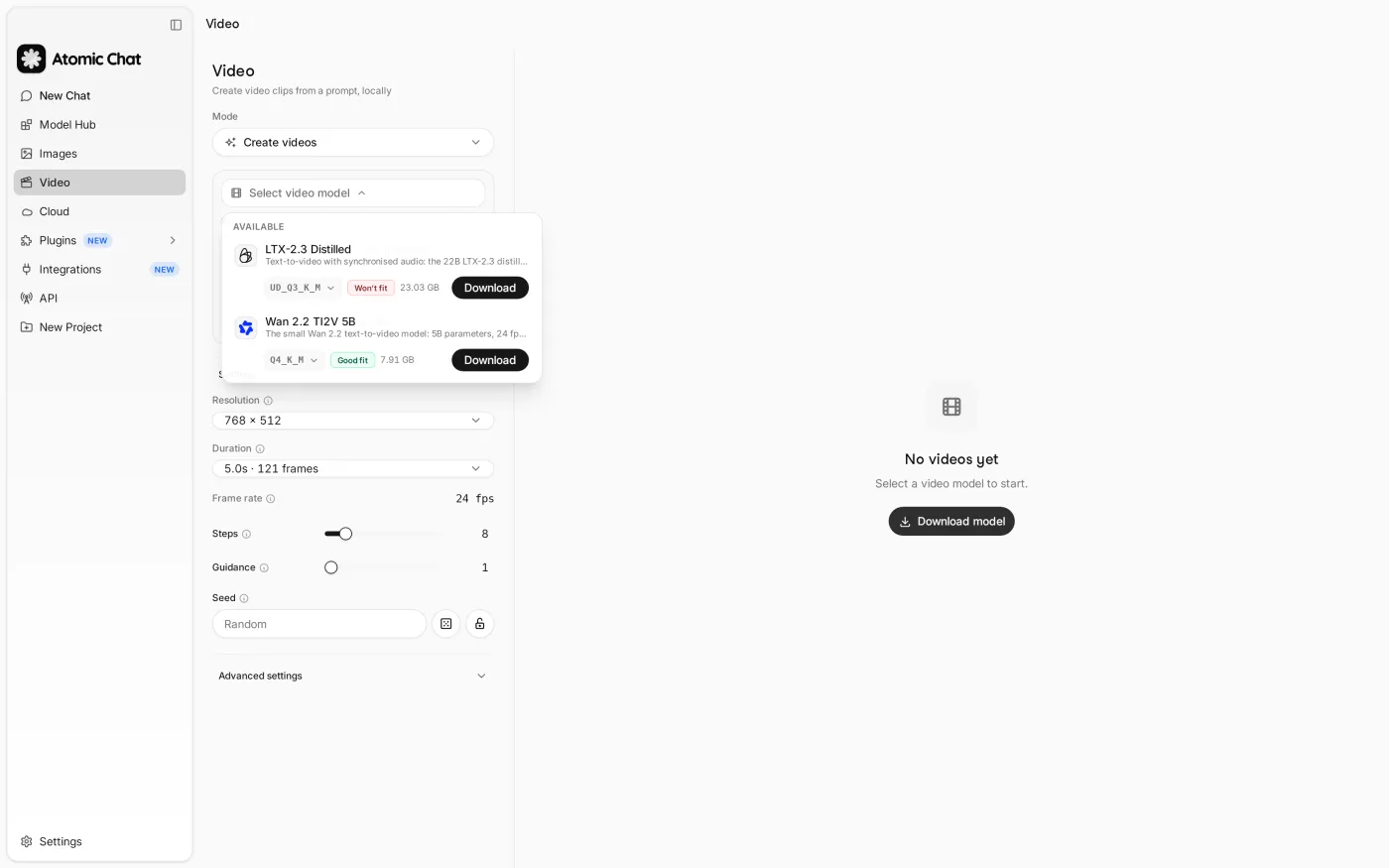
Video models in Atomic Chat 2.1.8, each with a memory-fit badge.
Choose Atomic Chat for an integrated local AI workflow. Download a video model from the catalog, write your prompt, and generate on the Video page. You can use chat and image generation in the same app. Follow the setup steps below to get started.
ComfyUI
ComfyUI is a node-based interface for image, video and audio models, most notably exposing in-depth settings such as steps, frame count, resolution and precision on any node. Due to extensive customization, it's one of the best local AI video generators on the market, but it also means a steeper learning curve.
Choose ComfyUI if you want every model in one place and control over each stage of the pipeline.
WanGP
WanGP is a Gradio app built for running video models on limited memory. It allows you to download quantized video model files directly from Hugging Face. WanGP's most notable feature is called memory profiles, which dictate how the model is stored in memory and partially offloaded to RAM. For example, Profile 4 keeps the model in pinned system RAM and streams it to the GPU block by block, which helps keep VRAM utilization low. This matters a lot for local video generation. In our test, for example, LTX 2.5 used only 5.9 GiB VRAM at its peak while running on an RTX 4090, at the cost of about 41 GiB of system RAM and 15 extra seconds per clip compared with ComfyUI.
Choose WanGP if your GPU has less memory than the model and your PC has plenty of RAM.
LTX Desktop
LTX Desktop is Lightricks' official standalone application, built for users who want a polished, standard desktop interface without dealing with node graphs.
To remain strictly offline, you need to run its local Gemma text encoder. By streaming unquantized weights directly from system RAM, LTX Desktop keeps VRAM usage low (8.4 GiB at its peak), though local mode on Windows and Linux still requires a GPU with at least 16 GB of VRAM. The heavy RAM offloading also makes it the slowest LTX setup tested and limits rendering to a single clip at a time.
Choose LTX Desktop if you only want LTX and prefer a polished app over a node graph.
Local Video Models Compared
Now that we've covered where to run the best local AI video generation models, let's compare each of the models directly.
Scroll horizontally to compare all columns.
| Model | Size | Modes | Audio | Output in the official workflow | Licence |
|---|---|---|---|---|---|
| LTX 2.5 distilled | 22B | T2V, I2V and more | Yes | 1280 × 704 at 24 fps, 121 frames | LTX-2 Community License, paid licence above $10M annual revenue |
| Wan 2.2 TI2V-5B | 5B | T2V and I2V in one model | No | 1280 × 704 at 24 fps, 121 frames | Apache-2.0 |
| Wan 2.2 A14B | 2 × 14B experts | Separate T2V and I2V models | No | 640 × 640 at 16 fps, 81 frames | Apache-2.0 |
Benchmarking & Testing Methodology
All evaluations were conducted on a single RTX 4090 (24 GB VRAM) using official templates and each app's default settings. Where we changed a setting, such as adding the 4-step Lightning LoRA to Wan 2.2 A14B or running Wan 2.2 5B at 20 steps in WanGP, the tables show the exact configuration.
Each timing applies to the named model, precision, runtime and settings. Atomic Chat has one cold Linux/Vulkan check; the repeated warm results use other configurations. The example clips below show model behavior in those tested workflows.
- Test Matrix: We ran 6 standardized scenarios tested across seeds 101, 202, and 303. On top of this matrix, we ran single clips to test low-VRAM settings, template defaults, the prompt enhancer and cold starts.
- Latency Tracking: We timed each job from queue submission to final .mp4 export, separating cold runs, which include model loading, from warm runs. Repeated warm results are reported as medians unless a range is shown. Single-run checks have a completed count of 1/1.
- Reproducibility: We used fixed prompts and seeds. The tables identify each app and configuration, with completed-run counts alongside the results. Qualitative ratings follow fixed evaluation criteria.
LTX 2.5
Lightricks’ 22-billion-parameter LTX 2.5 generates synchronized video and audio natively in a single pass. In testing, it was the fastest model by a wide margin, handled multi-object prompts better than competitors, and consistently executed complex camera moves (such as image-to-video push-ins).
LTX 2.5 struggled with precise geometric shapes in our text-to-video tests, rendering headphones as closed rings or detached earcups. It preserved the headphone geometry in all three image-to-video product runs.
Test results and observations:
Scroll horizontally to compare all columns.
| App | Mode | Output | Cold | Warm | Peak VRAM | Peak RAM | Finished |
|---|---|---|---|---|---|---|---|
| ComfyUI | Text to video | 1280 × 704, 5 s, audio | 40 s | 24.6 s | 23.5 GiB | 40.5 GiB | 12/12 |
| ComfyUI | Image to video | 960 × 960, 5 s, audio | n/a | 26.5 s | 23.5 GiB | 40.6 GiB | 6/6 |
| WanGP | Text to video | 1280 × 704, 5 s, audio | 57 s | 39 s | 5.9 GiB | 41.3 GiB | 12/12 |
| WanGP | Image to video | 960 × 960, 5 s, audio | n/a | 41 to 43 s | 8.1 GiB | 42.1 GiB | 6/6 |
| LTX Desktop | Text to video | 1280 × 704, 5 s, audio | n/a | 119 s | 8.4 GiB | 35 to 47 GiB above idle | 1/1 |
- Product Shot: Consistently fails complex object geometry in text-to-video mode: rendering headphones as closed rings or detached earcups across all tested applications (3/3).
- Camera Movement: Executes smooth directional motion (e.g., forward sweeps) across all seeds (3/3).
- Hands & Fine Detail: Maintains stable anatomical structure and realistic fluid dynamics during complex interactions.
- Multi-Object Consistency: Keeps the three colored balls and the hand stopping the red one in 2/3 runs, the best result of all models.
- Image-to-Video (Person): Preserves localized task motion, but introduces temporal artifacts (morphing headwear in 2/3 runs) when camera pull-backs reveal previously uncropped regions.
- Image-to-Video (Product): Reliably executes directional camera moves (e.g., camera push-ins in 3/3 runs) while fully preserving the source product geometry.
- Audio Generation: Natively generates synchronized audio for every render, with levels accurately reflecting scene context (near-silent for studio shots vs. ambient environmental sound for café and forest scenes).
Wan 2.2
Alibaba’s Wan 2.2 family is fully open-weights under the permissive Apache-2.0 license. It comes in two main variants: TI2V-5B, a single 5-billion-parameter model handling both text and image prompts at 720p, and A14B, a dual-expert Mixture-of-Experts model using separate checkpoints for text and image tasks.
- TI2V-5B: Easy to run on mid-range VRAM budgets. It handles fluid camera moves cleanly, though it occasionally overlooks subtle positional prompts (such as slow object rotations).
- A14B: Delivered the best hands, faces, and human details of any model tested. While its default 20-step pass is slow, pairing it with a 4-step Lightning LoRA drops render times from 360 to 44 seconds per clip: making it our pick for character-driven shots.
Test results and observations:
Scroll horizontally to compare all columns.
| Variant and app | Mode | Output | Cold | Warm | Peak VRAM | Peak RAM | Finished |
|---|---|---|---|---|---|---|---|
| TI2V-5B fp16, ComfyUI | Text to video | 1280 × 704, 5 s | 174 s | 167 s | 22.7 GiB | 21.6 GiB | 12/12 |
| TI2V-5B fp16, ComfyUI | Image to video | 960 × 960, 5 s | 181 s | 170 s | 23.3 GiB | 22.0 GiB | 6/6 |
| TI2V-5B int8, WanGP (20 steps, as in ComfyUI) | Text to video | 1280 × 704, 5 s | 174 s | 156 s | 14.3 GiB | 17.6 GiB | 4/4 |
| TI2V-5B Q4_K_M, Atomic Chat (Linux, Vulkan) | Text to video | 832 × 480, 5 s | 861 s | n/a | 22.1 GiB | 17 GiB above idle | 1/1 |
| A14B fp8 + 4-step LoRA, ComfyUI | Text to video | 640 × 640, 5 s | 57 s | 44 s | 23.5 GiB | 37.1 GiB | 12/12 |
| A14B fp8 + 4-step LoRA, ComfyUI | Image to video | 640 × 640, 5 s | 59 s | 44 s | 23.5 GiB | 37.2 GiB | 6/6 |
| A14B fp8, 20 steps (template default), ComfyUI | Text and image to video | 640 × 640, 5 s | n/a | 360 to 364 s | 23.5 GiB | 36.7 GiB | 2/2 |
Wan 2.2 TI2V-5B Evaluation
- Product Shot: Accurately preserves initial subject geometry, but consistently ignores rotational motion prompts (remained static in 3/3 runs).
- Camera Movement: Renders clean camera paths without adding unprompted background elements.
- Hands & Fine Detail: Accurately handles fluid dynamics (latte pour/foam), though hand tracking was partially obscured by tight framing.
- Multi-Object Consistency: Poor object persistence: objects frequently merge or flicker in multi-element scenes.
- Image-to-Video (Person): Prone to sudden mid-clip jump-cuts (3/3) and occasional facial distortion (1/3).
- Image-to-Video (Product): Ignores camera movement prompts and hallucinates untracked elements (spurious hands or objects appearing in 2/3 runs).
- Linux / Atomic Chat Limitations: VRAM spikes during decoding triggered automatic system offloading. Extremely high latency (861 s at 832 × 480; aborted after 24 min at 1280 × 704).
Wan 2.2 A14B (with 4-step Lightning LoRA) Evaluation
- Product Shot: Successfully executes object rotation (2/3), but introduces unwanted camera movement when a static frame is explicitly requested (2/3).
- Camera Movement: Misinterprets directorial prompts: rendering a physical quadcopter drone in-frame when given "drone shot" instructions (3/3).
- Hands & Fine Detail: The most stable hands and fine motion of all tested models.
- Multi-Object Consistency: Consistently over-generates discrete items (e.g., rendering 5 balls instead of the requested 3 in 3/3 runs).
- Image-to-Video (Person): Keeps the character stable and tracks the subject through complex camera pull-backs.
- Image-to-Video (Product): Subject geometry distorts or morphs mid-clip (2/3).
- Sampling Overhead: Reverting to the un-accelerated 20-step default template increases render time by 8× while producing entirely different compositions for identical seeds.
Honorable Mentions
Two other open models regularly appear in discussions about local video generation. We left both out of the main comparison: HunyuanVideo 1.5 for its render times and MiniMax H3 for its license terms.
HunyuanVideo 1.5. Tencent's 8.3-billion-parameter model includes an official 720p workflow template for ComfyUI, but this workflow is extremely slow. In our testing on an RTX 4090, generating a single 5-second 1280 × 720 clip took 1,590 seconds (26.5 minutes) while consuming 23.5 GiB of VRAM, 29 GiB of system RAM, and requiring 29 GB of storage space. Render times this slow: roughly 65 times longer than LTX 2.5 on identical hardware: make day-to-day local iteration impractical. For faster image-to-video, Tencent offers a 480p step-distilled model that renders a clip in about 75 seconds on an RTX 4090.
MiniMax H3. MiniMax's open H3-Base is a 33-billion-parameter model with bf16 weights. Official deployment examples use a four-GPU setup, but WanGP can run it in 5 to 6 GB of VRAM at 480p. Key features like automatic prompt rewriting and 2K upscaling are restricted to MiniMax's cloud API. The base community license explicitly excludes usage within the US, EU, UK, and South Korea without separate regional authorization, so we skipped testing it locally.
What Hardware Do You Need for Local AI Video?
Local video generation is primarily VRAM-bound. The tested configurations and peak memory usage are detailed below.
Note: ComfyUI aggressively allocates available VRAM as a cache, so reported peak usage on a 24 GB GPU often hovers near ~24 GiB even when a workflow requires significantly less memory to run.
Scroll horizontally to compare all columns.
| GPU | System RAM used | Files on disk | Model, precision | Resolution, frames | Offload | Time per clip | Peak VRAM |
|---|---|---|---|---|---|---|---|
| RTX 4090 24 GB | 22 GiB | 17 GB | Wan 2.2 5B fp16, ComfyUI | 1280 × 704, 121 | Automatic | 167 s | 21 to 23 GiB |
| RTX 4090 24 GB | 29 GiB | 17 GB | Wan 2.2 5B fp16, ComfyUI --novram | 1280 × 704, 121 | Everything | 236 s | 10.4 GiB |
| RTX 4090 24 GB | 18 GiB | 57 GB with LTX | Wan 2.2 5B int8, WanGP | 1280 × 704, 121 | Profile 4 | 156 s | 14.3 GiB |
| RTX 4090 24 GB | 37 GiB | 62 GB for T2V and I2V | Wan 2.2 A14B fp8 + LoRA, ComfyUI | 640 × 640, 81 | Automatic | 44 s | 23.5 GiB |
| RTX 4090 24 GB | 41 GiB | 37 GB | LTX 2.5 int8, ComfyUI | 1280 × 704, 121 | Automatic | 24.6 s | 23.5 GiB |
| RTX 4090 24 GB | 41 GiB | 57 GB with Wan | LTX 2.5 int8, WanGP | 1280 × 704, 121 | Profile 4 | 39 s | 5.9 GiB |
| RTX 4090 24 GB | 35 to 47 GiB above idle | 67 GB for LTX | LTX 2.5 bf16, LTX Desktop | 1280 × 704, 121 | Streaming | 119 s | 8.4 GiB |
| RTX 4090 24 GB | 17 GiB above idle | 7.9 GB | Wan 2.2 5B Q4_K_M, Atomic Chat (Linux, Vulkan) | 832 × 480, 121 | Automatic, retried with offload | 861 s | 22.1 GiB |
| RTX 4090 24 GB | 29 GiB | 29 GB | HunyuanVideo 1.5 fp16, ComfyUI | 1280 × 720, 121 | Automatic | 1,590 s | 23.5 GiB |
- 24-32 GB VRAM: We ran the reported benchmarks on a 24 GB RTX 4090. LTX 2.5 and Wan A14B used roughly 37 to 47 GiB of system RAM in several configurations, so plan for 64 GB of RAM when using those setups.
- 16 GB VRAM: Consider the offloaded LTX 2.5 setups in WanGP or LTX Desktop, or Wan 2.2 5B with offloading. Compare the exact settings and memory measurements in the table; these are RTX 4090 results, not tests on a 16 GB GPU.
- 8-12 GB VRAM: Offloading is important. On our RTX 4090, LTX 2.5 in WanGP peaked at 5.9 GiB for 1280 × 704 text-to-video and 8.1 GiB for 960 × 960 image-to-video. Wan 2.2 5B at 720p peaked at 10.4 GiB in ComfyUI with full offloading. ComfyUI also documents an 8 GB route for Wan 2.2 5B using native offloading; our measured 720p configuration used more memory.
Note on Apple Silicon: While ComfyUI, LTX Desktop, and Atomic Chat support macOS, CUDA benchmarks do not translate to Apple's unified memory architecture.
Quickstart: Generate a Video in Atomic Chat
Choose a video model from the built-in catalog and generate from a prompt. These steps show the desktop interface in Atomic Chat 2.1.8.
1. Install the app and open Video
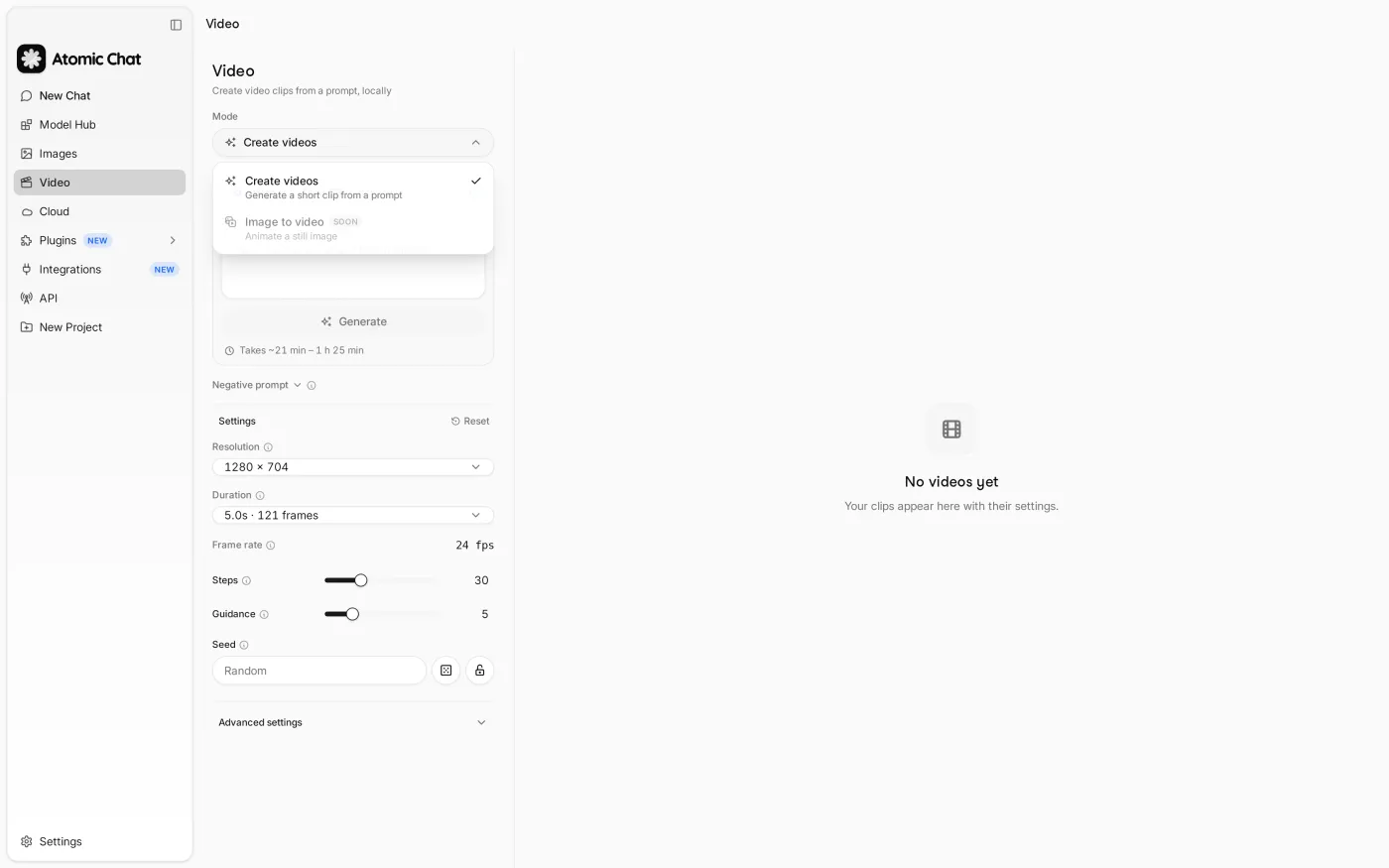
Download Atomic Chat for your desktop and open Video in the sidebar. Install the media engine when prompted, then use Create videos. In the tested version, Image to video is marked as coming soon.
2. Choose and download a video model
Open the model picker and check the memory-fit badges before choosing a download. The catalog shown here includes Wan 2.2 TI2V-5B and LTX-2.3 Distilled. Our setup screenshots use Wan 2.2 TI2V-5B Q4_K_M. Click Download to add the model to the app.
3. Write your prompt and generate a clip
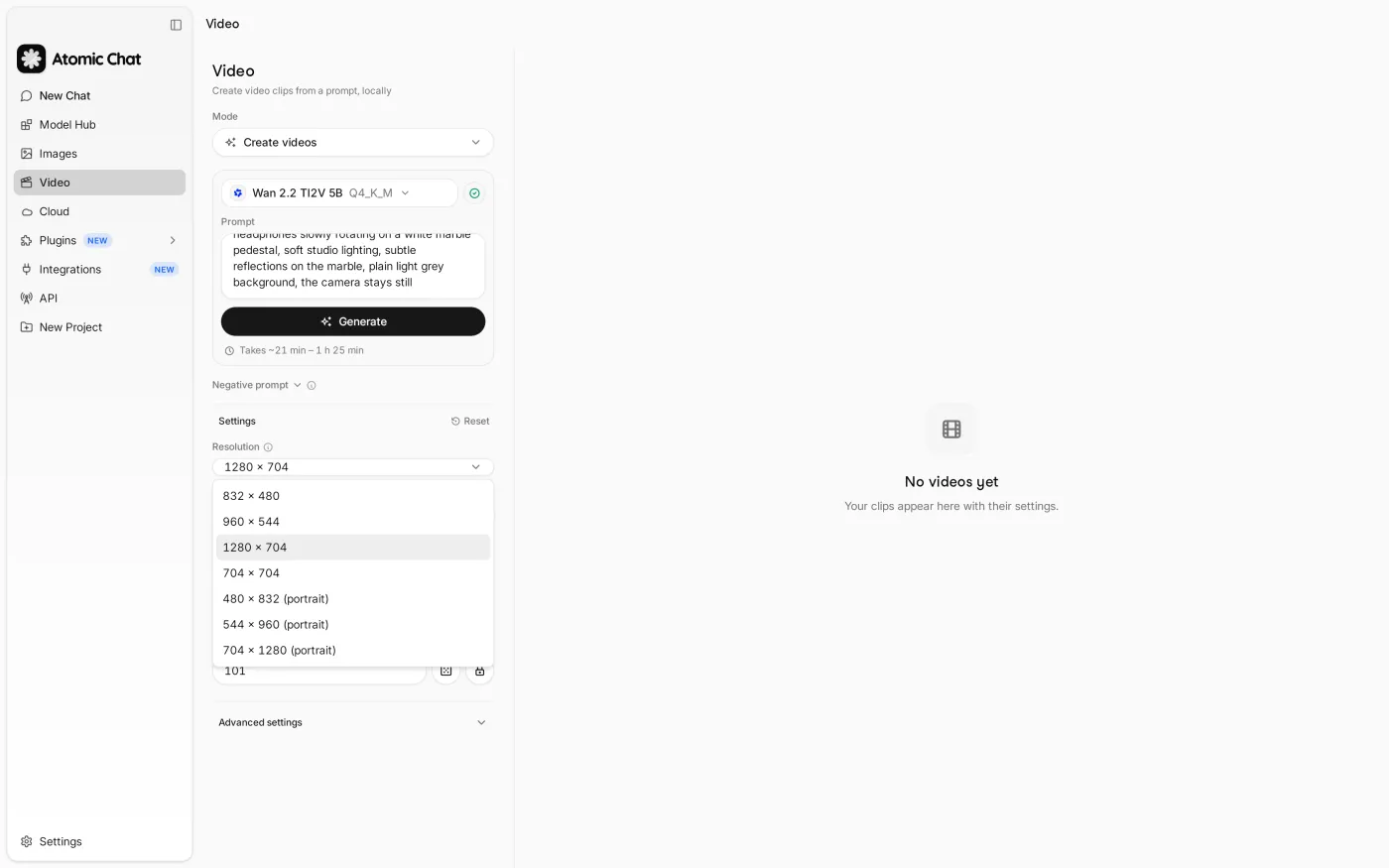
Describe your scene in the prompt field. Choose a resolution and duration, then click Generate. Start with a short clip to check the composition before increasing the resolution. The screenshot below shows the settings available for Wan 2.2 TI2V-5B.
ComfyUI Setup for Node-Based Workflows
Here's how to set up local text-to-video (T2V) and image-to-video (I2V) inference using the official Wan 2.2 TI2V-5B template in ComfyUI.
1. Download Model Assets
Place the required model files into their respective subdirectories inside ComfyUI/models/:
Scroll horizontally to compare all columns.
| Component | Target Directory | File Name | Size |
|---|---|---|---|
| Diffusion Model | models/diffusion_models/ | wan2.2_ti2v_5B_fp16.safetensors | 9.31 GB |
| Text Encoder | models/text_encoders/ | umt5_xxl_fp8_e4m3fn_scaled.safetensors | 6.27 GB |
| VAE | models/vae/ | wan2.2_vae.safetensors | 1.31 GB |
2. Load the Workflow Template
- Launch ComfyUI.
- Open Templates and select Wan 2.2 5B Video Generation.
- Confirm default sampler and latent settings:
- Resolution: 1280 × 704
- Frame Count: 121 (5 seconds @ 24 fps)
- Steps / CFG: 20 / 5.0
- Sampler / Shift: uni_pc / 8
3. Run Inference
Text-to-Video (T2V):
- Enter scene directions into the Positive Prompt node.
- Click Run. Rendered clips will be exported to ComfyUI/output/video/.
Image-to-Video (I2V):
- Select the bypassed Load Image node in the template and press Ctrl + B to enable it.
- Upload the source image.
- Adjust target height and width settings to match the input aspect ratio (e.g., 960 × 960 for 1:1 square media).
- Click Run.
Fix Slow Generation, Memory Errors, and Flickering
Running video models locally often comes with technical hurdles, but most issues with memory, speed, and visual artifacts stem from a few predictable bottlenecks. Understanding how these models handle resources can help you quickly troubleshoot setup problems.
Out of memory. Enable memory offloading and reduce resolution or frame count if the job exceeds your GPU memory. In our tests, we used ComfyUI's --novram option for Wan 2.2 5B and Profile 4 in WanGP for LTX 2.5. Offloading increases system RAM use. Check the table for the measured settings and peaks for each mode before choosing a workflow.
Slow generation. Because frame count and resolution scale render times almost linearly, it is best to test workflows with a short, low-res draft before rendering the final output. Speedup techniques can make a massive difference: Wan 14B's Lightning LoRA cuts render times from 360 down to 44 seconds, though it changes the composition for the same seed. Keep in mind that LTX 2.5's prompt enhancer adds around 11 seconds, and default step counts vary widely across apps: Wan 2.2 5B runs 20 steps in ComfyUI, 30 in Atomic Chat, and 50 in WanGP (where it took 346 seconds).
Long loading and high RAM usage. The initial run after startup includes loading model files from disk, adding about 7 extra seconds for Wan 2.2 5B in ComfyUI and 16 seconds for LTX 2.5. Additionally, heavy models like LTX 2.5 and Wan 14B consume 37 to 47 GiB of system RAM, so a system with 32 GB of RAM is likely to swap to disk. Storage space is another crucial factor: you will need 17 GB for Wan 2.2 5B, around 62 GB for both Wan 14B models, and 37 to 96 GB for LTX 2.5 depending on the application.
Wrong encoder or VAE. Mismatched files lead directly to broken output because each model expects a specific pipeline. Wan 2.2 5B requires wan2.2_vae, whereas Wan 2.2 14B relies on the older wan_2.1_vae. LTX 2.5 depends on its own separate video VAE, audio VAE, and spatial upscaler. The safest way to prevent mismatches is to build workflows directly from official templates and download the exact dependencies specified.
Flickering and lost objects. We observed flickering and missing objects in the tested workflows. These tests do not isolate the effects of the model, runtime and generation settings. Prompts loaded with too many distinct objects increase the chances of items being duplicated or dropped entirely. If text-to-video distorts a subject or product, driving the generation from a clean reference image (image-to-video) usually helps: LTX 2.5 kept the product's shape in all three image-to-video runs. Always generate a single test render before queuing overnight batches.
Bottom Line
Use Atomic Chat to generate local video from a model picker and prompt editor. The catalog shows memory-fit badges, and you download models from the same interface you use to generate. You can also work with local chat and image models in the app.
Download Atomic Chat to try the desktop workflow, and follow the steps above for your first clip.