
Qwen is Alibaba Cloud's family of open-weight large language models (LLMs) designed to run across a wide range of hardware, from consumer laptops to multi-GPU workstations, allowing you to run Qwen models locally on the hardware you already own.
In this guide, you'll learn:
- How to install a local inference engine
- How to choose the right Qwen model for your hardware
- How to download a compatible GGUF format
- How to run your Qwen model locally with Atomic Chat
What is Qwen?
Qwen is Alibaba Cloud's open-weight family of foundation models with publicly available model weights.
The table below shows the current lineup of open-weight Qwen models:
| Model | Architecture | Primary Use |
|---|---|---|
| Qwen3.5 0.8B | Dense | Lightweight assistants, mobile devices |
| Qwen3.5 2B | Dense | General-purpose local AI |
| Qwen3.5 4B | Dense | Strong everyday model for consumer hardware |
| Qwen3.5 9B | Dense | Coding, reasoning, and higher-quality chat |
| Qwen3.6 27B | Dense | Advanced coding and complex reasoning |
| Qwen3.6 35B A3B | Mixture-of-Experts (MoE) | High-end inference with improved efficiency |
The 35B A3B model deserves special mention because it uses a Mixture-of-Experts (MoE) architecture. Although the complete model contains roughly 35 billion parameters, only about 3 billion parameters are active for each generated token. This reduces computational cost during inference while preserving much of the capability of a much larger model.
Later in the article, we'll explain what hardware you need to run each Qwen model.
All current Qwen open-weight models are multimodal, meaning they can process both text and images. Qwen3.6 models can also process video.
The Qwen 3.8 generation has its own guides: running Qwen 3.8 27B locally for the dense 27B, and running Qwen3.8 Flash Next locally for the 125B MoE that previews the Qwen4 architecture.
The community also publishes edited versions of these weights with the refusal behavior removed. For the Qwen 3.8 27B builds, see our guide to running Qwen 3.8 27B uncensored locally.
How to Run Qwen Locally
Let's talk about setting up a local inference environment.
Running Qwen locally requires an application capable of downloading model files and executing them on your machine. In other words, to install Qwen locally you first set up an inference app, then download the model weights through it.
In this guide, we'll use Atomic Chat, a free and open-source local AI application we've built, as an example.
We'll be running Qwen from a GGUF file — this is a standard format supported by popular inference engines and applications, including Ollama and LM Studio, so you don't have to use Atomic Chat to follow along, although you're welcome to.
And if you're just starting out with local AI, it's worth reading our guide about running an LLM locally. It explains the core concepts behind local inference, model formats, and inference engines.
1. Install Atomic Chat
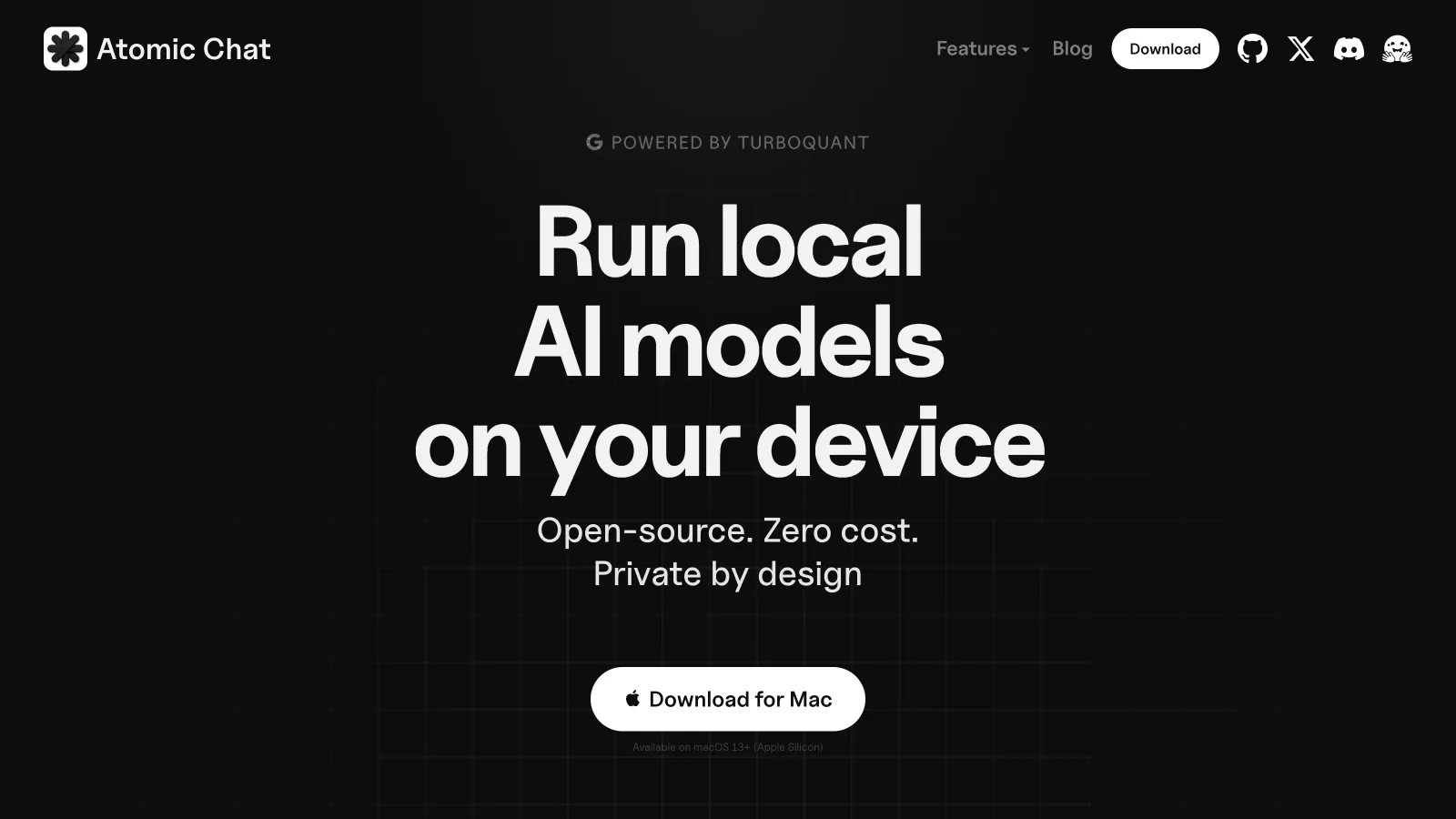
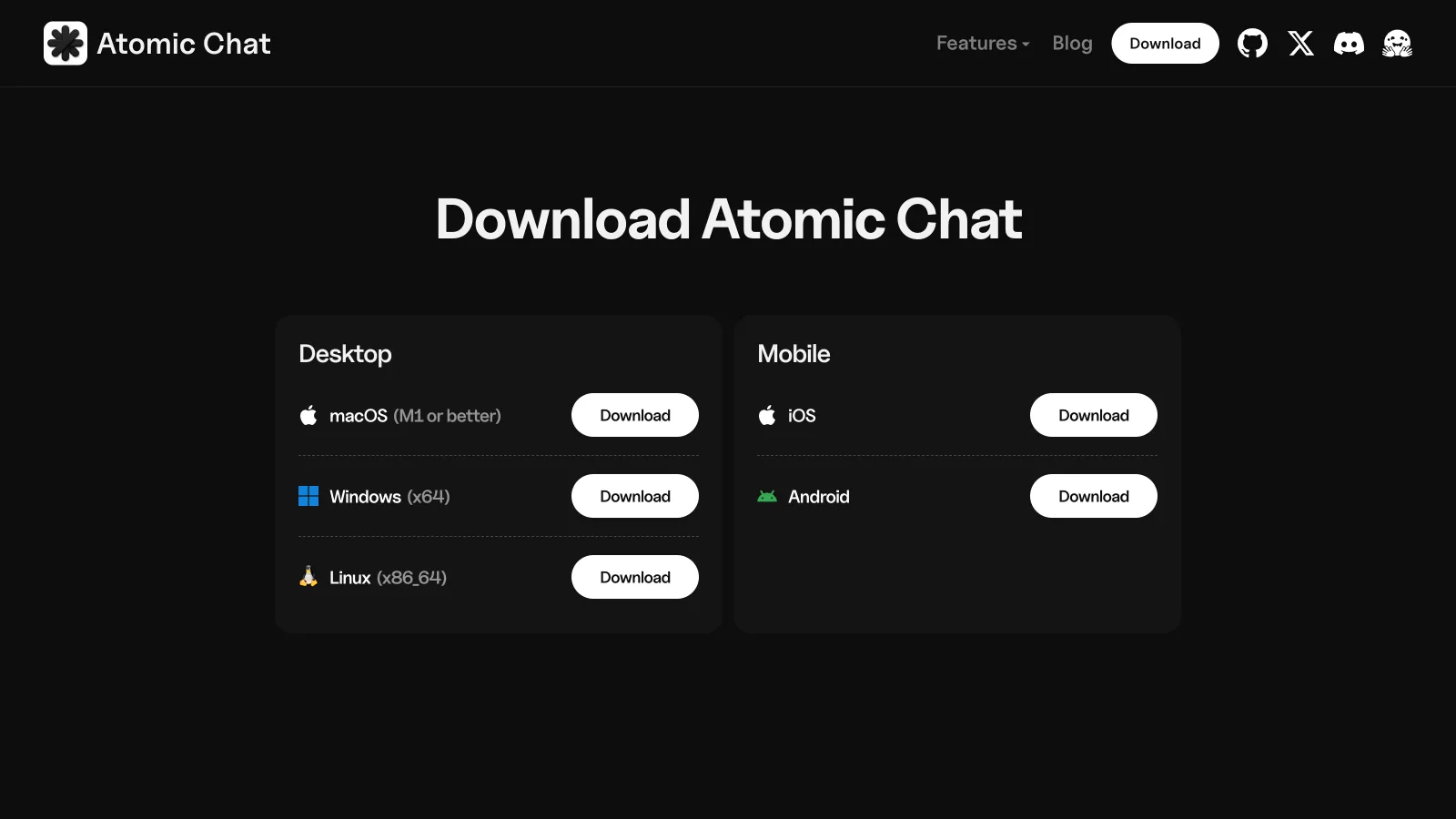
If you decide to follow along with Atomic Chat, here's how to install it. Go to atomic.chat and select the build for your platform.
- macOS — a universal
.dmgfor Apple Silicon (M1 or later). - Windows — an
.exeinstaller for x64. - Linux — a self-contained
.AppImagefor x86_64, which needs no root. - iOS — through the App Store.
- Android — through Google Play.
On Linux, mark the AppImage executable with chmod +x and run it directly. If the app asks about FUSE on first launch, install it with sudo apt install fuse libfuse2 on Debian or Ubuntu, or sudo dnf install fuse fuse-libs on Fedora.
2. Find a Qwen Model
Once Atomic Chat is installed, open the application → Models. The Models catalog shows all open-weight models available on Hugging Face that you can run, making it easy to browse, download, and manage local LLMs.
To search for Qwen, click into the search box → Enter qwen. This displays available Qwen models.

Model cards show:
- Parameter count — the size of the model, such as 27B for Qwen3.6 27B.
- Context length — the model's maximum supported context window.
- Tags — metadata such as GGUF (the model format) and Vision (whether it offers multimodal processing).
- Download size — the size of the selected model file on disk.
By default, results are sorted by the newest releases. You can also enable the Downloaded filter to show only models that are already available on your machine.
3. Download a Qwen Model
To download the recommended version of a model, click Download.
If you'd like to choose a specific quantization instead, select Download Options to view every available GGUF release.

A single model is typically available in multiple quantizations. For example, Qwen3.6 27B is offered as variants such as:
- IQ2_XXS
- Q3_K_M
- Q4_K_M
- Q8_0
These are quantization levels and they refer to how the model weights were compressed. Smaller quantizations (IQ2) require less storage and memory, while larger ones generally preserve more of the original model's accuracy. Learn what GGUF is and how quantization works.
Later in the article we'll explain how to select the right quant for your system.
4. Start Chatting with Qwen
Once the download finishes, Atomic Chat automatically loads the model and opens it in the built-in chat interface.
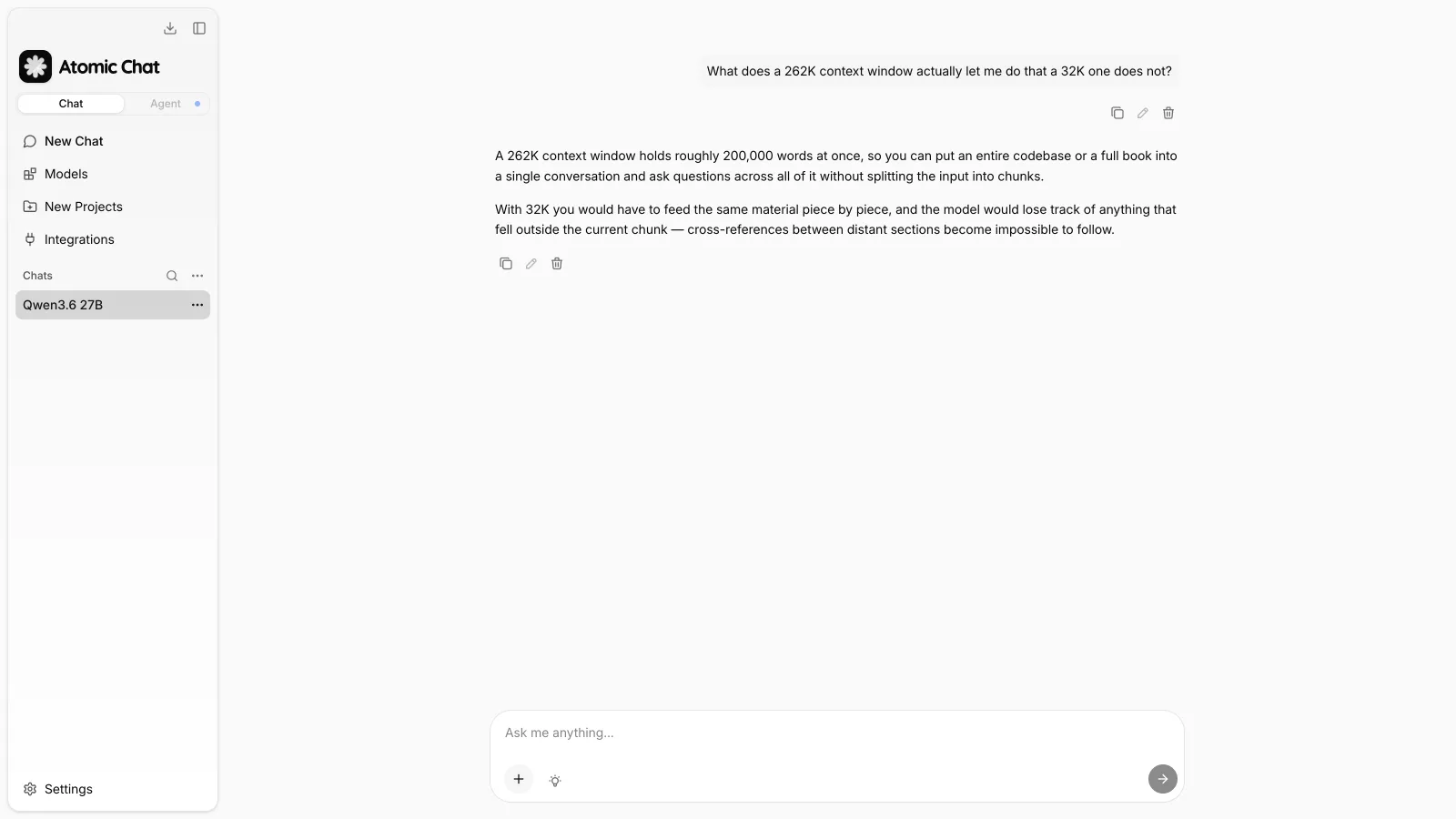
That's it! From here, you can begin interacting with Qwen immediately.
Because inference runs entirely on your own machine, you can use Qwen without sending prompts to a remote server. Your conversations remain local, the model continues to work without an internet connection after it has been downloaded, and there are no API usage limits or subscription fees associated with running it locally.
Qwen Hardware Requirements
Qwen system requirements come down almost entirely to memory. The table below summarizes the approximate memory required to load different Qwen models at several common quantization levels.
| Model | 3-bit | 4-bit | 8-bit | BF16 |
|---|---|---|---|---|
| Qwen3.5 0.8B–2B | 3 GB | 3.5 GB | 7.5 GB | 9 GB |
| Qwen3.5 4B | 4.5 GB | 5.5 GB | 10 GB | 14 GB |
| Qwen3.5 9B | 5.5 GB | 6.5 GB | 13 GB | 19 GB |
| Qwen3.6 27B | 14 GB | 17 GB | 30 GB | 54 GB |
| Qwen3.6 35B A3B | 17 GB | 22 GB | 38 GB | 70 GB |
These figures only account for the memory required for the model weights. In practice, the total memory usage during inference will be higher because the inference engine must also allocate memory for the model's runtime.
The largest additional allocation is the KV (key-value) cache, which stores intermediate attention data so the model can efficiently process previous tokens in the conversation.
How to account for the KV Cache
Unlike the model weights, the KV cache is dynamic — it grows as the context window fills. If a model fills up 128,000 tokens of context, for example, this can increase memory usage by several gigabytes.
One advantage of Qwen3.6 is that its architecture is significantly more memory-efficient than a conventional dense transformer. It combines a hybrid attention design with Grouped Query Attention (GQA), reducing the amount of KV cache that must be stored during inference. As a result, long-context workloads consume considerably less memory than similarly sized models using full attention throughout.
Even so, the cache should be factored into your hardware planning. For Qwen3.6 27B running at a typical 4-bit quantization, the approximate additional memory required is:
| Context Length | Additional Memory |
|---|---|
| 8K (typical chat) | <1 GB |
| 32K (long document) | ~1–2 GB |
| 128K (large codebase) | ~4–6 GB |
| 262K (maximum native context) | ~8–12 GB |
Choosing the Right Qwen Model for Your Hardware
Most importantly, you need to decide how to spend memory: on a larger model with a lower-precision quantization, or a smaller model with higher precision.
In most cases, the larger model is the better choice.
For example, the difference between a 4-bit and a 3-bit quantization will usually have a smaller impact on output quality than stepping down from Qwen3.6 27B with 27 billion parameters to a Qwen3.5 9B with 9 billion parameters.
The goal, then, is to run the largest model that fits without exhausting your available memory.
The recommendations below assume common quantization levels while leaving enough headroom for the operating system and the model's runtime memory requirements.
| Hardware | Comfortable Model |
|---|---|
| MacBook Air M2/M3 (16 GB) | Qwen3.5 9B at Q4 |
| MacBook Pro M4 Pro (24 GB) | Qwen3.6 27B at Q3, or Qwen3.5 9B at Q8 |
| MacBook Pro M4/M5 Max (36–48 GB) | Qwen3.6 27B at Q4, or Qwen3.6 35B A3B at Q4 |
| Mac Studio M3 Ultra (96 GB+) | Qwen3.6 27B at BF16, or Qwen3.6 35B A3B at Q8 |
| RTX 4060 Ti / RTX 5060 Ti (16 GB VRAM) | Qwen3.5 9B at Q8, or Qwen3.6 27B at IQ2 |
| RTX 4080 / RTX 5070 Ti (16 GB VRAM) | Same models, with higher inference speeds |
| RTX 4090 / RTX 5090 (24–32 GB VRAM) | Qwen3.6 27B at Q4, or Qwen3.6 35B A3B at Q4 |
| Dual RTX 3090 / RTX 4090 (48 GB VRAM) | Qwen3.6 27B at Q8 |
If you're using a PC with a dedicated GPU, the ideal setup is to keep the entire model inside GPU VRAM. When a model exceeds your available VRAM, most inference engines can partially offload layers into system RAM and execute those layers on the CPU instead.
While this allows larger models to run, it can dramatically reduce generation speed. The reason comes down to how LLM inference works:
- Token generation is heavily limited by memory bandwidth. Every generated token requires repeatedly reading large portions of the model weights. Typical system RAM may provide around 60–100 GB/s of bandwidth, while modern GPUs can offer several hundred GB/s or more through their VRAM.
- Every token passes through every layer sequentially. If some layers run on the GPU and others run on the CPU, the fast GPU portion must wait for the slower CPU portion during each generation step. Even a small amount of CPU offloading can therefore have a large impact on responsiveness.
For this reason, it is usually better to choose a slightly smaller quantization that fits entirely in VRAM than to run a larger model that constantly spills into system memory.
Which Qwen GGUF Quantization Should You Download?
Instead of storing every weight at full precision, quantized models use fewer bits per value, trading a small amount of accuracy for a much smaller memory footprint.
Common GGUF quantization formats include:
- Q4_K_M
- Q5_K_M
- Q6_K
- Q8_0
- BF16
For Qwen models, preferably look for builds with dynamic quantization, which you can identify by the UD- prefix—for example, UD-Q4_K_XL. Dynamic quantization adjusts precision depending on the importance of each layer. More sensitive parts of the model receive additional bits, while less important parts are compressed more aggressively. This allows dynamic builds to preserve more of the original model quality at a similar file size.
Qwen Benchmarks
The table below shows how Qwen models score on Artificial Analysis's Intelligence Index, which evaluates different models using a common scoring system, against Gemini 3.6 Flash used here as a control.
| Model | Intelligence Index | Memory at 4-bit | Runs locally |
|---|---|---|---|
| Gemini 3.6 Flash | 50 | — | No, cloud only |
| Qwen3.6 35B A3B | 32 | 22 GB | Yes |
| Gemma 4 31B | 29 | 17.5 GB | Yes |
| Qwen3.5 9B | 21 | 6.5 GB | Yes |
| Qwen3.5 4B | 20 | 5.5 GB | Yes |
Compared with current proprietary cloud models, local Qwen models predictably still trade some capability, but the benefit is that they can run locally on consumer hardware.
The Qwen3.6 model family is better covered by available benchmarks, so in the table below you can also see how they perform on MMLU-Pro, SWE-bench Verified, AIME and GPQA Diamond.
| Benchmark | Qwen3.6 27B | Qwen3.6 35B A3B | What it measures |
|---|---|---|---|
| MMLU-Pro | 86.2% | 85.2% | Knowledge and reasoning across academic subjects |
| SWE-bench Verified | 77.2% | 73.4% | Ability to resolve real-world software engineering tasks |
| AIME 2026 | 94.1% | 92.7% | Advanced mathematical reasoning |
| GPQA Diamond | — | 86.0% | Expert-level science questions |
Frequently Asked Questions
Quick answers to the most common questions about running Qwen locally.
How much RAM or VRAM do you need to run Qwen locally?
You need approximately 3–22 GB of memory to run Qwen locally, depending on the model and quantization level. The smallest Qwen models, such as Qwen3.5 0.8B and 2B, can run with only a few gigabytes of memory, while larger models require significantly more:
- Qwen3.5 9B: around 6.5 GB at 4-bit quantization
- Qwen3.6 27B: around 17 GB at 4-bit quantization
- Qwen3.6 35B A3B: around 22 GB at 4-bit quantization
These figures are also the VRAM requirements for GPU inference — on Apple Silicon Macs, the same numbers apply to unified memory. As a rule of thumb, to run Qwen 3.6 locally you'll want at least 16 GB, while the Qwen 3.5 models run comfortably on 8–16 GB systems.
Which Qwen model should I use?
Qwen3.5 9B is a good default because it provides strong quality while remaining small enough for many consumer machines. If your hardware supports larger models, choose Qwen3.6 27B — you'll benefit from better reasoning and coding performance.
Can Qwen run offline?
Yes, Qwen can run completely offline after the model has been downloaded. When used with a local inference application, prompts and responses are processed on your own device. You do not need an API subscription, cloud service, or internet connection for normal usage.
Can Qwen run on Android or iPhone?
Yes, smaller Qwen models can run on mobile devices. Qwen3.5 0.8B and 2B can run on phones because of their lower memory requirements. Atomic Chat has mobile apps for both platforms — download it on the App Store for iPhone or on Google Play for Android to run Qwen directly on your phone.
Is Qwen free for commercial use?
Yes, Qwen models covered in this guide are free to use commercially under the Apache 2.0 license. The license allows commercial use, modification, and redistribution. The model weights can be downloaded without paying for access, and local usage does not involve API fees.
Does Qwen support tool calling?
Yes — Qwen models support tool calling, allowing applications to connect the model with external functions and services. If you're running Qwen through Atomic Chat, you can also make the model available to other applications. Atomic Chat exposes a local OpenAI-compatible API server at http://localhost:1337/v1, with requests going to the standard /v1/chat/completions route. Any tool that speaks the OpenAI API or coding agents like Claude Code and Cline can use your local Qwen model as a drop-in replacement for a cloud model.
Bottom line
Qwen is a family of open-weight language models that can run locally, and in this guide we've explained how to download and run Qwen locally using Atomic Chat as your reference engine.
Key takeaways:
- Qwen models you can run locally are: Qwen3.5 0.8B, 2B, 4B, and 9B, plus Qwen3.6 27B and 35B A3B.
- All current Qwen models support a native context window of 262K tokens.
- Qwen models can natively process images, while Qwen3.6 also supports video.
- Qwen open-weight models use the Apache 2.0 license.
- You can easily run Qwen models locally using a beginner-friendly local AI app like Atomic Chat, LM Studio, or Ollama.