
GLM models by Z.ai are among the most powerful open-weight language models that you can run locally. In this guide, you'll learn:
- How to choose the right GLM model for your hardware
- How to install a local AI app to run GLM
- How to run a GLM model offline
What is GLM?
GLM stands for General Language Model — it's a model family developed by Z.ai, the Beijing-based AI lab formerly known as Zhipu AI. They're known for creating some of the most powerful open source models. You can browse the latest GLM releases on Hugging Face.
The current lineup of open-weight GLM models:
| Model | Architecture | Context | Primary Use |
|---|---|---|---|
| GLM-4.7-Flash | MoE, 30B total / ~3.6B active | 200K | Coding and agentic tasks on consumer hardware |
| GLM-4.7 | MoE, 355B total / 32B active | 200K | Advanced coding and reasoning on workstations |
| GLM-5.1 | MoE, 753.9B total / ~40B active | 198K | Frontier-class agentic coding |
| GLM-5.2 | MoE, 753.3B total / ~40B active | 1M | Frontier-class reasoning and coding |
GLM models use a Mixture-of-Experts (MoE) architecture, which activates only a subset of parameters per query. For example, GLM-4.7-Flash contains roughly 30 billion parameters, but only about 3.6 billion are active for each generated token. This makes bigger GLM models easier to run by reducing computational cost during inference — and, as we'll see in the hardware section, it also makes GLM models unusually good candidates for CPU offloading.
GLM models are also known for:
- A strong reasoning ("thinking") mode
- Robust tool-calling support — Z.ai trains them specifically for coding agents.
GLM model benchmarks
The table below shows how GLM models score on Artificial Analysis's Intelligence Index, which evaluates different models using a common scoring system.
We've included Gemini 3.6 Flash as a proprietary cloud control and Kimi K3, the only open-weight model scoring higher, for context. Scores are Intelligence Index v4.1; GLM-4.7-Flash's is Artificial Analysis's estimate rather than a full run.
| Model | Intelligence Index |
|---|---|
| Kimi K3 | 57 |
| GLM-5.2 (reasoning) | 51 |
| Gemini 3.6 Flash | 50 |
| GLM-4.7 (reasoning) | 34 |
| GLM-5.2 (non-reasoning) | 34 |
| GLM-4.7-Flash (reasoning) | 23 |
Z.ai also publishes evaluations that show that GLM-5.2 performance is close to that of Opus 4.8:
| Benchmark | GLM-5.2 | GLM-5.1 | GLM-4.7 | Claude Opus 4.8 |
|---|---|---|---|---|
| AIME 2026 | 99.2 | 95.3 | — | — |
| GPQA-Diamond | 91.2 | 86.2 | 85.7 | 93.6 |
| Terminal-Bench 2.1 | 81.0 | 63.5 | — | 85.0 |
| FrontierSWE | 74.4 | 30.5 | — | 75.1 |
| SWE-bench Pro | 62.1 | 58.4 | — | 69.2 |
| HLE (with tools) | 54.7 | 52.3 | 42.8 | 57.9 |
How to Run GLM Locally
To run GLM (or any AI model family) locally, you'll need an application that downloads the model files and executes them on your machine — an inference app.
In this guide, we'll use Atomic Chat, a free and open-source local AI application we've built, as an example, but you can just as easily use Ollama, LM Studio, or another AI inference provider.
We'll be running GLM from a GGUF file — this is a standard format supported by popular inference engines and applications, including Ollama and LM Studio.
1. Install Atomic Chat
If you decide to follow along with Atomic Chat, here's how to install it. Go to atomic.chat and select the build for your platform.
- macOS — a universal
.dmgfor Intel and Apple Silicon, requiring macOS 13.6 or later. - Windows — an
.exeinstaller for x64. - Linux — a self-contained
.AppImagefor x86_64, which needs no root. - iOS — through the App Store.
- Android — through Google Play.
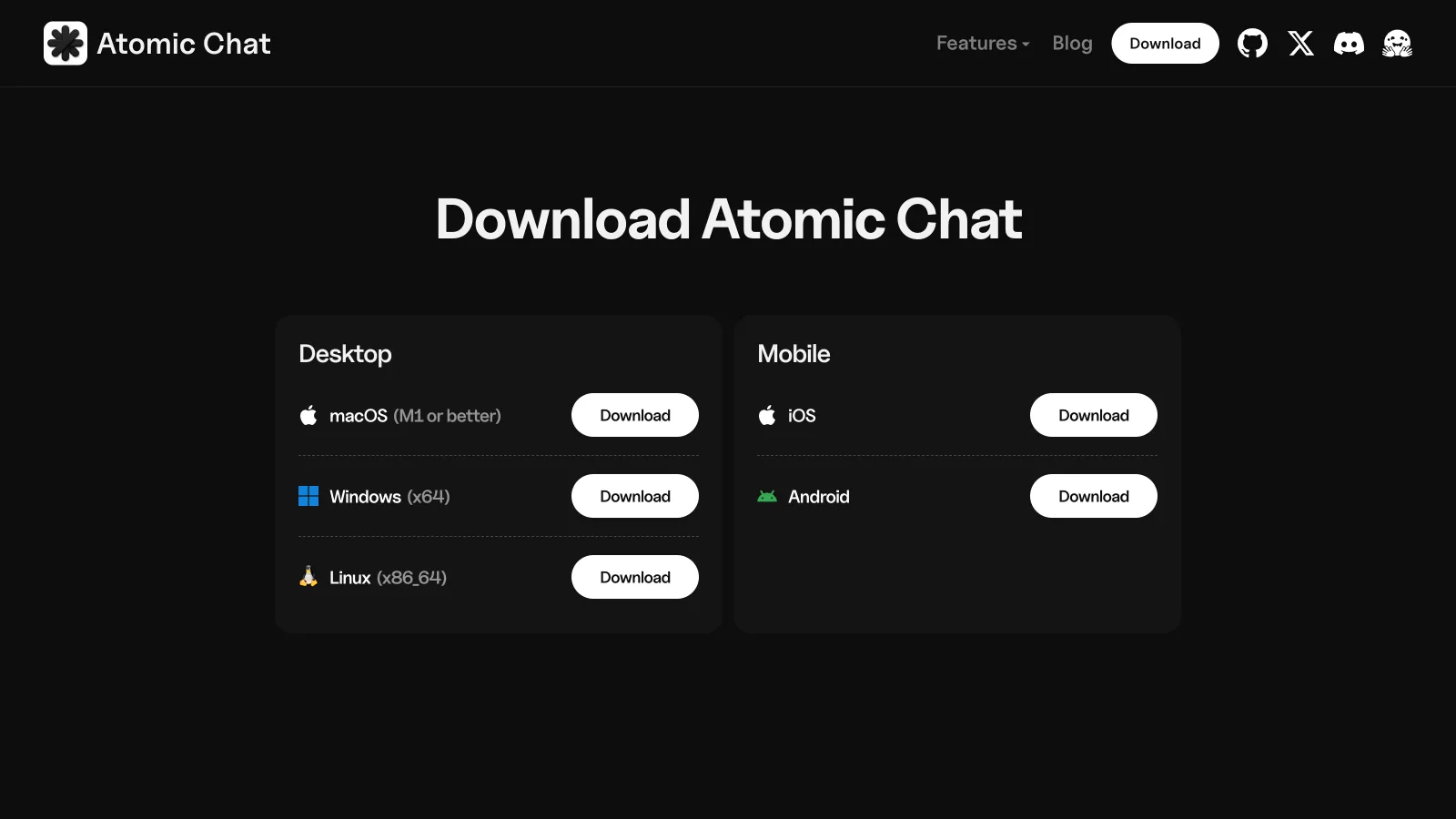
On Linux, mark the AppImage executable with chmod +x and run it directly. If the app asks about FUSE on first launch, install it with sudo apt install fuse libfuse2 on Debian or Ubuntu, or sudo dnf install fuse fuse-libs on Fedora.
2. Find a GLM Model
Once Atomic Chat is installed, open the application → Models. The Models catalog shows all open-weight models available on Hugging Face that you can run, making it easy to browse, download, and manage local LLMs.
To search for GLM, click into the search box → Enter glm. This displays available GLM models.
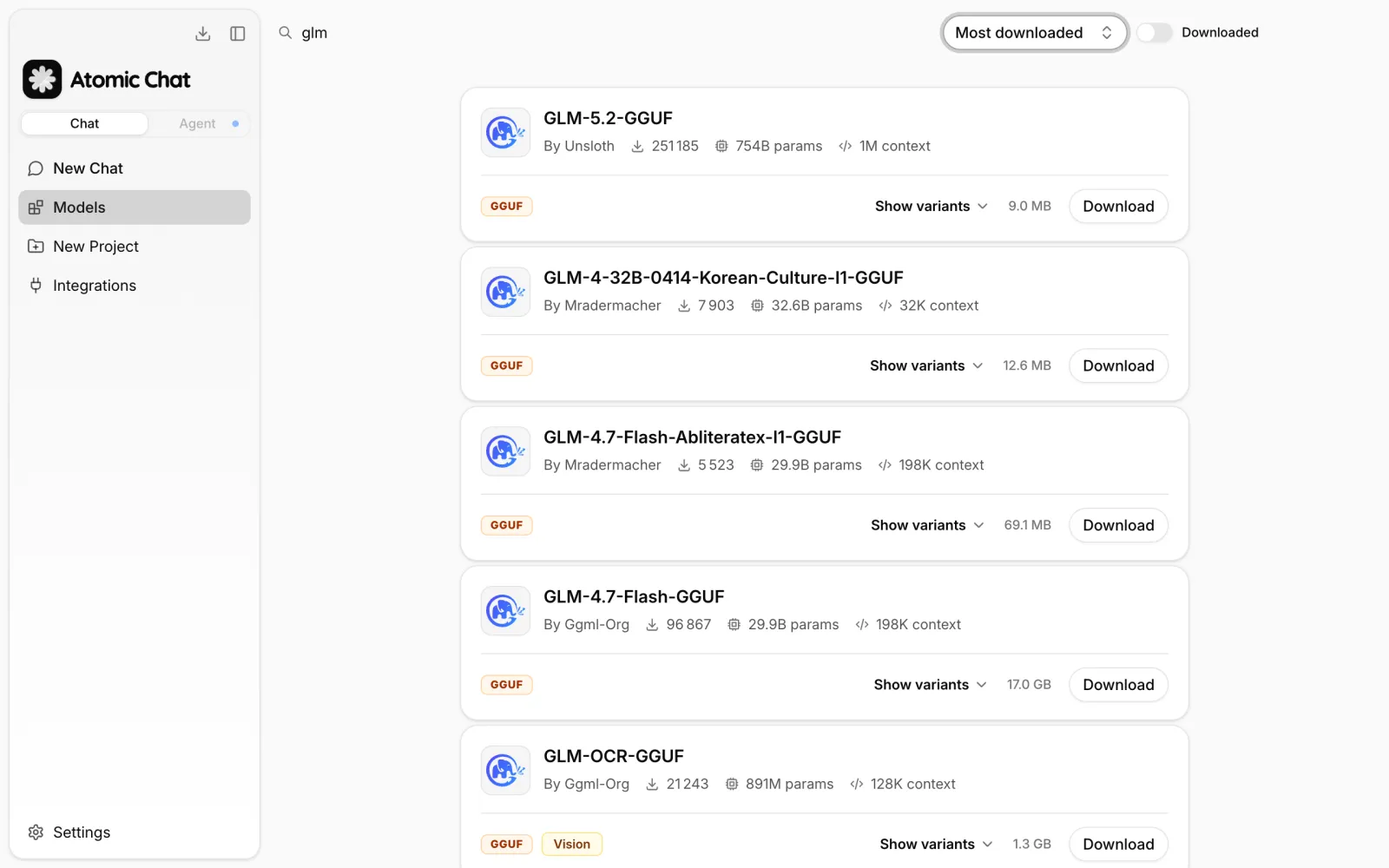
Model cards show:
- Parameter count — the size of the model, such as 29.9B for GLM-4.7-Flash.
- Context length — the model's maximum supported context window.
- Tags — metadata such as GGUF (the model format) and Vision (whether it offers multimodal processing).
- Download size — the size of the selected model file on disk.
By default, results are sorted by the newest releases. You can also enable the Downloaded filter to show only models that are already available on your machine.
3. Download a GLM Model
To download the recommended version of a model, click Download.
If you'd like to choose a specific quantization instead, select Download Options to view every available GGUF release.

A single model is typically available in multiple quantizations. For example, GLM-4.7-Flash is offered as variants such as:
- Q2_K
- Q3_K_M
- Q4_K_M
- IQ4_XS
These are quantization levels, and they refer to how the model weights were compressed. Smaller quantizations (like Q2) require less storage and memory, while larger ones (like Q8 or Q16) generally preserve more of the original model's accuracy. Learn what GGUF is and how quantization works.
Later in the article we'll explain how to select the right quant for your system.
4. Start Chatting with GLM
Once the download finishes, Atomic Chat automatically loads the model and opens it in the built-in chat interface.
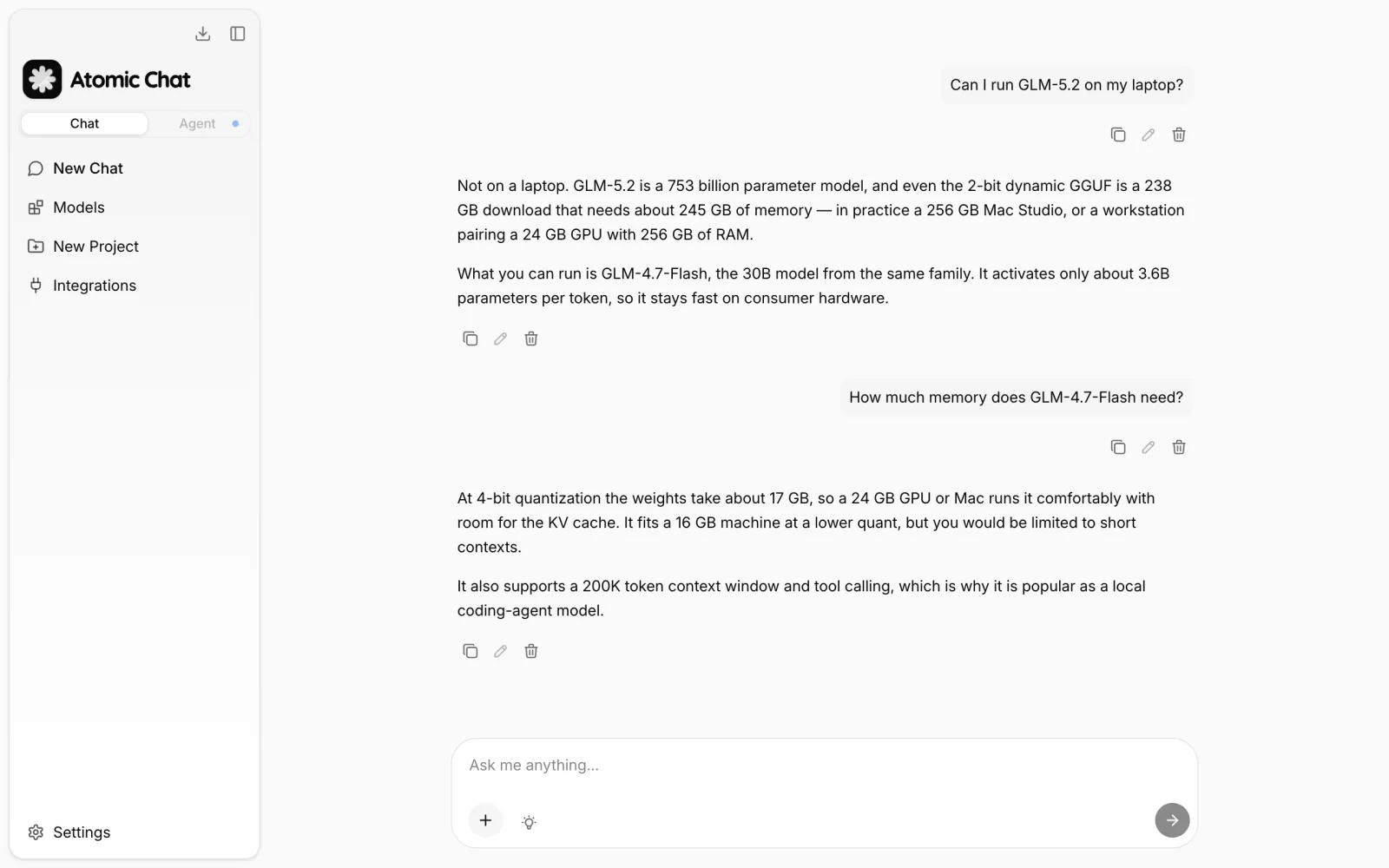
That's it!
GLM Hardware Requirements
Here's how much memory you'll need to run GLM at several common quantization levels — these are recommended totals, with headroom for the KV cache and system resources already included:
| Model | 2-bit | 4-bit | 8-bit | BF16 |
|---|---|---|---|---|
| GLM-4.7-Flash | ~16 GB | ~24 GB | ~36 GB | ~64 GB |
| GLM-4.7 | ~128 GB | ~210 GB | ~400 GB | ~750 GB |
| GLM-5.1 | ~245 GB | ~490 GB | ~880 GB (FP8) | >1.5 TB |
| GLM-5.2 | ~245 GB | ~490 GB | ~880 GB (FP8) | >1.5 TB |
For example, the 4-bit build of GLM-4.7-Flash is a ~17 GB file — the ~24 GB in the table adds the 3–4 GB that the KV cache and system resources typically take on top of the weights.
Other GLM variants are essentially workstation-class or beyond, though you can still run them on rented GPUs. We explain that process in this article: How to run Kimi K3 on rented graphics cards.
And here are some recommendations by hardware for running GLM on your personal system or via rented GPUs:
| Hardware | Model | Quantization |
|---|---|---|
| MacBook Air M2/M3 (16 GB) | GLM-4.7-Flash | IQ2 / Q3 |
| MacBook Pro M4 Pro (24 GB) | GLM-4.7-Flash | Q4 |
| RTX 3090 / RTX 4090 (24 GB VRAM) | GLM-4.7-Flash | Q4 |
| MacBook Pro M4/M5 Max (36–48 GB) | GLM-4.7-Flash | Q4 or Q8 |
| Mac Studio / workstation (64 GB+) | GLM-4.7-Flash | Q8 or BF16 |
| MacBook Pro / Mac Studio (128 GB) | GLM-4.7 | 2-bit dynamic |
| Mac Studio M3 Ultra (256 GB+) | GLM-5.2 | 2-bit dynamic |
| 24 GB GPU + 256 GB system RAM | GLM-5.2 | 2-bit dynamic |
As we already mentioned, GLM uses a Mixture-of-Experts (MoE) architecture, which makes GPU offloading more practical than with dense models. GLM-5.2, for example, uses around 40B of its 753B parameters per token. This allows inference engines to keep attention layers and shared weights on the GPU while moving expert layers to system RAM. A setup with a 24 GB GPU and 256 GB of RAM can run GLM-5.2 this way, although performance is limited. Expect around 3–9 tokens per second.
For comparison, GLM-4.7-Flash fits entirely in VRAM and can reach around 60–100 tokens per second on similar hardware.
GLM's large MoE models also handle aggressive quantization better than smaller dense models. While 2-bit quantization can significantly damage a compact model, frontier-scale MoE models have enough parameter redundancy to remain usable at lower bit depths. With that in mind, some of the most useful GLM builds are Unsloth's dynamic GGUF releases:
- GLM-5.2 UD 2-bit — 238 GB, compared to 1.51 TB in BF16. According to Unsloth's tests, it retains around 82% of full-precision accuracy and requires roughly 245 GB of combined RAM, VRAM, or unified memory.
- GLM-5.2 UD 1-bit — 217 GB. Provides the smallest memory footprint, with around 76% accuracy, making it suitable for 256 GB systems that need additional context space.
- GLM-5.2 UD-Q4_K_XL / UD-Q5_K_XL — near-lossless quality, intended for multi-GPU systems with 500 GB or more memory.
- GLM-4.7 2-bit dynamic — around 120 GB, allowing the 355B model to run on 128 GB unified-memory Macs.
Frequently Asked Questions
The questions that come up most often when people set out to run GLM locally.
How much RAM or VRAM do you need to run GLM locally?
You need about 24 GB of RAM, VRAM, or unified memory to run GLM-4.7-Flash at 4-bit quantization. Hardware requirements for other GLM models:
- GLM-4.7: ~210 GB recommended at 4-bit quantization
- GLM-5.1 and GLM-5.2: ~245 GB recommended at 2-bit dynamic quantization
These figures refer to VRAM requirements for GPU inference or unified memory on Apple Silicon Macs.
Can you run GLM-5.2 locally?
Theoretically yes, although you need workstation-grade graphics cards to run GLM-5.2 locally. For example, Unsloth's 2-bit dynamic GGUF release of GLM-5.2 requires a 256 GB unified-memory Mac Studio, or a Linux box pairing a 24 GB GPU with 256 GB of system RAM via MoE offloading, without accounting for KV cache. GLM-4.7-Flash is the best GLM model to run locally, as it can run on a single 24 GB GPU.
Is GLM 5.2 free?
Yes, GLM-5.2 is released under the MIT license, so downloading and running it locally is free — you only pay for electricity. Most apps that run GLM models are also free. This includes Ollama, LM Studio, and our own local AI app — Atomic Chat.
Which GLM model should I use?
If you're running GLM locally on consumer hardware, we recommend downloading GLM-4.7-Flash at 4-bit quantization — it's one of the best models in its class, and you can run it on a single 24 GB GPU or a Mac with that amount of unified memory.
Can GLM run offline?
Yes, GLM can run completely offline after the model has been downloaded. When used with a local inference application, prompts and responses are processed on your own device.
Is GLM free for commercial use?
Yes, GLM open-weight models are released under the MIT license — one of the most permissive licenses available. It allows:
- Commercial use
- Modification
- Redistribution
Bottom line
GLM is one of the strongest open-weight model families available today. While the flagship GLM-5.2 can run locally with enough memory, GLM-4.7-Flash is the best GLM model to run on consumer hardware. Once you've picked a model, all you need is a local inference engine such as Atomic Chat, LM Studio, or Ollama. Download a GGUF build, load it into your preferred app, and you're ready to run GLM entirely offline.
Related guides
If you're comparing local AI models or setting up your first local LLM, these guides may also help: