

In this guide, we'll cover how you can run gpt-oss locally, which OpenAI local model to choose based on your system, and how to set up your offline AI in a single click.
TL;DR
While ChatGPT is powered by closed source models, such as GPT 5.6, OpenAI did release two local models: gpt-oss-20b (21B parameters, ~14 GB download) and gpt-oss-120b (117B parameters, ~65 GB download). Both have a 128K context window and are released under Apache 2.0. And you can run both versions of gpt-oss models locally using offline AI apps such as Atomic Chat, Ollama, LM Studio, or llama.cpp.
What is gpt-oss, exactly?
gpt-oss is OpenAI's family of open-weight models. Each gpt-oss open source model was released in August 2025 with open weights and full commercial usage rights under the Apache 2.0 license.
There are two models in the family:
- gpt-oss-20b — 21B total parameters, 3.6B active, 32 experts.
- gpt-oss-120b — 117B total parameters, 5.1B active, 128 experts.
All gpt-oss models use a mixture-of-experts (MoE) design, which keeps them fast by activating only a fraction of their parameters on each token.
Similarly, both gpt-oss models feature a 128K token context window and a configurable reasoning effort that you can dial from low to high.
In terms of benchmarks, OpenAI's report shows that the 20b performs about as well as the o3-mini, while the 120b model performs roughly on the level of the o4-mini.
Here's how the two stack up on paper:
| gpt-oss-20b | gpt-oss-120b | |
|---|---|---|
| Total parameters | 21B | 117B |
| Active parameters | 3.6B | 5.1B |
| Experts (MoE) | 32 | 128 |
| Context window | 128K tokens | 128K tokens |
| Quantization | MXFP4 (4-bit) | MXFP4 (4-bit) |
| Download size | ~14 GB | ~65 GB |
| Modality | Text-only | Text-only |
| License | Apache 2.0 | Apache 2.0 |
Admittedly, there are better local LLMs for coding in 2026, as the latest generation models have become much more powerful at equal parameter count, but gpt-oss gives you that OpenAI pre-training that so many people loved, especially in the earlier versions of GPT models like GPT-4o.
gpt-oss-20b vs gpt-oss-120b: which should you run?
The answer which gpt-oss model to run depends mostly on your hardware. Here's a table of PC hardware requirements:
| Requirement | gpt-oss-20b | gpt-oss-120b |
|---|---|---|
| Minimum RAM | ~16 GB | ~80 GB |
| Recommended GPU | RTX 4070 / 4080 (12–16 GB VRAM) | H100 / A100 (80 GB) or 2× 48 GB cards |
| Runs CPU-only? | Yes, slowly | Not practical |
| Speed on a good GPU | ~30–50+ tokens/sec | ~10–20 tokens/sec |
| Speed on CPU only | ~5–10 tokens/sec | Single digits |
| Runs on a laptop? | Yes | No |
And here's a table showing gpt-oss hardware requirements for Macs:
| Mac | gpt-oss-20b | gpt-oss-120b |
|---|---|---|
| M1 / M2 (16 GB) | Tight but workable | No |
| M2 / M3 Pro (32 GB) | Comfortable, ~20–40 tok/sec | No |
| M3 / M4 Max (64 GB) | Fast | Borderline |
| M3 Ultra (96–192 GB) | Fast | Yes, ~15–30 tok/sec |
To sum that up, if your machine has 16 to 32 GB of VRAM or unified memory, you can run gpt-oss-20b.
If your machine has 96 GB of VRAM or unified memory, then you can run the gpt-oss-120b.
How we calculate what hardware you need to run gpt-oss locally?
The simplest rule for any local model is to keep roughly 2× the file size free in memory.
That's because the runtime needs headroom for the context window and the key-value cache on top of the weights themselves.
Also, "Free" doesn't mean total memory of your machine, because in normal use much of that resource will be utilized by other system processes.
On a PC, ideally, you want the whole model to fit in VRAM, because if it spills into system RAM, it slows down sharply.
This is not a problem on Apple Silicon where unified memory is shared between CPU and GPU, so a Mac with 32 GB of unified memory can hold the 20b model comfortably.
How good is gpt-oss?
The gpt-oss-120b model beats OpenAI's o3-mini and performs roughly on the level of o4-mini on most benchmarks (shown below), while the gpt-oss-20b is closer to o3-mini-class.
| Benchmark | gpt-oss-120b | gpt-oss-20b |
|---|---|---|
| AIME 2024 (math) | 96.6% | 96.0% |
| AIME 2025 (math) | 97.9% | 98.7% |
| GPQA Diamond (PhD science) | 80.9% | 74.2% |
| MMLU (general knowledge) | 90.0% | 85.3% |
| Codeforces (coding Elo) | 2622 | 2516 |
This is not the absolute top of the line performance that a local model can deliver, but in practical terms, we're still talking about very powerful models. For example, on the competition-math scores both models clear 96% on AIME. There are two important limitations to be aware of:
- gpt-oss-20b is weakest on knowledge-heavy tasks, as shown in the GPQA benchmark scores.
- All gpt-oss models are text-only.
This means that gpt-oss is a good fit for chat, reasoning, code, tool use, and function calling, but there's no image input.
How to run gpt-oss locally
There are five common ways to run gpt-oss, from a one-click app to the command line. Here's how to run gpt-oss locally with each one, easiest first.
1. Run gpt-oss with Atomic Chat (easiest)
The simplest way to run gpt-oss locally is in Atomic Chat, a free, open-source app designed to make it easy to get started with local AI. Here's how to run gpt-oss models in Atomic Chat:
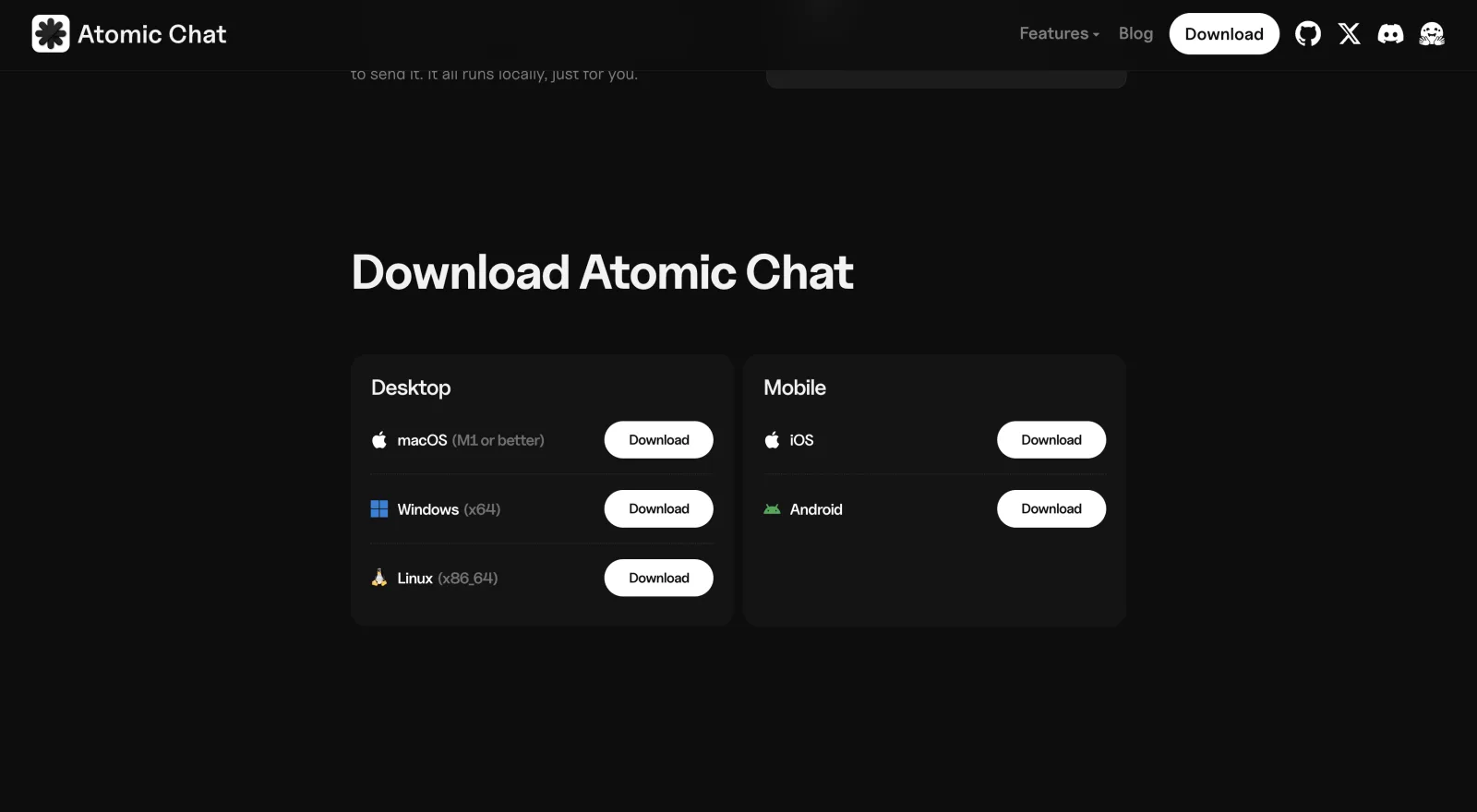
- Download Atomic Chat from atomic.chat and install it like any other app. It sets up the inference engine for you.
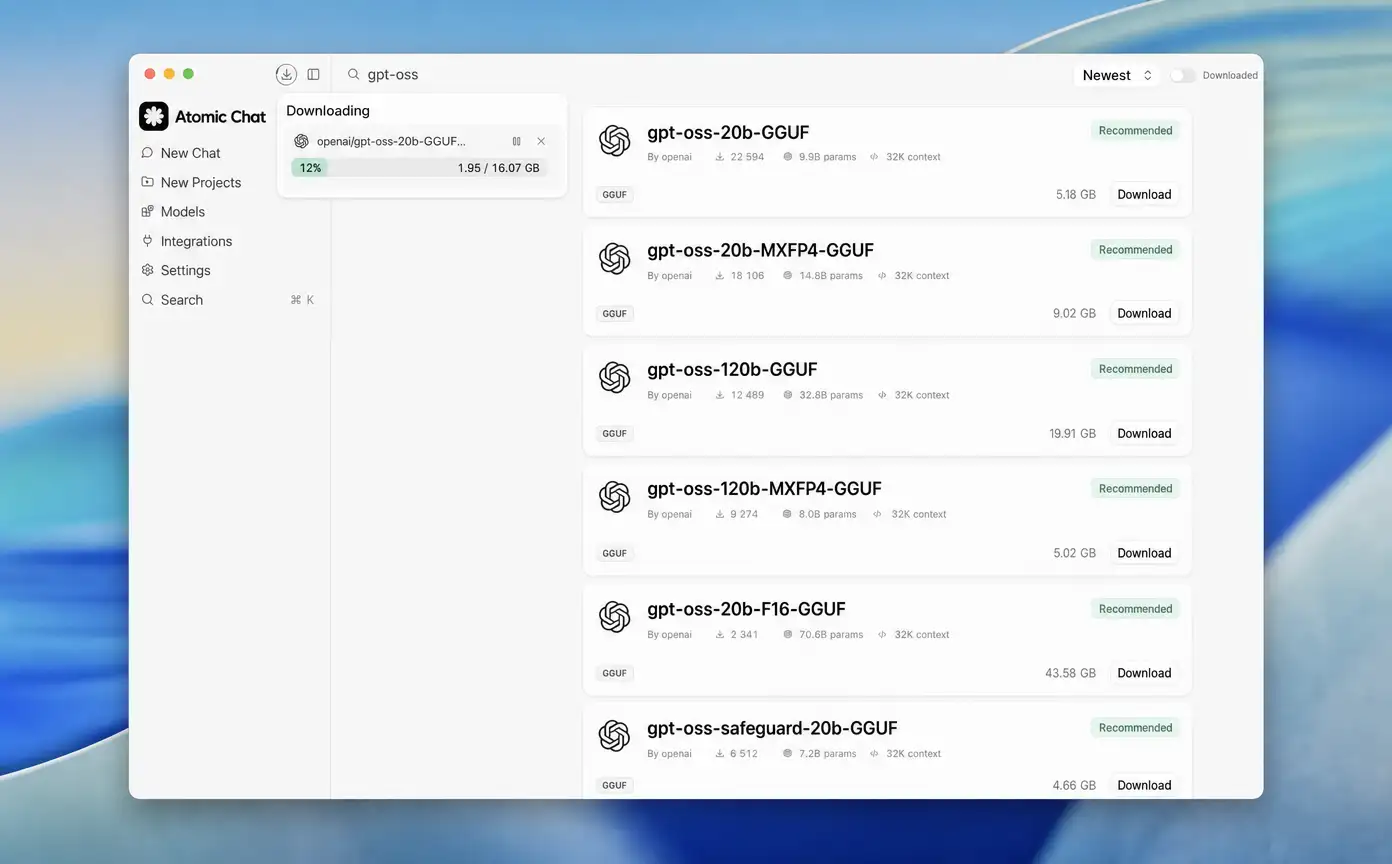
- Open Models in the left sidebar. This is where you browse and search the Hugging Face library from inside the app.
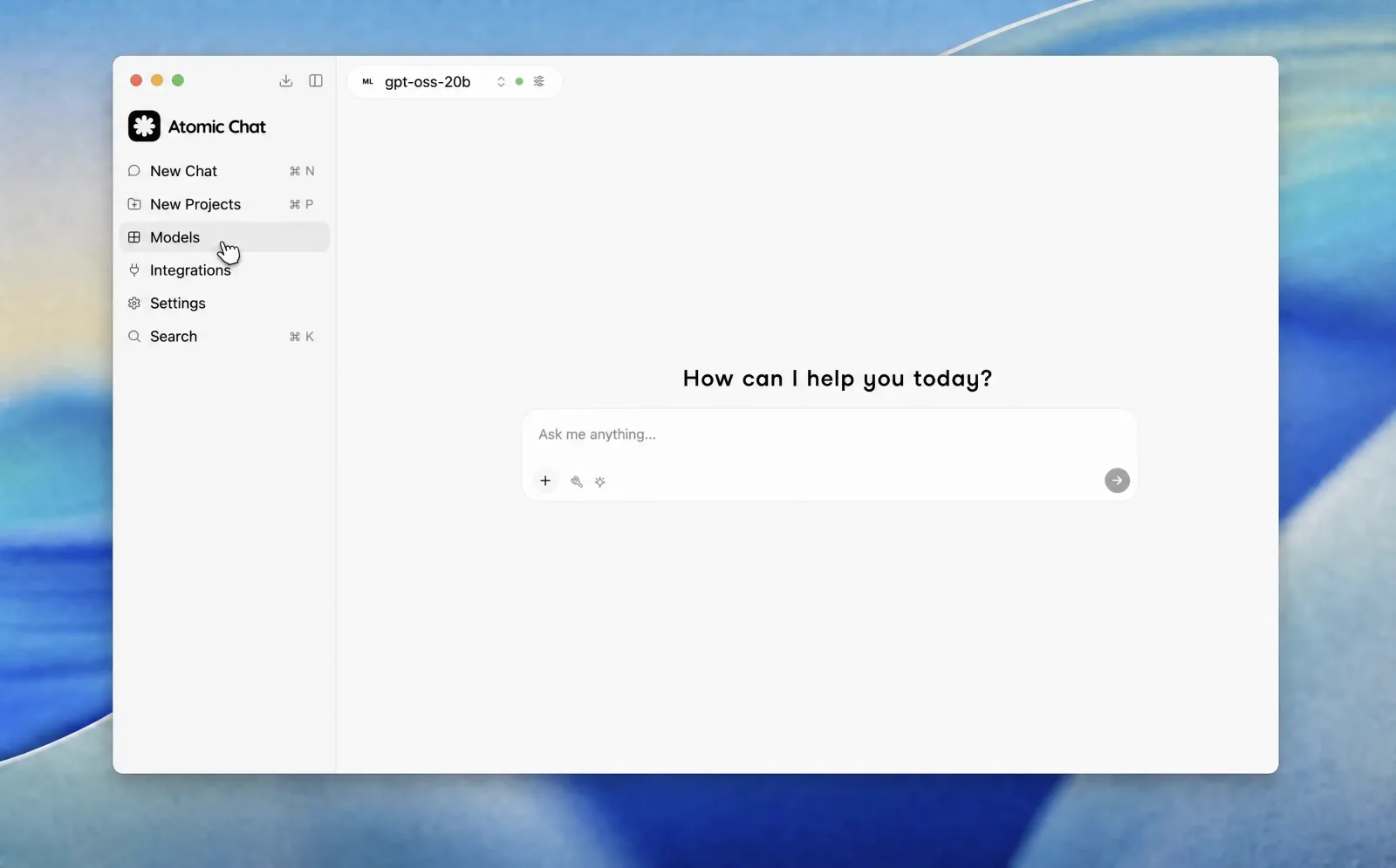
- Search "gpt-oss" and download a size. Atomic Chat lists the gpt-oss versions with their sizes and a one-click Download button. Pick the one that fits your memory — start with gpt-oss-20b if you're unsure — and the app pulls the weights from Hugging Face.
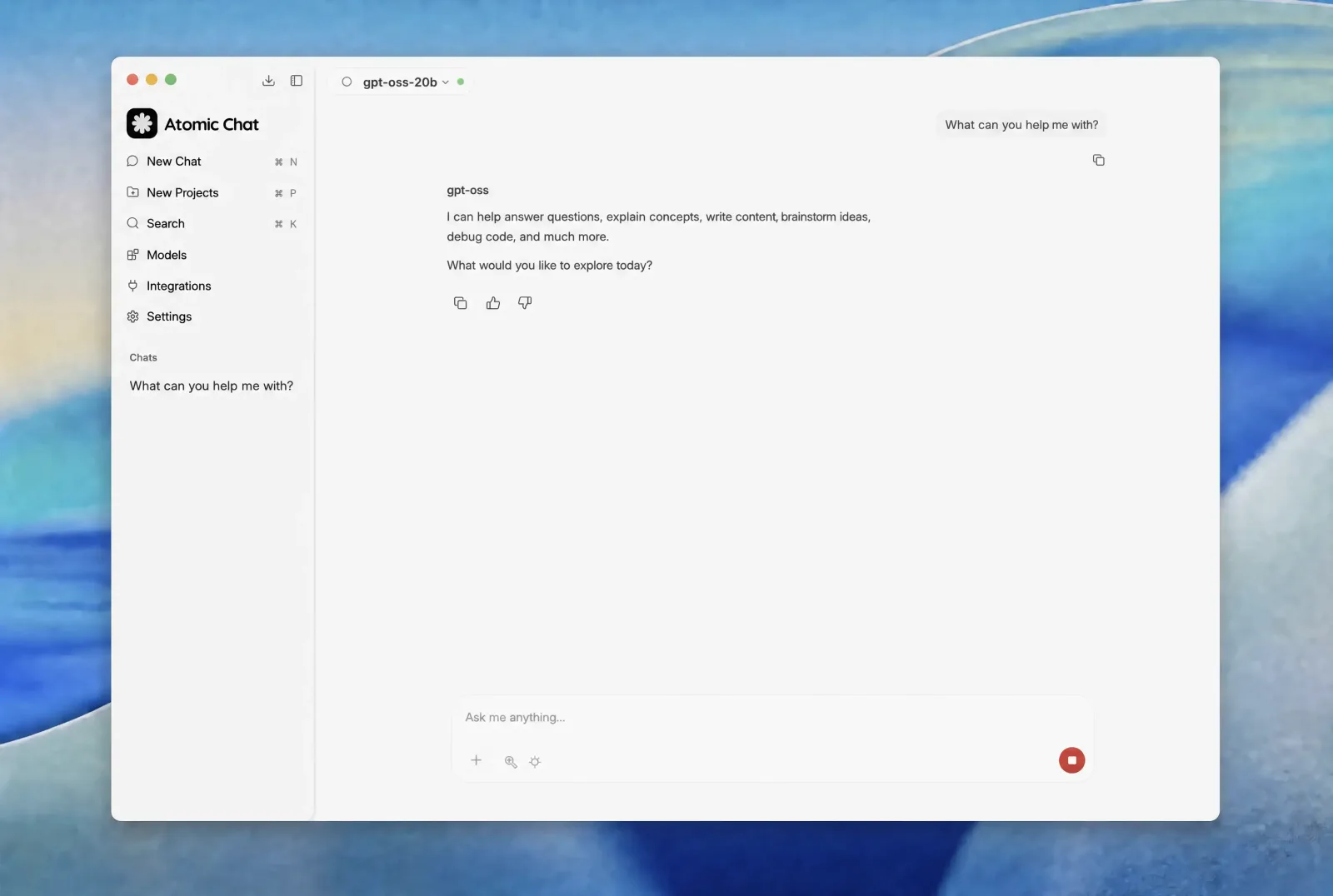
- Start chatting. Once the download finishes, the model loads and you're talking to gpt-oss in a normal chat window, fully offline.
Atomic Chat picks the right quantization for your machine automatically, and its TurboQuant inference engine with Multi-Token Prediction runs 30–70% faster than a standard setup. It also exposes an OpenAI-compatible API at http://localhost:1337/v1 and supports MCP for agent tools, so you can point other apps at your local gpt-oss without extra setup.
2. Run gpt-oss with Ollama
Ollama is a free, open-source tool for running models like gpt-oss locally on macOS, Windows, and Linux. There are two ways to run gpt-oss with Ollama: the desktop app or the terminal.
Using the Ollama app
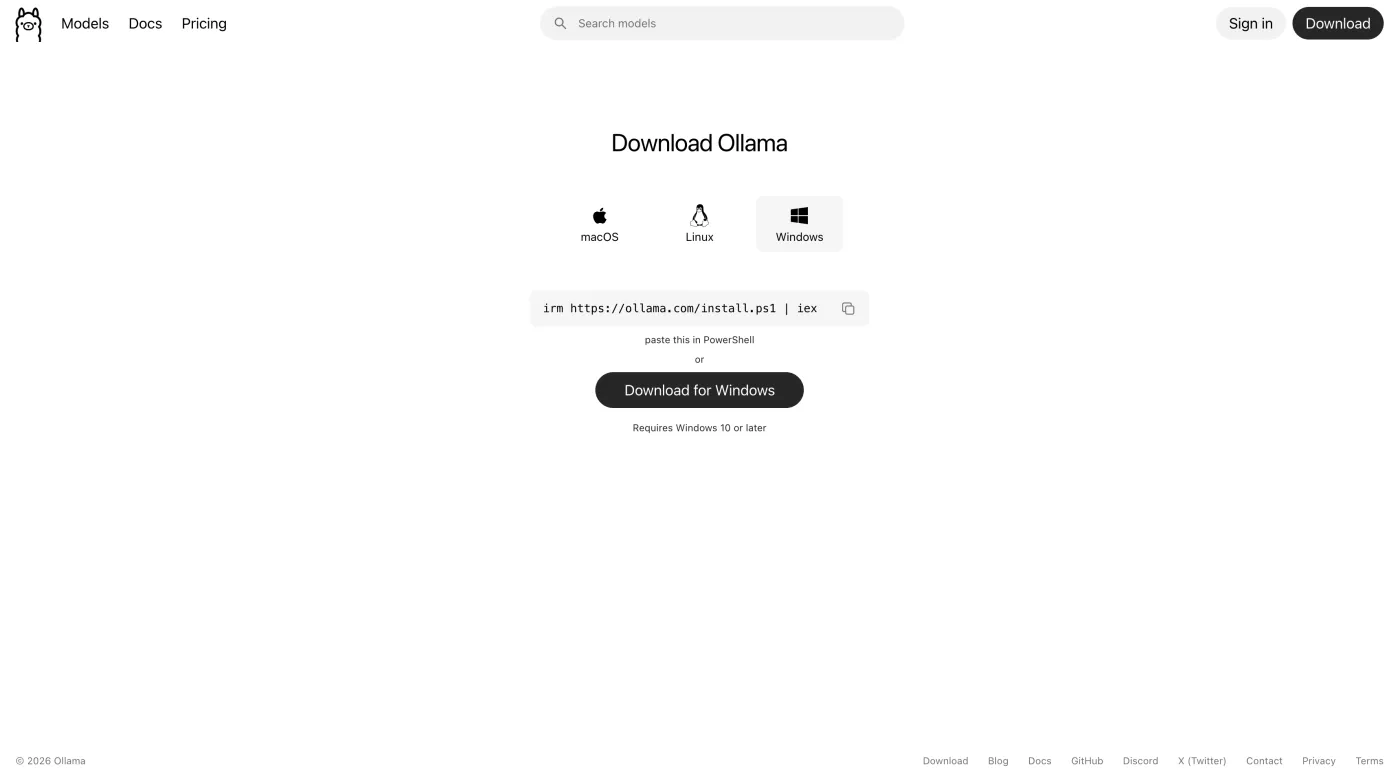
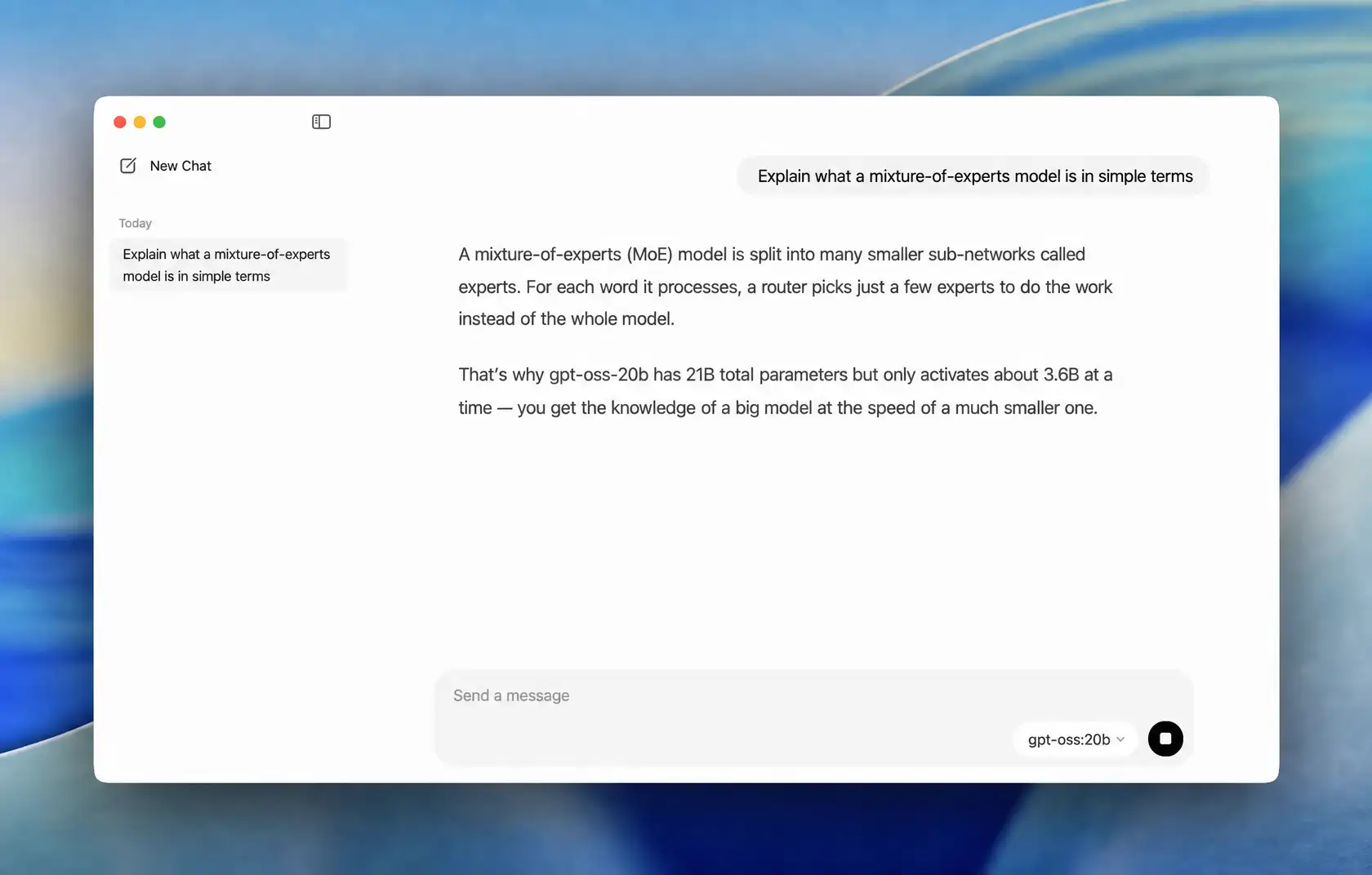
- Install Ollama. Download the installer from Ollama's official website and run it. Ollama installs a desktop app and runs in the background. Click its icon in the menu bar (Mac) or system tray (Windows) to open the chat window.
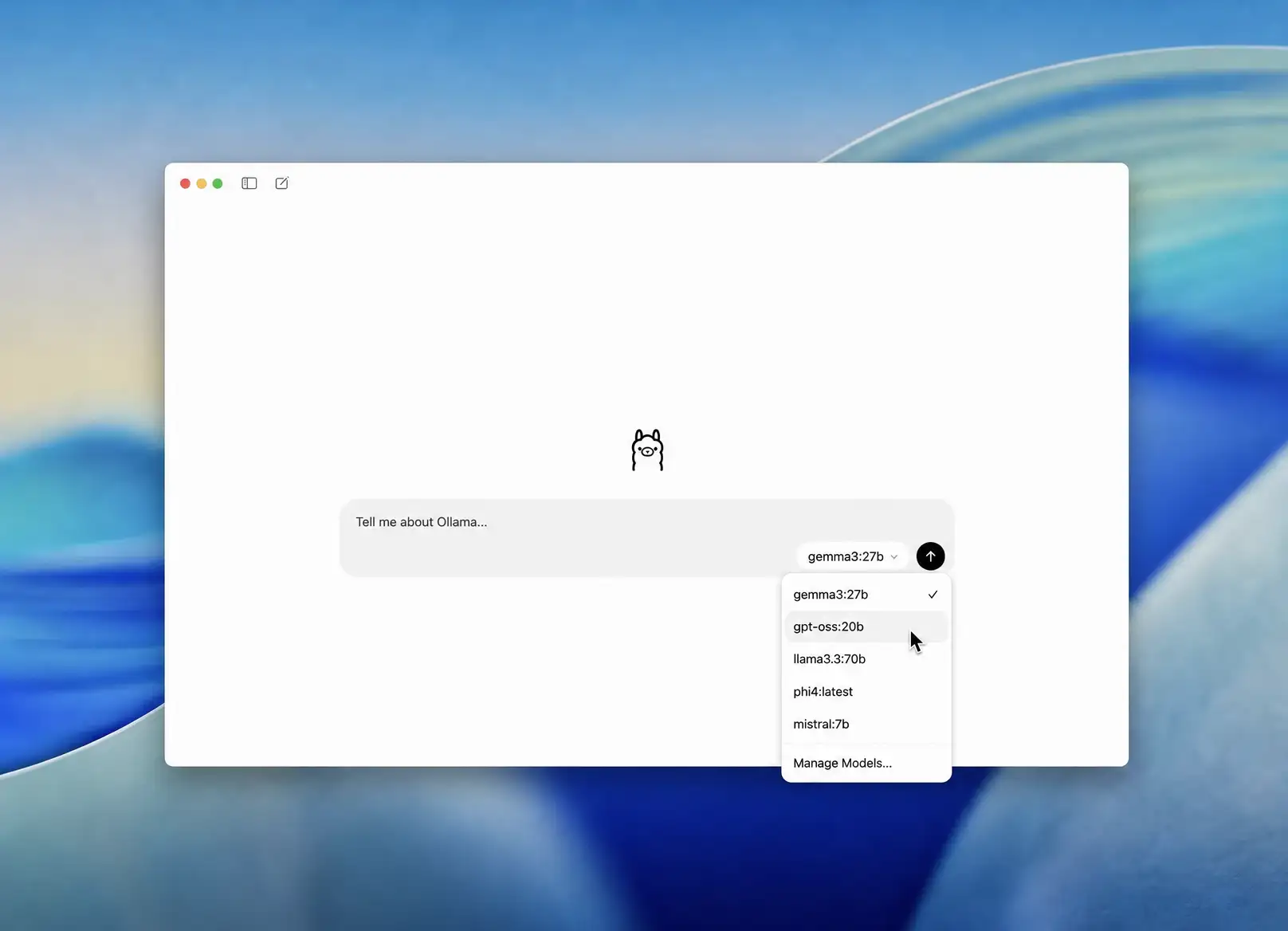
- Pick gpt-oss from the model dropdown. Open the model selector next to the message box and choose a gpt-oss size. Selecting a model you don't have yet downloads it automatically.
- Send a message. Once the download finishes, type a prompt and hit enter. gpt-oss replies right in the chat window, and everything from here runs offline.
Using the terminal
If you prefer the command line, install Ollama from ollama.com (macOS/Windows installer, or curl -fsSL https://ollama.com/install.sh | sh on Linux), then run:
ollama run gpt-oss:20b     # 21B model, ≈14 GB
ollama run gpt-oss:120b    # 117B model, ≈65 GB
The first run pulls the weights; later runs start instantly from cache. Ollama serves an OpenAI-compatible API at http://localhost:11434/v1 (use ollama as the API key):
curl http://localhost:11434/v1/chat/completions \
  -H "Content-Type: application/json" \
  -d '{
    "model": "gpt-oss:20b",
    "messages": [{"role": "user", "content": "Hello"}]
  }'
For how Ollama compares to the alternatives, see our Ollama vs LM Studio breakdown.
3. Run gpt-oss with LM Studio
LM Studio runs gpt-oss through a GUI or its lms CLI. Update to version 0.3.21 or newer, then download and chat from the terminal:
lms get openai/gpt-oss-20b      # download the 20B model
lms get openai/gpt-oss-120b     # download the 120B model
lms load openai/gpt-oss-20b     # load it into memory
lms chat openai/gpt-oss-20b     # start an interactive chat
Or do the same in the app: open the Models tab, search gpt-oss, pick the MXFP4 download, and select it in the top bar. LM Studio's OpenAI-compatible server runs at http://localhost:1234/v1.
4. Run gpt-oss with llama.cpp
llama.cpp is the C/C++ engine the other tools are built on; run gpt-oss on it directly for the most control. Install with brew install llama.cpp (or build from source), then start the server — it downloads the GGUF from Hugging Face on first run:
# Default
llama-server -hf ggml-org/gpt-oss-20b-GGUF -c 0 --jinja

# NVIDIA GPU, 16 GB VRAM
llama-server -hf ggml-org/gpt-oss-20b-GGUF --ctx-size 32768 --jinja -ub 4096 -b 4096

# 120B model
llama-server -hf ggml-org/gpt-oss-120b-GGUF -c 0 --jinja
This serves a WebUI and an OpenAI-compatible API at http://localhost:8080. Key flags: -hf pulls from Hugging Face, --jinja enables the chat template, --ctx-size/-c sets the context window, --n-cpu-moe N offloads N expert layers to CPU when VRAM is tight.
How to set the reasoning effort (low / medium / high)
gpt-oss exposes an adjustable reasoning effort: the model spends more or fewer tokens reasoning before it answers. There are three levels:
- Low — fastest, for simple Q&A and drafting.
- Medium — balanced default for most chats.
- High — deepest reasoning, for math, code, and multi-step problems.
Set it with the reasoning_effort parameter in an API call, or with one line in the system message — Reasoning: high. Via the OpenAI-compatible endpoint:
curl http://localhost:11434/v1/chat/completions \
  -H "Content-Type: application/json" \
  -d '{
    "model": "gpt-oss:20b",
    "reasoning_effort": "high",
    "messages": [{"role": "user", "content": "Prove that sqrt(2) is irrational."}]
  }'
In a chat app, set it as a system-prompt line. Start on medium and only raise to high when a task needs it — high effort is slower and consumes more of the context window.
Common problems when running gpt-oss locally
We've collected issues that users often run into when running gpt-oss locally — and how to troubleshoot them:
Out-of-memory errors. This is the most common issue, and it usually arises when you try to run 120b model and your system doesn't have enough VRAM or RAM. The most realistic way to fix it is to switch to the 20b model, lower the context length, or close memory-hungry apps before loading.
The 120b model won't load. If you have less than ~80 GB of memory, it simply won't fit at usable speed. This is a hardware limit, not a config you can tune around; the 20b model is the right call.
Replies get slower the longer the chat runs. As the conversation fills the 128K context window, the key-value cache grows and each new token costs a little more memory and time. If a long session starts to crawl, start a fresh chat or trim the context.
You're running low on disk space. You need roughly ~14 GB just to download the raw weights of the gpt-oss-20b and about ~65 GB for the 120b model. If you've pulled several models to compare them, that adds up fast. Don't forget to delete the models you're not using.
FAQ
What is gpt-oss?
gpt-oss is OpenAI's open-weight (open-source) model family, its first since GPT-2, released in August 2025 under the Apache 2.0 license. It comes in two sizes — a 21B-parameter model and a 117B-parameter model — that you can download and run on your own hardware, offline and free.
Can you run gpt-oss-120b locally?
Yes, if your machine has roughly 80 GB of memory — a multi-GPU setup, an 80 GB data-center card, or a high-end Apple Silicon machine. On typical consumer hardware, run gpt-oss-20b instead.
How much RAM do I need to run gpt-oss?
For gpt-oss-20b, plan on at least 16 GB of free memory, with 24 to 32 GB making longer sessions smoother. The 120b model needs around 80 GB.
Is gpt-oss free?
Yes. gpt-oss is released under Apache 2.0, so it's free to download, run locally, and use commercially. The only cost is the hardware you already own.
Is gpt-oss good for coding?
The 20b and 120b models both handle code well for their size, with strong reasoning on multi-step problems. If coding is your main use case, check out our best local LLM for coding article.
How does gpt-oss compare to other local models?
It's one of the strongest open-weight options you can run at home, especially for reasoning. For a broader view of what else is out there, see our list of the best local LLM apps.
The easiest way to run gpt-oss locally
If you want gpt-oss running today without touching a terminal, a one-click app is the shortest path: install it, pick gpt-oss-20b, and start chatting offline in a few minutes. If you're comfortable on the command line, Ollama gets you there in a single command, and llama.cpp gives you full control underneath.
Either way, the takeaway is the same — gpt-oss is genuinely runnable on everyday hardware, and the 20b model gives you o3-mini-class reasoning that lives entirely on your own machine.