

Claude Code can work with any model, not just Sonnet or Opus. In this article, you'll learn how to install Claude Code, connect it to a local LLM running on your system, and run it with an offline AI model.
Why would you want to do this? Because you can:
- Run Claude Code for free without usage limits
- Use it without an internet connection
- Connect it to practically any LLM that can run on your system
What you'll need
Before we start, here's what you'll need to run Claude Code locally:
- A macOS, Windows, or Linux computer. Claude Code requires macOS 13+, Windows 10 1809+, Ubuntu 20.04+/Debian 10+, or a compatible Linux distribution.
- At least 4 GB of memory for Claude Code, plus enough RAM or VRAM for the local model. If you have not run a model locally before, start with our guide to running an LLM locally.
- An internet connection for the initial application, CLI, and model downloads.
Step 1: Install your AI inference provider
Claude Code isn't an AI model, and it doesn't come with one. It's an AI coding agent — a piece of software that gives a language model access to tools and lets it take action on your behalf. It can read and edit files, run shell commands, search through your codebase, execute tests, and use external tools through MCP (Model Context Protocol). It also manages the agentic loop: sending a task to the model, processing the model's response, executing the requested actions, and feeding the results back to the model until the task is complete.
Because of this, you'll need an app that can download and run a local model and expose it as an API that Claude Code can connect to. You can use pretty much any local AI inference provider you prefer, including Ollama, llama.cpp, LM Studio, or Atomic Chat.
Atomic Chat is an open source local AI app we've built that can download a model, start the local server, and configure Claude Code — all from its desktop app. We'll use it for the purpose of this guide, and also explain how to set up a local Claude Code instance with Ollama, llama.cpp, and LM Studio later in the article.
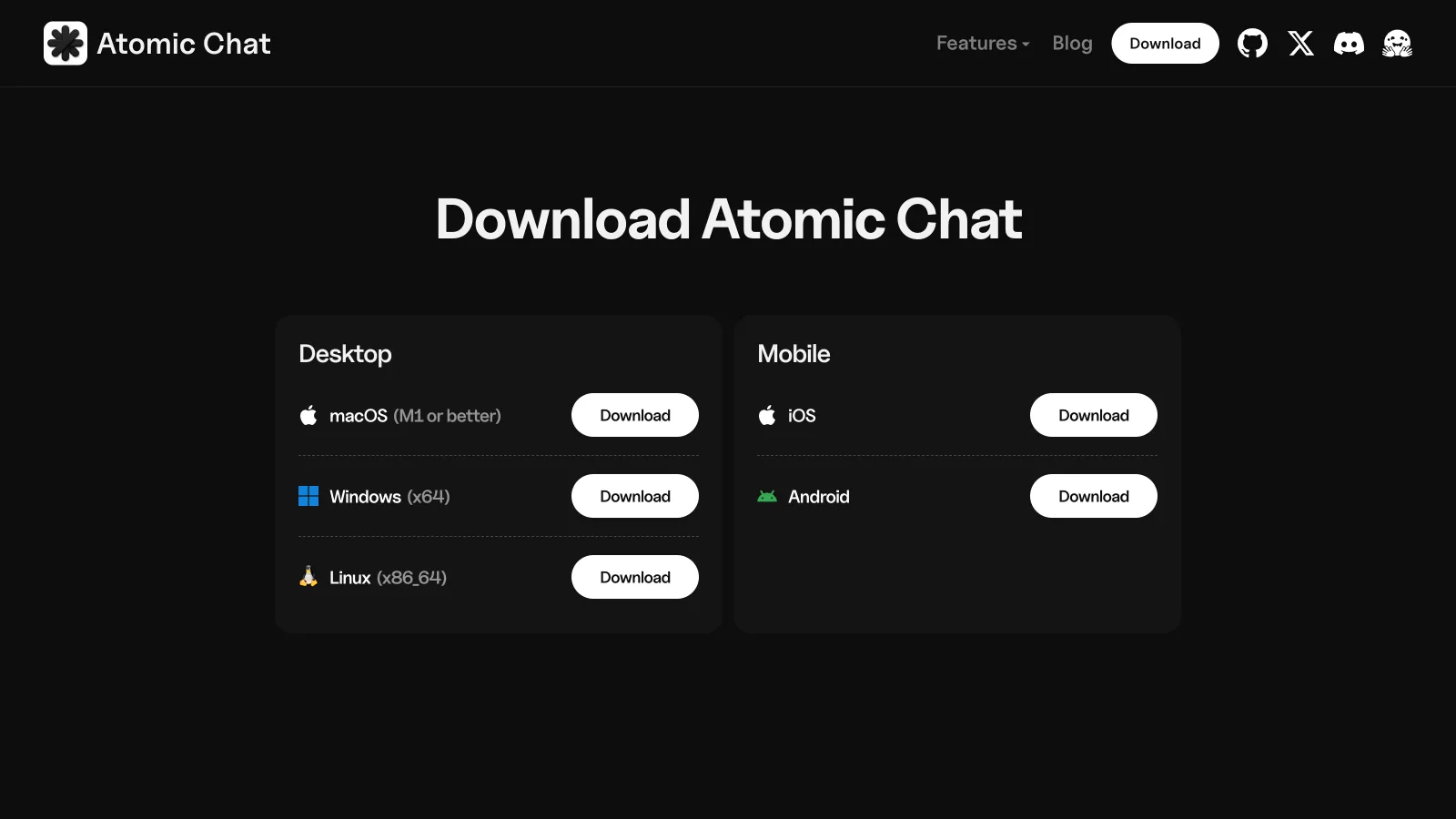
If you want to follow along, go to atomic.chat and select Download. Don't install the mobile app, as it can't run Claude Code.
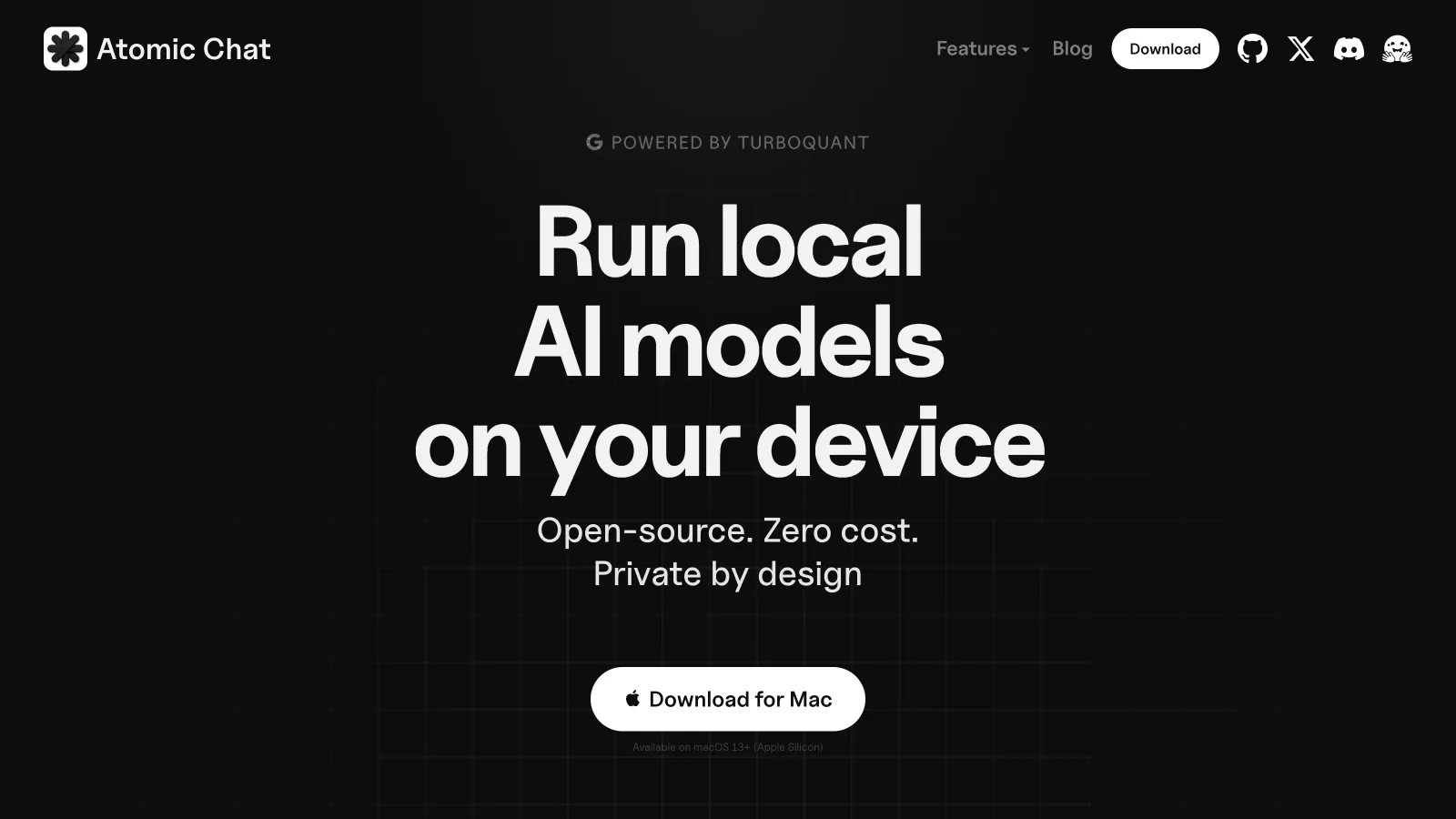
On the download page:
- Select your desktop operating system.
- Install the downloaded application.
- Open Atomic Chat.
Step 2: Download a local coding model
In Atomic Chat:
- Follow the on-screen instructions on the first launch, or skip them.
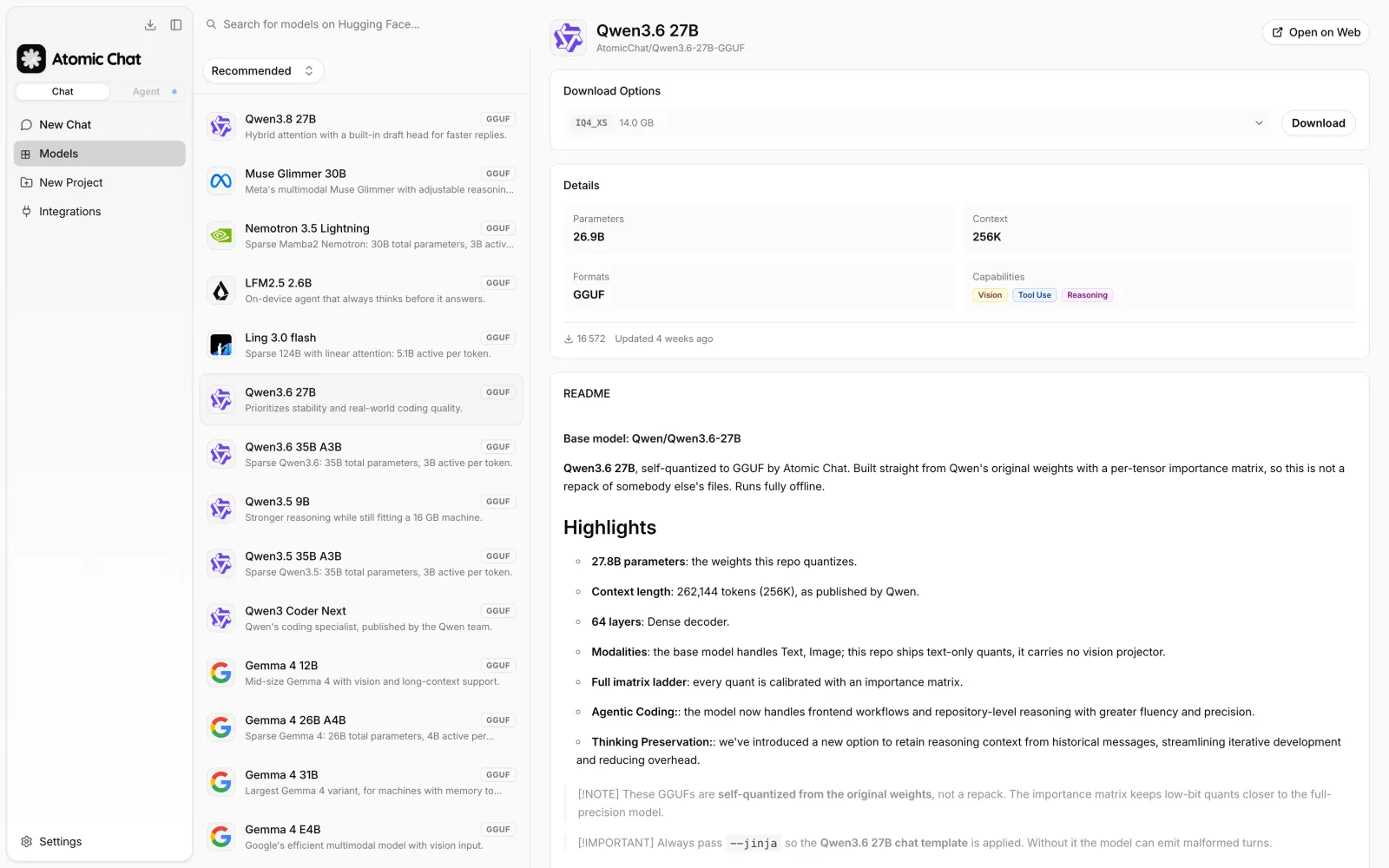
- Open Models in the sidebar.
- Search for any model, for example
Qwen3.6 27B— that's what we'll use. - Open
AtomicChat/Qwen3.6-27B-GGUF. - Under Download Options, select
Q4_K_M. - Select Download and wait for the model to finish downloading.
You can use pretty much any model that supports tool use with Claude Code, as long as it can run on your hardware.
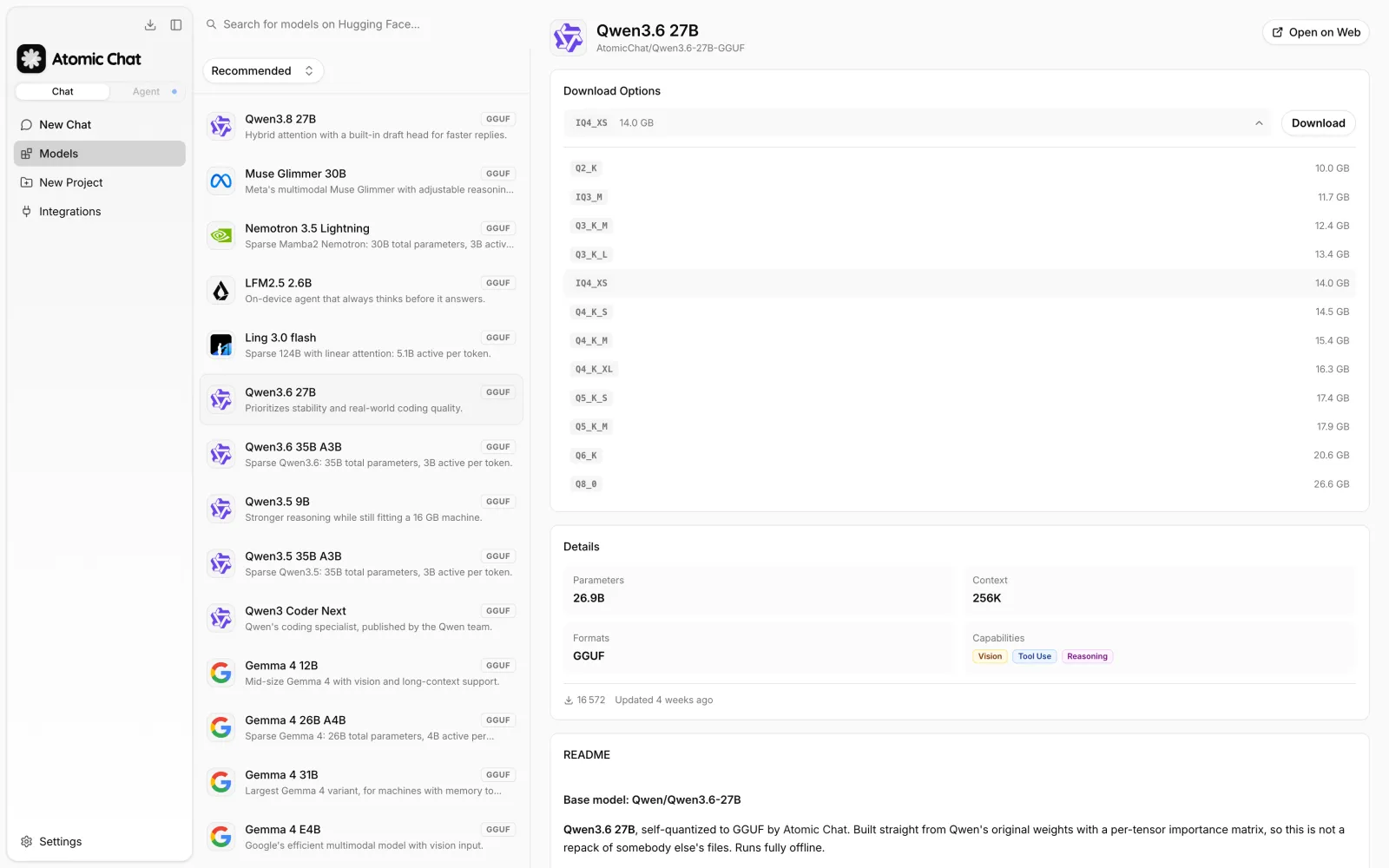
Need help choosing a model or quantization? See our best local LLMs for coding and GGUF guide.
Step 3: Install and connect Claude Code
Atomic Chat can install and configure Claude Code directly, so you can bypass the installation via the command line:
- Open Integrations.
- Find Claude Code under Coding Agents.
- Select Run.
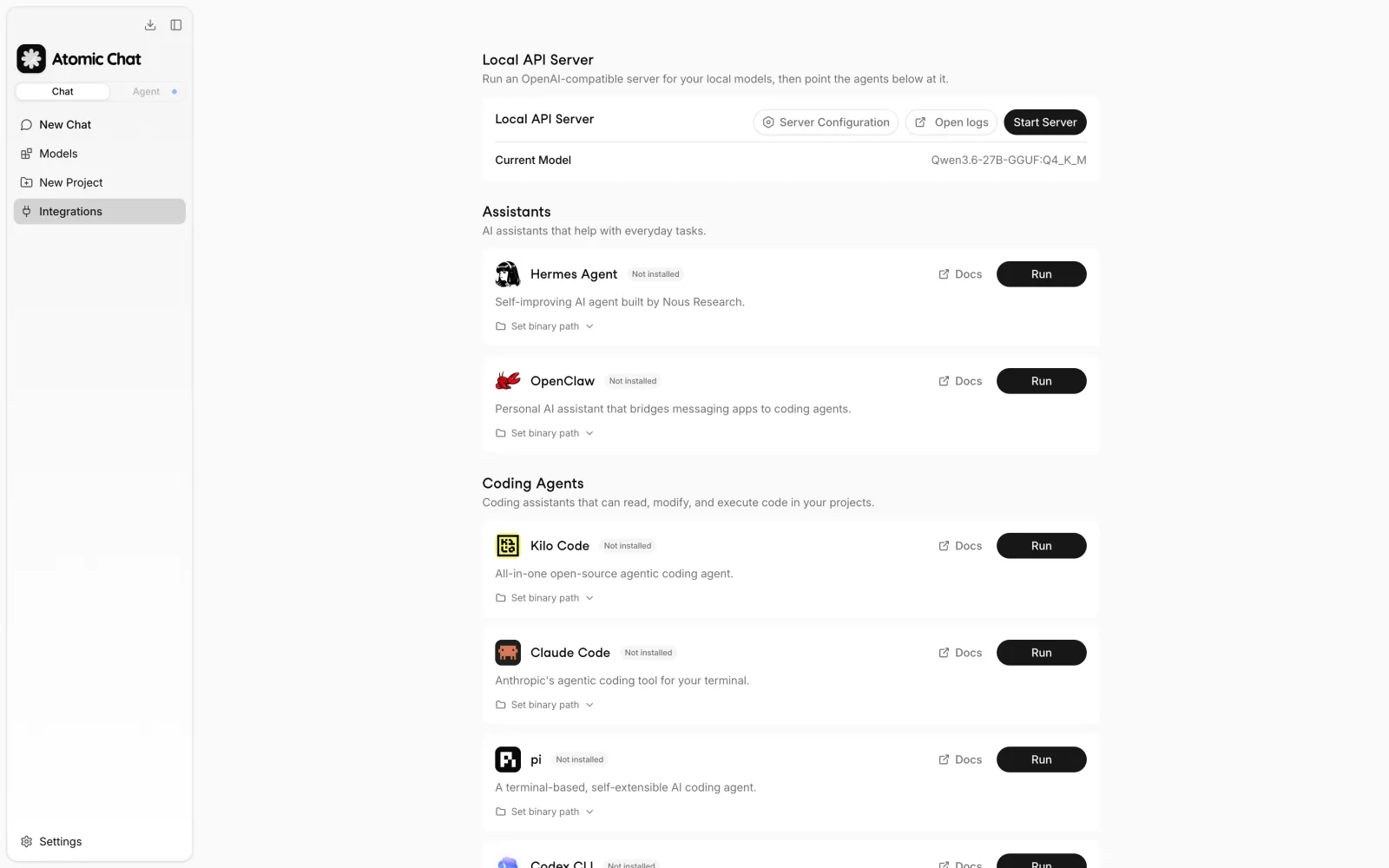
If the claude binary is not present, Atomic Chat runs the Claude Code installer and displays its log. After installation, the app will automatically:
- Start the selected local model if it is not already running.
- Start the Atomic Chat Local API Server.
- Configure Claude Code to send requests to
http://127.0.0.1:1337. - Map Claude Code to the active local model.
- Open a terminal running Claude Code.
If Claude Code is already installed, Atomic Chat skips the installation and applies the local server configuration directly.
Basically, that's all it takes to run Claude Code locally with Atomic Chat — from here, you can open the terminal and start using the agent, and it will use your local AI model.
Map Claude Code's model aliases
Going one step further, a cool thing you can do in Atomic Chat is to assign separate models to Claude Code's roles. To do this, open Settings, then Claude Code integration.
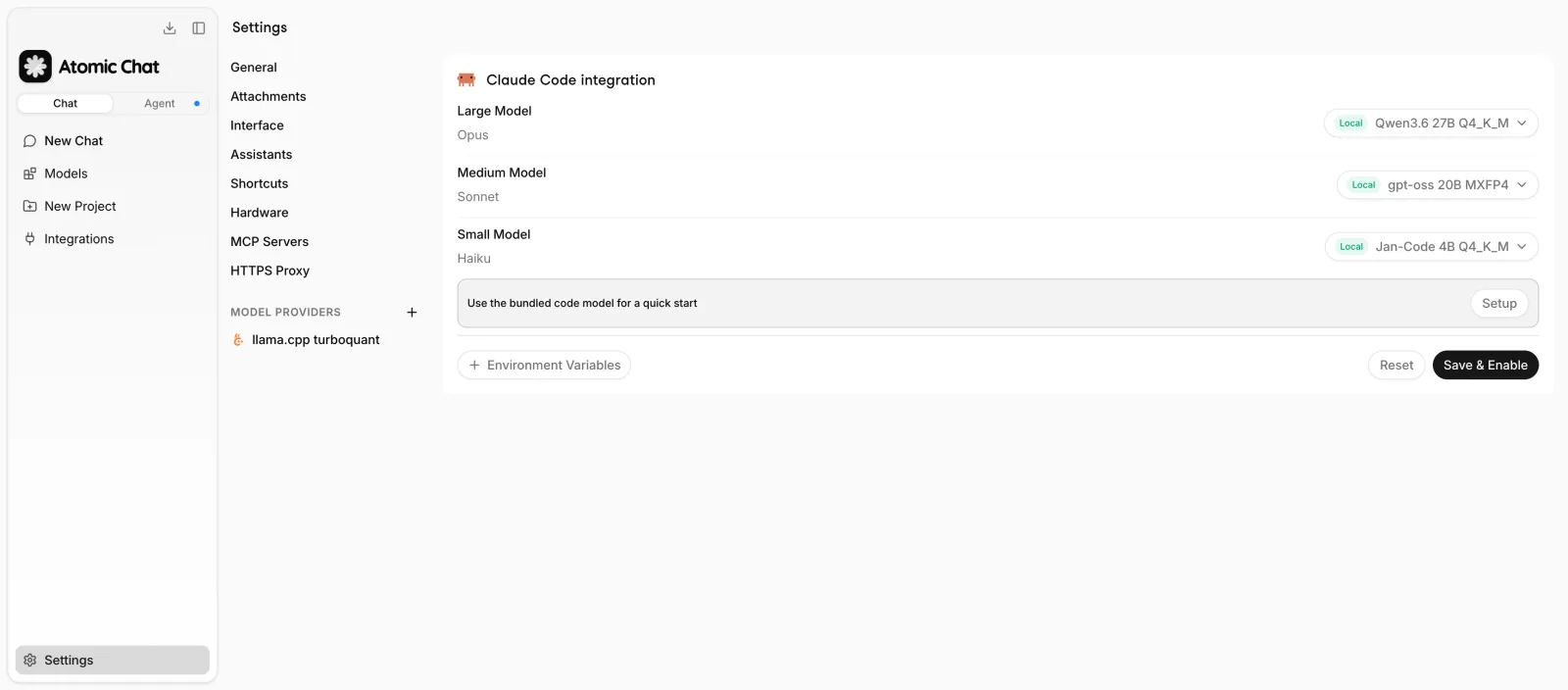
The three selectors remap Claude Code's built-in aliases:
| Atomic Chat setting | Claude Code alias |
|---|---|
| Large Model | opus |
| Medium Model | sonnet |
| Small Model | haiku |
For example, you can download three different quants of Qwen3.6 27B and assign one to each of the aliases. This way, you'll get a fast model for chatting, a balanced model for everyday tasks, and a smart but slower model for difficult tasks. When you're ready, Save & Enable.
Don't forget to open a new terminal afterward so the new environment is loaded.
How to install Claude Code manually
If you do not want Atomic Chat to run the installer, use one of Anthropic's supported installation methods.
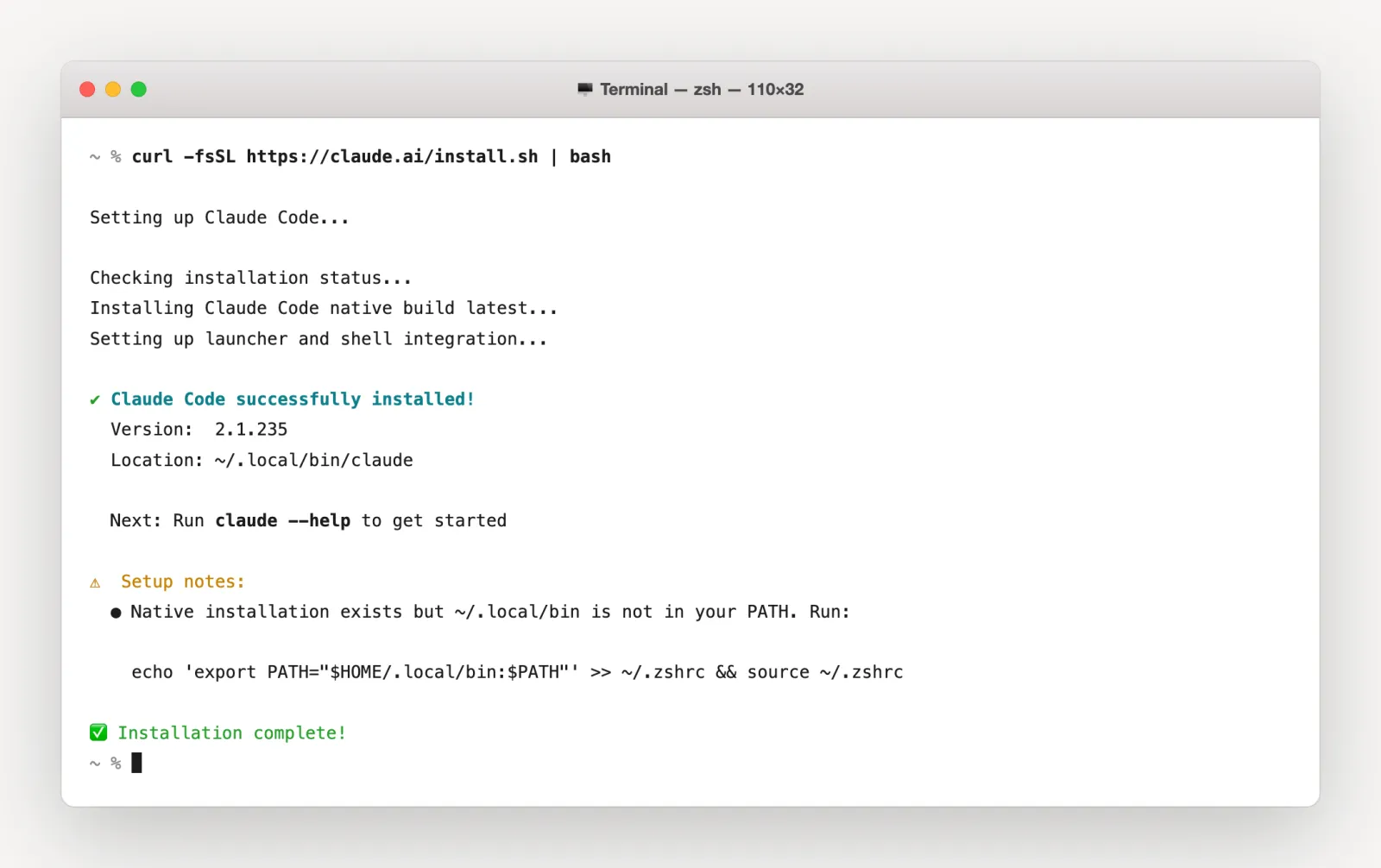
On macOS, Linux, or WSL, Anthropic recommends using the native installer:
curl -fsSL https://claude.ai/install.sh | bash
On Windows PowerShell:
irm https://claude.ai/install.ps1 | iex
On macOS with Homebrew:
brew install --cask claude-code
On Windows with WinGet:
winget install Anthropic.ClaudeCode
You can also install the package with npm if Node.js 18 or later is already available:
npm install -g @anthropic-ai/claude-code
Confirm the installation:
claude --version
The output should contain a version number followed by (Claude Code). If the native installer reports that ~/.local/bin is missing from PATH, run the shell command printed by the installer before continuing.
Step 4: Run Claude Code with the local model
In a new terminal, move to your project and start Claude Code:
cd /path/to/your/project
claude
On the first launch in a directory, Claude Code asks whether you trust the project. Review the path and confirm.
Check that Claude is using the local model. The Claude Code header should show the local model ID. In our example, it displays Qwen3.6-27B-GGUF:Q4_K_M.
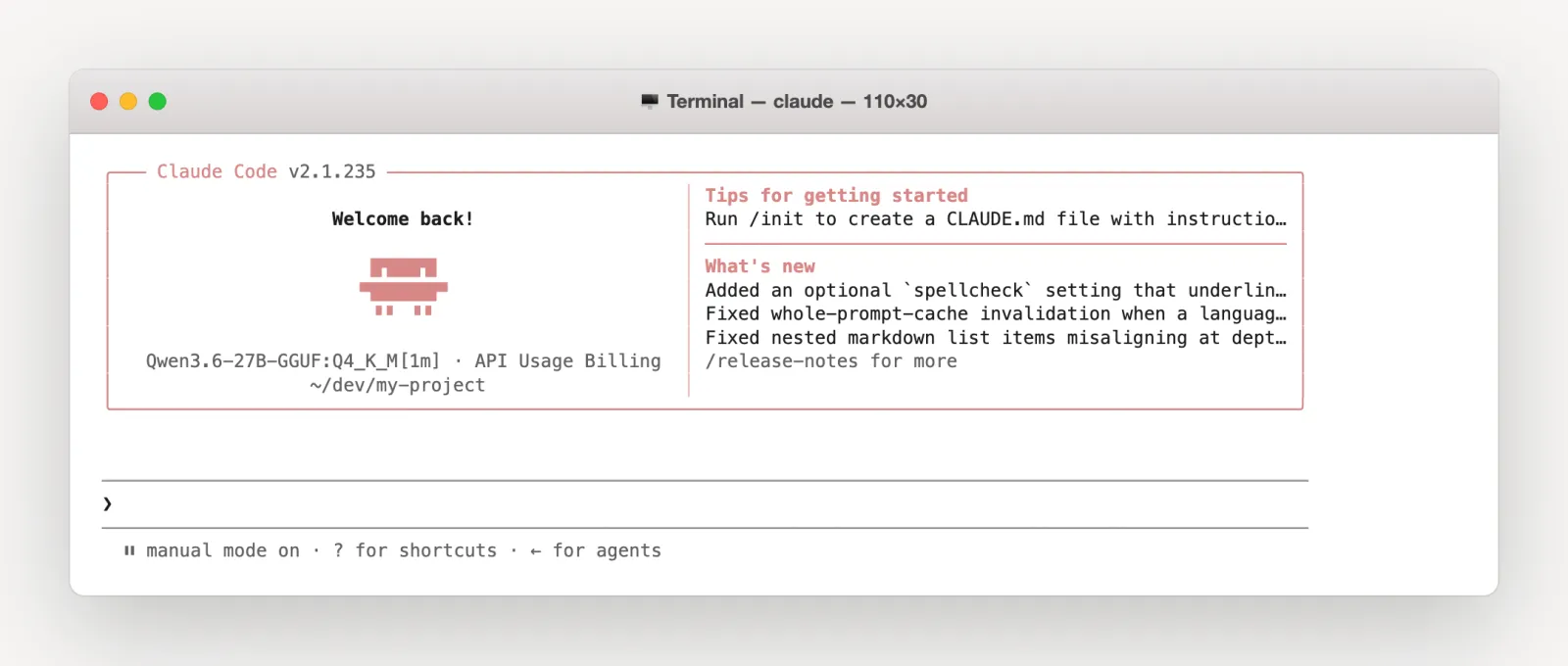
Inside Claude Code, run:
/status
Confirm that the status includes:
Anthropic base URL: http://127.0.0.1:1337
The first test should be read-only. For example:
Inspect this project and explain its entry points. Do not change any files.
This checks that the model can read the repository and complete a tool call before you allow it to edit files or run project commands. Use /model if you want to switch between the local models mapped to opus, sonnet, and haiku.
Configure Atomic Chat as the inference server manually
The Run and Save & Enable buttons automate the environment configuration. You can apply the same setup yourself if you want to inspect or control each value.
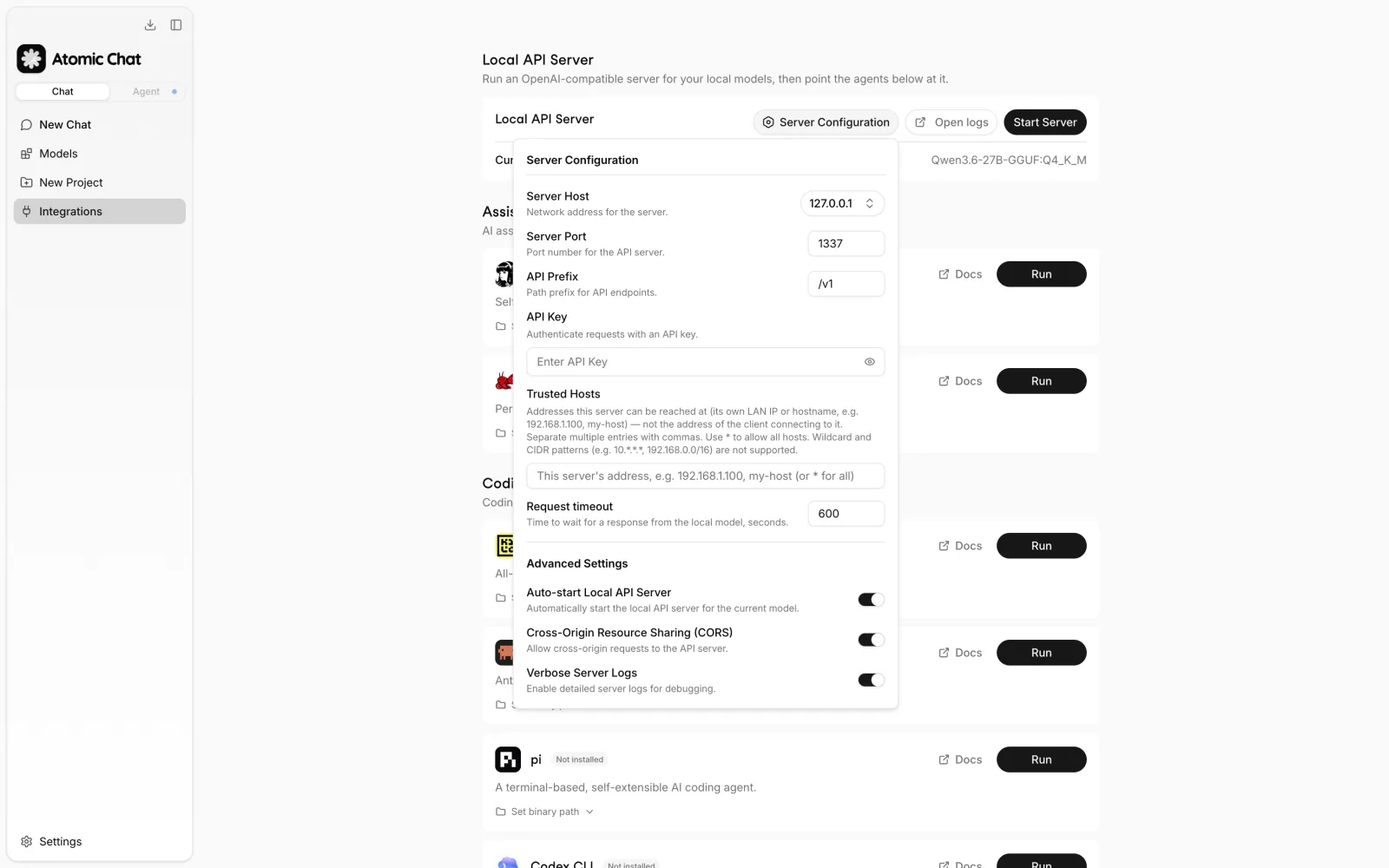
First, open Integrations in Atomic Chat and select Server Configuration. The default local settings are:
- Server Host:
127.0.0.1 - Server Port:
1337 - API Prefix:
/v1 - Request timeout:
600seconds
Select Start Server after loading the model.
On macOS, Linux, or WSL, export the server address, a local authentication placeholder, and the model ID:
export ANTHROPIC_BASE_URL="http://127.0.0.1:1337"
export ANTHROPIC_AUTH_TOKEN="atomic-local"
export ANTHROPIC_MODEL="Qwen3.6-27B-GGUF:Q4_K_M"
claude
ANTHROPIC_BASE_URL redirects Claude Code's API requests. ANTHROPIC_AUTH_TOKEN supplies the bearer header Claude Code expects; when Atomic Chat API authentication is disabled, the local server does not validate this placeholder. ANTHROPIC_MODEL selects the model exposed by the server.
To preserve the normal Claude Code aliases instead of forcing one model, set the three documented model variables:
export ANTHROPIC_DEFAULT_OPUS_MODEL="Qwen3.6-27B-GGUF:Q4_K_M"
export ANTHROPIC_DEFAULT_SONNET_MODEL="Qwen3.6-27B-GGUF:Q4_K_M"
export ANTHROPIC_DEFAULT_HAIKU_MODEL="Qwen3.6-27B-GGUF:Q4_K_M"
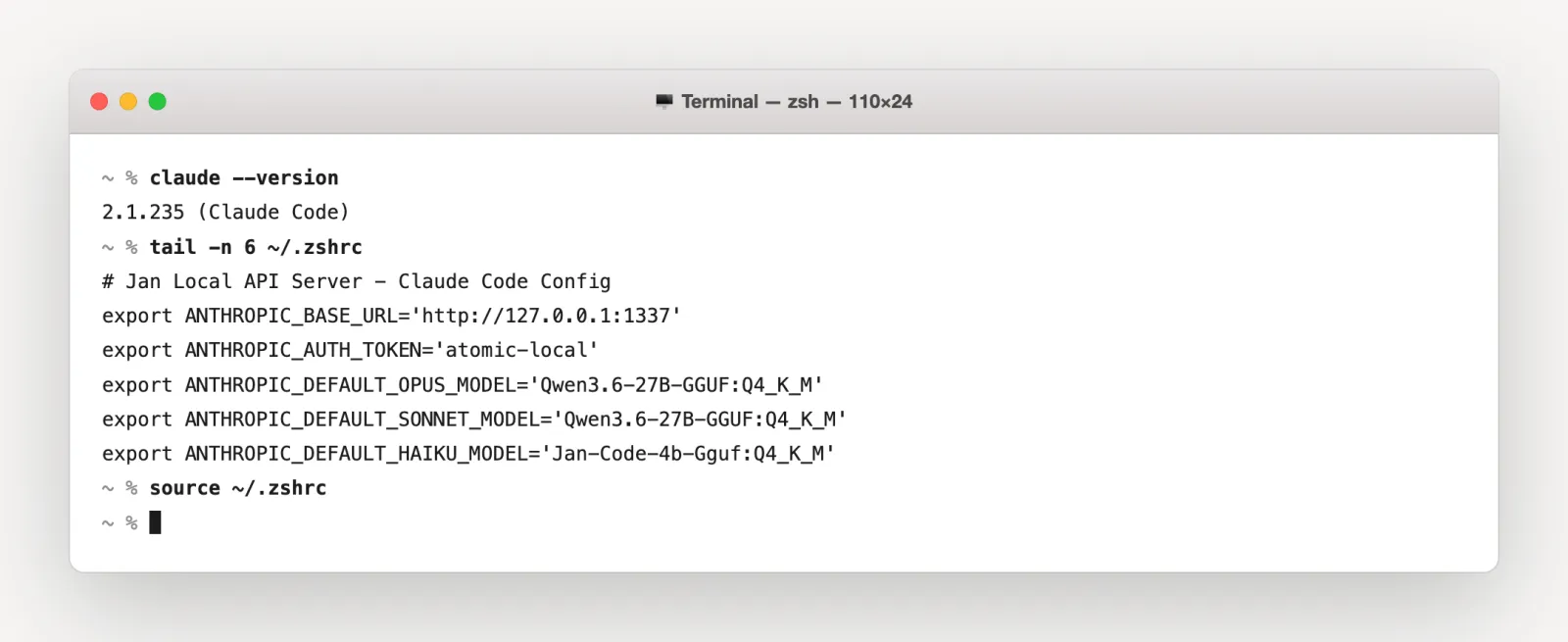
Add these exports to ~/.zshrc or ~/.bashrc to keep them across terminal sessions, then open a new terminal or reload the profile:
source ~/.zshrc
Atomic Chat performs this shell-profile update when you select Save & Enable.
Before opening Claude Code, you can test the local Anthropic endpoint directly:
curl -X POST "http://127.0.0.1:1337/v1/messages" \
  -H "Authorization: Bearer atomic-local" \
  -H "anthropic-version: 2023-06-01" \
  -H "content-type: application/json" \
  -d '{"model":"Qwen3.6-27B-GGUF:Q4_K_M","max_tokens":32,"messages":[{"role":"user","content":"Reply with OK."}]}'
If this request returns a model response, the model and server are working. A later Claude Code error is then likely caused by environment variables or model tool calling rather than inference itself.
Run Claude Code locally with Ollama
Ollama exposes an Anthropic-compatible API and includes a launcher for Claude Code. After installing Ollama and downloading a local model, run:
ollama launch claude --model your-model-name
The launcher sets the connection variables and starts Claude Code. Learn more. You can also set the variables manually:
export ANTHROPIC_AUTH_TOKEN="ollama"
export ANTHROPIC_API_KEY=""
export ANTHROPIC_BASE_URL="http://localhost:11434"
claude --model your-model-name
The model must already be downloaded if you intend to work without a network connection. Test the complete workflow with the network disabled before relying on it offline.
Run Claude Code locally with llama.cpp
Current llama-server builds implement the Anthropic Messages API directly, including streaming and tool-use content blocks. Start the server with a tool-capable GGUF:
llama-server \
  --model /path/to/model.gguf \
  --port 8080 \
  --jinja
The --jinja flag applies the model's Jinja chat template, which is required by many tool-calling GGUFs. Follow the model card if it specifies a different template or server configuration.
In another terminal, run:
export ANTHROPIC_BASE_URL="http://127.0.0.1:8080"
export ANTHROPIC_AUTH_TOKEN="local"
export ANTHROPIC_MODEL="your-model-name"
claude
See the llama.cpp Anthropic Messages API announcement for the supported endpoints. Our Ollama versus llama.cpp guide explains the runtime differences if you have not chosen between them.
Run Claude Code locally with LM Studio
LM Studio supports POST /v1/messages, streaming, and Anthropic-style authentication headers. Load a tool-capable model, start the LM Studio server on its default port, and run:
export ANTHROPIC_BASE_URL="http://localhost:1234"
export ANTHROPIC_AUTH_TOKEN="lmstudio"
claude --model your-model-id
Use the exact model ID shown by LM Studio. Its Anthropic compatibility documentation contains the current endpoint and authentication details. If you want a broader comparison before installing another runtime, see our guide to local LLM applications.
Fix common setup errors
Here are the most common issues you can run into when running Claude Code with a local LLM, and how to fix them.
Claude Code asks you to log in
Claude Code has not received the local authentication override. Confirm that ANTHROPIC_AUTH_TOKEN is set in the same terminal:
echo $ANTHROPIC_AUTH_TOKEN
If you previously configured an Anthropic API key, clear it for the local session:
unset ANTHROPIC_API_KEY
Then start claude again. An authentication token takes priority over a saved Claude login when Claude Code connects to the custom base URL.
/status still shows Anthropic's API
Confirm the base URL:
echo $ANTHROPIC_BASE_URL
If Atomic Chat wrote the variables to your shell profile, open a new terminal. You can also reload the profile with source ~/.zshrc or source ~/.bashrc, then restart Claude Code.
Claude Code connects but tool calls fail
The server connection is working, but the model or its chat template is not producing valid tool calls. Confirm that the model advertises tool-use support. With llama.cpp, check the model card and make sure the required chat template is enabled; for the example above, that means including --jinja.
Smaller models may answer coding questions correctly while failing multi-step read, edit, and test loops. Try a short read-only task first. If that succeeds, increase the task scope gradually.
The local model times out or becomes slow
Local inference can pause while a model processes Claude Code's system prompt, repository context, and tool results. Keep Atomic Chat's request timeout at 600 seconds initially. If the machine is short on memory, reduce the model's context length or use a smaller model.
Context consumes memory beyond the model weights because the runtime must also store the KV cache. Avoid loading an entire large repository when the task only concerns a few directories.
Claude Code cannot find the claude command
Run the PATH instruction printed by the installer, then open a new terminal. For the native macOS and Linux installer, the binary normally resides at ~/.local/bin/claude.
Frequently asked questions
Quick answers to the questions people ask most about running Claude Code with local models.
Can Claude itself run locally?
No. Anthropic does not publish downloadable weights for Claude Sonnet or Opus. This setup runs the Claude Code agent locally and replaces its normal Claude inference backend with an open-weight model.
Can Claude Code work completely offline?
Yes, after Claude Code, the runtime, and the model have been downloaded. Tasks that use web search, remote MCP servers, package registries, GitHub, or other network services still require a connection. For a broader explanation of the agent-runtime-model relationship, see our guide to running AI agents locally.
Do I need an Anthropic account or subscription?
Not when Claude Code is configured with a local ANTHROPIC_BASE_URL and ANTHROPIC_AUTH_TOKEN. Use /status to verify that the CLI is connected to the local server rather than api.anthropic.com.
Is Claude Code free with a local model?
Claude Code does not create Anthropic API charges when all inference is handled by your own local server. You still supply the computer, storage, memory, and electricity used for inference.
Will a local model perform like Claude Sonnet or Opus?
Usually not on difficult repository-wide reasoning or long sequences of tool calls. Local models are most reliable when the task is scoped, the relevant files are clear, and the model has explicit tool-use training. The benefit is that inference can remain on your machine and continue without an internet connection.
Can I switch back to Anthropic's API later?
Yes. Remove or unset ANTHROPIC_BASE_URL, ANTHROPIC_AUTH_TOKEN, ANTHROPIC_MODEL, and any ANTHROPIC_DEFAULT_*_MODEL overrides, then restart Claude Code and sign in through its normal flow.
Key takeaways
- Claude Code can run locally because it doesn't necessarily need to connect to Anthropic models — you can run it with any model, including offline LLMs.
- Claude Code is an AI agent — it orchestrates LLM requests and responses and connects the models to tools, but it's not a model itself.
- You'll need a local AI app, such as Atomic Chat, which downloads and runs the local model, so that Claude Code can talk to it.
- You can run Claude Code locally with Atomic Chat, Ollama, llama.cpp, and LM Studio, as well as with other AI inference providers.
- Once you're running Claude Code locally, you'll be able to use it even without an internet connection, and you'll get the full benefits of this powerful agent without any API costs associated with running it with cloud models.