
A self-hosted LLM is an AI model that runs locally on your device, and in this guide we'll explain step by step how to set it up.
We'll use Atomic Chat, a free open-source desktop app for Mac, Windows, and Linux that we've built for this purpose, but you can also use Ollama, LM Studio, or another inference provider you prefer. You'll learn how to:
- Choose a model.
- Download a GGUF without terminal commands.
- Run private local chats.
- Speed up supported model families.
- Expose an OpenAI-compatible API and connect coding tools.
Let's get started.
What is a self-hosted LLM?
In simple terms, a self-hosted LLM is a language model that runs on your hardware — either hardware you own, or hardware you rent through a private server.
In a self-hosted setup, prompts are processed on the hardware where the model is installed, so they don't need to be sent to the company that developed or distributed the model. For example, you can self-host GPT-OSS models developed by OpenAI, and in that setup, your prompts aren't sent to OpenAI's servers.
The term self-hosted LLM is sometimes confused with open-source or open-weight models, but they're not necessarily the same thing. A model that can be downloaded and run locally isn't automatically open source, and downloadable models can come with different restrictions on modification, redistribution, and commercial use.
In practice, however, most LLMs designed for self-hosting are distributed with open weights.
How to self-host an LLM with Atomic Chat
Atomic Chat is an open-source desktop app for running local models that we've built, and we'll show you how to set up a self-hosted LLM using it as an inference provider.
For this example, we'll use Qwen3.6 27B with the Q4_K_M quant, although you can use any of over 1000 AI models available on Hugging Face.
1. Install Atomic Chat and select a backend
To get started:
- Download Atomic Chat for your operating system from atomic.chat, install it, and open the app.
- On the starter-model screen, skip the download — we'll manually find and download a model later.
- When the “Optimize the Turboquant backend?” dialog appears, use the table below to choose a backend.
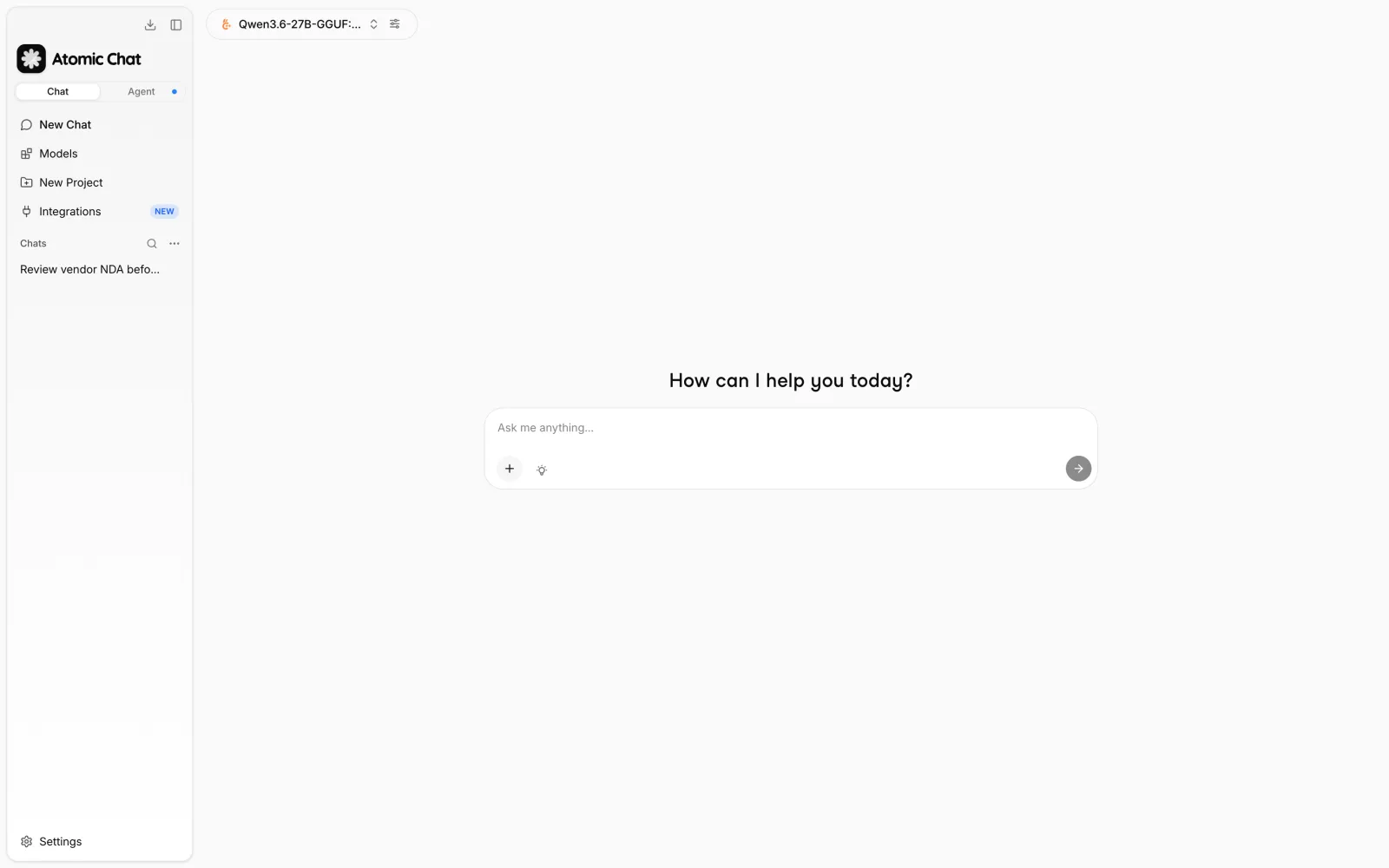
- Wait for the Atomic Chat home screen to open.
| Choice | What Atomic Chat does |
|---|---|
| Find optimal backend | Detects and downloads a compatible CUDA or Vulkan backend for the computer |
| Skip | Continues with the bundled CPU-ready backend |
2. Open the model page
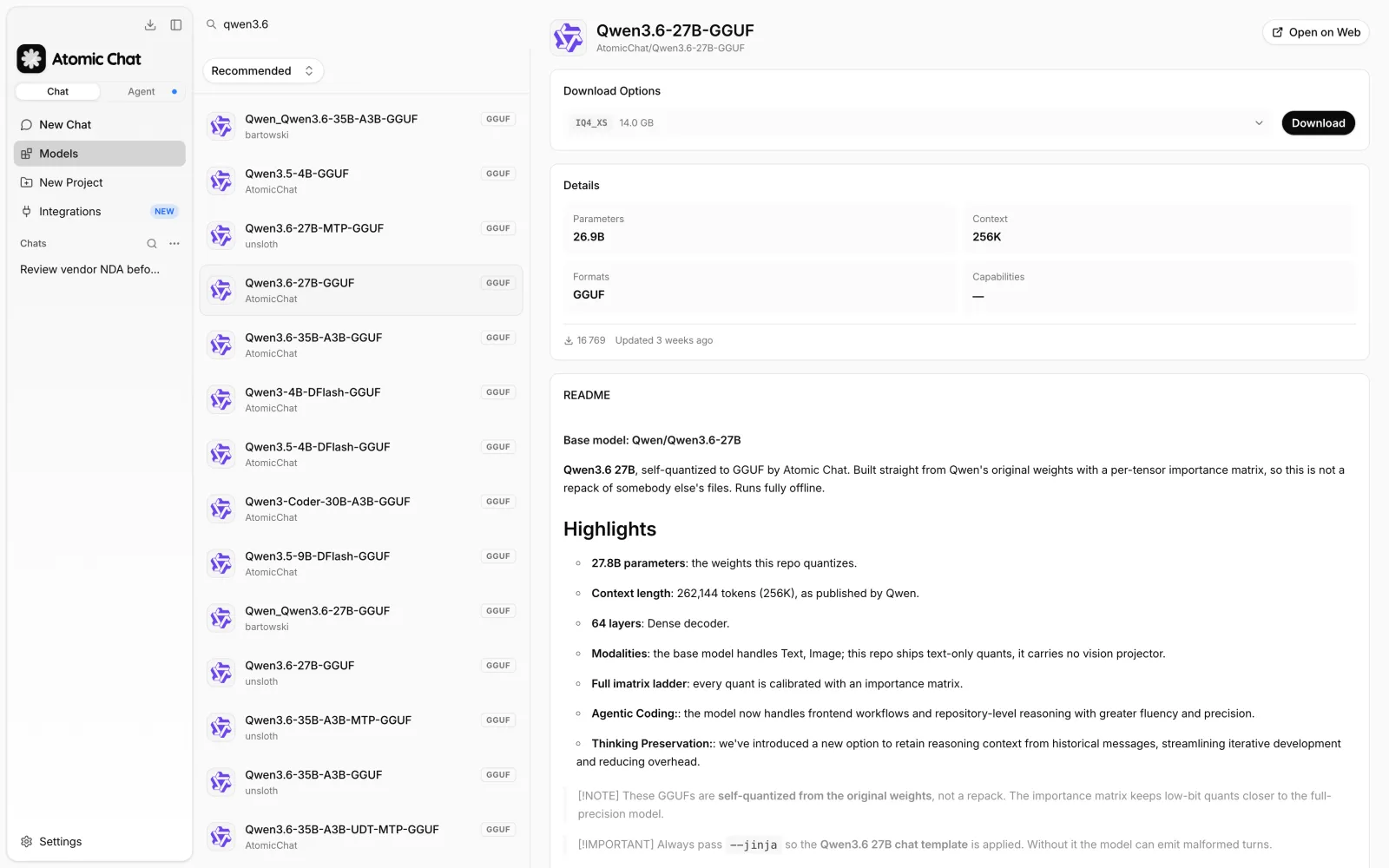
- Select Models in the sidebar.
- For this example, enter
AtomicChat/Qwen3.6-27B-GGUFin “Search for models on Hugging Face...”. - Open the model page.
3. Download the model quant
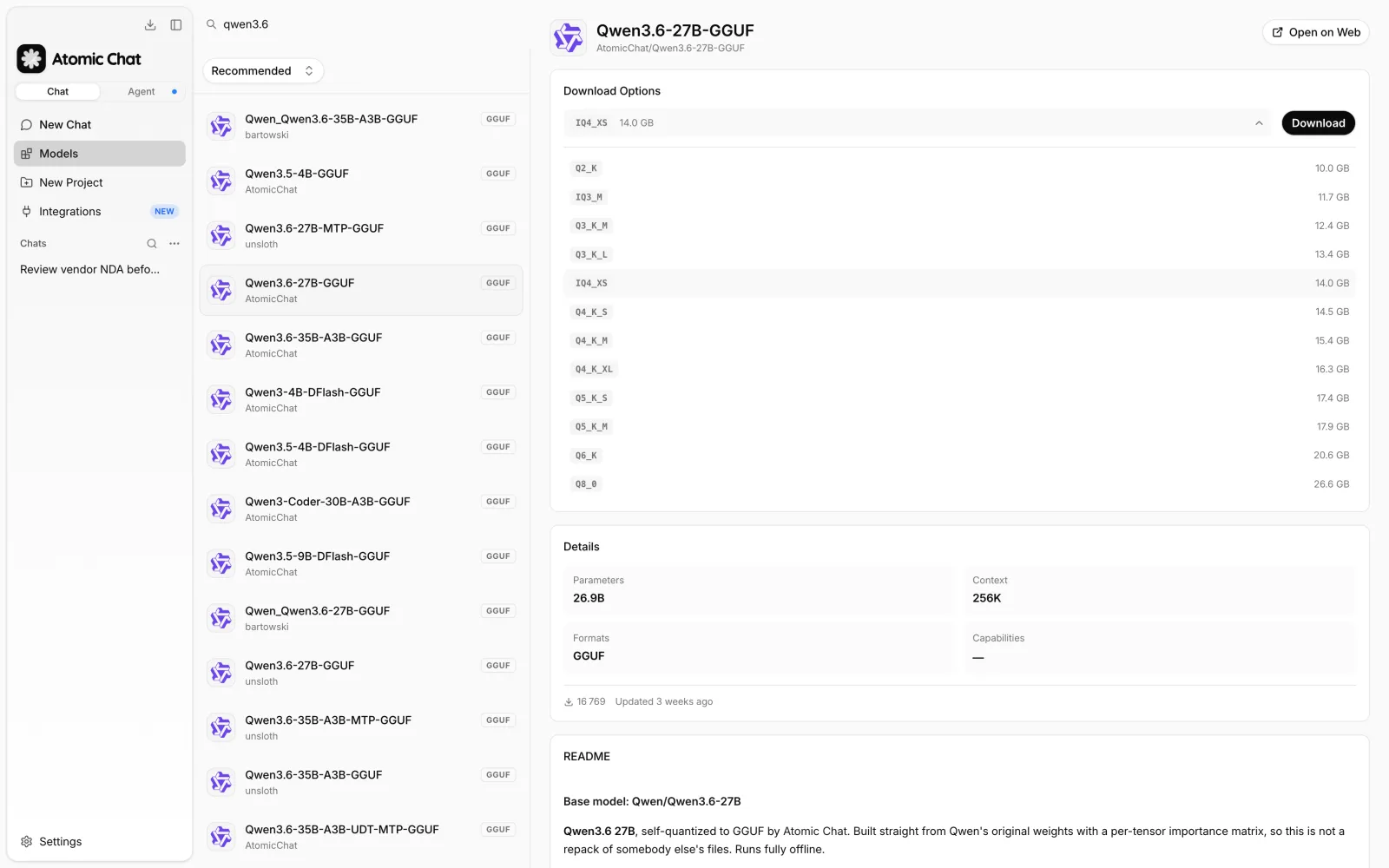
- Expand Download Options.
- For this example, we'll select
Q4_K_Mfrom the quantization menu. - Click Download and wait for the model file to finish downloading.
- Click Use this model.
Want to use your own model file? Import an existing GGUF:
- Open Settings → Model Providers → llama.cpp.
- Select Import.
- Choose the GGUF file already stored on the computer.
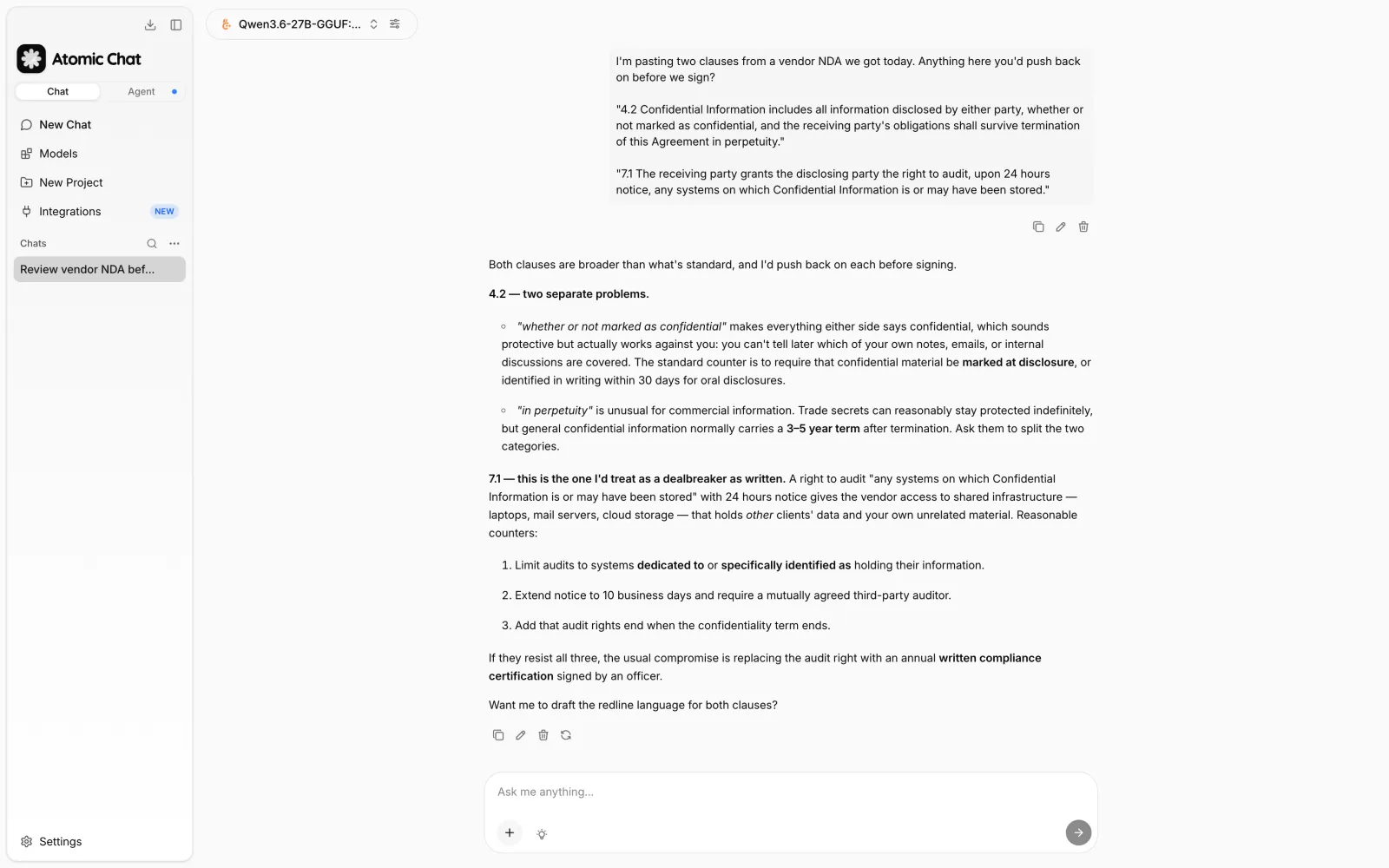
4. Send the first prompt
- Select New Chat.
- Check that the model selector above the input shows Qwen3.6 27B.
- Enter a prompt in “Ask me anything...” and send it.
That's it — the model response will appear in the same thread under the Qwen3.6 27B model selector.
5. Enable supported acceleration
This is optional, but if your hardware supports acceleration, it will make inference faster, especially if you're working with long contexts.
If you remember, during the installation Atomic Chat gave us an option to choose a runtime:
| Option | Runtime used |
|---|---|
| Find optimal backend | A compatible CUDA or Vulkan backend downloaded by Atomic Chat |
| Skip | The bundled CPU-ready backend |
Once the runtime is configured, you can enable speculative decoding to make generation faster. It works by letting a smaller draft component predict several tokens ahead while the main model checks them. The available method depends on the model you've loaded:
| Method | Requirements | What Atomic Chat handles |
|---|---|---|
| DFlash | Supported target model, paired draft GGUF, and a backend with --spec-type draft-dflash | Downloads the draft and provides Draft quantization; Atomic Chat Q8_0 is preselected |
| MTP | Supported bf16 Gemma 4 target from mlx-community/gemma-4 | Downloads the matching draft head for Gemma 4 31B or 26B-A4B |
| EAGLE-3 | Supported Gemma 4 target and paired speculator | Makes the matching speculator available for Gemma 4 31B or 26B-A4B |
You can test that the acceleration works:
- Confirm that the target model answers a prompt without speculative decoding.
- Enable one method that Atomic Chat marks as eligible for the loaded model.
- Wait for Atomic Chat to download the required draft component, if prompted.
- Send the same prompt again and confirm that generation completes without a model-loading error.
6. Expose the local OpenAI-compatible API
If you want to connect other tools or an AI agent — such as Hermes, Cline, or OpenClaw — to your self-hosted LLM server, you can do so with a local API endpoint:
- Open Settings → Local API Server.
- Under Default Model Local API Server, select the model that should load when the server starts.
- Keep Server Host on
127.0.0.1and Server Port on1337for a local-only setup. - Click Start Server.
- Open Server Logs and confirm that the server started without an error.
- From the same computer, verify the default base URL
http://127.0.0.1:1337/v1with the command below.
curl http://127.0.0.1:1337/v1/models
You'll know that the endpoint works if you see a JSON response listing the models available through the local server.
If you want to see the other available endpoints or test requests without writing them manually, open API Documentation (Swagger UI) and click Open Docs. Atomic Chat will open an interactive reference for the server that is currently running.
Expose the API to another device
By default, 127.0.0.1 accepts connections only from the computer running Atomic Chat. This is enough when the client and Atomic Chat are on the same machine. If you want to connect from another device on your local network:
- Change Server Host from the loopback address to a host address that accepts LAN traffic.
- Add the server's LAN IP address or hostname to Trusted Hosts.
- Set an API Key before starting the server.
- Allow the selected port through the operating-system firewall.
- Enable CORS only when a browser-based client needs it.
You can then connect the second device using the server address, port, and API key you configured above.
Note that Trusted Hosts contains the addresses or hostnames through which the Atomic Chat server can be reached. It isn't a list of client devices that are allowed to connect. Avoid using * unless you intentionally want the server to accept any host value.
An API key controls who can access the endpoint, but it doesn't encrypt the HTTP connection. Keep sensitive traffic on the same computer or a trusted local network unless you've configured a separate secure transport layer.
Configure startup, timeouts, and concurrency
| Setting | Use it for |
|---|---|
| Auto start | Starting the local API when Atomic Chat launches |
| API Prefix | Changing the path before the OpenAI-compatible routes |
| Request timeout | Allowing longer model responses before the server ends the request |
| Verbose Server Logs | Recording additional detail while diagnosing a failed request |
You can also enable concurrent mode if several clients need to use the model at the same time. Atomic Chat divides ctx_size between the available request slots, so adding more slots reduces the context available to each request. If only one coding agent uses the server, keep a single slot to preserve the largest context window.
7. Connect a coding agent, assistant, or editor
Once the model is running, you can connect it to a coding agent, assistant, or editor from the Integrations section. Make sure the model is already loaded in a chat; otherwise Atomic Chat will show “Load a model in a chat first.”
- Open Integrations in the sidebar.
- Select the coding agent, assistant, or editor you want to connect.
- If the client isn't installed yet, click Install or Install & Run when that option is available.
- If the client is already installed, click Copy settings or open Manual setup and add the displayed local-server configuration to the client.
- Send a test prompt from the connected client.
You'll know the connection works when the response appears in the client. You can also open Server Logs in Atomic Chat to confirm that the request went through the local server.
Atomic Chat checks which supported apps are already installed on your computer. On Windows, it can also detect installations inside WSL. The current integrations include:
| Category | Examples |
|---|---|
| Coding agents | Claude Code; Codex CLI |
| Assistants | Hermes Agent; OpenClaw |
| Editors | VS Code; Zed |
The Hermes Agent guide documents one complete assistant setup. The local LLM apps guide compares Atomic Chat with other desktop runtimes.
Self-hosted LLM hardware requirements
Before downloading a model, check how much memory your computer can make available while the model is running. The model weights, inference runtime, and context cache all use that memory at the same time, so don't choose a model whose weights consume the entire available pool.
On a Windows or Linux PC with a discrete GPU, VRAM determines how much of the model can stay on the GPU. Atomic Chat can offload the remaining layers to system RAM, but generation will be slower. On Apple Silicon, the CPU and GPU share unified memory, so the Mac's total memory is the number to check.
Use the table below as a starting point. The exact requirement depends on the model, quantization, and context length, so a model class listed for a memory tier isn't guaranteed to fit in every configuration.
| Total memory | Practical model class | Examples |
|---|---|---|
| 8 GB | 2B–4B | Gemma 4 E4B; Qwen3.5 4B |
| 16 GB | 9B–20B | Qwen3.5 9B; Gemma 4 12B; GPT-OSS 20B |
| 32 GB | 27B–35B | Qwen3.6 27B; Gemma 4 31B; Qwen3.6 35B A3B |
| 64 GB | Low-bit quants of ~120B MoE | Ling 3.0 Flash AD-IQ2_M |
| 128 GB or more | Mid-size frontier MoE | DeepSeek V4 Flash |
The Qwen3.6 27B model from our example shows how much quantization changes the hardware requirement. Its 27.8 billion BF16 weights need about 55.6 GB before runtime overhead. The Q4_K_M GGUF we downloaded is 16.5 GB, which makes this specific version practical on a system with 24–32 GB of available memory.
Mixture-of-experts models need a little more explanation because they have both total and active parameter counts. GPT-OSS 20B contains 20.9 billion parameters but uses 3.6 billion for each token. Qwen3.6 35B A3B uses eight of its 256 routed experts plus one shared expert. The complete model still needs to fit in memory or be offloaded to RAM, while the smaller active portion can make generation faster.
The context length also uses memory through the KV cache. A model that supports 256K or one million tokens doesn't need to run with that entire window enabled. Start with the smallest context that covers your task and increase it only when you need more room.
Best self-hosted LLMs in 2026
For this guide, we've selected six self-hosted LLM models that cover the main types of local setups available in 2026. The list includes smaller models for 16 GB systems, dense 27B and 31B models, sparse MoE models that activate only part of their weights for each token, and Ling 3.0 Flash for computers with much more memory.
We'll look at Qwen3.6 27B and 35B A3B, Gemma 4 31B and 12B, GPT-OSS 20B, and Ling 3.0 Flash. The table below shows their basic specifications; the sections that follow explain what each model is suited for and include benchmark results published by its developer.
| Model | Architecture | Context | Input modalities |
|---|---|---|---|
| Qwen3.6 27B | 27.8B dense | 256K | Text, image, and video officially; text only in the GGUF used in this guide |
| Qwen3.6 35B A3B | 35B total; 3B active MoE | 256K | Text, image, and video |
| Gemma 4 31B | 30.7B dense | 256K | Text and image |
| Gemma 4 12B | 11.95B dense | 256K | Text, image, audio, and video |
| GPT-OSS 20B | 20.9B total; 3.6B active MoE | 128K | Text |
| Ling 3.0 Flash | 124B total; 5.1B active hybrid-linear MoE | 256K | Text |
Qwen3.6 27B
Qwen3.6 27B is a 27.8B dense model with 64 layers and a 262,144-token context window. It was designed for coding, agent workflows, and long documents. The official model can process text, images, and video.
For the walkthrough above, we use the AtomicChat Qwen3.6 27B GGUF with the Q4_K_M quant. The download is 16.5 GB, leaving additional memory for Atomic Chat and the context cache on a 24–32 GB system. This GGUF is text-only because the repository doesn't include the vision projector required for images and video.
Qwen3.6 27B benchmarks
The following results are measured for the full Qwen3.6 27B model. The local Q4_K_M version may produce slightly different results.
| Benchmark | Score |
|---|---|
| SWE-bench Verified | 77.2 |
| SWE-bench Pro | 53.5 |
| Terminal-Bench 2.0 | 59.3 |
| MMLU-Pro | 86.2 |
| GPQA Diamond | 87.8 |
| LiveCodeBench v6 | 83.9 |
Qwen3.6 35B A3B
Qwen3.6 35B A3B is a mixture-of-experts model with 35B total parameters and 3B activated for each token. It contains 256 routed experts and uses eight of them, plus one shared expert, while generating a response. This gives the model a larger parameter pool without running all 35B parameters for every token.
The model accepts text, images, and video. Its native context window is 262,144 tokens and can be extended to 1,010,000 tokens. A larger context uses more memory, so start with a smaller window and extend it only for tasks that need very long documents or conversation history.
Qwen3.6 35B A3B works well for coding, multimodal prompts, and long-context tasks. Local file sizes vary between publishers and quantizations, so check the exact download size in Atomic Chat before choosing it for your hardware.
Qwen3.6 35B A3B benchmarks
| Benchmark | Score |
|---|---|
| SWE-bench Verified | 73.4 |
| SWE-bench Pro | 49.5 |
| Terminal-Bench 2.0 | 51.5 |
| MMLU-Pro | 85.2 |
| GPQA Diamond | 86.0 |
| LiveCodeBench v6 | 80.4 |
Gemma 4 31B
Gemma 4 31B is Google's largest dense Gemma 4 model. It has 30.7B parameters, a 256K context window, and a separate vision encoder for image input. The model accepts text and images and generates text.
Gemma 4 31B is useful for document analysis, image understanding, coding, and general chat. Because it is a dense 31B model, choose a quant that leaves enough memory for the runtime and context cache. Compatible builds can also use DFlash, MTP, or EAGLE-3 acceleration, as described in Step 5.
Gemma 4 31B benchmarks
| Benchmark | Score |
|---|---|
| MMLU-Pro | 85.2% |
| AIME 2026, no tools | 89.2% |
| LiveCodeBench v6 | 80.0% |
| Codeforces Elo | 2150 |
| GPQA Diamond | 84.3% |
Gemma 4 12B
Gemma 4 12B is an 11.95B model with a 256K context window. It accepts text, images, audio, and video and generates text. Unlike Gemma 4 31B, the 12B version processes these inputs without separate modality encoders.
The smaller size makes Gemma 4 12B a better starting point for a 16 GB-class computer that needs multimodal input. It can be used for image and document analysis, audio transcription, video understanding, and general text tasks. Make sure the local build includes the companion files required for the input types you want to use.
The Gemma local guide explains which files to download and how to load them in Atomic Chat.
Gemma 4 12B benchmarks
| Benchmark | Score |
|---|---|
| MMLU-Pro | 77.2% |
| AIME 2026, no tools | 77.5% |
| LiveCodeBench v6 | 72.0% |
| Codeforces Elo | 1659 |
| GPQA Diamond | 78.8% |
GPT-OSS 20B
GPT-OSS 20B is OpenAI's smaller open-weight reasoning model. It has 20.9B total parameters, with 3.6B active for each token, and supports a 128K context window. GPT-OSS 20B is text-only and uses native MXFP4 weights.
OpenAI designed the model to run with 16 GB of memory, making it one of the more accessible options in this list for reasoning, coding, and tool use. You can choose low, medium, or high reasoning effort depending on how much time you want the model to spend on an answer.
Reasoning effort has a visible effect on the results: OpenAI reports 37.4 on SWE-bench Verified at low reasoning, 53.2 at medium, and 60.7 at high. The GPT-OSS local guide covers the setup in Atomic Chat.
GPT-OSS 20B benchmarks
The results below come from Table 3 of the OpenAI GPT-OSS model card with reasoning set to high.
| Benchmark | Official score, high reasoning |
|---|---|
| AIME 2024, no tools | 92.1 |
| AIME 2025, no tools | 91.7 |
| GPQA Diamond, no tools | 71.5 |
| HLE, no tools | 10.9 |
| MMLU | 85.3 |
| SWE-bench Verified | 60.7 |
| Aider Polyglot | 34.2 |
| MMMLU average | 75.7 |
Lower reasoning settings return answers faster, but they won't match the scores in this table.
Ling 3.0 Flash
Ling 3.0 Flash is a 124B mixture-of-experts model that activates 5.1B parameters for each token. It has 512 routed experts, uses eight of them plus one shared expert, and supports a context window of up to 256K tokens. The model is built for coding, mathematical reasoning, and long-context tasks.
The AtomicChat Ling 3.0 Flash GGUF requires TurboQuant. On a 64 GB system, AD-IQ2_M is the practical option at 49.1 GB, although quality starts to drop at this level of compression. AD-IQ3_M improves quality but is 62.2 GB, so it needs additional memory beyond the file itself for Atomic Chat and the context cache.
Ling takes more memory and setup than the other models in this guide, but it provides access to a much larger model while activating only 5.1B parameters per token.
Ling 3.0 Flash benchmarks
These results measure the full Ling 3.0 Flash model.
| Benchmark | Official score |
|---|---|
| SWE-bench Pro | 56.6 |
| SWE-bench Multilingual | 72.4 |
| Terminal-Bench 2.1 | 57.0 |
| LiveCodeBench, 2024-08 to 2025-05 | 82.8 |
| AIME 2026 | 93.2 |
| HLE | 22.7 |
| MRCR 128K | 90.8 |
| MRCR 256K | 81.1 |
Frequently asked questions
Short answers to common questions about running a self-hosted LLM.
What is the best self-hosted LLM model?
For a 24–32 GB computer, Qwen3.6 27B with the Q4_K_M quant is a good starting point for coding and general text tasks. GPT-OSS 20B is designed for text reasoning on 16 GB systems, while Gemma 4 12B adds image, audio, and video input. Ling 3.0 Flash is an option for high-memory systems that can load a 49.1 GB quant with enough memory left for the runtime.
Can I run an LLM on my own computer?
Yes. An 8 GB computer can run a small 2B–4B quantized model. With 16 GB, you can move up to the 9B–20B range, while 24–32 GB is enough for the Qwen3.6 27B Q4_K_M version used in this guide. Leave some memory free for the operating system, Atomic Chat, and the context cache.
How much RAM does a self-hosted LLM need?
Plan for enough memory to hold the model weights, inference runtime, and context cache at the same time. As a rough guide, use 8 GB for 2B–4B models, 16 GB for 9B–20B models, and 24–32 GB for a quantized 27B model such as Qwen3.6 27B Q4_K_M. Longer context windows require additional memory.
Is a self-hosted LLM private?
Yes, if the model and runtime both stay on your computer. Once the model is downloaded, Atomic Chat can process ordinary chats without sending prompts to the model developer. Data can still leave the computer when you use:
- remote model providers;
- web search;
- MCP tools and extensions;
- API clients configured to call outside services.
Check the network behavior of each connected tool before using sensitive data. If you expose the Atomic Chat API beyond 127.0.0.1, protect it with an API Key and your operating-system firewall.
What is the best self-hosted LLM for coding?
For a 24–32 GB system, Qwen3.6 27B is a good option for coding and agent workflows. The Q4_K_M quant used in this guide is 16.5 GB and can be connected to Codex CLI, Claude Code, VS Code, or Zed through Atomic Chat. GPT-OSS 20B is a smaller alternative for a 16 GB system.
What is the difference between a local LLM and a self-hosted LLM?
A local LLM runs directly on the computer you're using. A self-hosted LLM runs on hardware you control, which can be your computer, a workstation on your local network, or a private server. A model running on your laptop is both local and self-hosted; a model running on your own remote server is self-hosted but not local to your device.
Do you need a GPU to run a self-hosted LLM?
No. Atomic Chat can run a model with the bundled CPU-ready backend, but generation will be slower. A compatible NVIDIA or AMD GPU, or another GPU with Vulkan support, can process more of the model on the GPU and improve generation speed. On Apple Silicon, the CPU and GPU use the same unified-memory pool.
Bottom line
Atomic Chat gives you one place to download a model, run it locally, and connect it to other apps. In this guide, we used Qwen3.6 27B with the Q4_K_M quant because it works on a computer with 24–32 GB of memory. If your hardware is different, use the hardware table and model sections above to choose a smaller or larger model, then enable acceleration, the local API, or an integration when you need them.