
The best local AI image generator depends on how you want to work. Atomic Chat combines local chat with image generation, ComfyUI exposes detailed node workflows, Krita AI Diffusion works inside your artwork, and Draw Things is built for Apple devices.
An app provides the interface and editing tools. The image model determines much of the output and the memory required. This guide compares both, with seven model configurations benchmarked in stable-diffusion.cpp on an RTX 5090 at 1024 × 1024.
Best Local AI Image Generators at a Glance
| App | Platforms | Learning curve | Models and workflow | Editing | API | License | Price |
|---|---|---|---|---|---|---|---|
| Atomic Chat | macOS, Windows, Linux | Low | Curated stable-diffusion.cpp catalog | Model-dependent Create, Transform, Reference, Edit | OpenAI-compatible local endpoint | Engine: MIT | Free download |
| ComfyUI | Windows, macOS, Linux | High | Broad model ecosystem, custom nodes | Workflow-dependent | Yes | GPL-3.0 | Free |
| InvokeAI | Windows, macOS, Linux | Medium | Guided generation and canvas work | Canvas and masking tools | Yes | Apache-2.0 | Free |
| SwarmUI | Windows, Linux; community macOS paths | Medium | Multiple local backends | Yes | Yes | MIT | Free |
| Krita AI Diffusion | Windows, macOS, Linux | Medium | Krita plugin workflow | Layers, masks, regional work | No general-purpose API | GPL-3.0 | Free |
| Stability Matrix | Windows, macOS, Linux | Low to medium | Launcher for several local apps | Depends on launched app | Depends on launched app | AGPL-3.0 | Free |
| Draw Things | macOS, iOS, iPadOS | Low | Apple-Silicon-focused app | Image workflows and inpainting | Local API and scripting | Community repo: GPL-3.0 | Free |
| Fooocus, A1111, Forge | Mostly Windows and Linux | Low to medium | Established Stable Diffusion ecosystem | Yes | Varies | GPL-3.0 / AGPL-3.0 | Free |
Choosing a tool ultimately comes down to personal preference, so we used three criteria to keep the selection consistent: support for key workflows such as text-to-image and image-to-image, an active community, and ongoing development.
DiffusionBee remains available, but its public repository last received a push in October 2024. Check current model support before choosing it for a new setup.
The Best Local AI Image Generator Apps
Atomic Chat
Atomic Chat is a desktop application for running local AI models. It combines local chat with image generation in one app and runs image models through the stable-diffusion.cpp engine.
The app downloads and manages the engine, model weights, VAEs, and text encoders required by each image model.
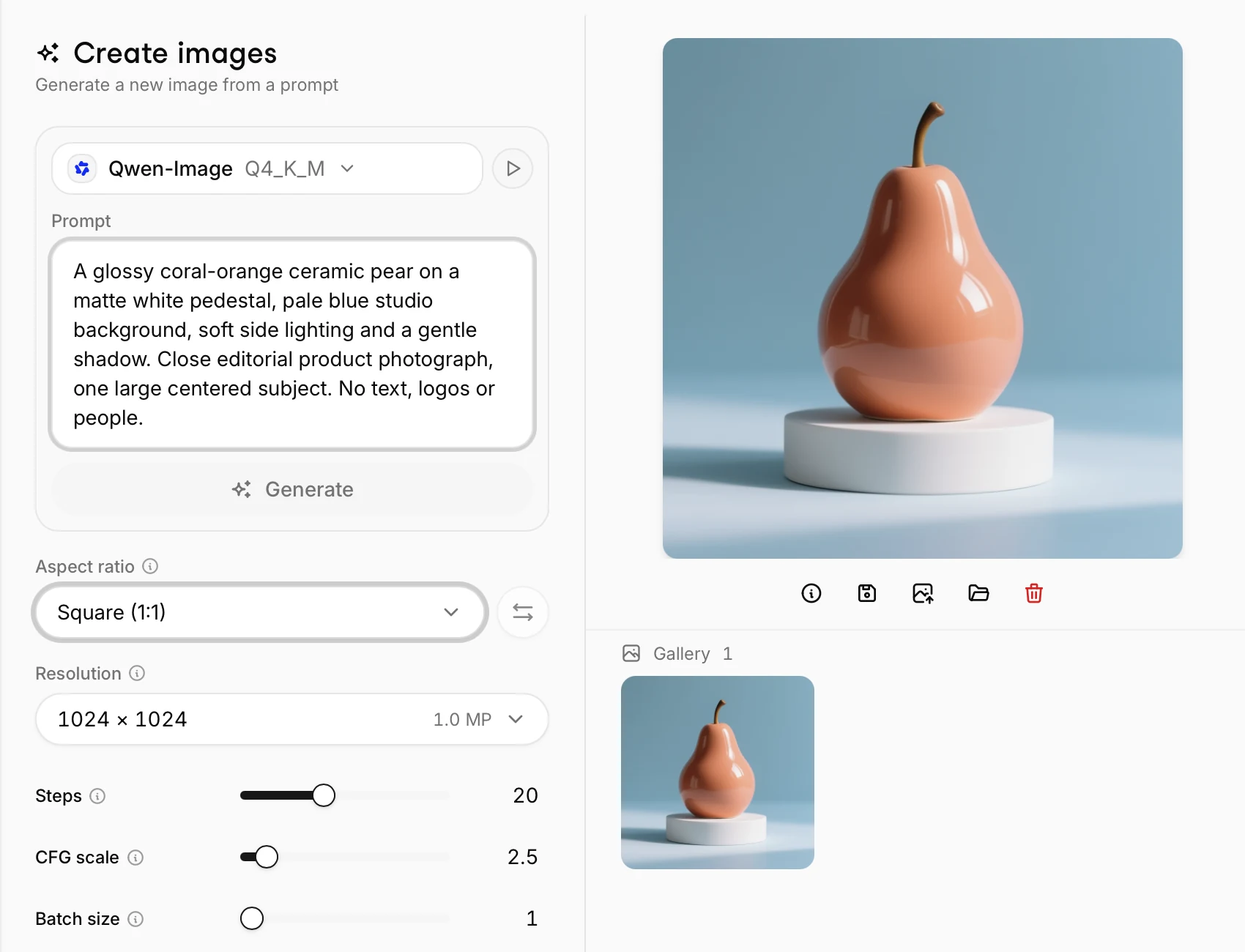
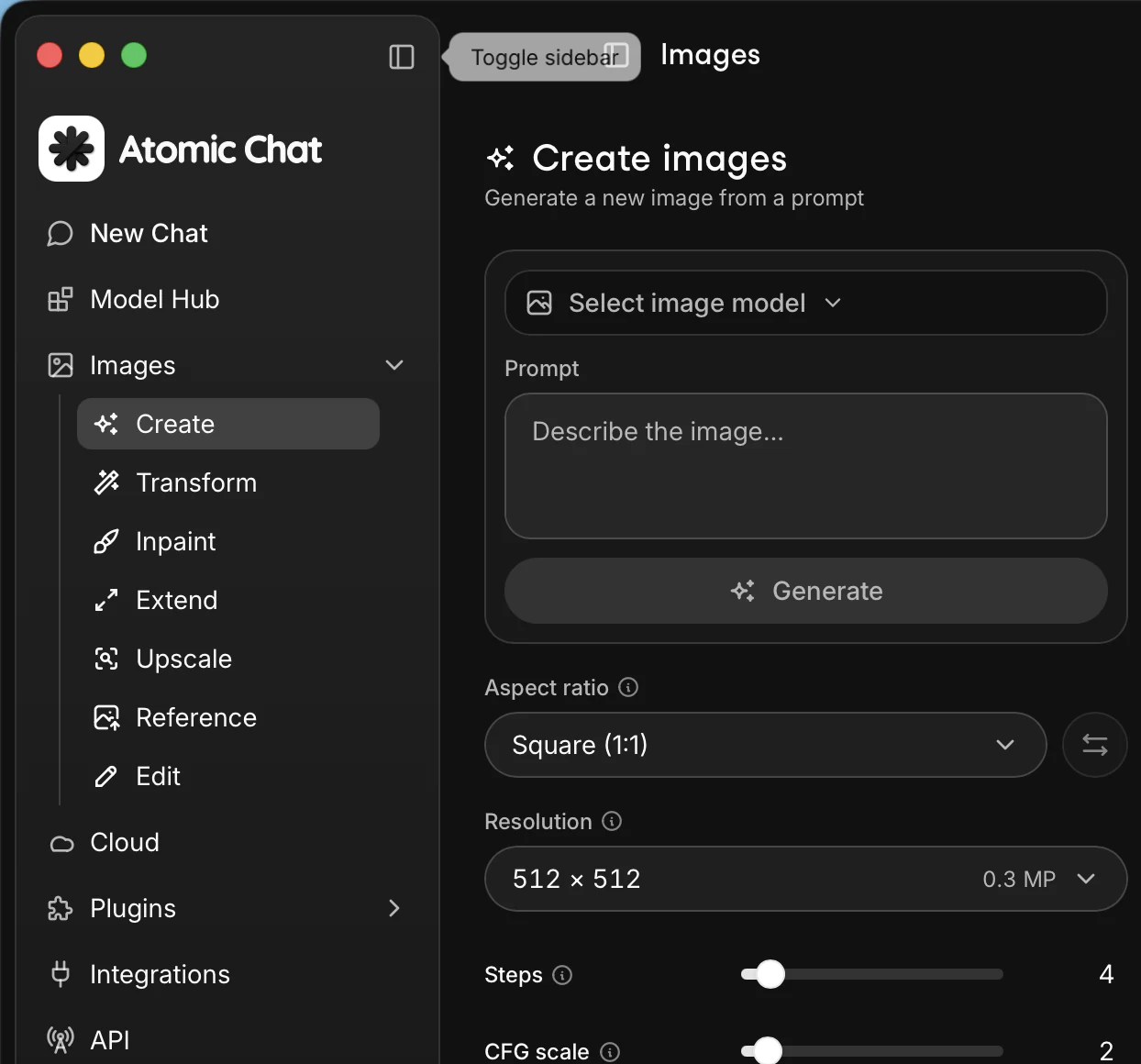
The current catalog supports Create, Transform, Reference, and Edit, depending on the model. Other workflow labels visible in the sidebar are not supported by these catalog models.
- Create generates a new image from a prompt
- Transform changes an existing image using a prompt
- Reference uses an image as visual input
- Edit applies targeted changes to an image.
Atomic Chat unloads a chat model when it cannot fit in memory alongside the image model. This coordinates local chat and image generation within the same app.
Atomic Chat also exposes an OpenAI-compatible image-generation endpoint at http://localhost:1337/v1/images/generations. The endpoint uses the image model currently loaded in the Images section and returns images as base64 (response_format b64_json).
This lets you use your self-hosted AI image generator from your own app, connect it to another interface, or plug it into an AI system that supports the OpenAI image API.
Choose Atomic Chat if you want an easy to use but feature-rich local AI app for offline chat and image generation.
ComfyUI
ComfyUI is an open source AI image generator built around a visual node graph. In it, you connect nodes for the model, text encoders, prompt, sampler, VAE, source images, control inputs, and output. Sort of like Blender nodes, although you can also save and upload workflows created by other users in JSON.
The app also includes a model library, workflow templates, a queue for pending jobs, and a local API.
It supports checkpoints, diffusion models, VAEs, text encoders, LoRAs, ControlNets, adapters, upscalers, custom nodes. ComfyUI supports workflows that combine generation, editing, masking, compositing, and batch processing.
However, its node-based interface takes time to learn, and the learning curve is considerably steeper than with more conventional image-generation apps.
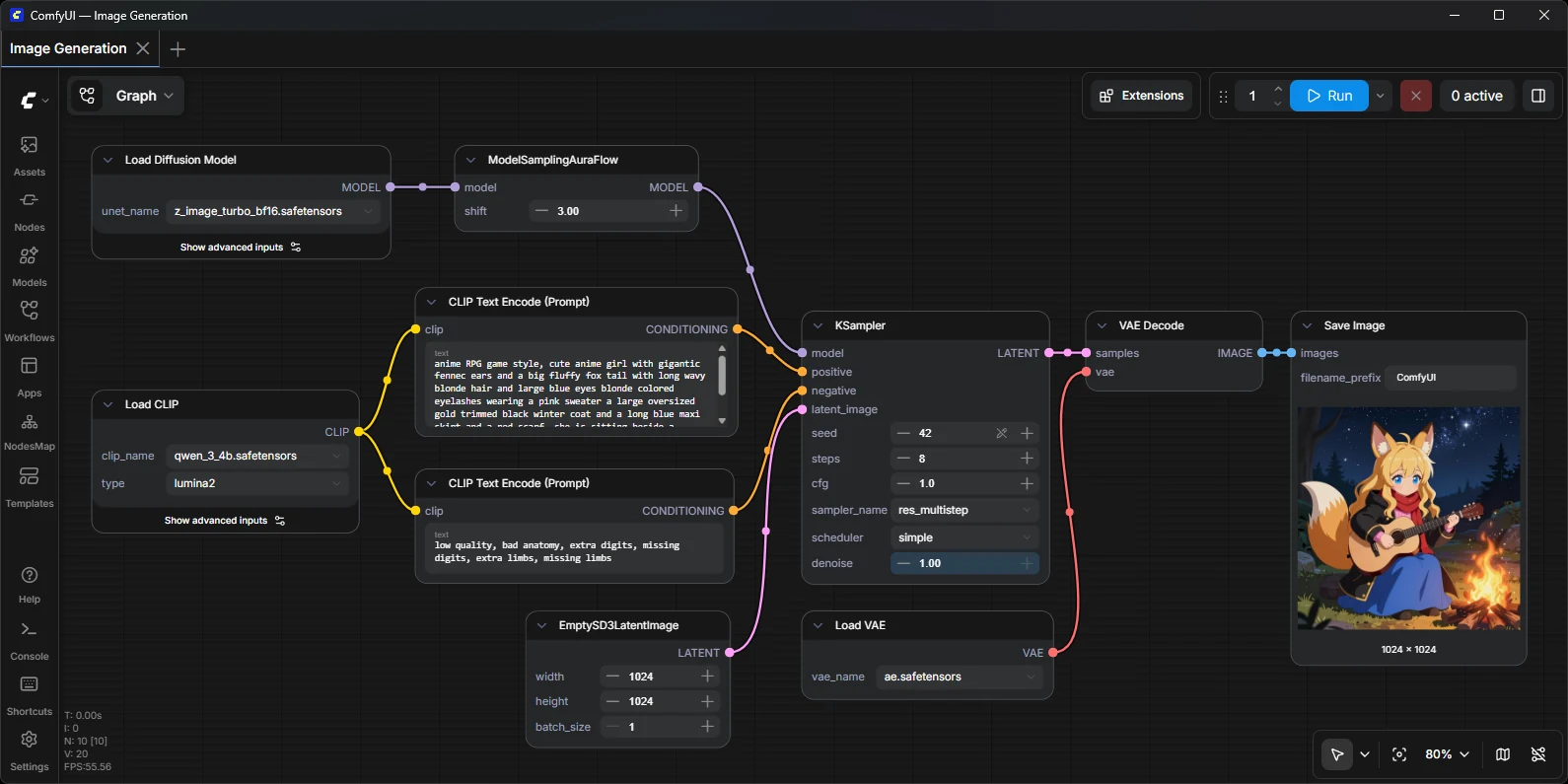
ComfyUI interface. Source: ComfyUI's official GitHub repository.
Choose ComfyUI if you want to build, save, and reuse detailed image-generation workflows with direct control over every stage of the pipeline.
InvokeAI
InvokeAI is a local creative studio for image generation and editing. It combines a polished browser-based interface with a desktop launcher and a Unified Canvas for working across images in a freeform, Figma-like workspace. It also supports reusable workflows and a local API, making it useful for repeatable production pipelines as well as interactive editing.
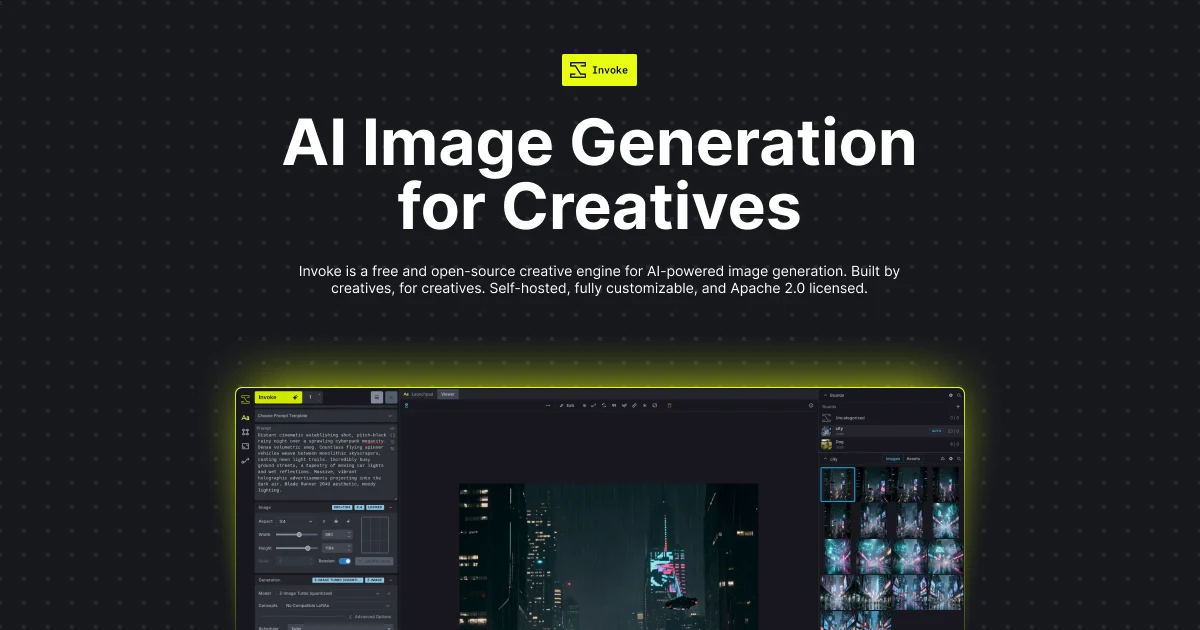
InvokeAI interface. Source: InvokeAI's official website.
Choose InvokeAI if you want a dedicated local image workspace with a canvas-first editing workflow.
SwarmUI
SwarmUI is a local image-generation interface with support for multiple backends. It combines a familiar prompt-and-settings screen with more advanced tools such as a ComfyUI-style workflow view. It can also run on one computer or coordinate work across several GPUs, making it relevant for power users and shared local setups.
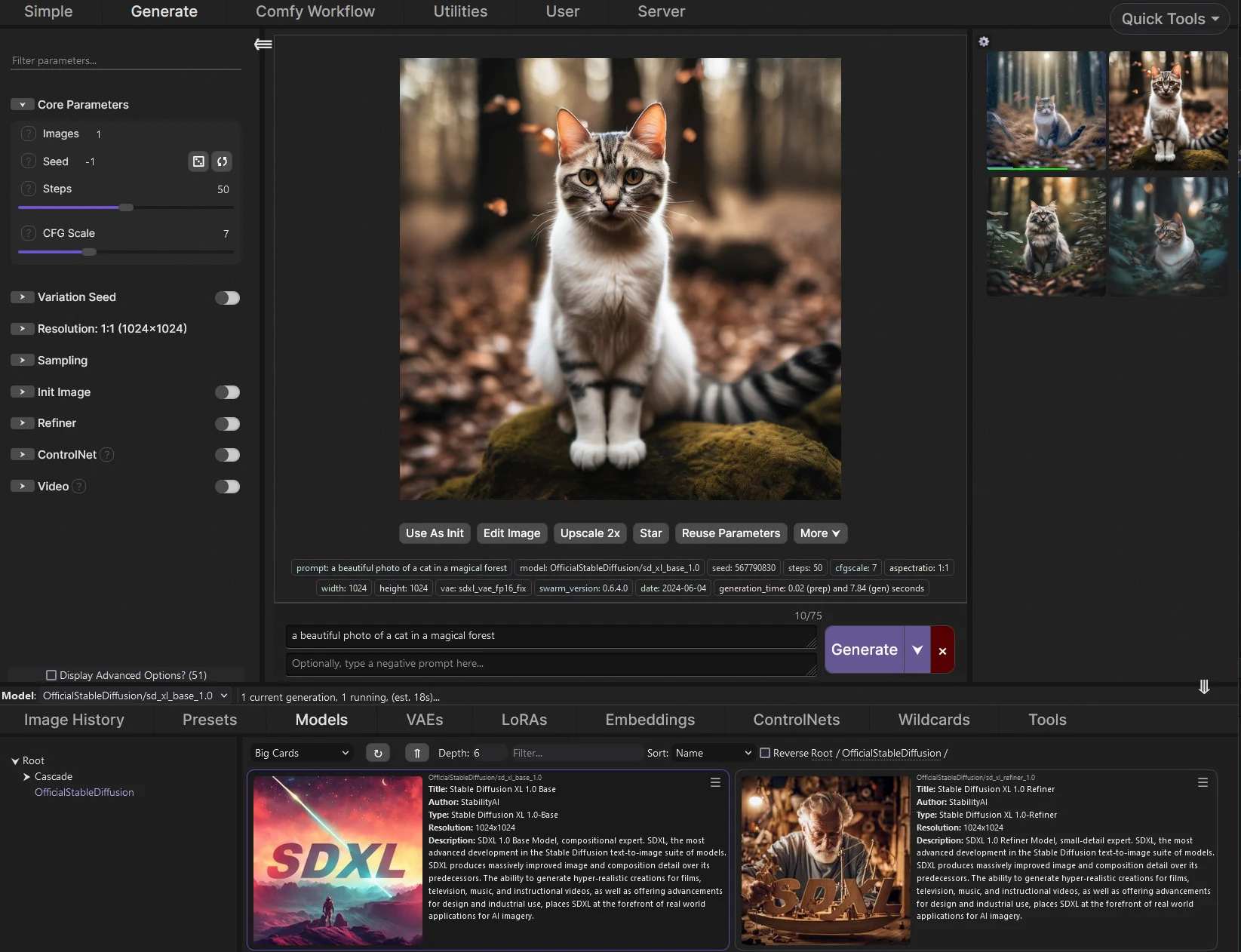
SwarmUI interface. Source: SwarmUI's official GitHub repository.
Choose SwarmUI if you want a full-featured local generation interface with both standard controls and access to ComfyUI workflows.
Krita AI Diffusion
Krita AI Diffusion is a plugin that adds local AI image generation to Krita. It works with Krita layers, selections, masks, vector shapes, and brushwork, so generated images and manual edits stay in the same document.
It supports text-to-image generation, inpainting, upscaling, regional prompts, ControlNet inputs, reference images, and live painting. Krita AI Diffusion runs through a local ComfyUI backend that the plugin can install and configure. In practice, it works as a local AI image editor: you can generate inside a selection, extend a scene, refine a small area, or use sketches and line art as input.
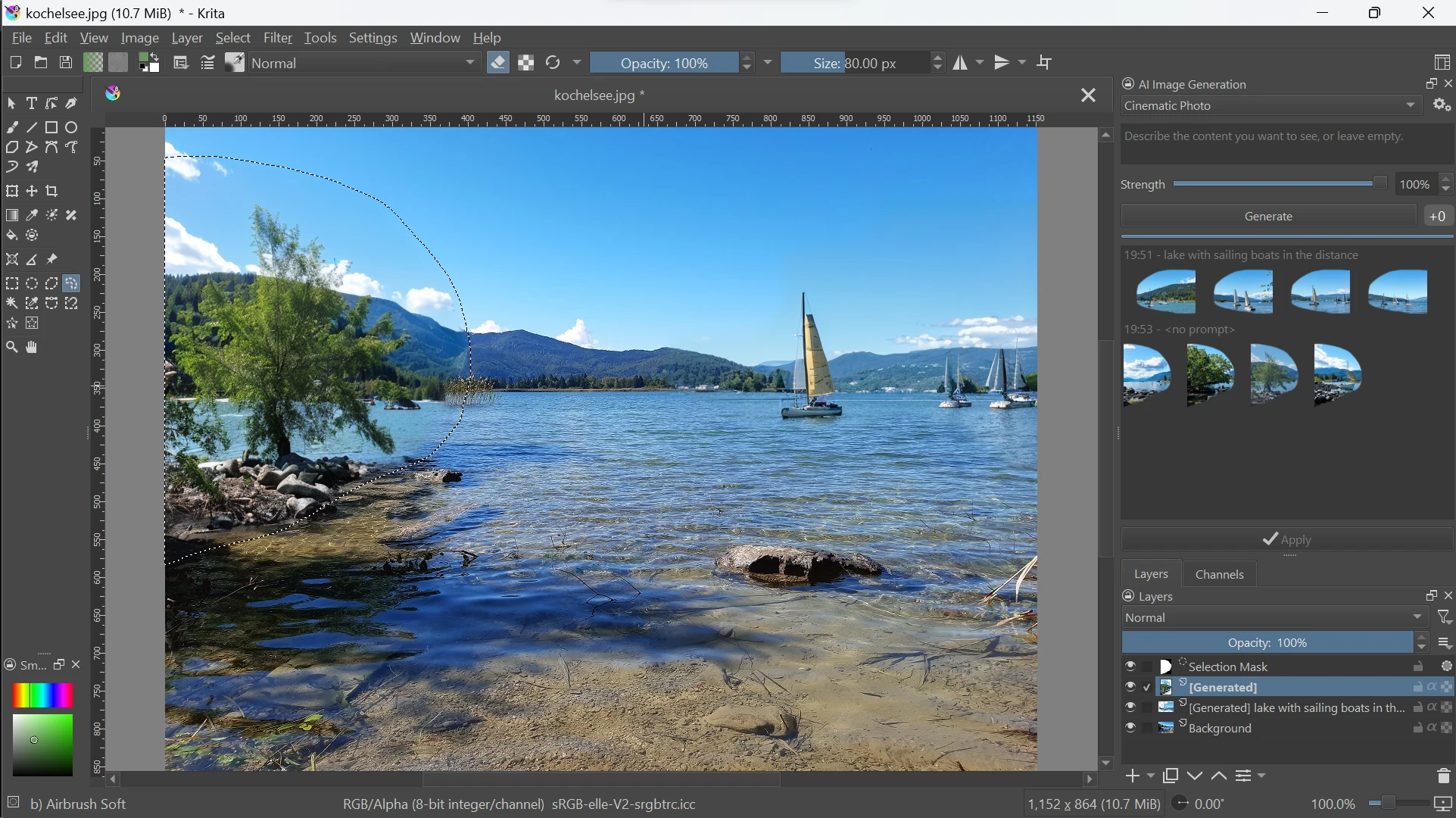
Krita AI Diffusion interface. Source: Krita AI Diffusion's official GitHub repository.
Choose Krita AI Diffusion if you already work in Krita and want local AI generation, inpainting, and control inputs.
Stability Matrix
Stability Matrix is a desktop manager for local image-generation software. It installs, updates, and launches applications such as ComfyUI, AUTOMATIC1111, Forge, Fooocus, InvokeAI, and SwarmUI. Compatible applications can share the same model directory for checkpoints, LoRAs, and VAEs.
It manages packages, model downloads, and local environments in one place. If you regularly switch between different tools because each covers a different part of your workflow, it can also make that setup much easier to manage from one place.
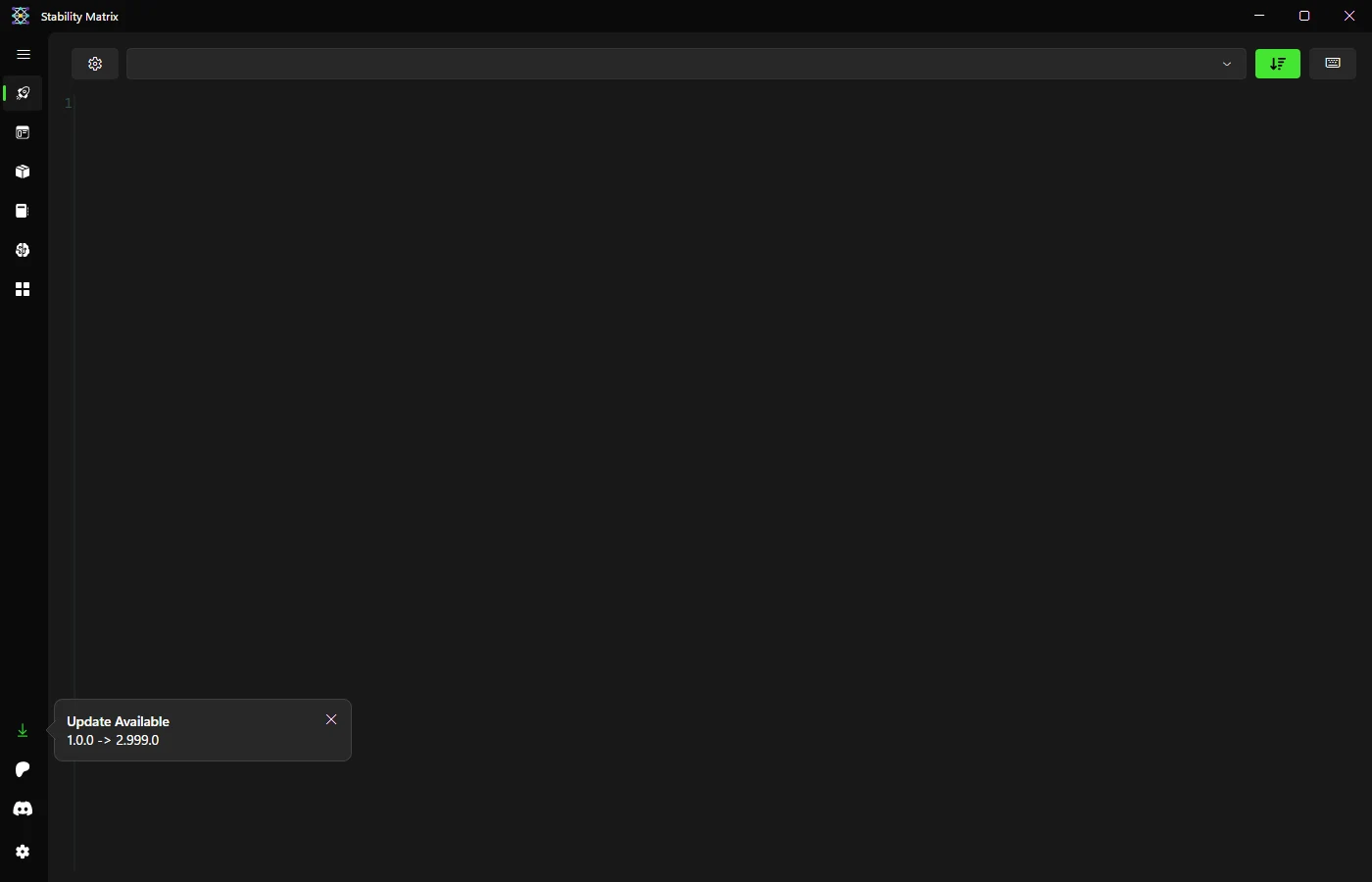
Stability Matrix interface. Source: Stability Matrix's official GitHub repository.
Choose Stability Matrix if you want to install, manage, and compare several local AI image applications from one desktop tool.
Draw Things
Draw Things runs on macOS, iOS, and iPadOS. It supports local generation and includes masking, inpainting, upscaling, ControlNet, LoRAs, and an image gallery. It also provides a local API server and scripting.
Because it is designed around Apple Silicon and Metal, it is well optimized for Mac hardware. It is also one of the easiest options to install and start using on macOS.
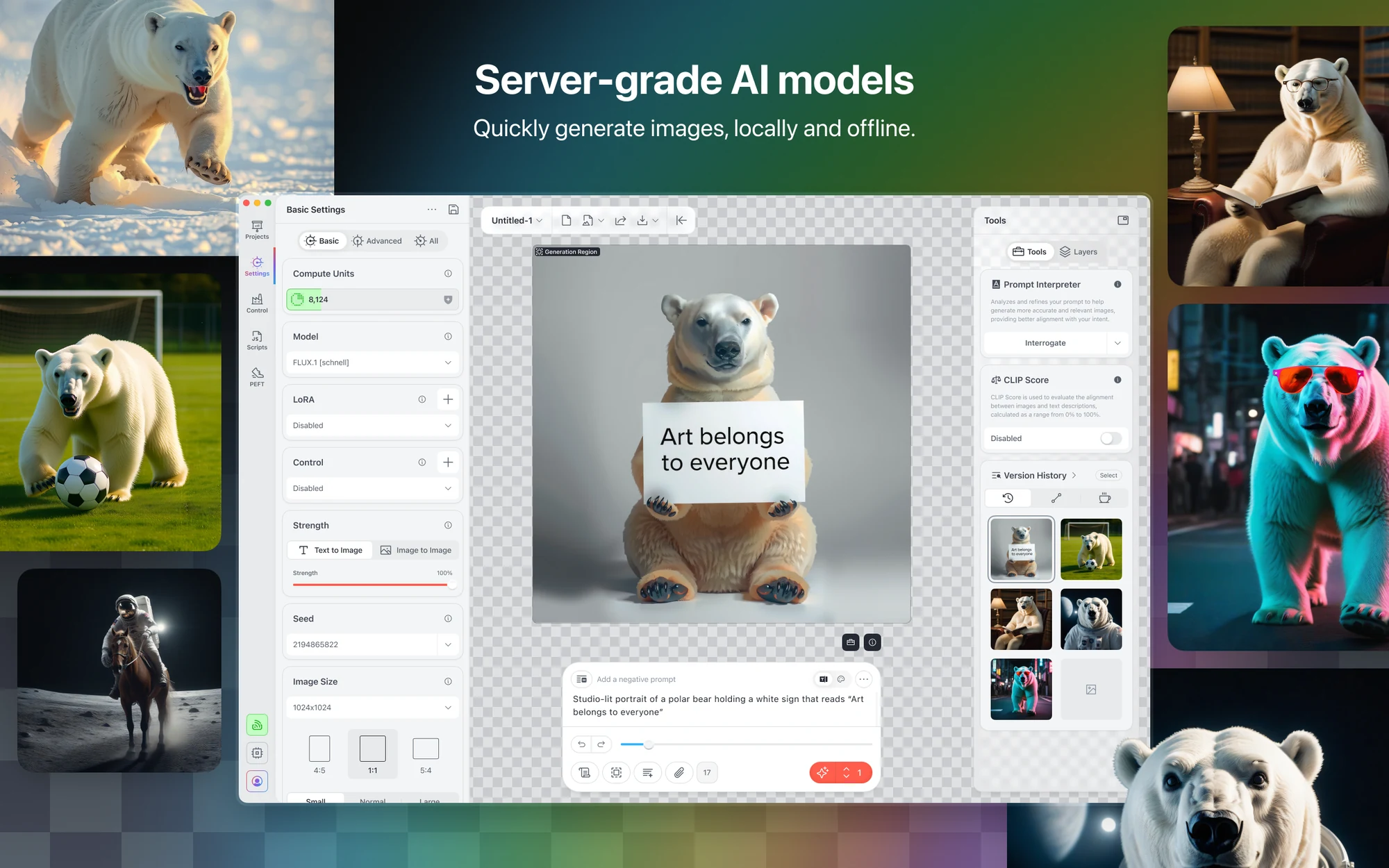
Draw Things interface. Source: Draw Things on the Mac App Store.
Choose Draw Things if you use a Mac and want a native local image-generation app with a broad set of editing controls.
Honorable mentions
Fooocus, AUTOMATIC1111 WebUI, and Forge were among the early popular local web interfaces in the Stable Diffusion ecosystem. However, these projects are no longer as actively maintained as they once were, so they wouldn’t be our first choices in 2026.
To briefly explain what each one offers:
- Fooocus is the simplest of the three, with a strong focus on straightforward, prompt-based image generation.
- AUTOMATIC1111 WebUI became a reference point in the ecosystem thanks to its large extension library and familiar txt2img and img2img workflows.
- Forge is a performance-focused fork of AUTOMATIC1111 that adds improved resource management and support for more experimental models and features.
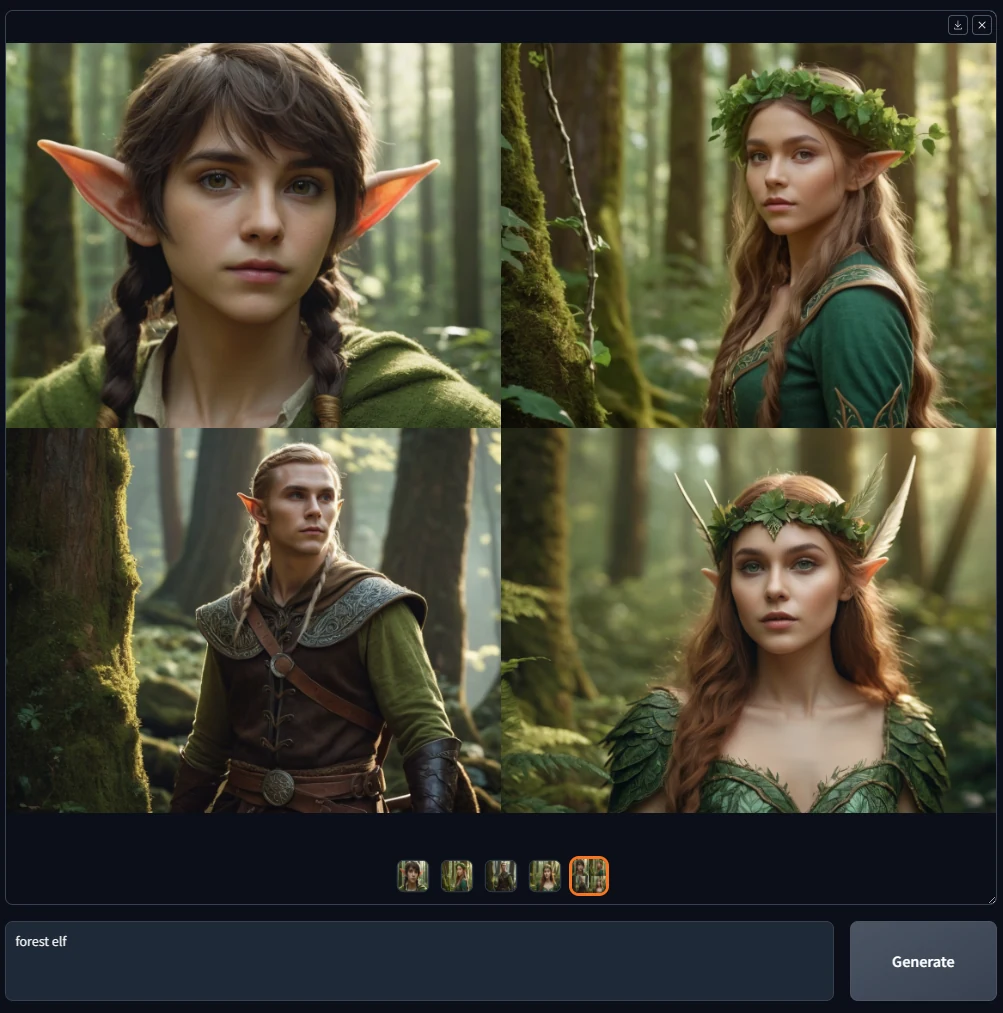
Fooocus interface. Source: Fooocus's official GitHub repository.
The Best Open Models for Local Image Generation
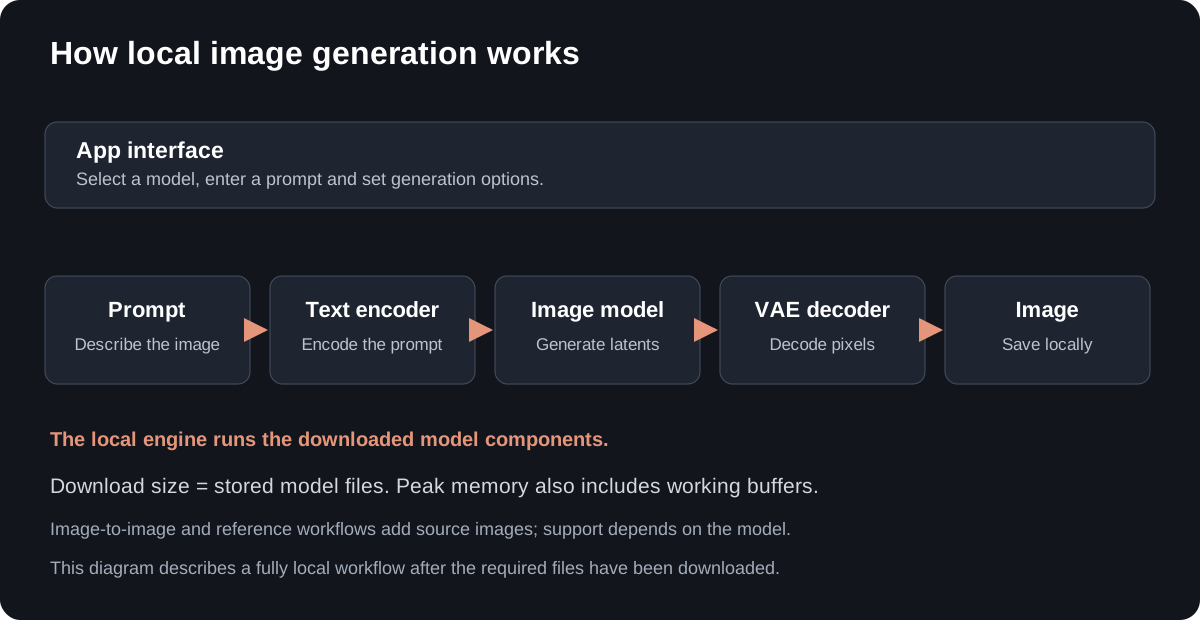
These open-weight image models can run on your own computer. Their memory requirements, editing modes, and license terms differ. Some allow commercial model use; others require separate permission.
The Q4_K_M and Q4_K labels in the model tables identify GGUF quantizations used by the local engine.
| Model | Recommended model + encoders | Modes in Atomic Chat | License | Best considered for |
|---|---|---|---|---|
| Z-Image Turbo | 4.7 + 2.6 GiB | Create | Apache-2.0 | Smaller first local download |
| FLUX.2 Klein 4B | 2.4 + 7.8 GiB | Create, Transform | Apache-2.0 | Image transformation |
| FLUX.1 schnell | 6.4 + 9.7 GiB | Create | Apache-2.0 | FLUX prompt-to-image workflow |
| FLUX.1 Krea Dev | 6.5 + 9.7 GiB | Create | FLUX.1 dev, non-commercial | Model-use restrictions; output terms differ |
| Krea 2 Turbo | 6.7 + 2.6 GiB | Create | Krea 2 Community License | Commercial use below revenue threshold |
| Qwen-Image | 12.2 + 4.6 GiB | Create | Apache-2.0 | Text-forward images |
| Qwen-Image-2.1 | 3.9 + 6.4 GiB | Create, Reference, Edit | Qwen Research, non-commercial | Reference-led edits |
Testing methodology and results
Tests ran on stable-diffusion.cpp master-883-137f740 using the CUDA backend with flash attention and direct convolution enabled. For each model, we measured generation time from start to final image render, along with resident and peak VRAM usage: resident is what the model holds between images, peak is the maximum during a render, sampled every 100 ms. All memory figures in this article are in GiB (1,024 MiB); nvidia-smi reports memory in MiB; graphics card capacities are quoted in the GB that vendors print on the box.
The results are shown below:
| Model | Steps | Seconds/image after warm-up | VRAM resident | VRAM peak |
|---|---|---|---|---|
| FLUX.2 Klein 4B | 4 | 1.76 s | 9.4 GiB | 15.9 GiB |
| FLUX.1 schnell | 4 | 2.80 s | 16.7 GiB | 23.2 GiB |
| Z-Image Turbo | 8 | 3.81 s | 8.1 GiB | 14.6 GiB |
| Krea 2 Turbo | 8 | 5.71 s | 9.9 GiB | 17.2 GiB |
| FLUX.1 Krea Dev | 20 | 11.42 s | 16.8 GiB | 23.3 GiB |
| Qwen-Image | 20 | 25.47 s | 17.0 GiB | 24.4 GiB |
| Qwen-Image-2.1 | 40 | 38.98 s | 9.7 GiB | 19.3 GiB |
Each model generated 1024 × 1024 images on an RTX 5090, running inside a stable-diffusion.cpp build. We used Atomic Chat’s recommended quantization along with the catalog defaults for steps, CFG, sampler, and guidance, and fixed the seed at 42. These times compare the recommended configurations, including different step counts; they do not measure application-to-application speed. The three example categories are photography, text in an image, and illustration.
Z-Image Turbo
Z-Image Turbo is a text-to-image model from Tongyi-MAI. It is the lowest-memory setup in this comparison. Official model source.
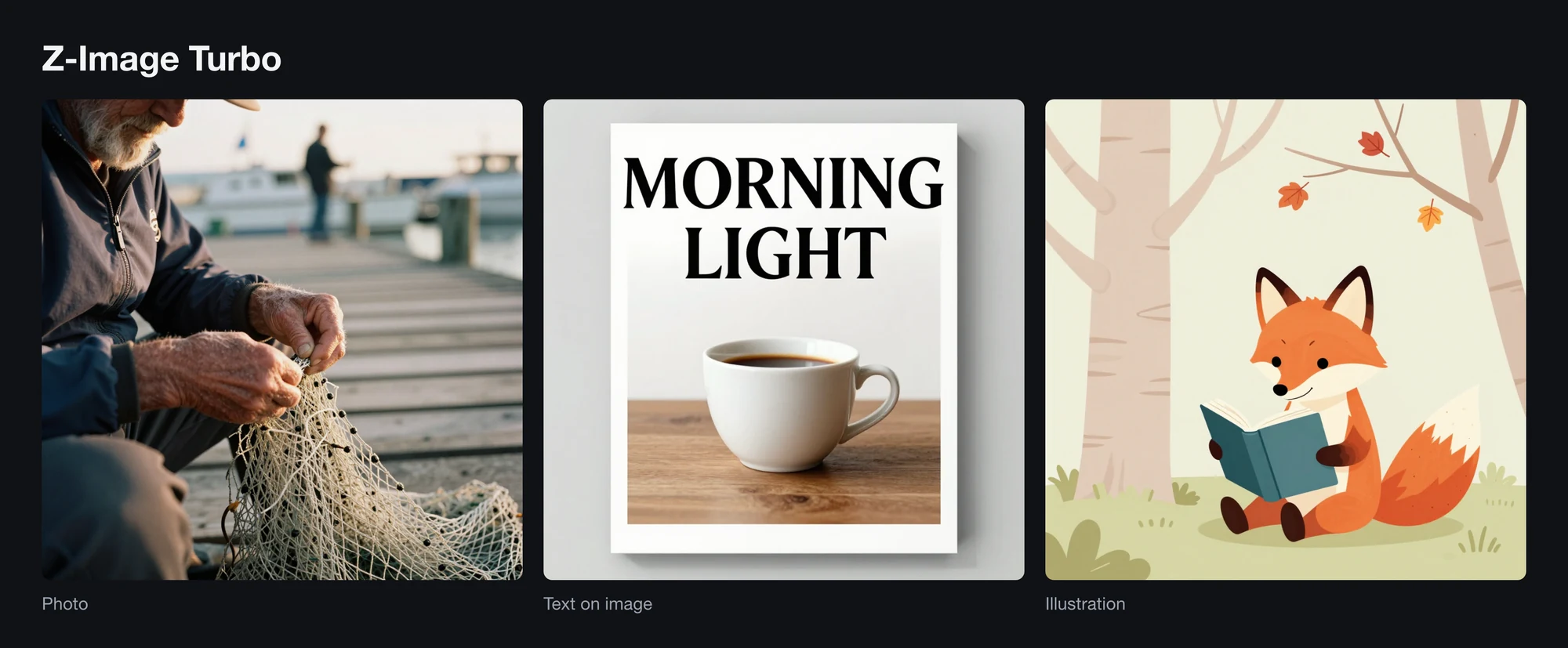
Z-Image Turbo, Q4_K_M, seed 42, 1024 × 1024.
| Model configuration | Value |
|---|---|
| Model and supporting files | 4.7 GiB + 2.6 GiB |
| Atomic Chat setup | Q4_K_M model; Qwen3-4B Q4_K_M encoder; FLUX VAE |
| Loaded weights | 7.2 GiB |
| Default | 8 steps |
| License | Apache-2.0 |
| RTX 5090 benchmark, 1024 × 1024 | Result |
|---|---|
| Time per image after warm-up | 3.81 s |
| Resident VRAM | 8.1 GiB |
| Peak VRAM | 14.6 GiB |
Z-Image Turbo uses a smaller text encoder than the FLUX.1 models. Resident VRAM was 8.1 GiB; peak usage rose to 14.6 GiB during generation.
FLUX.2 Klein 4B
FLUX.2 Klein 4B is a 4B-parameter image model from Black Forest Labs. Official model source.
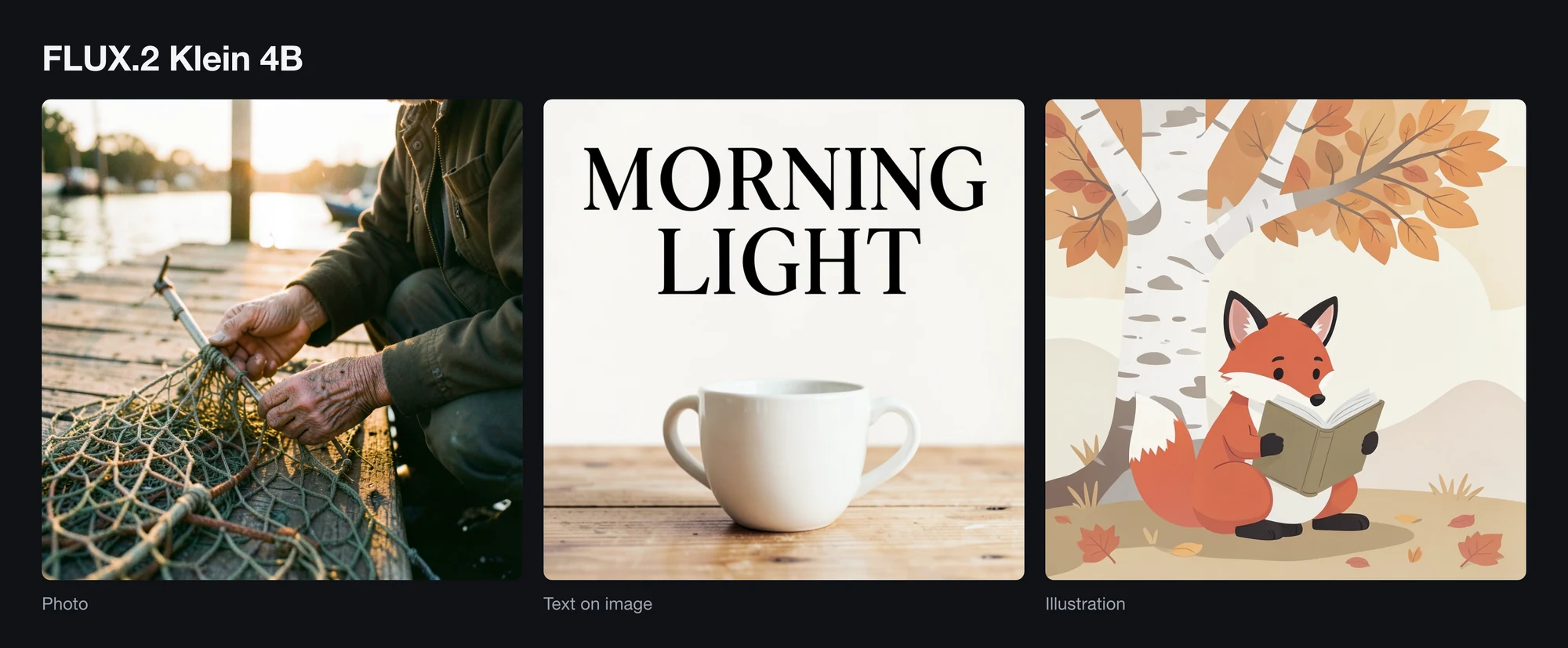
FLUX.2 Klein 4B, Q4_K_M, four steps, seed 42, 1024 × 1024.
| Model configuration | Value |
|---|---|
| Model and supporting files | 2.4 GiB + 7.8 GiB |
| Atomic Chat setup | Q4_K_M model; bf16 Qwen3-4B encoder; FLUX.2 VAE |
| Loaded weights | 10.1 GiB |
| Default | 4 steps |
| License | Apache-2.0 |
Klein 4B was the fastest model in this run. Its four-step default gives it a large speed advantage, while Transform makes it more versatile than the Create-only models. Peak VRAM reached 15.9 GiB during the 1024 × 1024 render.
| RTX 5090 benchmark, 1024 × 1024 | Result |
|---|---|
| Time per image after warm-up | 1.76 s |
| Resident VRAM | 9.4 GiB |
| Peak VRAM | 15.9 GiB |
FLUX.1 schnell
FLUX.1 schnell is Black Forest Labs' fast, text-to-image-only FLUX.1 model. Official model source.
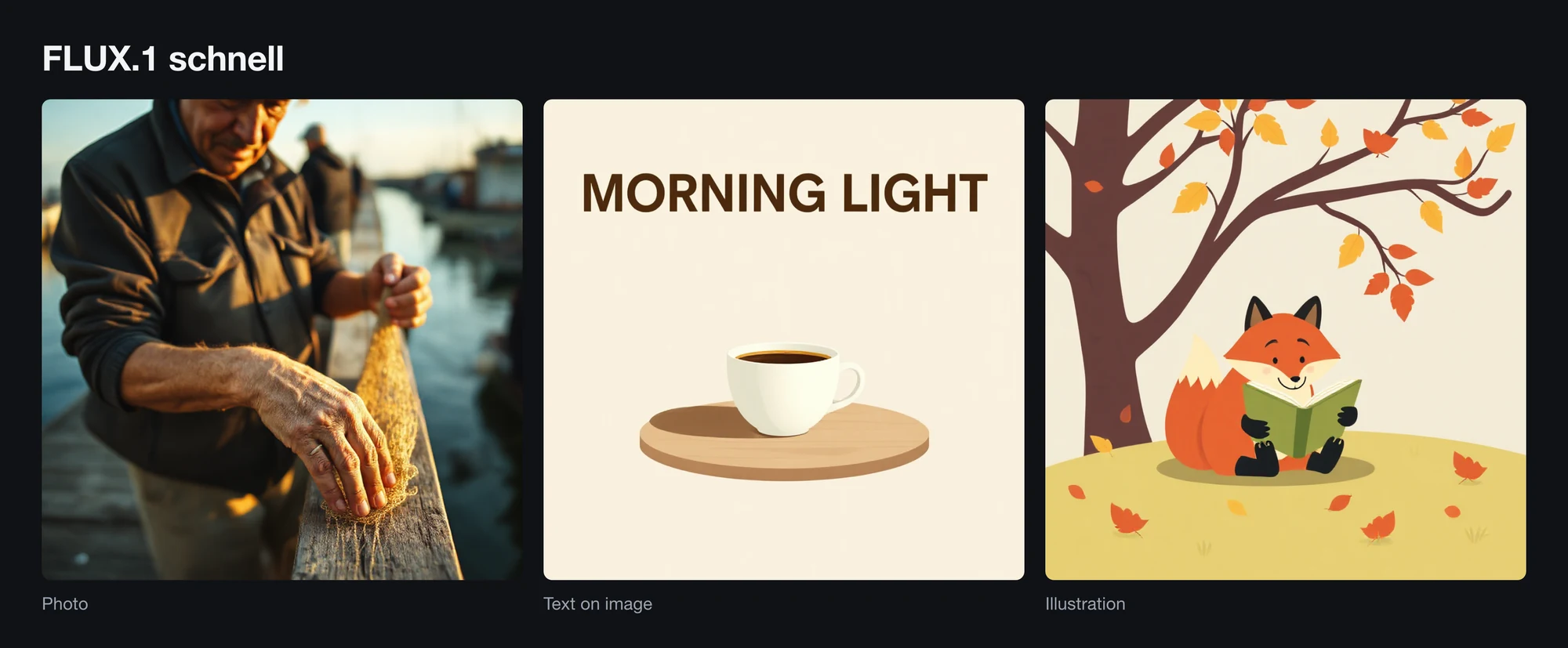
FLUX.1 schnell, Q4_K_M, four steps, seed 42, 1024 × 1024.
| Model configuration | Value |
|---|---|
| Model and supporting files | 6.4 GiB + 9.7 GiB |
| Atomic Chat setup | Q4_K_M model; fp16 T5-XXL; CLIP-L; FLUX VAE |
| Loaded weights | 15.7 GiB |
| Default | 4 steps |
| License | Apache-2.0 |
Schnell took 2.80 seconds per image, compared with 1.76 for Klein 4B. Its 23.2 GiB peak leaves little room on a 24 GB-class card, so check actual free memory or use offloading.
| RTX 5090 benchmark, 1024 × 1024 | Result |
|---|---|
| Time per image after warm-up | 2.80 s |
| Resident VRAM | 16.7 GiB |
| Peak VRAM | 23.2 GiB |
FLUX.1 Krea Dev
FLUX.1 Krea Dev is a text-to-image FLUX.1 model released under the non-commercial FLUX.1 dev terms. The license distinguishes running the model commercially from using its generated outputs. Official model source.
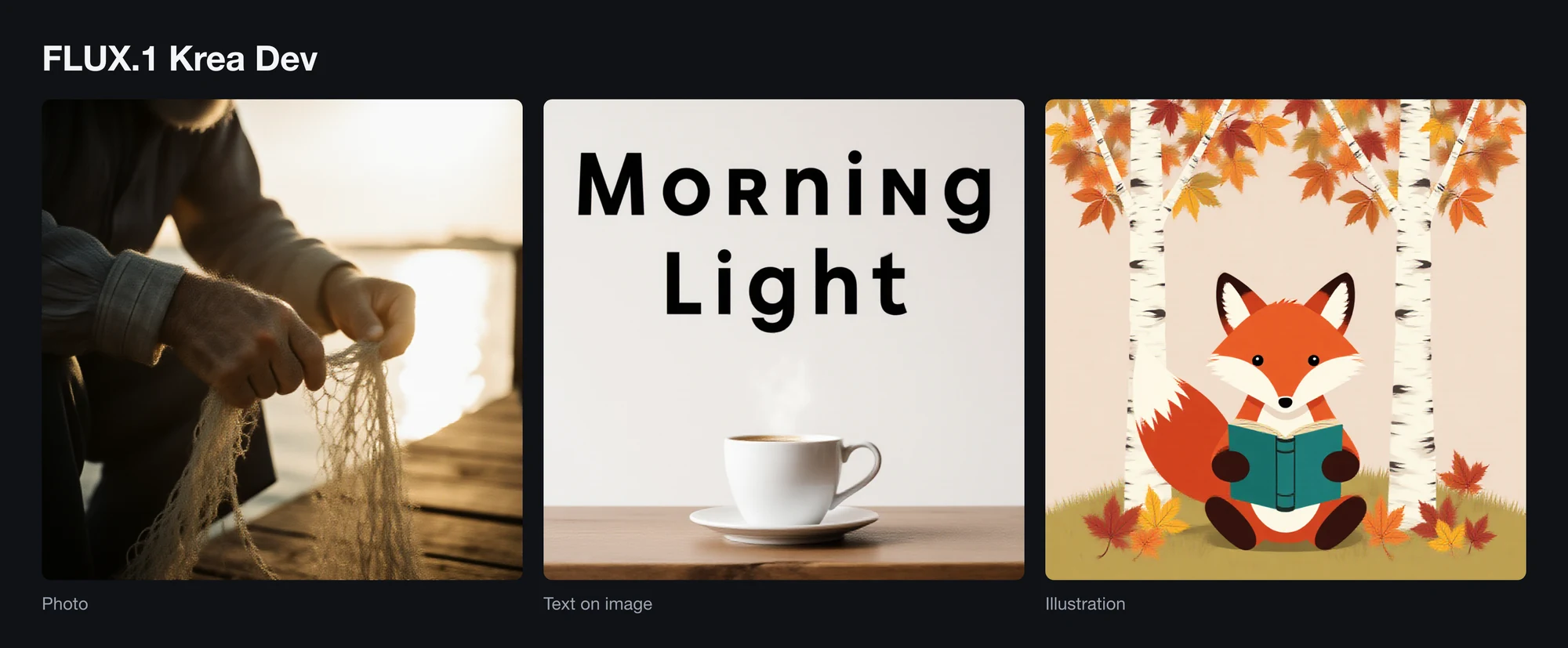
FLUX.1 Krea Dev, Q4_K_M, 20 steps, seed 42, 1024 × 1024.
| Model configuration | Value |
|---|---|
| Model and supporting files | 6.5 GiB + 9.7 GiB |
| Atomic Chat setup | Q4_K_M model; fp16 T5-XXL; CLIP-L; FLUX VAE |
| Loaded weights | 15.7 GiB |
| Default | 20 steps; guidance 3.5 |
| License | FLUX.1 dev, non-commercial |
Krea Dev uses 20 steps compared with schnell's four, so this measures different default configurations. The examples show the resulting visual differences.
Its 23.3 GiB peak VRAM is close to schnell's. A 24 GB-class card offers little headroom at these settings. The FLUX.1 dev terms restrict model use, while separately permitting commercial use of outputs under their conditions.
| RTX 5090 benchmark, 1024 × 1024 | Result |
|---|---|
| Time per image after warm-up | 11.42 s |
| Resident VRAM | 16.8 GiB |
| Peak VRAM | 23.3 GiB |
Krea 2 Turbo
Krea 2 Turbo is a Create-mode model distributed under the Krea 2 Community License. Official model source.
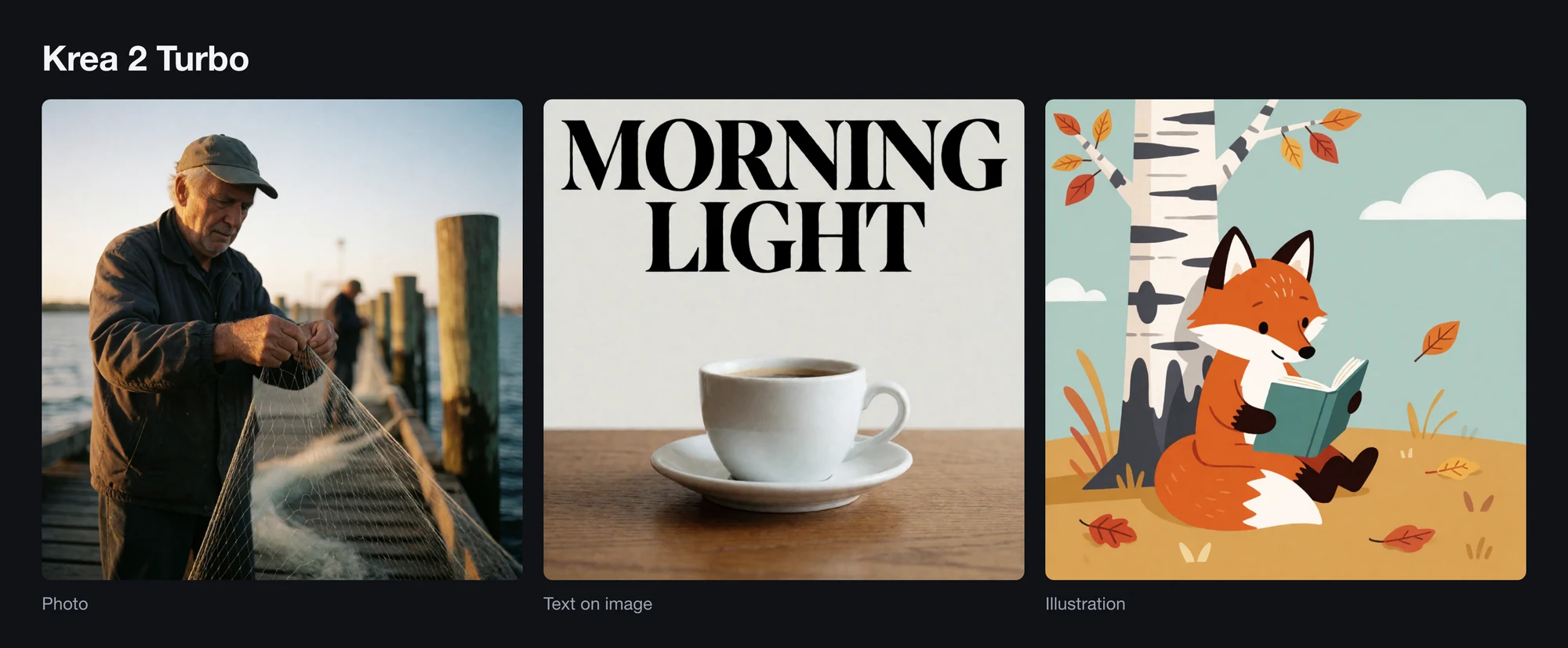
Krea 2 Turbo, Q4_K_M, eight steps, seed 42, 1024 × 1024.
| Model configuration | Value |
|---|---|
| Model and supporting files | 6.7 GiB + 2.6 GiB |
| Atomic Chat setup | Q4_K_M model; Qwen3-VL-4B Q4_K_M encoder; Wan 2.1 VAE |
| Loaded weights | 9.3 GiB |
| Default | 8 steps |
| License | Krea 2 Community License |
Krea 2 Turbo used less peak memory than either FLUX.1 model and took 5.71 seconds per image, about half the time of Krea Dev at its default settings. Compare the examples above for visual differences.
Krea 2 Turbo permits commercial use under its Community License when combined annual revenue, including affiliates, is below USD 1 million over the preceding 12 months, subject to the remaining license terms.
| RTX 5090 benchmark, 1024 × 1024 | Result |
|---|---|
| Time per image after warm-up | 5.71 s |
| Resident VRAM | 9.9 GiB |
| Peak VRAM | 17.2 GiB |
Qwen-Image
Qwen-Image is a Create-mode image model from Qwen, designed for image generation with text in the composition. Official model source.
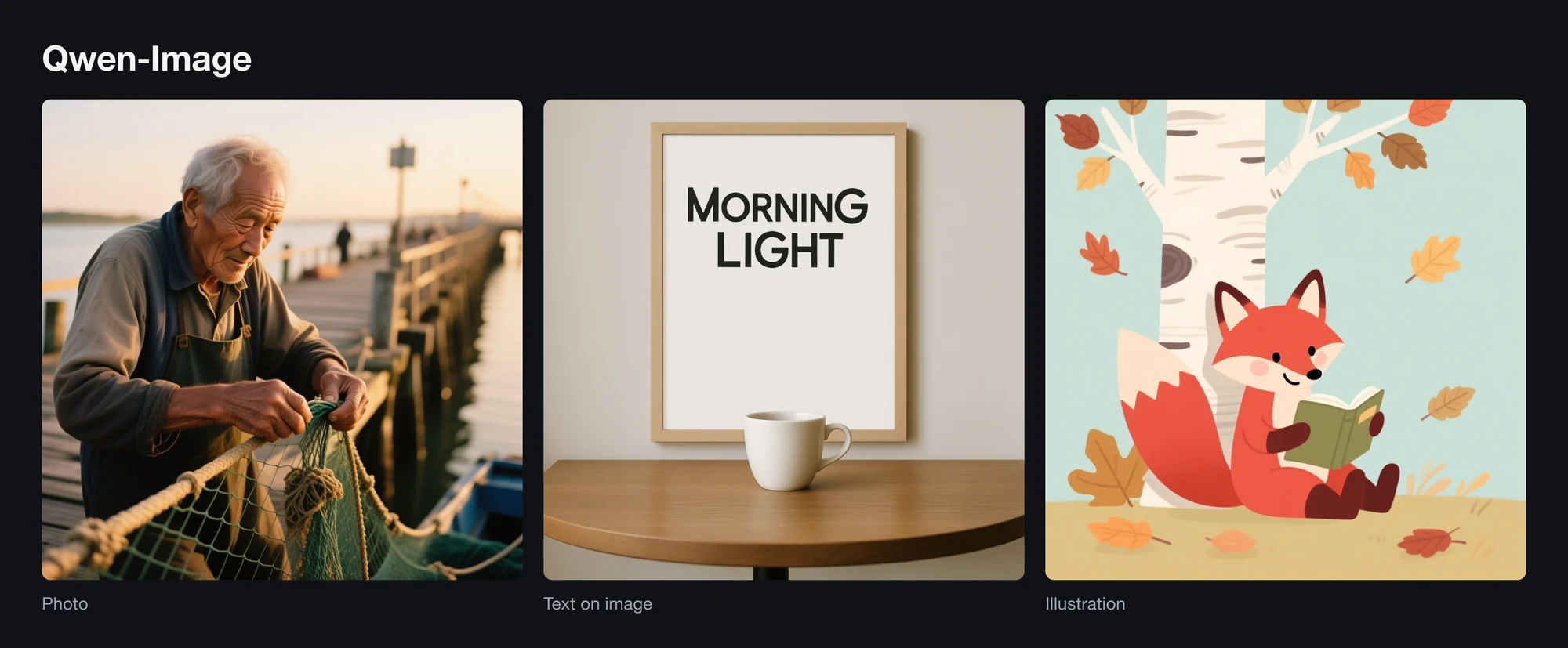
Qwen-Image, Q4_K_M, 20 steps, seed 42, 1024 × 1024.
| Model configuration | Value |
|---|---|
| Model and supporting files | 12.2 GiB + 4.6 GiB |
| Atomic Chat setup | Q4_K_M model; Qwen2.5-VL-7B Q4_K_M encoder; Qwen VAE |
| Loaded weights | 16.4 GiB |
| Default | 20 steps; CFG 2.5; flow shift 3 |
| License | Apache-2.0 |
Qwen-Image is the largest model setup in this comparison. Its 24.4 GiB peak just exceeds what a nominal 24 GB card reports, so it needs a 32 GB card or CPU offload. It rendered the requested text correctly in the test, making it suited to posters, labels, packaging concepts, and other text-heavy images.
| RTX 5090 benchmark, 1024 × 1024 | Result |
|---|---|
| Time per image after warm-up | 25.47 s |
| Resident VRAM | 17.0 GiB |
| Peak VRAM | 24.4 GiB |
Qwen-Image-2.1
Qwen-Image-2.1 is a 7B model for text-to-image generation, reference-guided generation, and instruction-based editing. The model supports up to 10 reference images; Atomic Chat accepts a source image plus three additional references. Official model source.
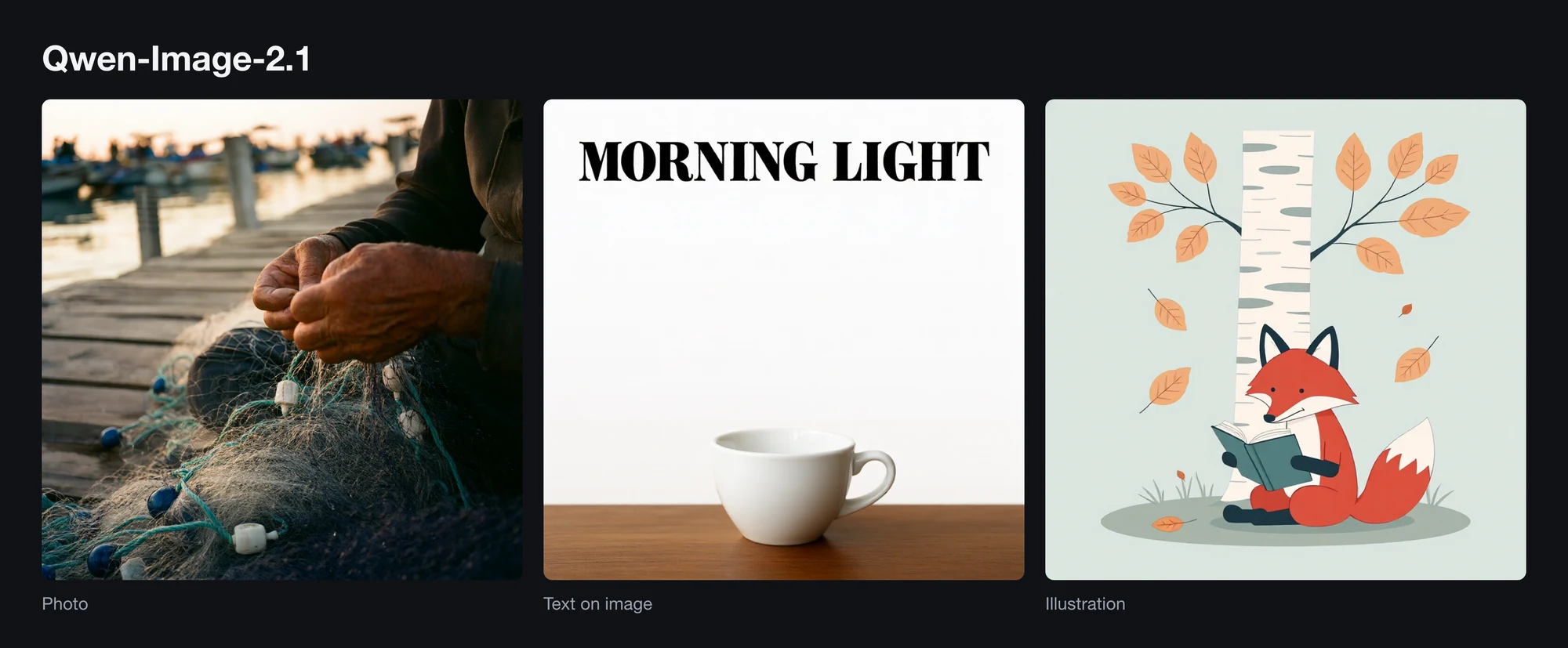
Qwen-Image-2.1, Q4_K, 40 steps, seed 42, 1024 × 1024, Create mode.
| Model configuration | Value |
|---|---|
| Model and supporting files | 3.9 GiB + 6.4 GiB |
| Atomic Chat setup | Q4_K model; Qwen3-VL-8B Q4_K_M encoder; Qwen 2.1 VAE |
| Loaded weights | 8.7 GiB in Create mode |
| Default | 40 steps; CFG 6.0 |
| License | Qwen Research, non-commercial |
Qwen-Image-2.1 had the longest generation time at its 40-step default, but used less peak memory than Qwen-Image. Its photo, text, and illustration examples are shown above; visual preference is subjective.
| RTX 5090 benchmark, 1024 × 1024 | Result |
|---|---|
| Time per image after warm-up | 38.98 s |
| Resident VRAM | 9.7 GiB |
| Peak VRAM | 19.3 GiB |
| Rendered text | “MORNING LIGHT” on one line |
Hardware requirements for local AI image generation
For the tested 1024 by 1024 configurations, 16 GB-class GPUs are a starting point for Z-Image Turbo; larger models need more memory or offloading. Compare each measured peak with the free memory reported by your driver. Desktop applications and other workloads also consume memory.
The following NVIDIA cards are candidates for these workloads; only the RTX 5090 was benchmarked for this article:
- NVIDIA GeForce RTX 5090 (32 GB)
- RTX 4090 (24 GB)
- RTX 3090 (24 GB) can also be good options.
16 GB cards like NVIDIA GeForce RTX 5080 can also work, but they’re more limiting in terms of what models you can run.
On Macs, suitable configurations include:
- MacBook Pro with M5 Pro: 24 GB or more of unified memory
- MacBook Pro with M5 Max: 36 GB, 48 GB, 64 GB, or 128 GB of unified memory
- Mac Studio
On Macs, unified memory is shared with macOS and other apps. The CUDA peaks below are a planning reference, not measured Apple Silicon requirements. Runtime, offloading, and image resolution can change memory use.
- A 24 GB Mac is a starting point to evaluate Z-Image Turbo or FLUX.2 Klein 4B, with room reserved for macOS.
- A 32 GB Mac provides more room to evaluate Krea 2 Turbo and Qwen-Image-2.1. FLUX.1 models may need offloading depending on other memory use.
- A Mac with 36 GB or more offers a larger memory budget for the models in this list. These configurations were not tested here.
Note: We haven’t measured generation speed on a Mac as part of this benchmark.
You can sometimes run these models with less than 16 GB of memory by using lower quantizations, CPU offloading, or other memory-saving techniques, but 16 GB is a much more practical starting point.
The table below is a planning guide based on the RTX 5090 measurements. It does not confirm identical memory use on every GPU or runtime.
| Memory | Planning against the measured peaks |
|---|---|
| 16 GB | Z-Image Turbo peaked at 14.6 GiB. Klein 4B reached 15.9 GiB, leaving very little headroom. |
| 20 GB | Z-Image Turbo, FLUX.2 Klein 4B, and Krea 2 Turbo |
| 24 GB | Z-Image Turbo, Klein 4B, Krea 2 Turbo, and Qwen-Image-2.1 peaked below 20 GiB. FLUX.1 reached 23.2 to 23.3 GiB; allow for other memory use or offloading. |
| 32 GB | All measured peaks were below 25 GiB at the tested settings. |
How to Generate Images Locally in Atomic Chat
Atomic Chat runs image models through stable-diffusion.cpp, a C++ engine that also powers local FLUX and Qwen-Image inference. The app handles the downloads and setup.
- Install Atomic Chat and open Images.
- Install the stable-diffusion.cpp engine when prompted. It is about 100 MB and separate from model downloads.
- Pick a catalog model whose model and encoder files fit your storage and memory budget.
- Select Download, wait for the model files, then select Run. With text encoders included, a model takes about 7 to 17 GiB, and shared files are downloaded once.
- Write a specific prompt: subject, composition, lighting, visual style, and any required text. Select Generate to create the image. Change one variable per iteration.
FAQ
Can I create AI images locally?
Yes. With the models downloaded and a fully local workflow selected, generation can run offline on your computer. Cloud backends and API nodes send data to external services.
What local AI models can generate images?
Z-Image Turbo, FLUX.2 Klein 4B, FLUX.1 schnell, FLUX.1 Krea Dev, Krea 2 Turbo, Qwen-Image, and Qwen-Image-2.1, among others.
Are offline AI image generators free?
Most listed apps are free to download, and local generation does not require a per-image API payment. Model licenses differ: FLUX.1 Krea Dev restricts model use but separately permits commercial outputs under its terms; Qwen-Image-2.1 is for research or evaluation unless separately licensed; Krea 2 Turbo has a revenue threshold.
What is the best local AI image generator in 2026?
- Atomic Chat is best if you need an easy-to-use local AI image generator that’s part of a broader offline AI app.
- ComfyUI is best if you need deep, node-based customization.
- Krita AI Diffusion is best if you already work in Krita and want generation inside layers and selections.
- Draw Things is best if you’re a Mac user.
How much VRAM do I need?
At the tested settings, Z-Image Turbo peaked at 14.6 GiB. A 24 GB-class card has more room for Klein 4B, Krea 2 Turbo, and Qwen-Image-2.1. FLUX.1 peaks near that card class's capacity; Qwen-Image exceeds it. Use a larger memory budget or offloading when free memory is insufficient.