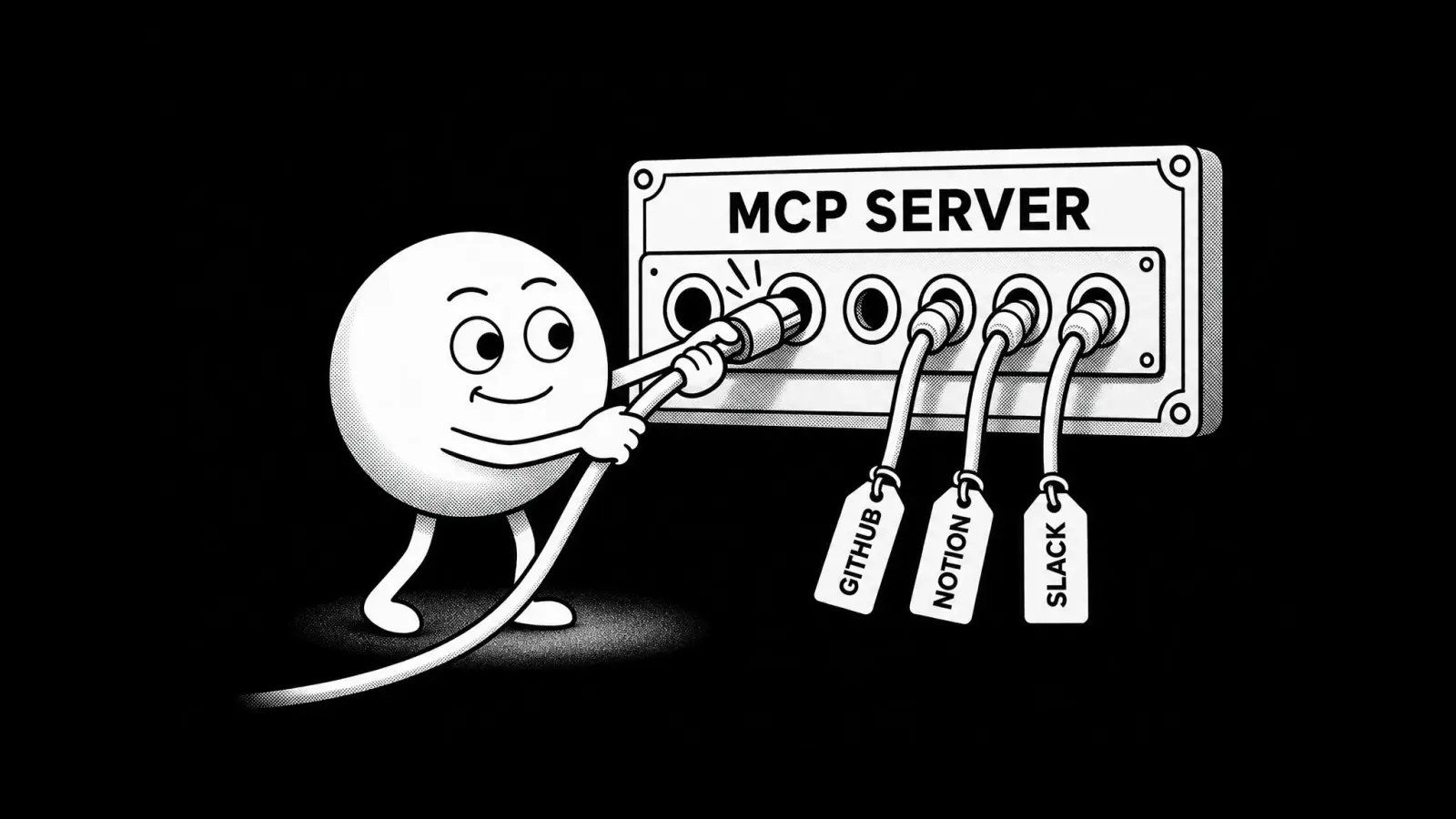


If you want an AI application to interact with the outside world, you need to connect the model to other apps somehow. An MCP (Model Context Protocol) server is a small program that connects the LLM and another app.
In this article, you'll learn:
- What MCP servers are in AI
- How they work
- When an MCP server is useful
- How to set up and test an MCP server
What is an MCP server?
An MCP server is a program that gives an AI application a standardized way to access tools, data, and external systems. For example, consider the GitHub MCP server. It exposes tools such as:
search_repositoriesread_issuecreate_issueget_pull_request
An AI app can connect to the GitHub MCP server, discover what capabilities it exposes, and call those capabilities through the MCP protocol.
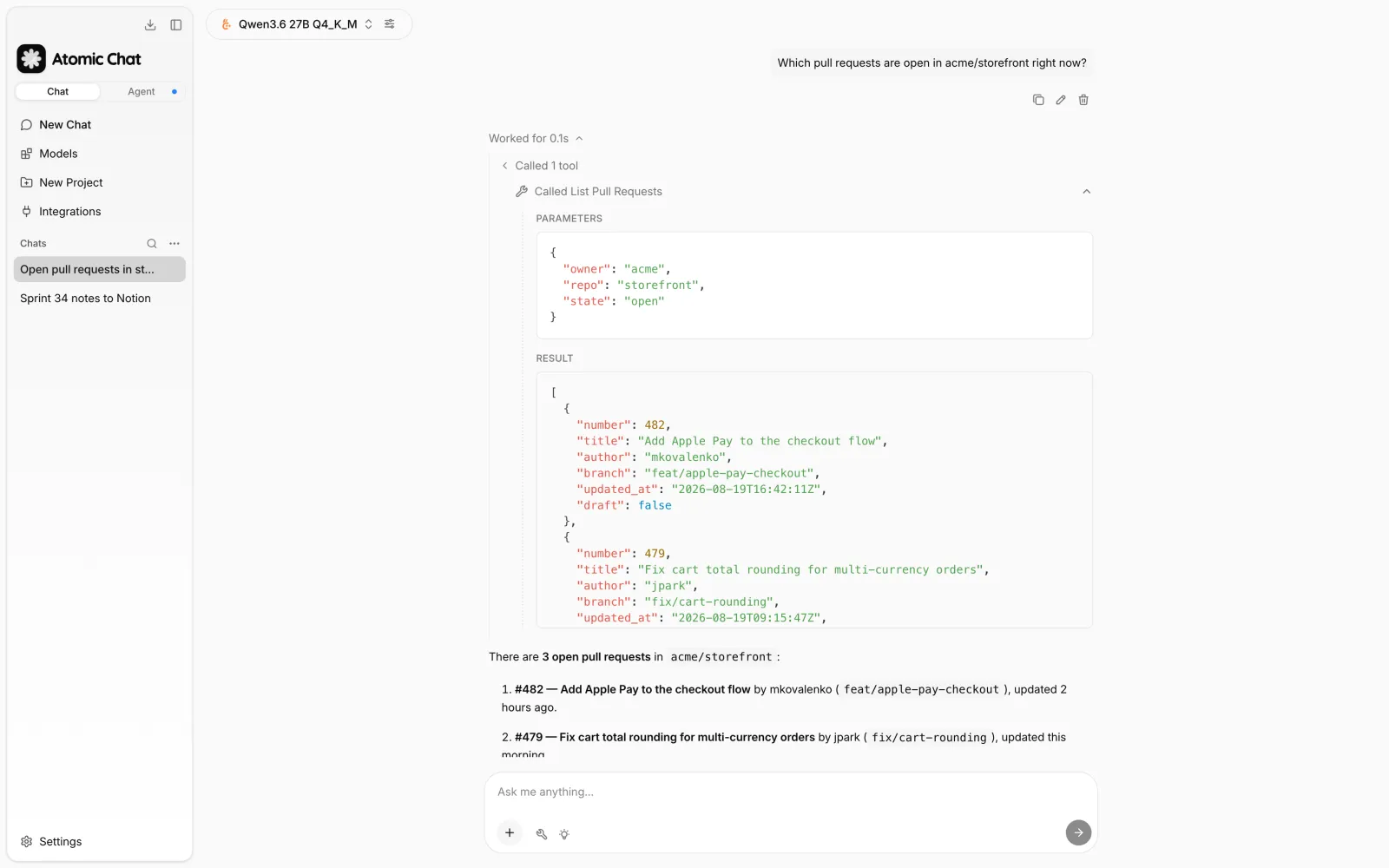
For example, the screenshot below shows a chat in Atomic Chat, a local AI app we've built, where we asked a locally running AI model to retrieve open pull requests in a repository:
And here's another example, where we asked Atomic Chat to summarize decisions from the conversation and save them under "Team Docs" in Notion:
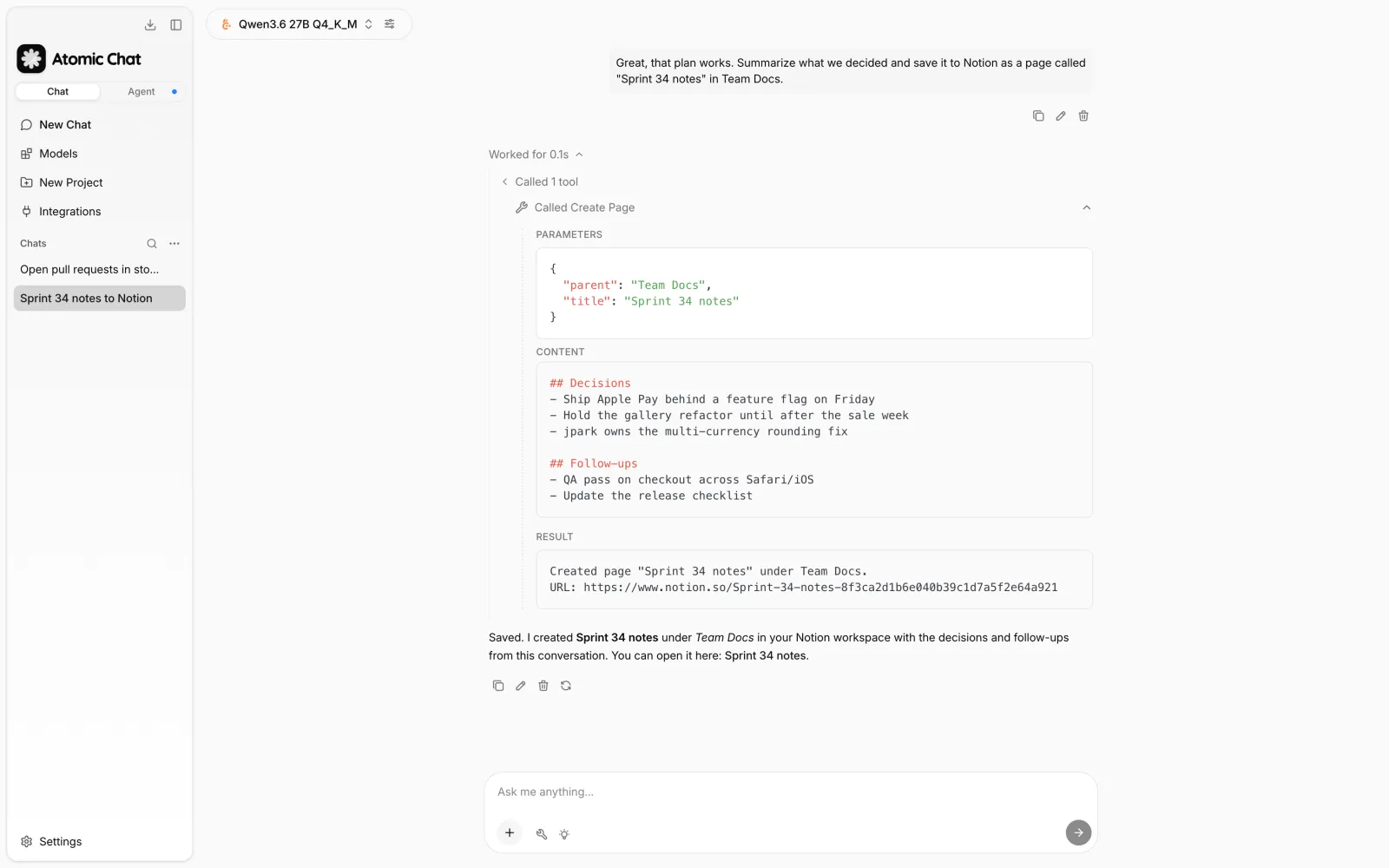
This is possible thanks to the Notion MCP server.
How MCP Servers Work
An MCP server receives tool requests from an AI application, executes them against an external system, and returns the results in a structured format.
| Stage | What it does |
|---|---|
| User | Sends a request or asks the AI to perform a task. |
| AI Application | Interprets the request and decides whether an external tool or data source is needed. |
| MCP Client | Connects to the MCP server, discovers available capabilities, and sends structured tool or resource requests. |
| MCP Server | Receives the request, translates it into an operation against the external system, and returns the result. |
| External Service | The underlying system that actually stores the data or performs the action, such as GitHub, Slack, a database, or an API. |
Tools, Resources, and Prompts in MCP
To achieve that, an MCP server typically exposes three main types of capabilities:
1. Tools
Tools are actions the AI can perform, for example:
search_issues
create_issue
send_message
run_sql
get_weather
A tool usually includes:
- A name
- A description
- A schema describing its required inputs
For example:
{
  "name": "get_weather",
  "description": "Get the current weather for a city",
  "inputSchema": {
    "type": "object",
    "properties": {
      "city": {
        "type": "string"
      }
    },
    "required": ["city"]
  }
}
Because the model receives the description and input schema, it can decide when to use the tool and what arguments to provide.
2. Resources
Resources are pieces of information the AI can retrieve — a readable piece of data that carries information, such as:
- Files
- Database records
- Documentation
- API responses
- Application data
A resource is generally something the model can read rather than execute.
3. Prompts
MCP servers can also expose reusable prompts or workflows that can provide predefined instructions for common tasks. For example, a code-review MCP server might expose a reusable prompt for reviewing a pull request.
Understanding MCP Host and Client vs. MCP Server
MCP servers are sometimes confused with AI models, but they don't perform inference themselves. Instead, they run alongside the application or service the model wants to access, exposing its capabilities through the MCP interface.
You'll also sometimes hear the terms MCP host and MCP client. Here's how they fit into the architecture:
- MCP Host is the application the user interacts with, such as ChatGPT, Claude Desktop, or an IDE.
- MCP Client is the part of the host that opens a connection to an MCP server, discovers what the server exposes, sends requests, and passes the results back to the host.
A host can run multiple MCP clients, typically one for each server connection.
Local vs Remote MCP Servers
MCP servers can run locally on your machine or remotely over the network.
A local MCP server runs as a process on your computer, usually because it needs access to something that only exists there. A good example is a Filesystem MCP server, which can expose selected folders and files to an AI app. Other local servers might wrap developer tools, local databases, or command-line utilities.
A remote MCP server runs on infrastructure operated by the service you're connecting to. The MCP client connects to it over HTTP instead of launching it locally. GitHub MCP and Figma MCP are good examples: the server can sit close to GitHub or Figma's own APIs and expose those services through MCP without requiring you to run the integration yourself.
The distinction is mostly about where the server runs. From the model's point of view, both expose tools and resources through the same MCP interface.
When is an MCP server useful?
An MCP server is useful when an AI application needs to interact with external data or software through a reusable, standardized integration. If an application never needs information or actions outside the model, it may not need MCP at all.
MCP servers aren't the only way to connect AI models to external data. Developers can build custom connectors and use tool-calling APIs directly. Before MCP, that often meant building separate integrations between individual AI apps and each external system. As the number of models, applications, and services grew, so did the duplicated integration work.
Because of this, Anthropic introduced the Model Context Protocol in November 2024 as an open standard for connecting AI applications to external systems. The idea was to replace many one-off integrations with a common protocol. If you're familiar with APIs, an MCP server is similar to an API adapter designed specifically for AI applications.
How to set up an MCP server
We'll use Atomic Chat — a local AI app we built — to walk through the setup process. You can follow the same general steps in other AI apps too, although the interface may look a little different.
In Atomic Chat, open Settings → MCP Servers → Add MCP Server.
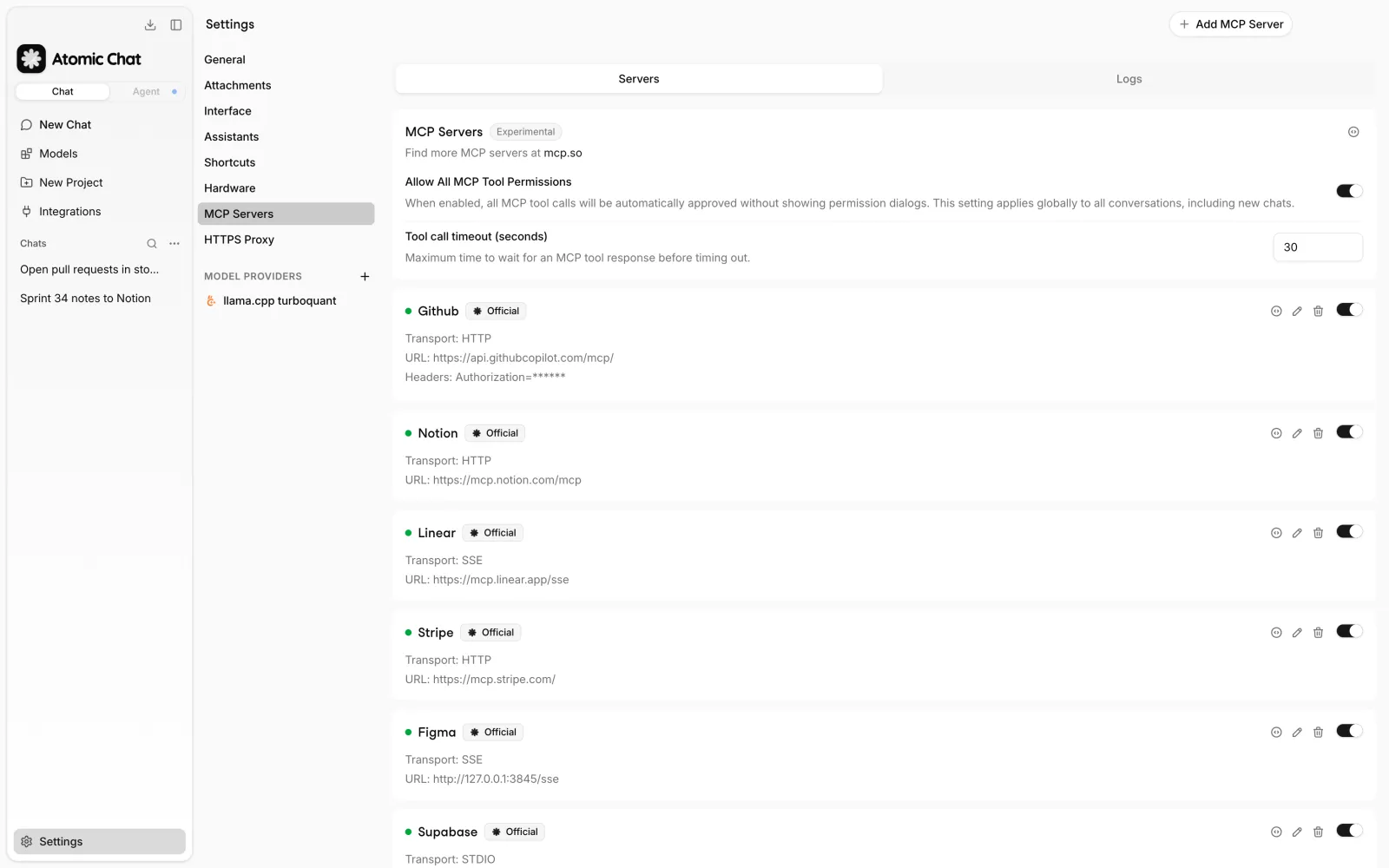
To set up a remote MCP server
Choose the remote connection option and enter the URL provided by the server maintainer.
If the server uses OAuth, Atomic Chat will prompt you to sign in. If it uses a token or another credential, enter it as described in the server's documentation.
Most current hosted MCP servers use HTTP. Atomic Chat also supports legacy SSE configurations for servers that still require them.
To set up a local MCP server
For a server that runs on your computer, choose STDIO.
For example, the reference filesystem server is a local MCP server that gives the client access to specific directories on your computer.
In Atomic Chat, set the command to:
npx
Then add these arguments in order:
-y
@modelcontextprotocol/server-filesystem
/Users/you/Projects
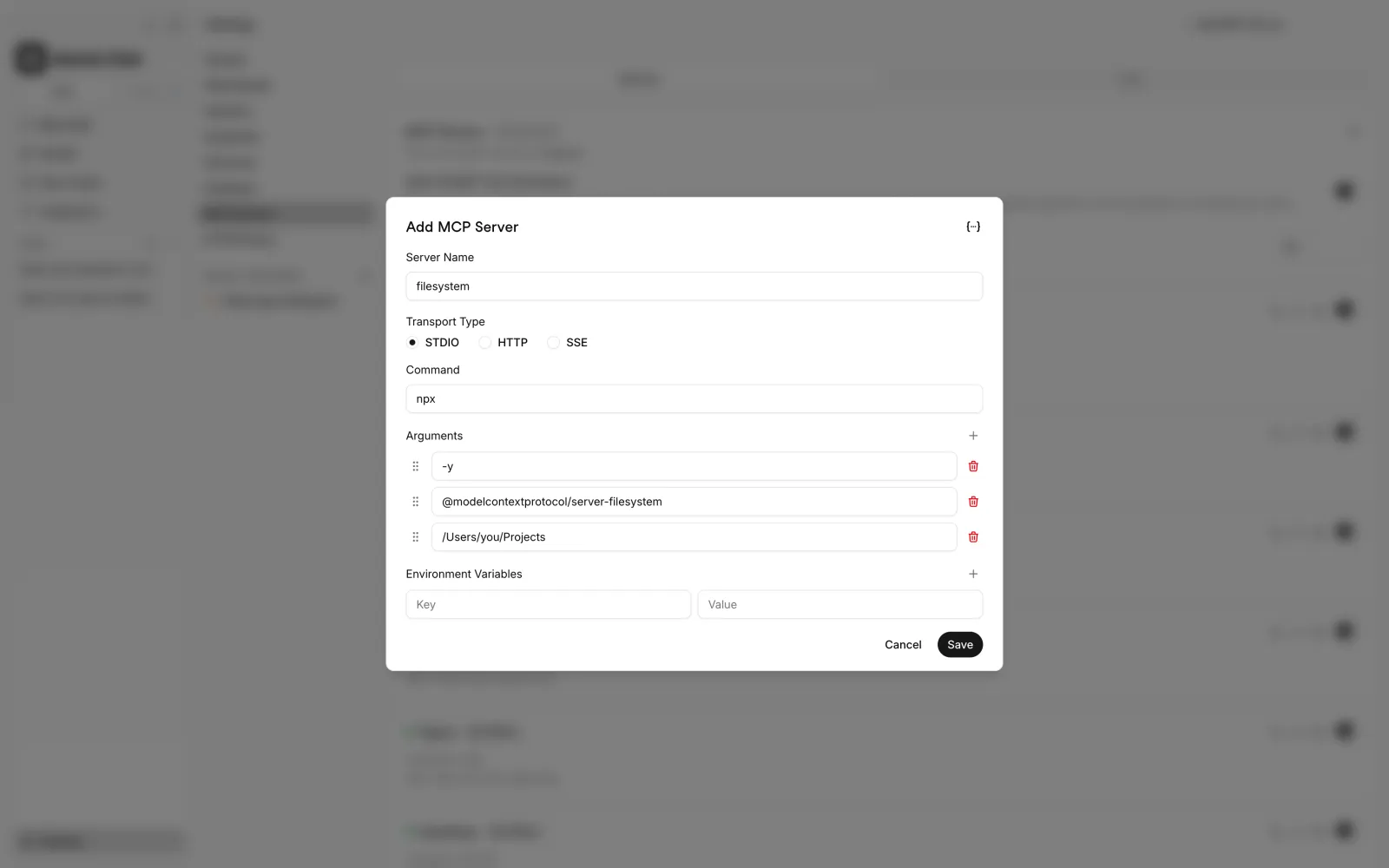
Replace /Users/you/Projects with a directory on your own machine.
Warning: Only expose directories you want the server to access.
How to configure an MCP server with JSON
JSON is an alternative way to specify the same configuration. Most MCP servers publish their setup instructions as a JSON snippet, so it's often faster to paste that into Atomic Chat's JSON editor than to translate it into form fields.
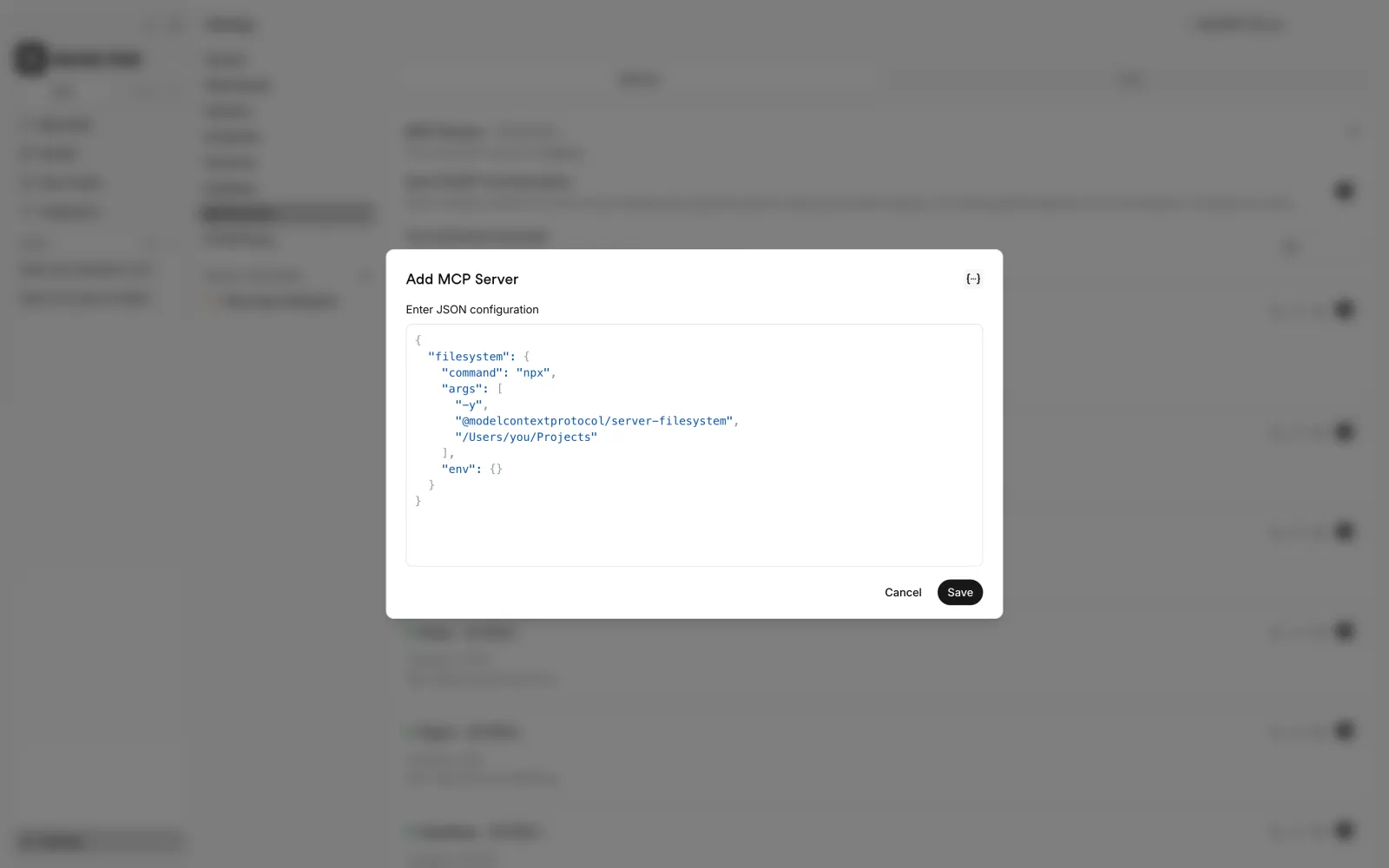
For example, for the filesystem server from the previous section, the JSON config looks like this:
{
  "command": "npx",
  "args": [
    "-y",
    "@modelcontextprotocol/server-filesystem",
    "/Users/you/Projects"
  ],
  "env": {}
}- command — the program that starts the server. Here
npxdownloads the package and runs it in one step. - args — the package name plus the server's own options. For the filesystem server, that's the list of directories it's allowed to access.
- env — environment variables, typically API keys or tokens. The filesystem server doesn't need any, so the object stays empty.
Check the package name against the server's current documentation before saving, because packages sometimes get renamed.
Test the server
After the server connects, check that its tools actually work before relying on them. Start with a small, read-only request, so a mistake can't change anything. For the filesystem server, you could ask:
- What files are in my Projects folder?
- Open the README in Projects and summarize it.
If the model shows a tool call and returns real file names, the connection works. If it answers from memory instead — without a visible tool call — the server may not be connected, or the model may not have recognized that the request needed it; try naming the tool or the server explicitly.
If the tool call itself fails, the usual causes are a wrong command or package name, a typo in the directory path, or a request that points outside the directories you exposed.
Using MCP servers securely
MCP servers can expose private data, access third-party APIs, or perform actions on your behalf, so it's important to configure them correctly to stay safe.
As of the 2026-07-28 version, the official MCP specification gives very specific advice on how to use MCP servers securely.
There are quite a lot of recommendations, but the most important practical rule is to keep confirmation enabled for consequential actions. That means, before approving one, review the proposed action, its target, and the changes it will make.
Below are the most important pieces of advice from the full specification:
- Only connect trusted MCP servers. Review the server operator, source code when available, deployment infrastructure, and the tools it exposes. Prefer the service provider's documentation, the project's source repository, or an entry in the official MCP Registry, and confirm the package name or endpoint against that source — a familiar name in an unofficial directory is not enough, especially when the setup asks you to run code locally. A malicious or compromised MCP server can introduce prompt-injection or data-exfiltration risks.
- Use strong authentication and least privilege. Prefer OAuth to static shared API keys, give each user only the scopes they need, and validate tokens server-side. Reduce scope on the data side too: a filesystem server that needs one project should not receive your whole home folder, and a database used for analysis should have read-only credentials. GitHub's official MCP server, for example, supports selected toolsets, individual tools, and a read-only mode, so listing pull requests does not require permission to edit the repository.
- Put destructive or externally visible operations behind stronger authorization and user confirmation. Listing issues is easy to reverse because it changes nothing; creating a Notion page, sending a message, deploying code, or deleting a file is not. Keep confirmation enabled for actions that change external systems until you understand exactly what the server will do and where.
- Treat MCP-returned content as untrusted data. A document, website, GitHub issue, or database record can contain instructions intended to manipulate the model. Your application should never treat retrieved text as authorization to invoke another privileged tool.
- Enforce permissions on the server. Do not rely on the model to decide what a user is allowed to access — models are subject to prompt injection attacks, so the MCP server should independently check the authenticated user's identity, tenant, resource permissions, and permitted operation before returning data or performing an action.
- Keep secrets out of prompts and tool results. Store credentials in a secret manager or protected server environment. Avoid returning access tokens, API keys, database passwords, or unnecessary sensitive fields through MCP responses.
- Check the complete route your data takes. A local MCP server does not necessarily make the whole conversation local: the model may run in the cloud, and the server may call GitHub, Notion, or another hosted API. Conversely, a local filesystem server may keep file access on your computer while still returning selected file contents to a cloud model. Review the model provider, the MCP server, and the downstream service separately.
- Make dangerous tools narrow. Prefer
update_ticket_status(ticket_id, status)over something equivalent toexecute_arbitrary_sql(sql)orrun_shell(command). Narrow interfaces make authorization, auditing, and validation much easier. - Log security-relevant activity. Record the authenticated principal, MCP tool invoked, affected resource, outcome, and authorization decision. Avoid logging secrets or unnecessarily sensitive data.
Key Takeaways
- An MCP server connects AI applications to external tools and data. MCP stands for Model Context Protocol, an open standard that lets AI applications interact with APIs, databases, files, developer tools, and business software through a common interface.
- MCP servers let AI applications give models capabilities they do not have on their own — such as reading current data or making changes in other apps.
- MCP servers can expose tools, resources, and prompts. Tools let the model perform actions, resources give it information to read, and prompts provide reusable instructions or workflows for common tasks.
- MCP is useful for standardization. Custom connectors and tool-calling integrations still work, but MCP provides a common interface that can reduce duplicated integration work.
- MCP servers can run locally or remotely. Local servers are useful when an integration needs access to files, databases, or tools on your machine. Remote servers are hosted on the network and can provide managed access to services such as GitHub, Atlassian, or Gmail.