

In mid-May 2026, researchers at Cyera disclosed a vulnerability they called "Bleeding Llama." Rated 9.1 out of 10, it lets an unauthenticated attacker pull prompts, system instructions, API keys, and environment variables straight out of an Ollama server's memory. Around 300,000 internet-facing instances were vulnerable when it went public. Ollama runs models locally, which means that your prompts never leave your computer.
At this point an obvious question arises: how does an attacker on the other side of the internet read someone's prompts out of memory?
The short answer
"Your data stays local" is true about how Ollama processes models, and it tells nothing about whether your setup is exposed.
What it means is that “local” is a property of where the model runs, not a guarantee of security. Ollama binds to 127.0.0.1:11434, which means only your own machine can talk to it. In that default state, a single-user laptop setup is relatively safe.
The problem starts when people make Ollama reachable from somewhere else. Set OLLAMA_HOSTto 0.0.0.0, skip the firewall or auth layer, and your “local” model is no longer “local-only”. At that point, you have exposed an API to the network — and that is exactly the kind of mistake Bleeding Llama exploited.
As you already understood, those 300,000 servers weren't running some exotic configuration. Their owners changed one setting to reach Ollama from another machine and never put a lock on the door. Bleeding Llama just walked through it.
Is your local LLM safe?
You are a solo user running models on your own laptop or desktop, with OLLAMA_HOST left at its default and the app kept current, you're in good shape. The API only listens on localhost, so there's nothing for a remote attacker to reach. The only real job that is left for you is patching. Most Ollama vulnerabilities get fixed fast, and the people who get hurt are almost always running a months-old version. Update when releases land and you've handled the bulk of your risk.
The exception is Windows, covered below.
If you've exposed Ollama to a network — set it to 0.0.0.0, forwarded the port through your router, opened it to your office LAN, or stood it up on a cloud box — you have actual work to do, today. Ollama has no authentication of any kind, so an open port is a fully open door: anyone who reaches it can run prompts on your hardware, list and download your models, push poisoned ones, and read sensitive data straight out of memory.
If this is you, jump to the audit and either pull the API back to localhost or put a VPN or authenticating reverse proxy in front of it – but don't leave it like this.
You are a Windows-user: add a layer of caution on top of whichever situation above applies to you. Two vulnerabilities in the Windows auto-updater — CVE-2026-42248 and CVE-2026-42249 — were still unpatched as of May 2026, and chained together they let an attacker plant a program that runs every time you log in.
The mechanism is the updater itself, so the practical fix is to turn off "Auto-download updates" in Ollama's settings and update manually from the official site until a patch ships. macOS and Linux users can skip this part; the flaw is specific to the Windows build.
How Ollama works under the hood
Two servers, one mental model
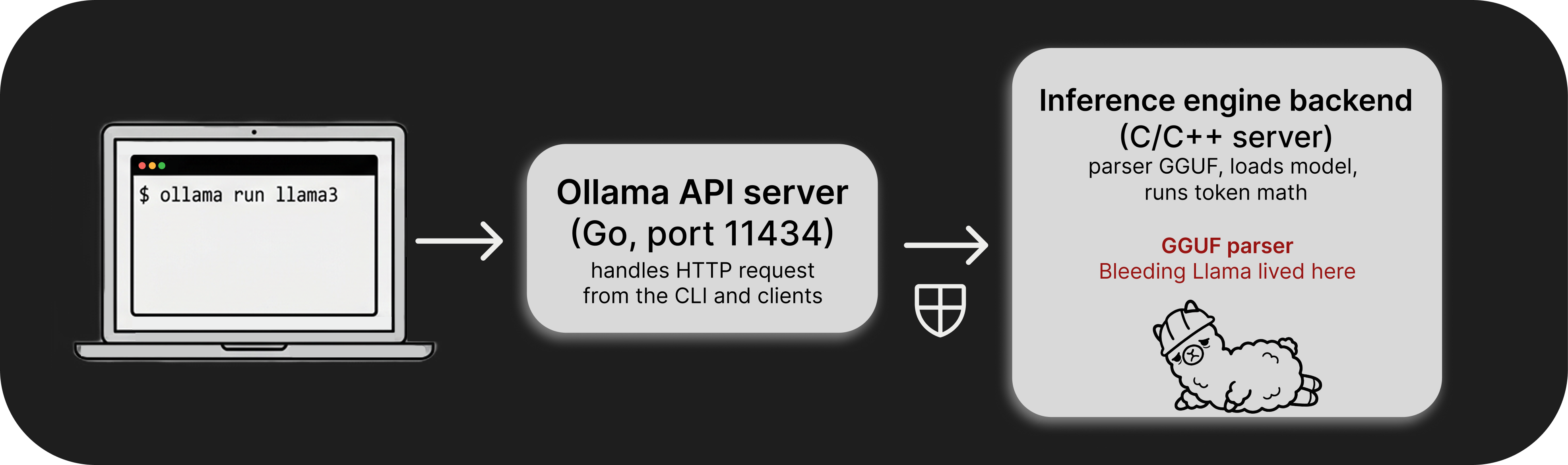
When you type ollama run llama3, that command is not running the model directly. The CLI talks to a background service over HTTP, and even that service is not doing the math itself. Ollama’s Go code starts a second server process — a compiled C/C++ inference engine in the Ollama stack — and uses it as a subprocess.
How the two layers talk to each other
You can see this in Ollama’s own source (llm/server.go), where it looks up a binary called ollama_llama_server, adds the right extension for the platform, and launches it with exec.Command(...) and a list of parameters. From that point on, the Go code treats this process as its internal backend.
Once that binary is running, Ollama talks to it on a local HTTP port. The same file shows requests going to http://127.0.0.1:%d/completion and /health, which tells you enough about the shape of the system. There are two servers involved: the Ollama API on port 11434, which you interact with, and a lower‑level inference engine behind it that actually runs the model and parses the model files.
Why the split matters for security
All the heavy lifting, loading the model, quantizing it, and parsing GGUF, happens in that C/C++ engine. It is working with raw memory and model files that ultimately come from outside.
Bleeding Llama lived exactly there: a heap out‑of‑bounds read while parsing a malicious GGUF file. The Go layer that exposes HTTP endpoints looks straightforward and boring; the bug sits one layer down, in the engine that Ollama is driving. When you read about “an Ollama vulnerability,” very often it is really a bug in that lower‑level inference layer that Ollama has made reachable over the network.
Local models, networked server
Models themselves come from a registry. The first time you pull one, Ollama downloads the file, verifies it, and writes it to disk — typically under ~/.ollama on macOS and Linux, or somewhere in your user directory on Windows. After that, everything is local: the model lives on your drive, gets mapped into RAM or VRAM, and your prompts go to the local server instead of a cloud API
Does Ollama send data to server?
For what most people actually care about, their conversations, the answer is simple: when you use Ollama, your prompts and the model’s replies stay on your machine. The model runs against a file on your disk, there’s no request to a cloud API, no “we may use your data to improve our service,” and no provider logging your questions.
Having said all that, “nothing leaves your machine” is a little too neat. A few things do talk to the network.
When you download a model, it comes from a registry, and you’re trusting whoever runs it and the file they hand you. Most of the time that’s fine, but it’s still a supply‑chain risk: a poisoned model is a real attack route, and you’re choosing to run someone else’s “data” inside your stack.
Ollama itself also talks to the network. It checks for new releases and, on some platforms, can pull updates automatically. That’s another outbound connection, and the update channel has already shown up in security write‑ups as a place where things can go wrong.
There may also be small version or telemetry pings. They don’t involve your prompts, but if your personal definition of “local” is literally “no outbound traffic at all,” Ollama doesn’t fit that standard — and, to be fair, almost no modern software does.
None of this blows up the basic privacy argument. Are local LLMs private? For the bit you care about most — what you type in and what comes back — yes. With a cloud API, every prompt, every document goes to someone else’s servers, where it can be logged and mined. With Ollama, that content lives and runs on your own machine. The tradeoffs are mostly about where models come from and how updates work, not about your text being siphoned off.
That’s why the tool you pick matters. If “keep it on my laptop” is the whole point for you, use software that is built around that idea instead of relying on careful network settings. A desktop app like Atomic Chat runs models on your computer without exposing a network‑reachable API in the first place, which avoids most of these edge cases. “Local” is something the software has to enforce by design, or you don’t really have it.
The Ollama vulnerabilities we better know about
Ollama has a track record when it comes to security. It’s not a disaster one, but it’s also not clean enough to hand‑wave with “it’s local, so it’s fine.
Probllama (CVE-2024-37032)
The first major issue, found by Wiz in mid‑2024, was a path traversal bug in the /api/pullendpoint — the part that fetches models. The API accepted a manifest where the digest field was supposed to be a SHA‑256 hash, but Ollama didn’t actually enforce that. An attacker could drop ../../../ into that field and make Ollama write files wherever it liked on the host. With the right target file, that turns into remote code execution.
This mattered most in the default Docker setup. Inside the container, the Ollama server ran as root and bound to 0.0.0.0, so anyone who could hit the API from the network could execute code as root with no authentication. The bug was fixed in May 2024, so if you’re on a reasonably current version you’re past it, but it established a pattern: untrusted input flowing into a server that does too little checking.
The Windows auto‑updater flaws (CVE-2026-42248, CVE-2026-42249)
These are the problems that still matter if you’re on Windows. Striga wrote them up in April 2026; together they break updates in a way that lets an attacker stick around on your machine.
The first bug is simple: the Windows build calls a function that is supposed to verify the signature on a downloaded update, but the check is effectively a no‑op. Anything that gets downloaded is treated as valid and run.
The second bug is another path traversal, this time in how the updater decides where to install the update. It pulls path components straight out of HTTP response headers. If an attacker can control the update response, they can send an ETag header with ../ in it and steer the installer into dropping an executable directly into the Windows Startup folder.
Together, that gives persistence. The payload ends up in Startup, runs on the next login, and then on every login after that, with no warning. This only affects Windows; macOS uses a different update mechanism. The issues were confirmed on Windows builds from 0.12.10 through 0.17.5, and the researchers warned that later releases up to 0.22.0 were likely affected as well. At the time they published their findings, no fixed Windows build had been released, and they said Ollama hadn’t responded. Until that changes, the practical thing to do on Windows is turn off “Auto‑download updates” in the settings so this update path never runs.
Bleeding Llama (CVE-2026-7482)
The one from the intro, and the most direct "data leak" of the set. Disclosed by Cyera in mid-May 2026, rated 9.1. It's a heap out-of-bounds read in the model quantization pipeline, the code that processes GGUF model files. When Ollama reads a GGUF, it trusts the tensor dimensions declared inside the file instead of checking them against the buffer it actually allocated. Feed it a file with mismatched metadata and it reads past the end of the buffer, returning whatever happens to be in adjacent memory.
That adjacent memory can hold other users' prompts, system instructions, API keys, and environment variables. Three API calls were enough to start extracting it. On an exposed server, that's straightforward data theft with no authentication required. It was patched in version 0.17.1, and roughly 300,000 internet-facing instances were vulnerable when it was published.
The pattern behind Ollama Security Weaknesess
We can treat three CVEs as separate incidents, but It's more useful to look at what they share: in 2024, Oligo reported six additional issues in Ollama. They were denial of service, model exfiltration, model poisoning. Across all of them, the same assumption showed up: the API expects a trusted environment. Limited input validation, no built-in authentication, a server that processes what it receives.
For a tool meant to run on localhost, that's a reasonable starting point. The problem is that Ollama has increasingly been deployed in ways that assumption doesn't cover — exposed to other machines, or to the public internet entirely.
The real risk is exposure, not the code
Each of the vulnerabilities above becomes more serious when an Ollama instance is reachable over a network.
Internet-wide scans through 2025 and 2026 have reported tens of Ollama servers listening on public IPs, with estimates between roughly 175,000 and 300,000 depending on methodology and timing. In many cases these appear to be regular installations where someone set OLLAMA_HOST=0.0.0.0, opened the port to reach Ollama from another machine, and left that configuration in place.
Ollama has no built-in authentication: no API key, no login, no token. The server treats anything that reaches the port as trusted. On a public address, it means anyone who finds the endpoint can run prompts on your hardware, pull or push model weights, and, like in the Bleeding Llama case, read data from process memory.
Open endpoints get scanned. Some campaigns route third-party traffic through exposed servers, and operators typically find out when an unexpectedly large compute bill arrives.
Most incidents don't involve sophisticated exploits against hardened systems. The common factor is simpler: an unauthenticated API left reachable from the internet. That's a configuration problem, which means it's also a fixable one and the place to start is understanding exactly where and how Ollama instance is exposed.
The Ollama audit: security practices to run yourself
Step 1: Check what your instance is bound to
The single most important question is whether Ollama is listening only on localhost or on every network interface. That's controlled by OLLAMA_HOST. If it's unset or 127.0.0.1, you're localhost-only and in good shape. If it's 0.0.0.0 or a specific LAN/public IP, the API is reachable beyond your machine.
On macOS or Linux, check the environment the service runs under:
echo $OLLAMA_HOSTIf that's empty, also confirm what's actually listening:
lsof -i :11434On Windows, check the environment variable:
echo %OLLAMA_HOST%You want to see nothing, or 127.0.0.1. If you see 0.0.0.0, keep going; Step 5 fixes it.
Step 2: Test whether port 11434 is reachable from outside
Binding tells you the intent; a real test tells you the truth. From a different device on the same network (or a phone on cellular, off your Wi-Fi, for an internet-facing test), try to reach the API:
curl http://YOUR_MACHINE_IP:11434/api/tags
If that returns a list of your models, the port is open and unauthenticated to whoever ran the command. If it hangs or refuses the connection, you're not reachable from there. Do this from outside your own machine, because testing from localhost always succeeds and tells you nothing.
Step 3: Check your version and update
Most of the CVEs above are fixed in current releases, so an out-of-date Ollama is the easy win. Check your version:
ollama --versionCompare it to the latest release on Ollama's site: if you're behind, update. Don’t forget to read Step 4 first if you're on Windows, because the update mechanism itself is currently the problem there.
Step 4: Windows users, disable auto-download updates
Until CVE-2026-42248 and CVE-2026-42249 are patched, the auto-updater is a liability rather than a safety feature. In Ollama's settings, turn off "Auto-download updates." That short-circuits the vulnerable code path.
Update manually instead: download the installer yourself from the official site and verify you got it from the real source.
Step 5: Lock down the port
If Step 1 or 2 showed you're exposed and you don't actually need network access, the cleanest fix is to stop exposing it. Set Ollama back to localhost by unsetting OLLAMA_HOST or setting it to 127.0.0.1, then restart the service.
If you do need other devices to reach it, don't leave the port open to everyone. Use your firewall to allow only the specific IPs that should connect. On Linux with ufw, that's roughly:
ufw deny 11434
ufw allow from 192.168.1.0/24 to any port 11434
Adjust the range to your actual trusted network. On Windows, do the equivalent in Windows Defender Firewall with an inbound rule scoped to specific remote addresses. The goal is the same everywhere: the port answers to machines you trust and ignores everyone else.
Step 6: Do remote access properly
If you genuinely need to reach Ollama from outside your network, say your home server from a laptop on the road, do not just forward port 11434 through your router. That's how instances end up in those internet scans. Two safe options:
Put it on a private network with a VPN. Tailscale or WireGuard give you an encrypted tunnel, and Ollama only ever sees connections from inside that network. For an individual, this is the simplest setup that actually holds up.
Or put a reverse proxy in front of it. Nginx or Caddy can require authentication before any request reaches Ollama, adding the login layer Ollama itself doesn't have. This is more work and more appropriate for a team or a real server.
Step 7: Harden Docker if you're running in a container
The Docker default (root user, bound to 0.0.0.0) is what made Probllama so dangerous. If you run Ollama in Docker, don't publish the port to all interfaces. Bind it to localhost on the host (127.0.0.1:11434:11434 rather than 11434:11434), put it on an isolated Docker network, and don't expose it to the host's public interface unless something in front of it is handling authentication.
Work through those seven steps and you've closed the gap that most documented incidents exploits.
Local LLM security best practices: shortlist
Most of this applies to any local inference server, not just Ollama. If you run one, these are the things that actually reduce risk in practice.
- Patch promptly: updates fix real issues, but many setups keep running outdated builds for months. Keeping your stack current is the easiest win.
- Do not expose an inference API without auth: if your API has no built-in authentication, treat it like an open door. Do not expose it unless you put something in front of it (reverse proxy, auth layer, etc.).
- Prefer localhost binding: kleep it on 127.0.0.1 by default and open external access only if you know exactly who needs it and why.
- Use a VPN for remote access: tools like Tailscale or WireGuard are safer than port forwarding. The service should stay inside a private network.
- Vet your model sources: download models from sources you trust, since random GGUF files from unknown authors are a risk. In Atomic Chat we vet every model.
- Isolate with containers and firewall rules: separate networks in Docker to blast the radius.
- Know what is listening: occasionally check which processes are exposed on which ports. Do it again after adding new tools or changing configs.
So, is Ollama safe?
Safe enough, if you run it the way most people should: locally, on your own machine, and kept up to date. In that setup the privacy benefits are real, and most recent bugs do not apply to you because they depend on network exposure you do not have.
It becomes risky when you expose it. Ollama has no built in authentication, a noticeable CVE history, and on Windows right now an unpatched issue in its own updater. Put that mix on a network without any real access controls and you are one routine scan away from trouble, which is how hundreds of thousands of servers ended up exposed to Bleeding Llama.
So “is Ollama safe” is the wrong yes or no question. The real question is how you are running it, and whether you have checked your setup. If you have not gone through the audit above yet, do that next: fifteen minutes is enough to find out whether you are the single user who is fine or the exposed server that is not.
❓FAQ
Is Ollama safe to use?
For most people, yes. Ollama is safe when you run it locally on your own machine, keep it updated, and do not expose its API to the open internet. In its default setup, Ollama only listens on localhost, so nothing outside your computer can reach it and your prompts stay on disk. It stops being safe when you change the configuration, bind it to 0.0.0.0, and expose the Ollama port without any authentication in front of it.
Is Ollama safe on Windows?
On Windows, you should be more careful. Two Windows auto‑updater issues (CVE-2026-42248 and CVE-2026-42249) were still unpatched as of May 2026 and can let an attacker drop a program that runs at every login. Until these ollama vulnerabilities are fully fixed, turn off “Auto-download updates” in Ollama’s settings and update manually from the official site. macOS and Linux builds are not affected by these two problems, but they still benefit from the same llm security best practices you would use anywhere else.
Does Ollama send your data to a server?
By design, Ollama does not send your prompts or model responses to a remote server. Inference happens on your own hardware, so your text does not go to a cloud provider by default. However, Ollama does make some outbound network requests: it downloads models from a registry, checks for new versions, and performs light version checks. None of these calls include the content of your conversations. For people who search “does Ollama send data to server” or “do local LLMs send data,” the key point is that normal usage is local, but you still need to control how and where the app can connect.
Are local LLMs private?
Local LLMs are much more private than cloud APIs: they run on your own machine, so your prompts are not logged by a third‑party provider or reused for training. The real risks are around the supply chain (where your model files and containers come from), exposed ports, and automatic update mechanisms. If you misconfigure things and leave a local LLM exposed port on the public Internet.
How do I check if my Ollama instance is exposed?
To see whether you have an Ollana exposed port, first check the OLLAMA_HOST value. If it is 127.0.0.1 or not set at all, Ollama is listening only on localhost. If it is 0.0.0.0 or a specific LAN or public IP, the API listens on that network interface. Then, from another device, run:
curl http://YOUR_MACHINE_IP:11434/api/tagsIf you get a list of models back, the port is reachable and unauthenticated. At that point, you should review your firewall rules and tighten your secure local llm setup so only trusted machines can connect.